# End-to-End Walkthrough: Reverse ETL Connections with Rudder CLI

<p>This tutorial shows you how to use <a href="https://www.rudderstack.com/docs/dev-tools/rudder-cli/" >Rudder CLI</a> to:</p>
<ul>
<li>Enable experimental Reverse ETL connection support</li>
<li>Put a SQL model, a destination, and a Reverse ETL connection in one project</li>
<li>Validate the graph locally, then apply it so Rudder CLI creates resources in dependency order</li>
<li>Confirm the first sync in the RudderStack dashboard</li>
</ul>
<p>For replace behavior and current limits, see <a href="https://www.rudderstack.com/docs/dev-tools/rudder-cli/retl-connections/" >Manage Reverse ETL Connections using Rudder CLI</a>.</p>
<!-- end-chunk -->
<!-- begin-chunk -->
<h2 id="prerequisites">Prerequisites</h2><ul>
<li>Rudder CLI tool (<code>rudder-cli</code>) <a href="https://www.rudderstack.com/docs/dev-tools/rudder-cli/installation/" >installed locally</a>, <strong>v0.27.0 or later</strong>.</li>
<li>A warehouse account in your workspace for the SQL model to query. Setting up a <a href="https://www.rudderstack.com/docs/sources/reverse-etl/" >Reverse ETL source</a> in the RudderStack dashboard creates one. You can also <a href="https://www.rudderstack.com/docs/dev-tools/rudder-cli/yaml-accounts/" >define an account</a> with Rudder CLI.</li>
<li>An HTTP endpoint you own that can receive the synced records.</li>
<li>A <a href="https://www.rudderstack.com/docs/access-management/service-access-tokens/#workspace-sat" >workspace-level Service Access Token</a> with the following <a href="https://www.rudderstack.com/docs/access-management/policies-overview/#resource-permissions" >permissions</a>:</li>
</ul>
<table>
  <thead>
      <tr>
          <th>Resource</th>
          <th>Permissions</th>
      </tr>
  </thead>
  <tbody>
      <tr>
          <td>SQL Models</td>
          <td><strong>Create &amp; Delete</strong>, <strong>Edit</strong>, <strong>Connect</strong></td>
      </tr>
      <tr>
          <td>Destinations</td>
          <td><strong>Create &amp; Delete</strong>, <strong>Edit</strong>, <strong>Connect</strong></td>
      </tr>
  </tbody>
</table>

<ul>
<li><strong>If you&rsquo;re on Free or self-hosted plan, or for testing and development only</strong>: Generate a <a href="https://www.rudderstack.com/docs/access-management/personal-access-tokens/" >Personal Access Token</a> with <strong>Read-Write</strong> role</li>
</ul>

<blockquote class="warning">
  <div class="tip-quote">
    
    <div class="tip-text">Any action authenticated by a Personal Access Token will break if the user generating the token is removed from the organization or there is a breaking change to their permissions.</div>
  </div>
</blockquote>
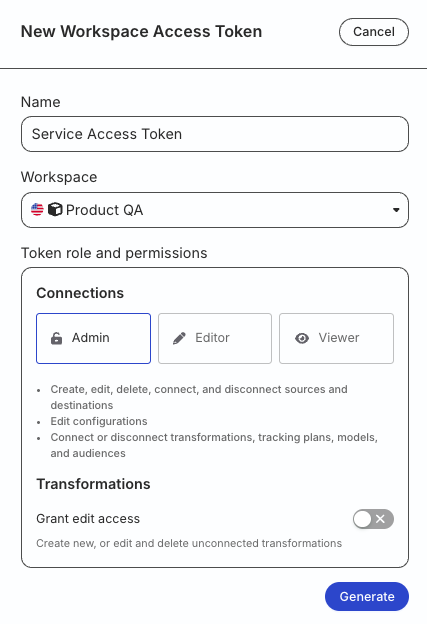
<p><strong>Token permissions for legacy RBAC system</strong></p>
<p>If you are on the <a href="https://www.rudderstack.com/docs/archive/dashboard-guides/user-management/" >legacy Permissions Management (RBAC) system</a>, your workspace-level Service Access Token should have minimum <strong>Admin</strong> permissions.</p>
<p>See <a href="https://www.rudderstack.com/docs/archive/dashboard-guides/service-access-tokens/#generate-service-access-token" >Generate a workspace-level Service Access Token</a> for steps to create the token.</p>

<figure class="image--main ">
<a href="/docs/images/access-management/permissions/legacy/admin.webp">
<img src="/docs/images/access-management/permissions/legacy/admin.webp" alt="workspace-level Service Access Token with Admin permission" decoding="async" loading="lazy" class="img-shortcode"/>
</a>
</figure>

<!-- end-chunk -->
<!-- begin-chunk -->
<h2 id="1-authenticate-the-cli-tool">1. Authenticate the CLI tool</h2>

<p>Run the following command and enter your <a href="#prerequisites" >access token</a> when prompted:</p>
<div class="rs-code">
  <div class="rs-code__head">shell<button class="rs-code__copy" type="button">
      
      Copy
    </button>
  </div>
  <div class="highlight"><pre class="chroma"><code class="language-shell" data-lang="shell">rudder-cli auth login</code></pre></div>
</div>
<!-- end-chunk -->
<!-- begin-chunk -->
<h2 id="2-enable-reverse-etl-connection-support">2. Enable Reverse ETL connection support</h2><div class="rs-code">
  <div class="rs-code__head">shell<button class="rs-code__copy" type="button">
      
      Copy
    </button>
  </div>
  <div class="highlight"><pre class="chroma"><code class="language-shell" data-lang="shell">export RUDDERSTACK_CLI_EXPERIMENTAL=true
export RUDDERSTACK_X_RETL_CONNECTION_SUPPORT=true</code></pre></div>
</div>
<p>Both variables are required. See <a href="https://www.rudderstack.com/docs/dev-tools/rudder-cli/retl-connections/#enable-reverse-etl-connection-support" >Enable Reverse ETL connection support</a> for the config file equivalent.</p>
<!-- end-chunk -->
<!-- begin-chunk -->
<h2 id="3-create-a-project-directory">3. Create a project directory</h2><div class="rs-code">
  <div class="rs-code__head">shell<button class="rs-code__copy" type="button">
      
      Copy
    </button>
  </div>
  <div class="highlight"><pre class="chroma"><code class="language-shell" data-lang="shell">mkdir ~/tutorial-retl-connections</code></pre></div>
</div>

<blockquote class="warning">
  <div class="tip-quote">
    
    <div class="tip-text"><code>apply</code> deletes every CLI-managed resource in the workspace that the project doesn&rsquo;t contain. Use this new project only with a workspace that has no CLI-managed resources. If a CLI project already manages your workspace, add the three files from this tutorial to that project instead. See <a href="https://www.rudderstack.com/docs/dev-tools/rudder-cli/import-resources/#one-project-per-workspace" >One project per workspace</a>.</div>
  </div>
</blockquote>
<!-- end-chunk -->
<!-- begin-chunk -->
<h2 id="4-define-the-source-and-destination">4. Define the source and destination</h2><p>List the warehouse accounts in your workspace and note the <strong>account ID</strong> of the warehouse you want to query:</p>
<div class="rs-code">
  <div class="rs-code__head">shell<button class="rs-code__copy" type="button">
      
      Copy
    </button>
  </div>
  <div class="highlight"><pre class="chroma"><code class="language-shell" data-lang="shell">rudder-cli workspace accounts list</code></pre></div>
</div>
<p>Create <code>~/tutorial-retl-connections/users-model.yaml</code>. Replace <code>YOUR_ACCOUNT_ID</code> with the account ID, set <code>source_definition</code> to your warehouse type, and replace the query with one that runs on your warehouse:</p>
<div class="rs-code">
  <div class="rs-code__head">yaml<button class="rs-code__copy" type="button">
      
      Copy
    </button>
  </div>
  <div class="highlight"><pre class="chroma"><code class="language-yaml" data-lang="yaml">version: rudder/v1
kind: retl-source-sql-model
metadata:
  name: users-model
spec:
  id: users-model
  display_name: &#34;Users Model&#34;
  description: &#34;Users to sync to the webhook endpoint&#34;
  primary_key: user_id
  source_definition: postgres
  enabled: true
  account_id: &#34;YOUR_ACCOUNT_ID&#34;
  sql: |
    SELECT
      user_id,
      email
    FROM
      users    </code></pre></div>
</div>
<p>Create <code>~/tutorial-retl-connections/http-destination.yaml</code>. Replace <code>api_url</code> with your endpoint:</p>
<div class="rs-code">
  <div class="rs-code__head">yaml<button class="rs-code__copy" type="button">
      
      Copy
    </button>
  </div>
  <div class="highlight"><pre class="chroma"><code class="language-yaml" data-lang="yaml">version: rudder/v1
kind: destination
metadata:
  name: my-http-destination
spec:
  id: my-http-destination
  display_name: &#34;Users Webhook&#34;
  type: http
  definition_version: 1
  enabled: true
  config:
    api_url: https://api.example.com/v1/users
    auth: noAuth
    method: POST
    format: JSON
    connection_mode:
      warehouse: cloud</code></pre></div>
</div>
<p>The <code>connection_mode</code> entry for <code>warehouse</code> is what lets a Reverse ETL source connect to this destination. Without it, <code>validate</code> rejects the connection.</p>
<p>See <a href="https://www.rudderstack.com/docs/dev-tools/rudder-cli/yaml-sql-models/" >SQL Model Resources YAML Reference</a> and <a href="https://www.rudderstack.com/docs/dev-tools/rudder-cli/destination-types/http-webhook/" >HTTP Webhook Destination Config Reference</a> for field details.</p>
<!-- end-chunk -->
<!-- begin-chunk -->
<h2 id="5-define-the-connection">5. Define the connection</h2><p>Create <code>~/tutorial-retl-connections/retl-connections.yaml</code>:</p>
<div class="rs-code">
  <div class="rs-code__head">yaml<button class="rs-code__copy" type="button">
      
      Copy
    </button>
  </div>
  <div class="highlight"><pre class="chroma"><code class="language-yaml" data-lang="yaml">version: rudder/v1
kind: retl-connections
metadata:
  name: retl-connections
spec:
  connections:
    - id: users-to-webhook
      source: &#34;#retl-source-sql-model:users-model&#34;
      destination: &#34;#destination:my-http-destination&#34;
      enabled: true
      config:
        sync_behaviour: upsert
        schedule:
          type: basic
          every_minutes: 30
        identifiers:
          - from: user_id
            to: user_id
        mappings:
          - from: email
            to: traits.email
        event:
          type: identify</code></pre></div>
</div>
<p>The <code>source</code> and <code>destination</code> values must be valid references to resources in this project. The <code>config</code> block holds the sync configuration:</p>
<ul>
<li><code>sync_behaviour: upsert</code> syncs only the rows that are new or changed since the last sync.</li>
<li><code>schedule</code> runs a sync every 30 minutes.</li>
<li><code>identifiers</code> maps the <code>user_id</code> column to the event&rsquo;s <code>user_id</code>.</li>
<li><code>mappings</code> sends the <code>email</code> column as the <code>email</code> trait.</li>
<li><code>event</code> sends each row as an <code>identify</code> event.</li>
</ul>
<p>The <code>from</code> values and the model&rsquo;s <code>primary_key</code> must be columns your query returns. Rudder CLI doesn&rsquo;t check this.</p>
<p>HTTP Webhook doesn&rsquo;t support object mapping, so this connection runs the JSON mapper flow. See <a href="https://www.rudderstack.com/docs/dev-tools/rudder-cli/yaml-retl-connections/#mapping-flows" >Mapping flows</a> for the difference.</p>
<!-- end-chunk -->
<!-- begin-chunk -->
<h2 id="6-validate-and-deploy">6. Validate and deploy</h2><p>Validate the project and preview the plan:</p>
<div class="rs-code">
  <div class="rs-code__head">shell<button class="rs-code__copy" type="button">
      
      Copy
    </button>
  </div>
  <div class="highlight"><pre class="chroma"><code class="language-shell" data-lang="shell">rudder-cli validate -l ~/tutorial-retl-connections
rudder-cli apply -l ~/tutorial-retl-connections --dry-run</code></pre></div>
</div>
<p>The plan must list three <strong>New resources</strong> — the SQL model, the destination, and the connection — and no <strong>Removed resources</strong>. If it lists any removed resources, don&rsquo;t apply: Rudder CLI would delete them.</p>
<p>Then, apply:</p>
<div class="rs-code">
  <div class="rs-code__head">shell<button class="rs-code__copy" type="button">
      
      Copy
    </button>
  </div>
  <div class="highlight"><pre class="chroma"><code class="language-shell" data-lang="shell">rudder-cli apply -l ~/tutorial-retl-connections</code></pre></div>
</div>
<p>Apply creates the SQL model and the destination first, then the connection. The connection is enabled, so RudderStack starts syncing on the schedule you set. The first sync is a <a href="https://www.rudderstack.com/docs/data-pipelines/reverse-etl/developer-guides/sync-modes/#first-sync" >full sync</a>: it sends every row the model returns, whatever the <code>sync_behaviour</code>.</p>
<!-- end-chunk -->
<!-- begin-chunk -->
<h2 id="7-verify-the-sync">7. Verify the sync</h2><p>Rudder CLI doesn&rsquo;t start syncs or report their status, so check the first run in the RudderStack dashboard:</p>
<ol>
<li>Go to the <strong>Syncs</strong> tab of the connection. To run a sync without waiting for the schedule, click <a href="https://www.rudderstack.com/docs/data-pipelines/reverse-etl/developer-guides/start-stop-syncs/" ><strong>Sync Now</strong></a>.</li>
<li>When the run finishes, check its status and any <a href="https://www.rudderstack.com/docs/data-pipelines/reverse-etl/developer-guides/sync-observability/#failed-records" >failed records</a>.</li>
<li>Confirm that your HTTP endpoint received a record.</li>
</ol>
<p>To change the connection, edit the YAML and apply again. Adding or changing a mapping triggers a <a href="https://www.rudderstack.com/docs/data-pipelines/reverse-etl/developer-guides/sync-modes/#after-updating-mappings" >full sync</a>. Some fields can&rsquo;t change after creation; see <a href="https://www.rudderstack.com/docs/dev-tools/rudder-cli/retl-connections/#apply-and-replace-behavior" >Apply and replace behavior</a>.</p>
<!-- end-chunk -->
<!-- begin-chunk -->
<h2 id="see-more">See more</h2><ul>
<li><a href="https://www.rudderstack.com/docs/dev-tools/rudder-cli/retl-connections/" >Manage Reverse ETL Connections using Rudder CLI</a></li>
<li><a href="https://www.rudderstack.com/docs/dev-tools/rudder-cli/yaml-retl-connections/" >Reverse ETL Connection YAML Reference</a></li>
<li><a href="https://www.rudderstack.com/docs/dev-tools/rudder-cli/sql-models/" >Manage SQL Models using Rudder CLI</a></li>
<li><a href="https://www.rudderstack.com/docs/dev-tools/rudder-cli/destinations/" >Manage Destinations using Rudder CLI</a></li>
<li><a href="https://www.rudderstack.com/docs/dev-tools/rudder-cli/github-actions/" >GitHub Actions for Rudder CLI</a></li>
</ul>

