Service Access Tokens
3 minute read
This guide explains the concept of Service Access Tokens in RudderStack’s Access Management system. It also describes the steps to generate them and manage their permissions.
Overview
A Service Access Token (SAT) enables applications to access RudderStack APIs. It provides a flexible, secure, and centralized way for you to programmatically interact with resources and services in the RudderStack platform.
Unlike Personal Access Tokens which are tied to individual users, SATs provide centralized access to resources within an organization or workspace, ensuring continuity and reducing the risk of disruptions when members are removed or their roles change.
Operations performed with SATs are logged and audited against the SAT, ensuring that activities are traceable to the token rather than an individual user.
Personal Access Tokens vs. Service Access Tokens
| Personal Access Tokens (PAT) | Service Access Tokens (SAT) |
|---|---|
| Tied to a specific user within a workspace. | Not tied to an individual user. |
| Used for individual tasks and testing. | Used for centralized, shared access and production use cases. |
| Any processes dependent on these tokens will break if the user is removed from the organization or a breaking change is made to their permissions. | Exist at an organization or workspace level, ensuring continuity in essential workflows and pipelines using these tokens. |
RudderStack recommends using:
- SATs for your production use cases that require shared access to the services and resources across the organization or workspace.
- PATs for testing a service/feature or personal use cases.
Service Access Token types
You can generate the following two types of SATs in RudderStack:
Organization-level SATs
Organization-level SATs are associated with the entire organization and have Admin permissions by default.
You can use them only for authenticating your SSO SCIM, Audit Log API, and Organization Usage API.
Workspace-level SATs
Workspace-level SATs are linked to a specific workspace. Their usage is restricted to workspace-level resources (sources, destinations, transformations, Tracking Plans, etc.) and APIs.
You cannot use workspace-level SATs to interact with organization-level functionalities like Audit Logs, Organization Usage API, or SCIM provisioning.
Generate a Service Access Token
- Go to Settings > Access Management > Service Access Tokens.
Only Admins can see the Service Access Tokens tab and create or delete Service Access Tokens.

- Click the Organization or Workspace tab depending on whether you want to generate an organization-level SAT or workspace-level SAT.
Generate an organization-level SAT
- In the Organization tab, click Generate new token.
- Enter the name of the SAT and click Generate.

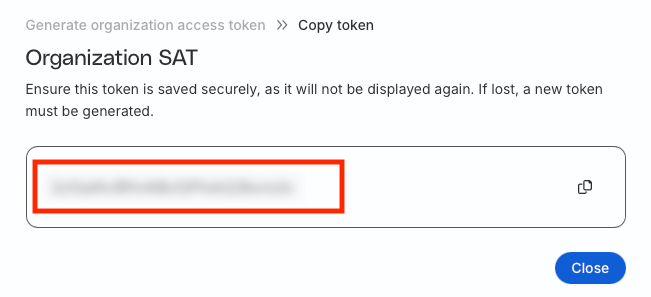
- Note the token value.
Secure the token — you will not be able to see it again once you click Close.
Generate a workspace-level SAT
- Under Service Access Tokens, click the Workspace tab.
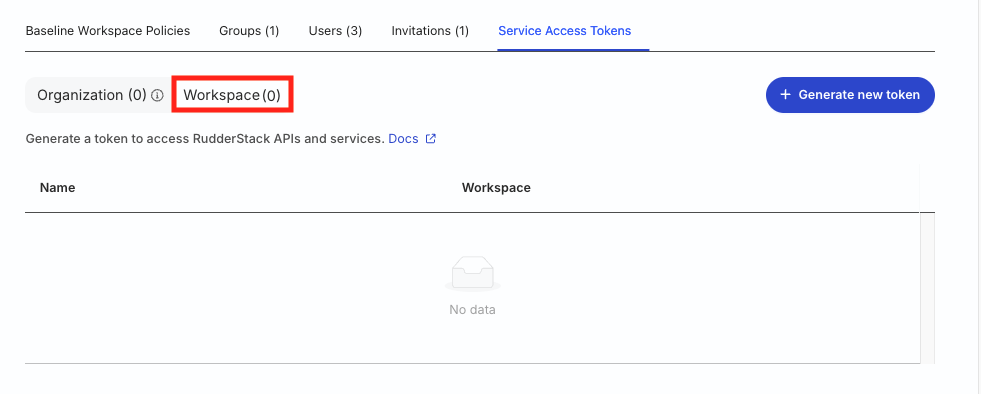
- Click Generate new token.
- Enter the name of the SAT.
- Choose the relevant workspace (applicable for a multi-workspace organization) where the token will be applicable. Then, click Next.

- Under Workspace SAT access policy, configure the access policy for the token.
Important: Once generated, you cannot edit the access policy of the workspace-level Service Access Token.

- Click Generate to generate the token.
- Note the token and use it in the relevant workspace-level APIs and services.
Secure the token value — you will not be able to see it again once you click Close.

Migration of old Service Access Tokens
When you migrate to the new Access Management system, the previously-created Service Access Tokens are automatically imported with their current permissions.
See the Migration Scenarios guide for detailed examples of how Service Access Tokens are migrated to the new Access Management system.
