Members (User Management)
5 minute read
This documentation is applicable for the legacy Permissions Management (RBAC) system.
See Member Management for the latest information on managing users and their permissions across organization and workspaces in the new Access Management (PBAC) system.
RudderStack’s user management feature lets you easily collaborate with other members of your organization. It provides different options to manage users and their permissions at the workspace level.
Manage users in organization
RudderStack lets you invite users and manage their permissions within your organization’s workspaces.
Invite users
You can invite users to an organization either as Org Admin or Org Member.
The invitations are valid for 3 days before expiring.
The following sections detail the steps to invite users with these permissions.
Org Admin
To invite a user with Org Admin permissions:
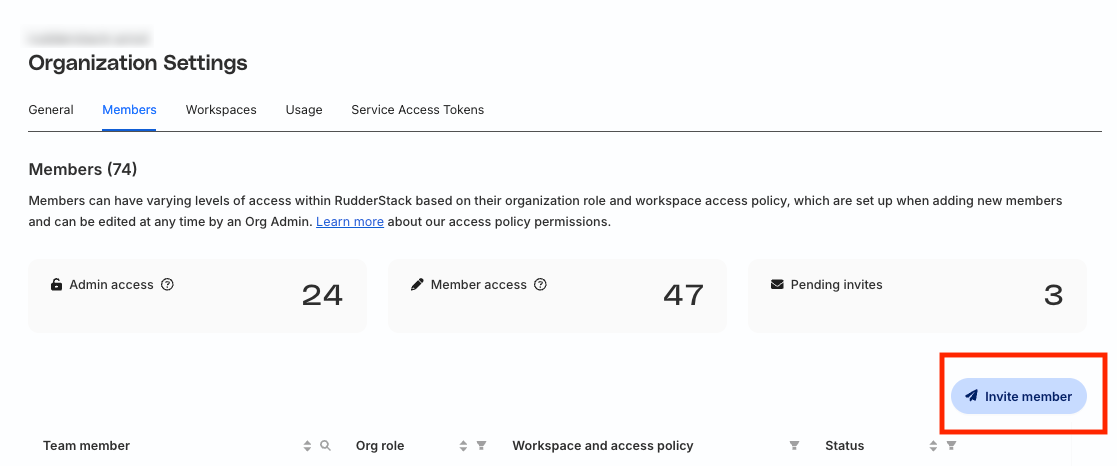
- Go to Settings > Organization. Go to the Members tab and click the Invite member button:
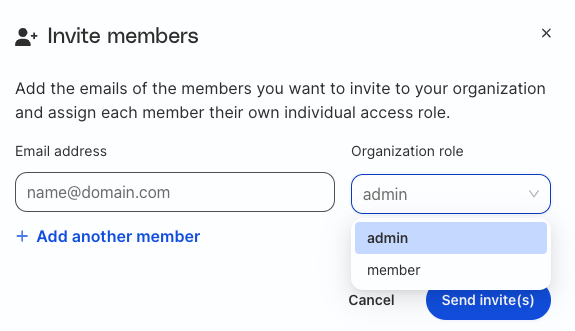
- Enter the member’s Email address and select Organization Role as admin from the dropdown. You can send multiple invites at once by clicking Add another member. Finally, click Send invite(s) to proceed.
The Admin user gets access to all the workspaces within that organization by default.
- Enter your password to send the invite(s). The user will be automatically added to the organization once they accept the invitation.
Org Member
To invite a user with Org Member permissions:
- Go to Settings > Organization. Go to the Members tab and click the Invite member button:
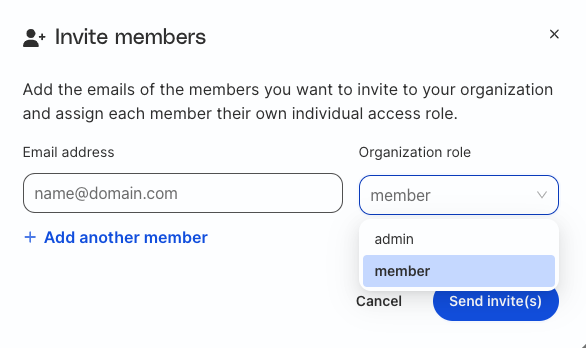
- Enter the member’s Email address and select Organization Role as member from the dropdown. You can send multiple invites at once by clicking Add another member. Finally, click Send invite(s) to proceed.
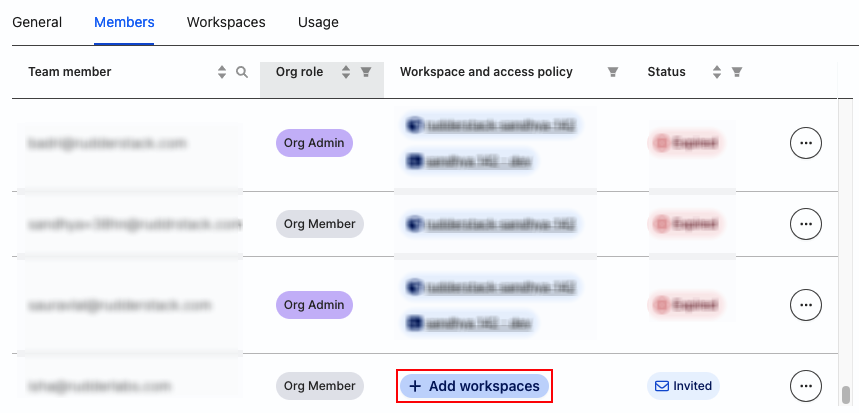
- Click Add workspaces next to the invited user.
- Select the specific workspace(s) you want to add the user to and click Add workspace(s).
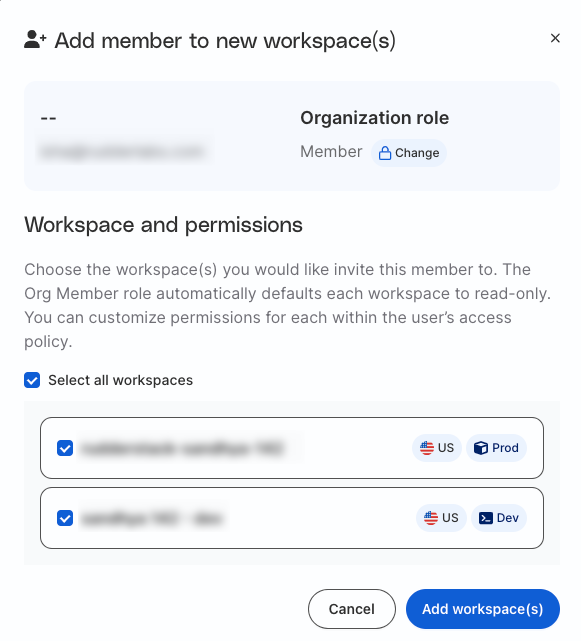
The user will be automatically added to the specified workspace(s) once they accept the invitation.
Remove users
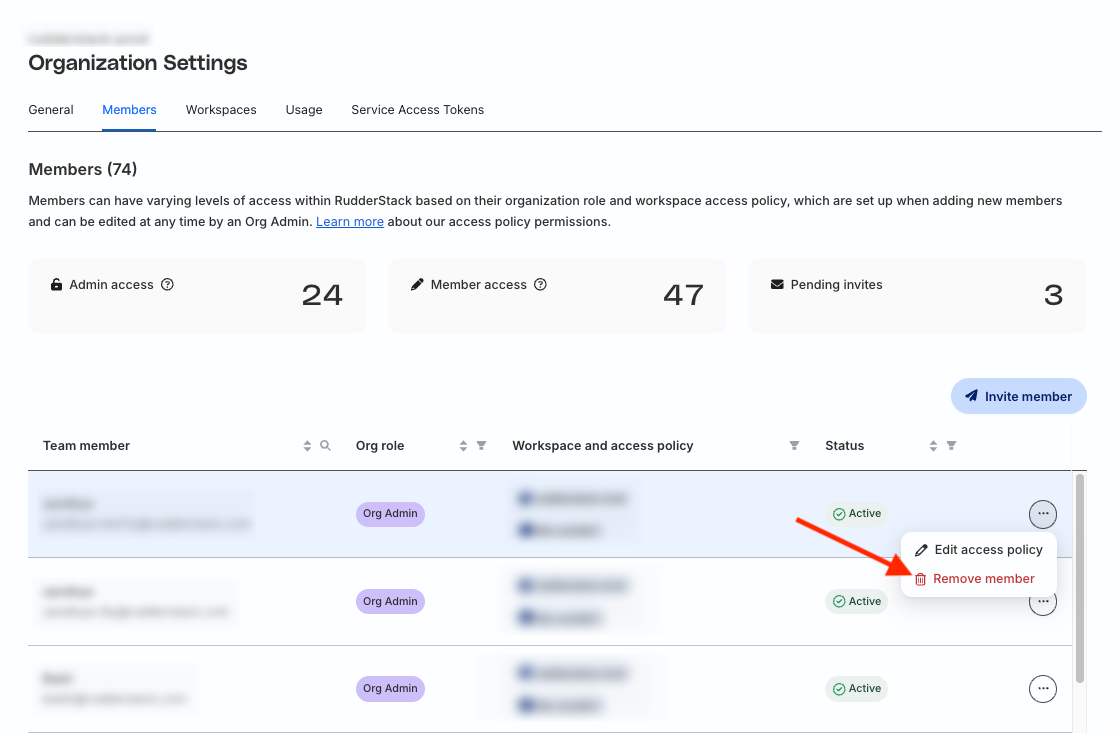
To remove a user from the organization, click the meatballs menu next to the user and select Remove member. Then, enter your password to confirm.
Edit access policy
Only Org Admins can edit the access policies of other members, including other Org Admins.
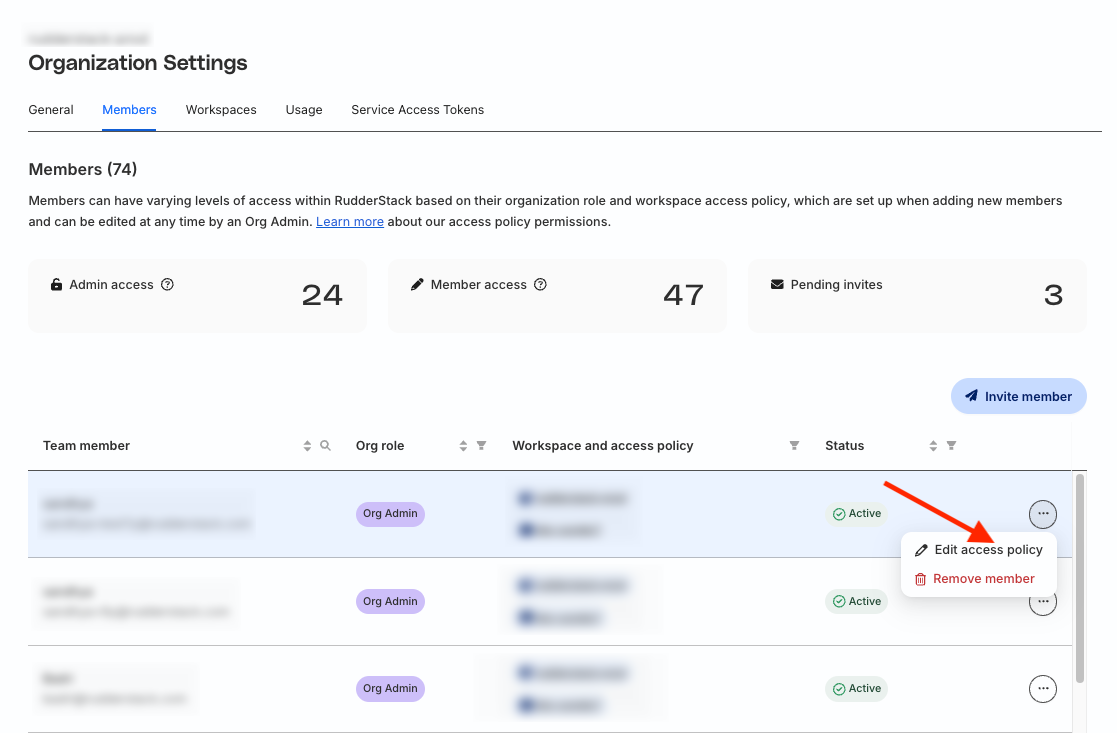
- In the Members tab, click the meatballs menu next to the user and select Edit access policy:
- Click the edit icon corresponding to the Organization role or the specific workspace for which you want to change the user’s permissions.
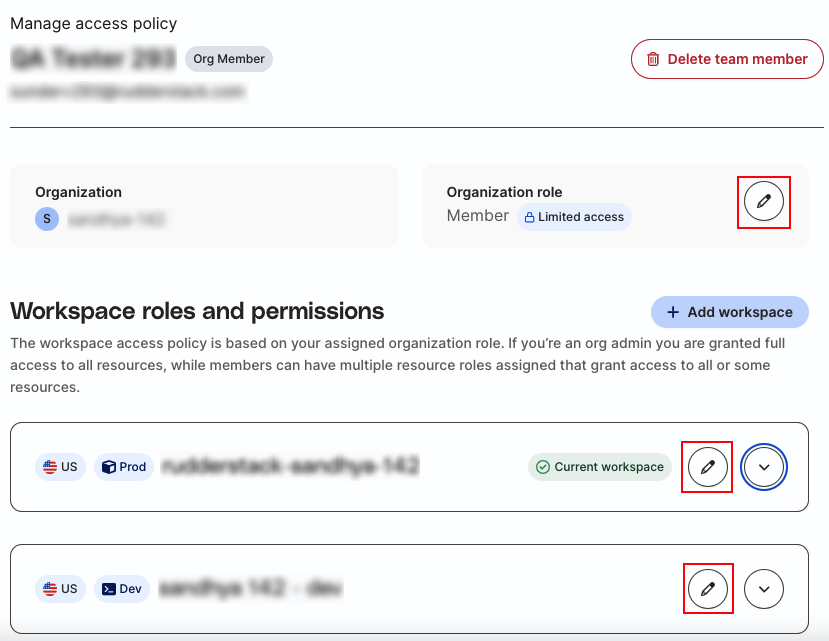
- Make the necessary changes, click Save, and enter your password to confirm.
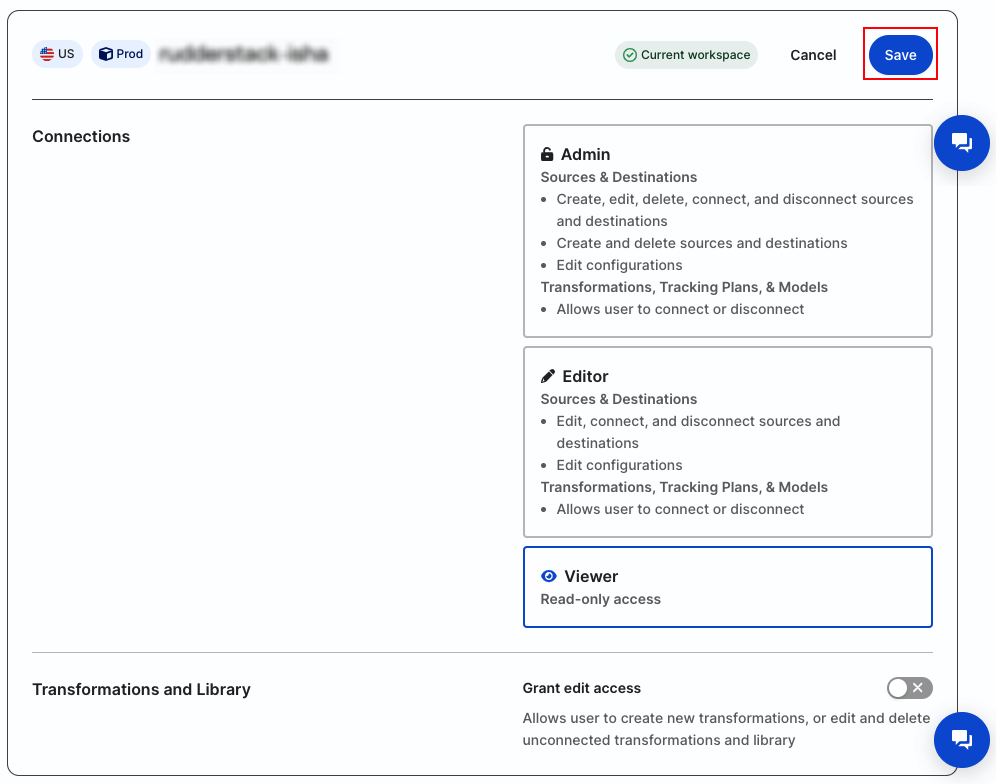
Note that:
When you upgrade a user with Member role to Admin, they will automatically get full edit access to all the resources.
When you downgrade a user with Admin role to Member, RudderStack resets all access permissions to read-only. You need to manually set the permissions for each resource and click Save to update the access policy.
Manage users in workspaces
RudderStack lets you add/remove users and assign them relevant user roles within your workspaces.
Only the RudderStack Starter, Growth, and Enterprise plans have access to multiple workspaces within an organization.
As the Org AdminAn Org Admin is an invited user with full access to the organization. has admin access over all the workspaces within an organization, only they can add/remove Org members and edit their access policies for different workspaces.
Add users
You can choose to add an existing Org Member to a specific workspace:
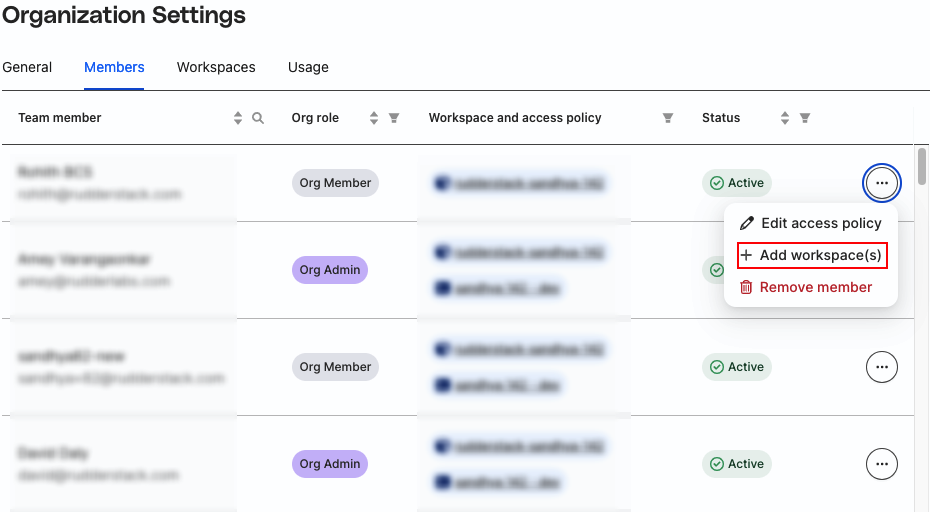
- Click the meatballs menu next to the user and select Add workspace(s). Note that you will see this option only if the user isn’t already added to that workspace.
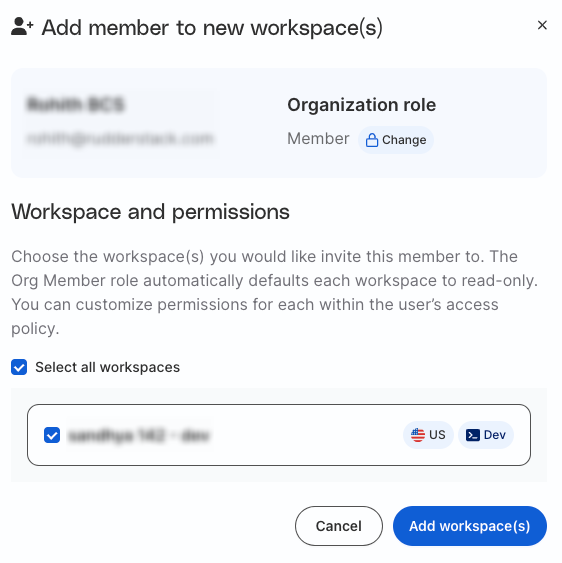
- Select the workspace(s) you want to add the user to and click Add workspace(s).
Remove users
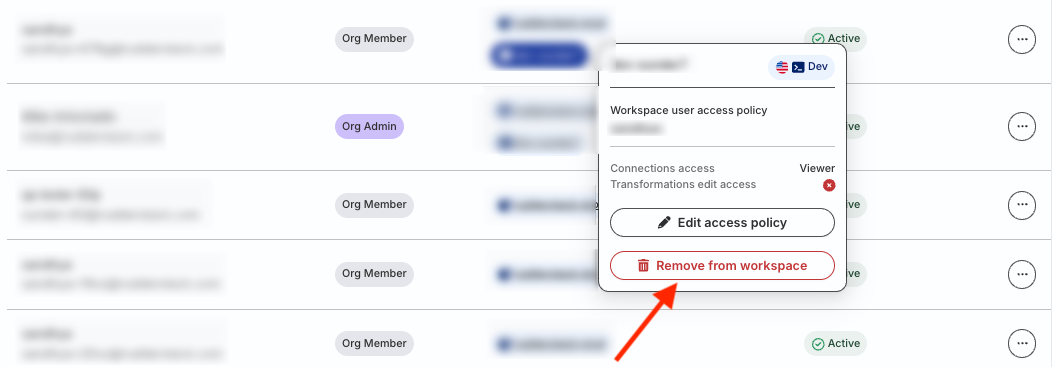
You can remove an Org member from a specific workspace by clicking the workspace next to the user and clicking Remove from workspace, as shown:
Edit access policy
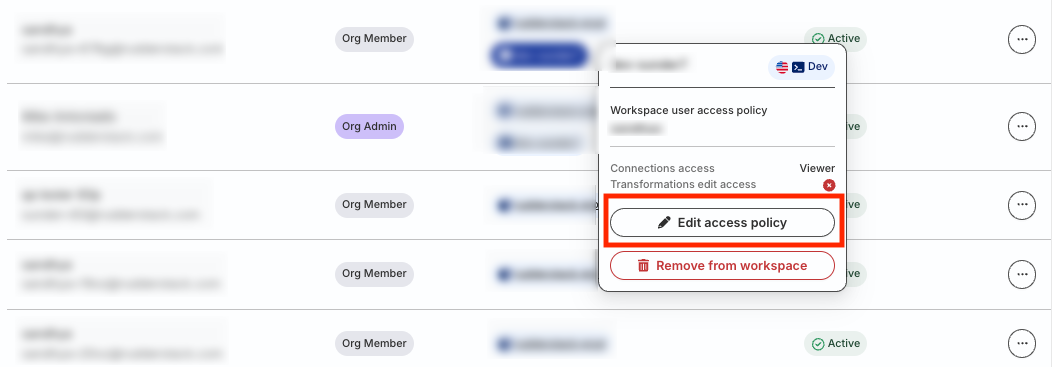
- In the Members tab, click the workspace next to the user and select Edit access policy:
- Click the edit icon corresponding to the Organization role or the workspace for which you want to change the user’s permissions.
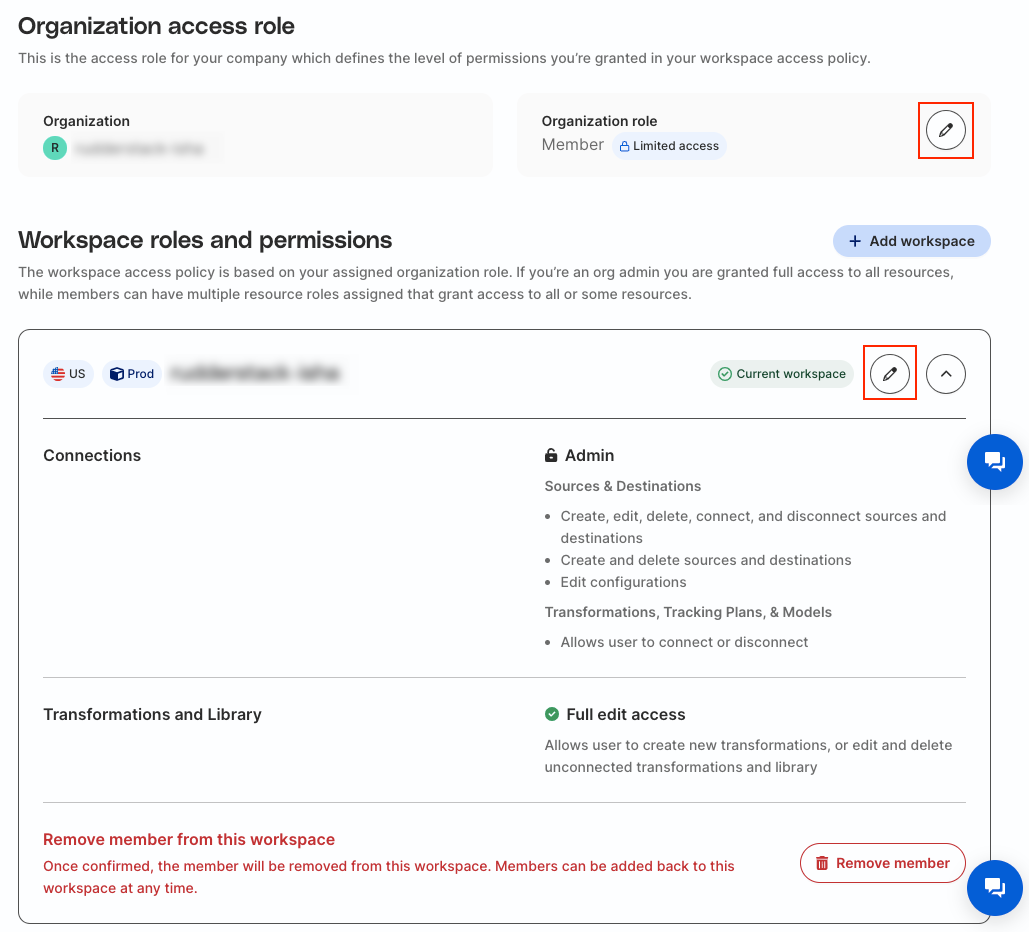
- Make the necessary changes, click Save, and enter your password to confirm.
Role definitions
| Term | Level | Definition |
|---|---|---|
| Organization roles | Organization | Highest abstraction level that determines if a user has a full access or customized access to specific resources. Example: Org Admin, Org Member |
| Resource roles | Workspace | Predefined access to specific resources. A user can have multiple resource roles that grant access to all or some resources. Example: Connections Admin/Editor/Viewer, Transformations Admin |
Role permissions
The following sections detail the access policies set for organization-level and resource-level roles.
Role permissions are packaged differently in various RudderStack plans. See Plan-wise features for more information.
Organization roles
| Name | Access policy |
|---|---|
| Org Admin | Full organization access. |
| Org Member | Dependent on resource roles. |
Resource roles
Connections
| Name | What user can do | What user cannot do |
|---|---|---|
| Admin |
| - |
| Editor |
| Create and delete sources and destinations. |
| Viewer | Read-only access. | Create, edit, or delete anything. |
Transformations and Library
| Name | What user can do | What user cannot do |
|---|---|---|
| Grant edit access | Create, edit, or delete transformations/libraries. | Connect and disconnect transformations/libraries. |
Plan-wise features
| Feature | Free | Starter/Growth | Enterprise |
|---|---|---|---|
| Organization roles |
|
|
|
| Resource roles | None | ||
| Assign user access to PII | No | No | Yes |
Summary
All RudderStack plans have these organization roles - Org Admin and Org Member.
RudderStack’s Free plan does not have any granular, resource-level roles. It only has following roles:
- Org Admin: Full organization access
- Org Member: View-only access
Resource roles are available in paid RudderStack plans and expand by tier
The PII controls feature is available only in the Enterprise plan
Member limit
| Plan | Member limit |
|---|---|
| Free | 10 |
| Starter | 10 |
| Growth | Unlimited |
| Enterprise | Unlimited |
