# Sync Audiences to Pinterest Audience

<p>This guide lists the steps to configure Pinterest Audience as a destination in RudderStack and sync the created audiences to it.</p>

<html lang="en">
<blockquote class="info">
  <div class="tip-quote">
    
    <div class="tip-text"><strong>Pinterest Audience</strong> is separate from the Event Stream <a href="https://www.rudderstack.com/docs/destinations/streaming-destinations/pinterest-ads/" >Pinterest Tag</a> destination. Membership is synced to a Pinterest customer list audience.</div>
  </div>
</blockquote>

</html>
<!-- TODO: Add screenshots of the Pinterest Audience sync form. -->
<!-- end-chunk -->
<!-- begin-chunk -->
<h2 id="setup">Setup</h2><ol>
<li>Set up an audience in RudderStack using the <a href="https://www.rudderstack.com/docs/audiences/audience-builder/create-audience/" >Audience Builder</a>.</li>
<li>Go to the <strong>Syncs</strong> tab of the audience page and click <strong>Add sync</strong>. Then, select <strong>Pinterest Audience</strong>.</li>
<li>Click <strong>New destination</strong> — you can also select an already-configured destination here.</li>
<li>Specify a unique name to identify this destination in RudderStack.</li>
<li>In the <strong>Pinterest account</strong> section, click <strong>Select</strong> to choose an existing Pinterest account. To add a new account, click <strong>Add account</strong> and authenticate via OAuth by specifying the following settings:</li>
</ol>
<table>
  <thead>
      <tr>
          <th>Setting</th>
          <th><div>Description</div></th>
      </tr>
  </thead>
  <tbody>
      <tr>
          <td>Account name</td>
          <td>Specify a unique account name. After you connect, RudderStack replaces it with your Pinterest username.</td>
      </tr>
      <tr>
          <td>OAuth settings</td>
          <td>Click <strong>Connect account</strong>, sign in to Pinterest, and give RudderStack the requested permissions. Sign in as a Pinterest user that owns or has access to the ad account you want to sync to.</td>
      </tr>
  </tbody>
</table>
<ol start="6">
<li>Proceed to configure the mapping settings.</li>
</ol>
<!-- end-chunk -->
<!-- begin-chunk -->
<h2 id="configure-sync">Configure sync</h2><p>This section lists the settings to correctly configure your audience syncs to the Pinterest Audience destination.</p>
<!-- end-chunk -->
<!-- begin-chunk -->
<h3 id="select-ad-account">Select ad account</h3><p>Select the Pinterest ad account that owns the customer list and its audience. The list shows every ad account the connected Pinterest user owns or has access to.</p>
<!-- end-chunk -->
<!-- begin-chunk -->
<h3 id="select-audience">Select audience</h3><p>In this section, you can create a new audience or use an existing one:</p>
<ul>
<li><strong>Create new audience</strong>: RudderStack creates a customer list and a customer list audience on it in the selected ad account. Enter a name of 3 to 500 characters.</li>
<li><strong>Use existing audience</strong>: Select an existing customer list audience in the selected ad account. Only customer list audiences are listed.</li>
</ul>

<html lang="en">
<blockquote class="info">
  <div class="tip-quote">
    
    <div class="tip-text">Pinterest needs at least 100 matched users before an audience can be used for targeting, and it can take 48–72 hours to process an upload.</div>
  </div>
</blockquote>

</html>
<!-- end-chunk -->
<!-- begin-chunk -->
<h3 id="sync-mode">Sync mode</h3><p>Only <a href="https://www.rudderstack.com/docs/data-pipelines/reverse-etl/developer-guides/sync-modes/#mirror-mode" >Mirror mode</a> is supported for this integration. Users who leave the audience are removed from the Pinterest customer list at the next run.</p>
<!-- end-chunk -->
<!-- begin-chunk -->
<h3 id="map-identifiers">Map identifiers</h3><p>Map your audience columns to the Pinterest identifiers. You must map at least one:</p>
<table>
  <thead>
      <tr>
          <th>Identifier</th>
          <th><div>Description</div></th>
      </tr>
  </thead>
  <tbody>
      <tr>
          <td>Email</td>
          <td>The user&rsquo;s email address.</td>
      </tr>
      <tr>
          <td>Mobile advertising ID (MAID)</td>
          <td>The user&rsquo;s mobile advertising ID, for example, an Android advertising ID (AAID).</td>
      </tr>
  </tbody>
</table>
<p>Pinterest matches a user if any identifier matches, so mapping both gives a better match rate. Phone numbers aren&rsquo;t supported.</p>

<blockquote class="warning">
  <div class="tip-quote">
    
    <div class="tip-text">Don&rsquo;t send IDFAs collected from activity in an iOS app or website. Pinterest&rsquo;s policy forbids uploading them.</div>
  </div>
</blockquote>
<!-- end-chunk -->
<!-- begin-chunk -->
<h3 id="advanced-settings">Advanced settings</h3><table>
  <thead>
      <tr>
          <th>Setting</th>
          <th><div>Description</div></th>
      </tr>
  </thead>
  <tbody>
      <tr>
          <td>Automatically hash PII data?</td>
          <td>When set to <strong>Yes</strong> (default), RudderStack normalizes the mapped values and hashes them with SHA-256 before sending them to Pinterest. <br /><br />Set it to <strong>No</strong> only if your columns already hold SHA-256 hashes. See <a href="https://www.rudderstack.com/docs/destinations/reverse-etl-destinations/pinterest-audience/#data-hashing" >Data hashing</a> for more information.</td>
      </tr>
  </tbody>
</table>
<!-- end-chunk -->
<!-- begin-chunk -->
<h2 id="sync-settings">Sync settings</h2>

<p>Two options are available to schedule your audience syncs:</p>
<ul>
<li><strong>Run syncs automatically</strong> based on a specified frequency (every 5 minutes, 10 minutes, 15 minutes, 30 minutes, 1 hour, 3 hours, 6 hours, 12 hours, or 24 hours) and a specific time (in UTC).</li>
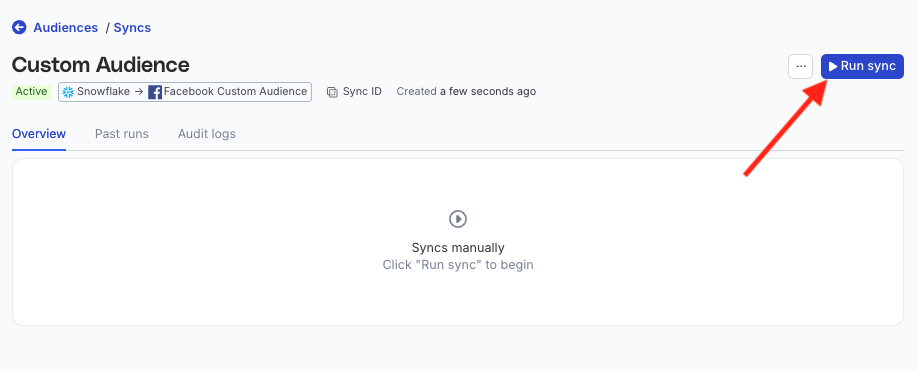
<li><strong>Run syncs manually</strong> — trigger a sync from the sync details page. You will need to run the sync each time.</li>
</ul>

<figure class="image--main ">
<a href="/docs/images/audiences/destinations/fb-custom-audience/run-sync.webp">
<img src="/docs/images/audiences/destinations/fb-custom-audience/run-sync.webp" decoding="async" loading="lazy" class="img-shortcode"/>
</a>
</figure>

<!-- end-chunk -->
<!-- begin-chunk -->
<h4 id="sync-observability-settings">Sync observability settings</h4>

<table>
  <thead>
      <tr>
          <th>Setting</th>
          <th>Description</th>
      </tr>
  </thead>
  <tbody>
      <tr>
          <td>Retain sync logs</td>
          <td>This setting is toggled on by default and instructs RudderStack to store the sync logs in your warehouse. You can also configure the below settings: <br /><br /><table><tr><th width="20%">Setting</th><th width="80%">Description</th></tr><tr><td>Sync log retention</td><td>Specify the retention period of the <a href="https://www.rudderstack.com/docs/data-pipelines/reverse-etl/developer-guides/sync-observability/#sync-logs" >sync logs</a> in your warehouse. <br /><br />If you set it to 1, then RudderStack deletes any sync log older than a day (in UTC time). </td></tr><tr><td>Snapshot table retention</td><td>Specify the number of <a href="https://www.rudderstack.com/docs/data-pipelines/reverse-etl/developer-guides/sync-observability/#snapshot-table-schema" >snapshot tables</a> to retain. </td></tr></table></td>
      </tr>
      <tr>
          <td>Retry failed records</td>
          <td>This setting is toggled on by default and causes RudderStack to continually <a href="https://www.rudderstack.com/docs/data-pipelines/reverse-etl/developer-guides/sync-observability/#retry-failed-records" >retry sending the failed records</a>.</td>
      </tr>
      <tr>
          <td>Retain and show failures</td>
          <td>This setting is toggled off by default. Turn it on to have RudderStack write the error recorded for every failed record to a <a href="https://www.rudderstack.com/docs/data-pipelines/reverse-etl/developer-guides/rudderstack-schema/#failed-records-table" >failed records table</a> in your warehouse and show it in the sync&rsquo;s <a href="https://www.rudderstack.com/docs/data-pipelines/reverse-etl/developer-guides/sync-observability/#failed-records" >failed records view</a>. It applies from the next sync and can take up to a minute to reach your data plane. <br /><br /><table><tr><th width="20%">Setting</th><th width="80%">Description</th></tr><tr><td>Failure retention</td><td>Number of days RudderStack keeps each sync&rsquo;s failed records in your warehouse. The default is 30 and the minimum is 7.</td></tr></table></td>
      </tr>
  </tbody>
</table>

<blockquote class="warning">
  <div class="tip-quote">
    
    <div class="tip-text">Storing sync logs, snapshot tables, and failed records may incur additional warehouse costs.</div>
  </div>
</blockquote>
<!-- end-chunk -->
<!-- begin-chunk -->
<h2 id="enable-sync">Enable sync</h2>

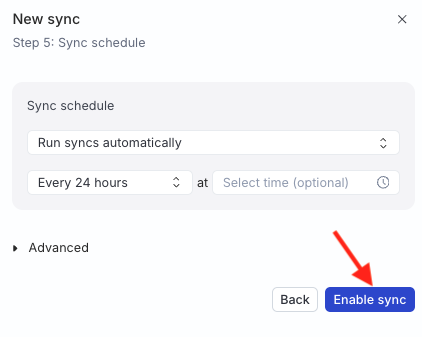
<p>Once the setup is complete, enable the sync.</p>

<figure class="image--main ">
<a href="/docs/images/audiences/destinations/tiktok/enable-sync.webp">
<img src="/docs/images/audiences/destinations/tiktok/enable-sync.webp" decoding="async" loading="lazy" class="img-shortcode"/>
</a>
</figure>
<!-- end-chunk -->
<!-- begin-chunk -->
<h2 id="faq">FAQ</h2><!-- end-chunk -->
<!-- begin-chunk -->
<h4 id="why-is-my-audience-not-ready-in-pinterest-yet">Why is my audience not ready in Pinterest yet?</h4><p>Pinterest processes each upload. A new audience is usually ready within 48 to 72 hours, and its size updates within 24 to 48 hours. An audience with fewer than 100 matched users can&rsquo;t be used for targeting. See <a href="https://www.rudderstack.com/docs/destinations/reverse-etl-destinations/pinterest-audience/#pinterest-processing-and-audience-size" >Pinterest processing and audience size</a>.</p>
<!-- end-chunk -->
<!-- begin-chunk -->
<h4 id="why-do-some-rows-fail">Why do some rows fail?</h4><p>A row fails if it has no valid email address or MAID after normalization, or if its values don&rsquo;t match the <strong>Automatically hash PII data?</strong> setting. See <a href="https://www.rudderstack.com/docs/destinations/reverse-etl-destinations/pinterest-audience/#troubleshooting" >Troubleshooting</a> for each error and how to fix it.</p>
<!-- end-chunk -->
<!-- begin-chunk -->
<h4 id="what-happens-if-i-delete-the-sync">What happens if I delete the sync?</h4><p>RudderStack stops updating the customer list. The customer list and its audience stay in Pinterest, even if RudderStack created them. Delete them in Pinterest Ads Manager if you no longer need them.</p>
<br />