How to Create an Audience using the Audience Builder
Private Beta- enterprise
2 minute read
- See Audiences Overview for an introduction to Audiences, supported destinations, and prerequisites
- See Audience Builder Reference for condition-type descriptions, operators, and examples
Video walkthrough
Prerequisites
Ask your data team to set up a Data Graph containing a root entity model before starting — you won’t be able to select a data source until this is done.
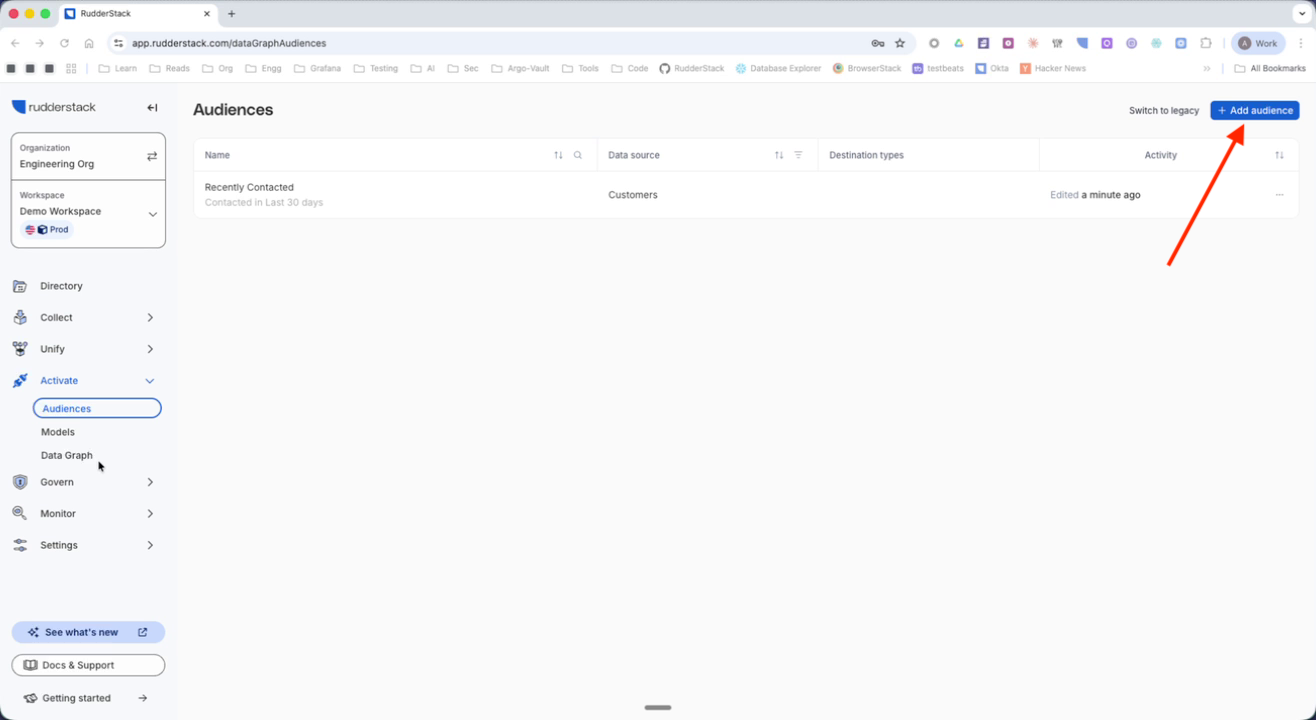
1. Add a new audience
Navigate to Audiences and click Add audience.
2. Select the data source
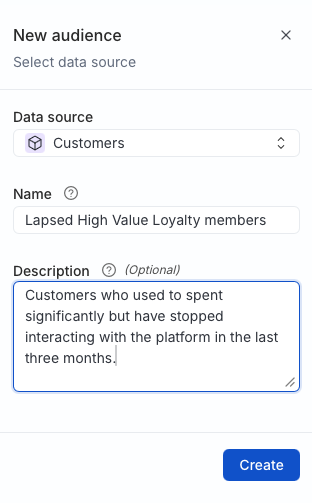
- Select a root entity model of the data graph as the audience data source.
You cannot change the data source after the audience is created.
- Provide a name and description.
- Confirm and create the audience.
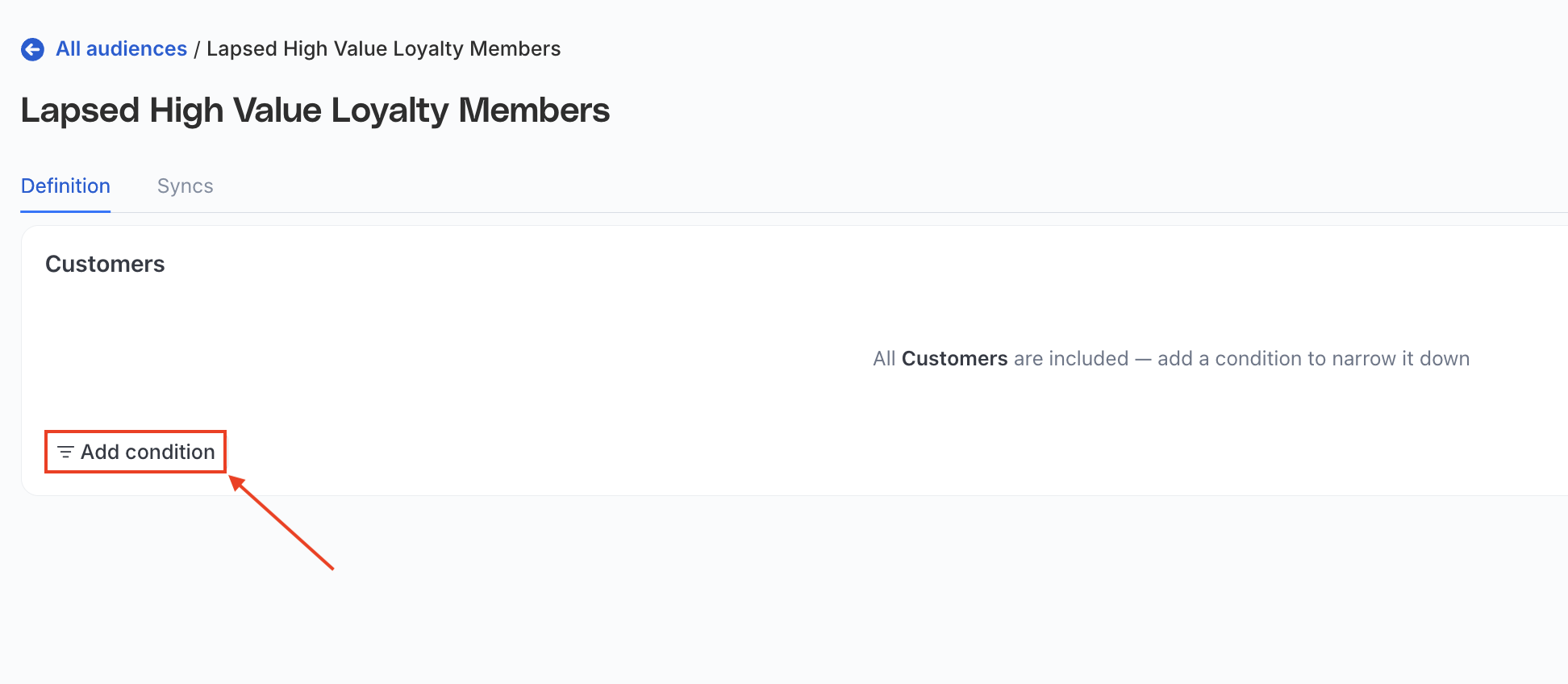
3. Add the audience conditions
Click Add Condition to start defining conditions for the audience.
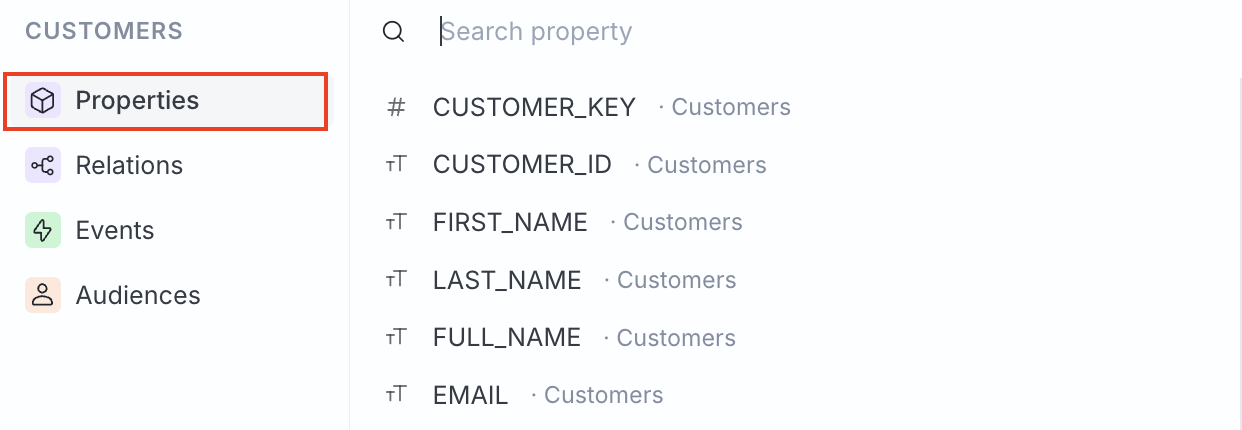
The following condition types are available:
| Condition | Description |
|---|---|
| Properties | Filter on columns of the data source |
| Events | Filter on timestamped event tables |
| Relations | Filter by existence or aggregate of related records |
| Audiences | Reference existing saved audiences for inclusion or exclusion |
Each group of conditions uses either AND or OR — not both. Click the AND or OR label between conditions to switch the entire block. To combine both, create separate condition groups.
Properties
Define conditions on columns of the data source. Use AND/OR to combine multiple conditions. Add a Where condition to narrow further.
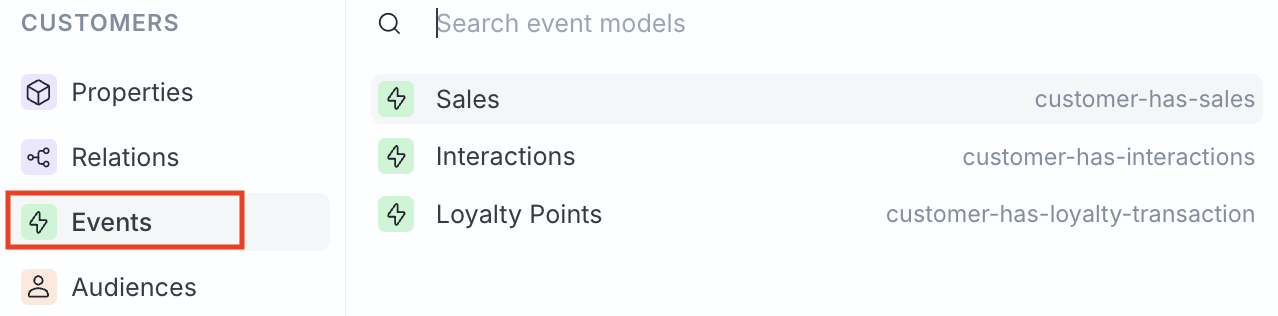
Events
Select an event model and define a condition. See Audience Builder Reference for time-window modes and filtering details.
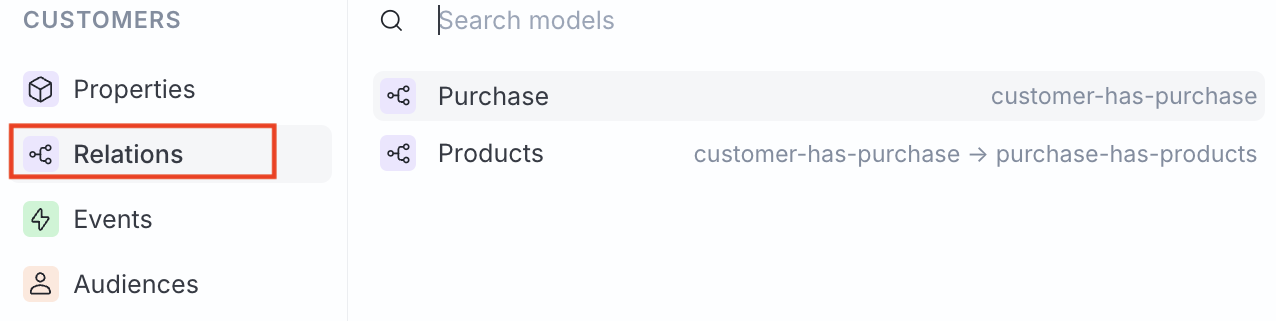
Relations
Relations connect two entity models via a one-to-many relationship, while Events connect entity models to event models.
Define a condition on related records. Optionally, add a Where condition to narrow further. See Audience Builder Reference for relationship paths, quantifiers, and aggregates.
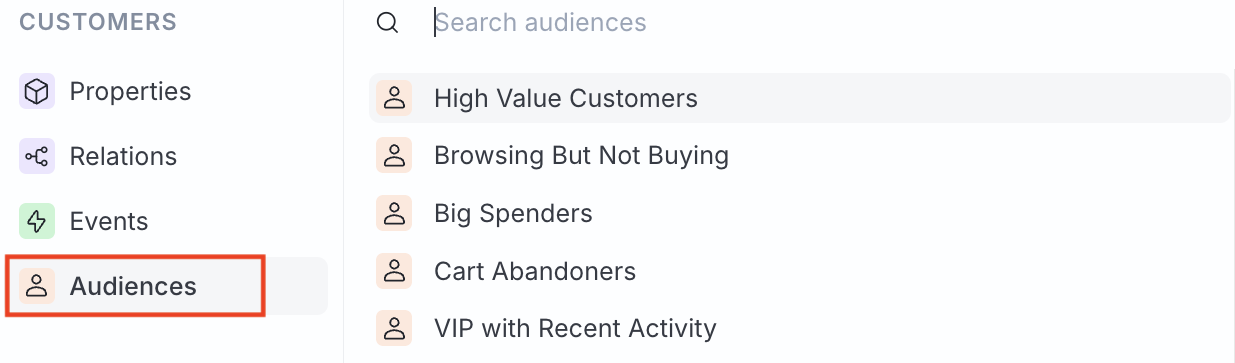
Audiences
Select an existing audience and specify whether customers should be a part of or should not be a part of that audience. See Audience Builder Reference for nesting and exclusion details.
4. Verify and sync
- Click Calculate size to see how many customers match the specified conditions.

- Click Preview to see a sample of the audience data.
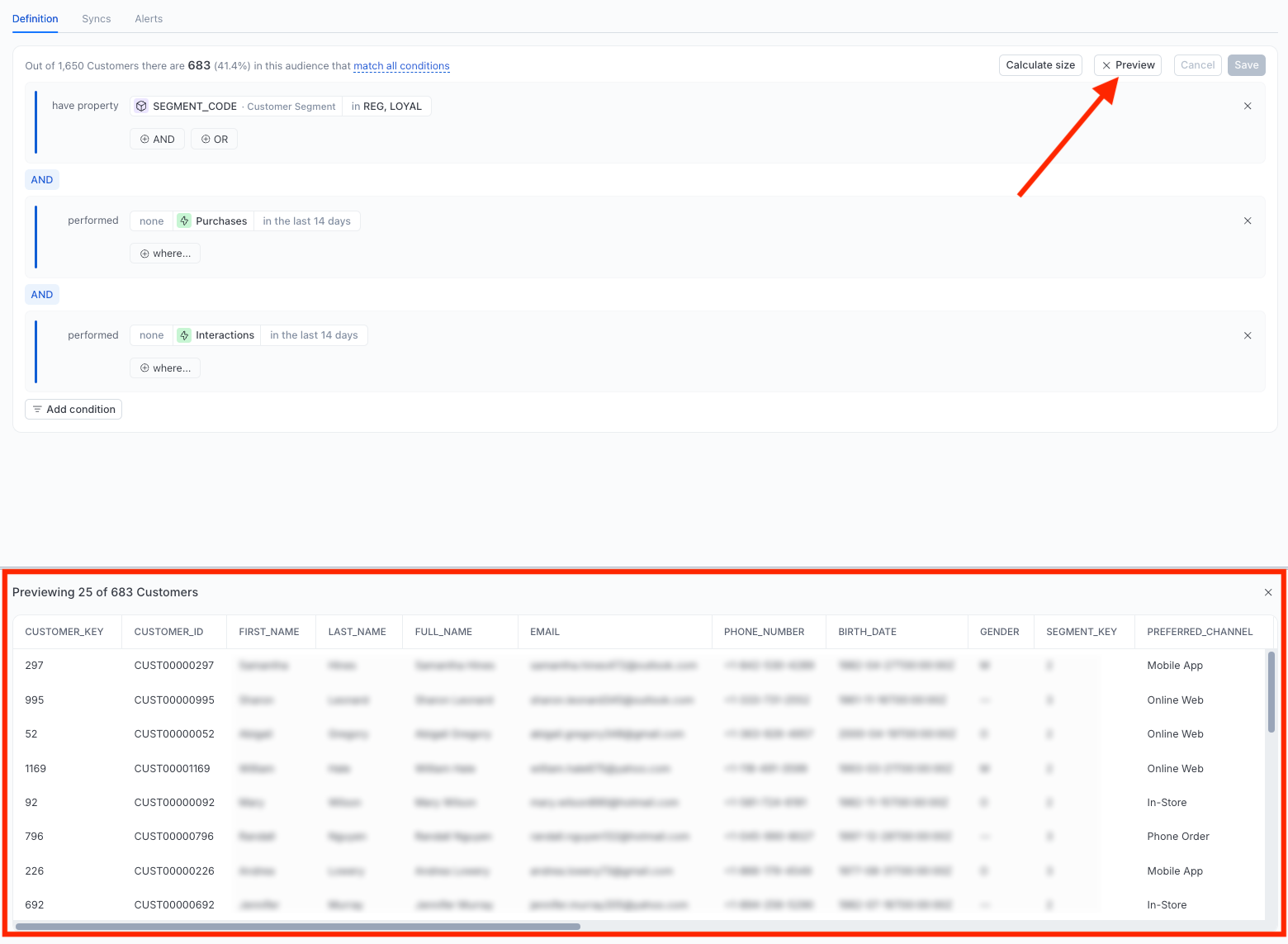
- Tweak conditions and recalculate as needed.
- Save the audience.
- To sync the audience to a destination, see Syncs.
FAQ
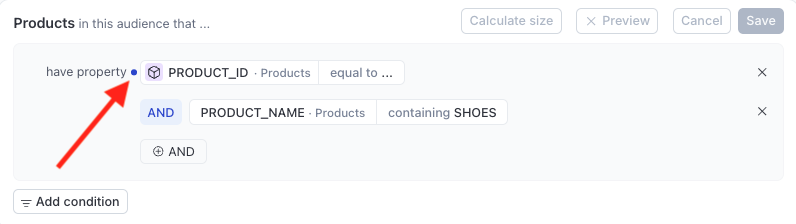
Why is my Save button disabled?
Look for a blue dot on a condition — this means it’s missing a required value. Complete or remove it to enable Save.
How do I use AND and OR?
Each group is all-AND or all-OR. Click the AND/OR label between conditions to switch. To combine both, create separate condition groups.
Where do I set up a data graph?
Your Data team sets up the data graph. Reach out to them to get started.
