# Workspace Token Generation: Updated Workflow

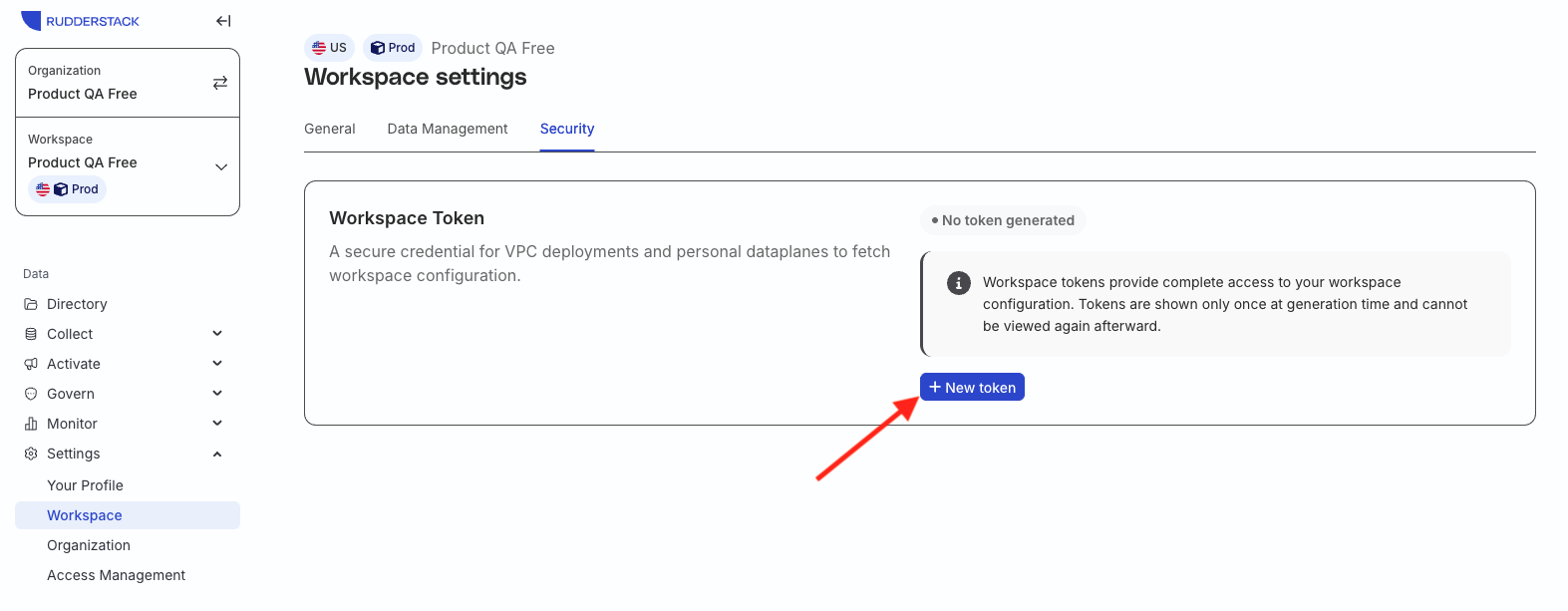
<p>You can now generate, rotate, and revoke a <a href="https://www.rudderstack.com/docs/dashboard-guides/workspace-tokens/" >workspace token</a> from <strong>Settings</strong> &gt; <strong>Workspace</strong> &gt; <strong>Security</strong>. A self-hosted data plane uses this token to read its source-destination configuration from the RudderStack-hosted control plane.</p>

<html lang="en">
<blockquote class="info">
  <div class="tip-quote">
    
    <div class="tip-text"><p><strong>Important considerations</strong></p>
<ul>
<li>Workspace tokens are available on the <a href="https://www.rudderstack.com/pricing/" >Free</a> and <a href="https://app.rudderstack.com/signup?type=opensource" >Open Source</a> plans.</li>
<li>Only organization admins can generate and manage them.</li>
<li>Tokens you already use continue to work. Replacing them is recommended, not required.</li>
</ul></div>
  </div>
</blockquote>

</html>
<p>See <a href="https://www.rudderstack.com/docs/dashboard-guides/workspace-tokens/" >Workspace Tokens</a> for more information on the new workflow.</p>
<!-- end-chunk -->
<!-- begin-chunk -->
<h2 id="why-manage-workspace-tokens">Why manage workspace tokens?</h2><p>The previous workspace token lived in the workspace and could be accessed with your account password, but you couldn&rsquo;t set an expiry, rotate it while the data plane kept running, or revoke it on its own. A leaked or long-lived token stayed valid until you changed the deployment by hand.</p>
<p>This new workflow gives you a token you can expire, replace during an overlap window, and delete.</p>
<!-- end-chunk -->
<!-- begin-chunk -->
<h2 id="whats-new">What&rsquo;s new</h2><ul>
<li><strong>Expiry you choose</strong>: Select <strong>30 days</strong>, <strong>60 days</strong>, <strong>90 days</strong>, <strong>180 days</strong>, or <strong>Never</strong>. The period defaults to <strong>180 days</strong>. <strong>Never</strong> keeps the token valid until you revoke it, and it requires an extra acknowledgement.</li>
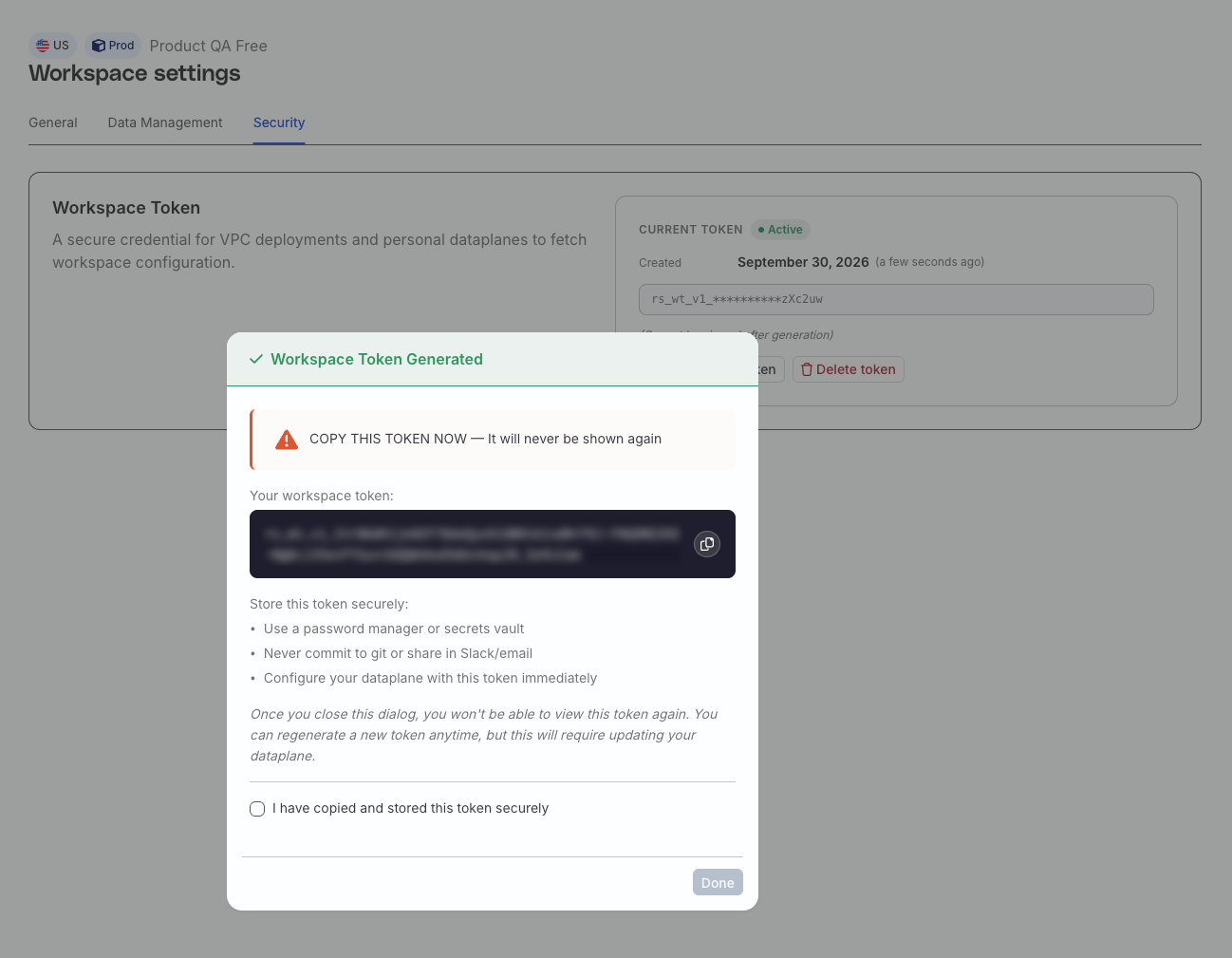
<li><strong>Show-once secret</strong>: The plaintext value appears once. After you close the modal, only a SHA-512 hash and a display mask remain, so you and RudderStack Support can&rsquo;t retrieve it. If you lose it, generate a new token.</li>
<li><strong>Rotation without downtime</strong>: <strong>Regenerate token</strong> creates a new secret and starts a 24-hour grace period. Both tokens authenticate during that window, so you can update the data plane before the previous token stops. Rotation can shorten a token that still had months left.</li>
<li><strong>Immediate revoke</strong>: Delete a token to cut off a data plane that still uses it. Audit logs record token creation and deletion.</li>
<li><strong>A two-token limit</strong>: A workspace can hold two non-expired tokens. During a rotation, the previous token keeps its slot until the grace period ends or you delete it.</li>
<li><strong>Status you can see</strong>: The token card shows <strong>Active</strong>, <strong>Expiring Soon</strong>, or <strong>Expiring</strong>. Expired tokens are removed from the list. Banners and modals appear when a token is in its grace period or has 30 days or fewer until expiry. Organization admins also receive email 30, 14, 7, and 1 days before expiry, when the token expires, and about 2 hours before a grace period ends.</li>
</ul>
<!-- end-chunk -->
<!-- begin-chunk -->
<h2 id="get-started">Get started</h2><p>You need an organization admin account on the Free or Open Source plan.</p>
<ol>
<li>Go to <strong>Settings</strong> &gt; <strong>Workspace</strong> &gt; <strong>Security</strong>.</li>
<li>Click <strong>New token</strong>.</li>
<li>Under <strong>Set token expiry</strong>, select a period. The default is <strong>180 days</strong>.</li>
<li>Under <strong>Security acknowledgement</strong>, select every checkbox. If you selected <strong>Never</strong>, select the additional never-expiry acknowledgement as well. Then generate the token and copy it before you close the modal.</li>
<li>Update the token in your data plane deployment and restart the data plane.</li>
</ol>
<p>See <a href="https://www.rudderstack.com/docs/dashboard-guides/workspace-tokens/#generate-a-workspace-token" >Generate a workspace token</a> for expiry, rotation, and deletion.</p>
<!-- end-chunk -->
<!-- begin-chunk -->
<h2 id="screenshots">Screenshots</h2><p><strong>New token on the workspace Security tab</strong></p>

<figure class="image--main "  >
    <a 
         href="/docs/images/dashboard-guides/workspace-tokens/generate-new-workspace-token.webp"
        
        >
        <img src="/docs/images/dashboard-guides/workspace-tokens/generate-new-workspace-token.webp" 
         alt="Generate workspace token modal"  
         
         
        decoding="async" loading="lazy" class="img-shortcode"/>
    </a>
    
</figure>

<p><strong>Copy the token immediately after generation</strong></p>

<figure class="image--main "  >
    <a 
         href="/docs/images/dashboard-guides/workspace-tokens/copy-workspace-token.webp"
        
        >
        <img src="/docs/images/dashboard-guides/workspace-tokens/copy-workspace-token.webp" 
         alt="Copy workspace token value"  
         
         
        decoding="async" loading="lazy" class="img-shortcode"/>
    </a>
    
</figure>