Workspace Tokens
- free
4 minute read
This guide covers how to generate, rotate, and manage your workspace token.
Overview
A workspace token uniquely identifies your RudderStack workspace. Your self-hosted data plane uses this token to read its source-destination configuration from the RudderStack-hosted control plane.
Availability and access
- Workspace tokens are available only in the RudderStack Free and Open Source plans.
- Only organization admins can generate and manage workspace tokens.
Generate a workspace token
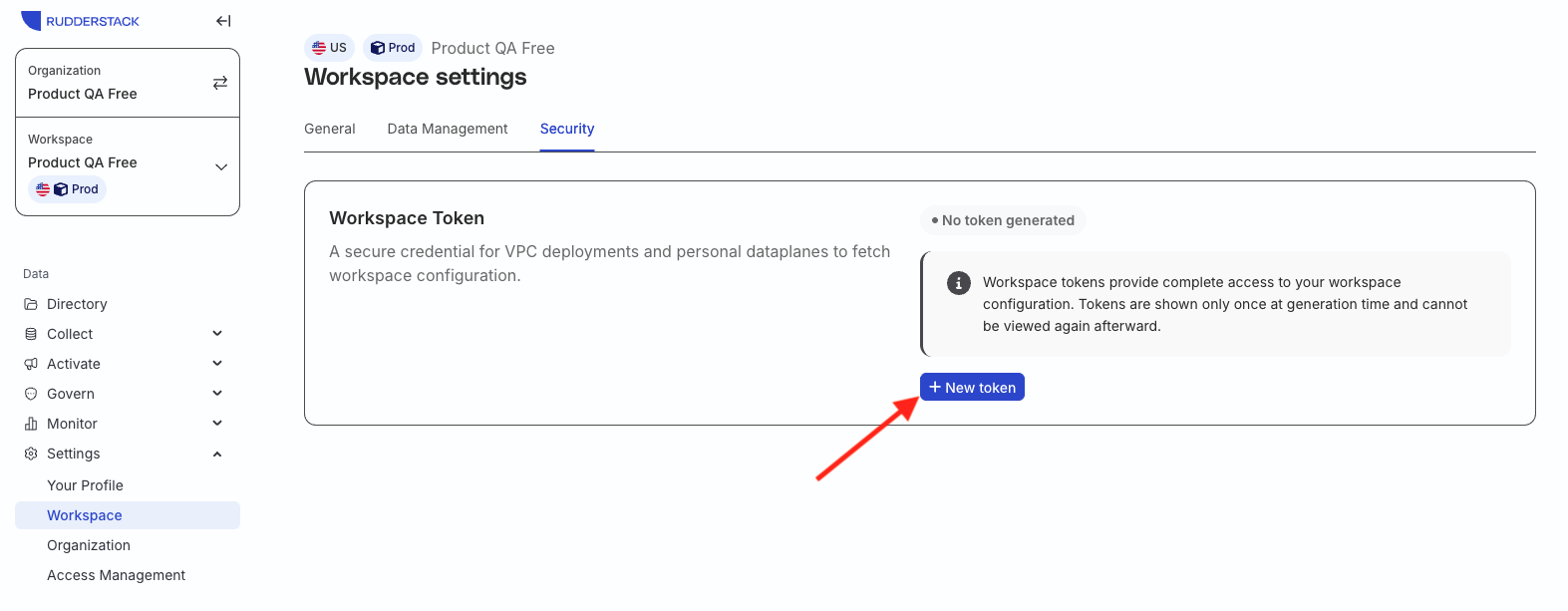
- In the RudderStack dashboard, go to Settings > Workspace > Security.
- Click New token.
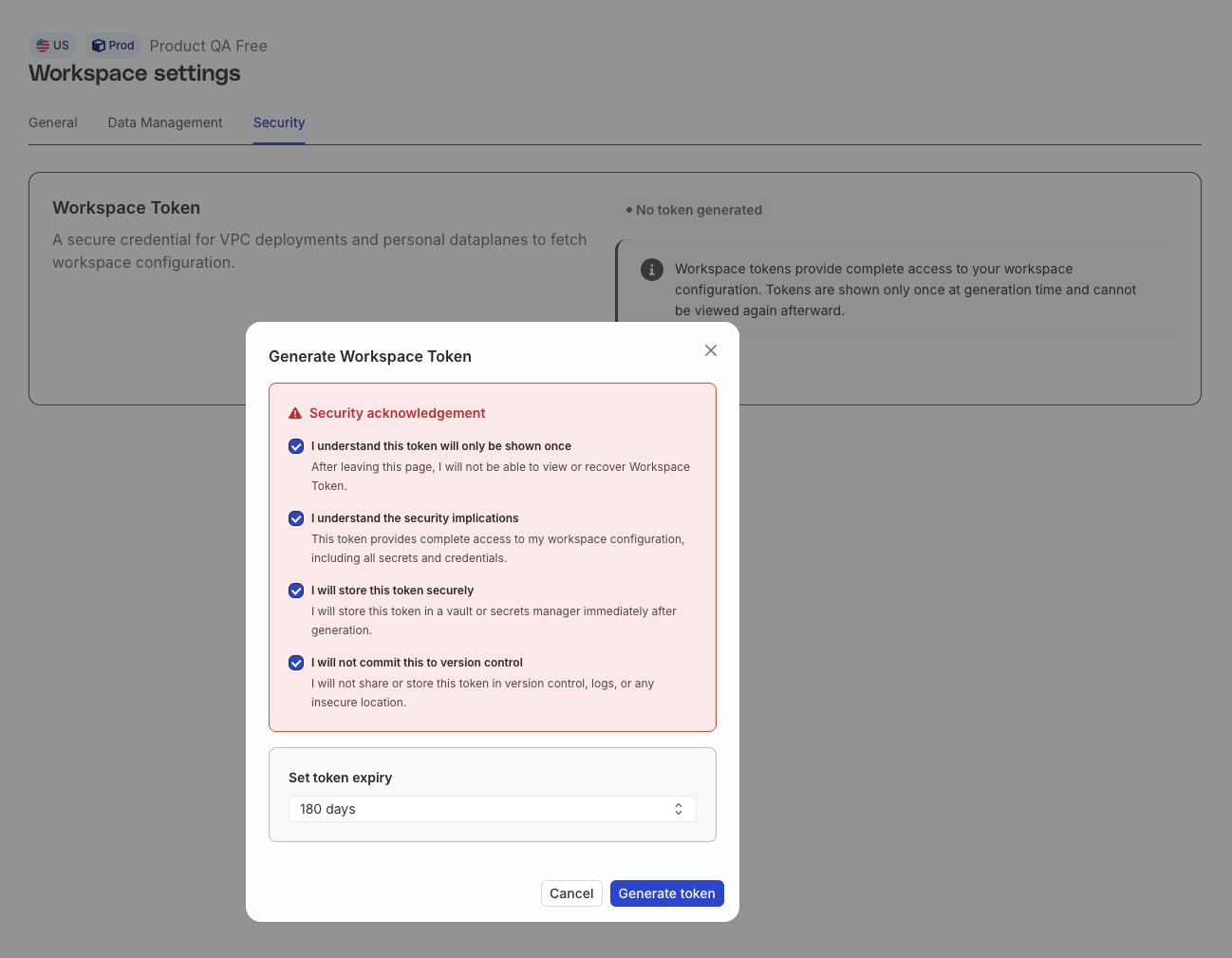
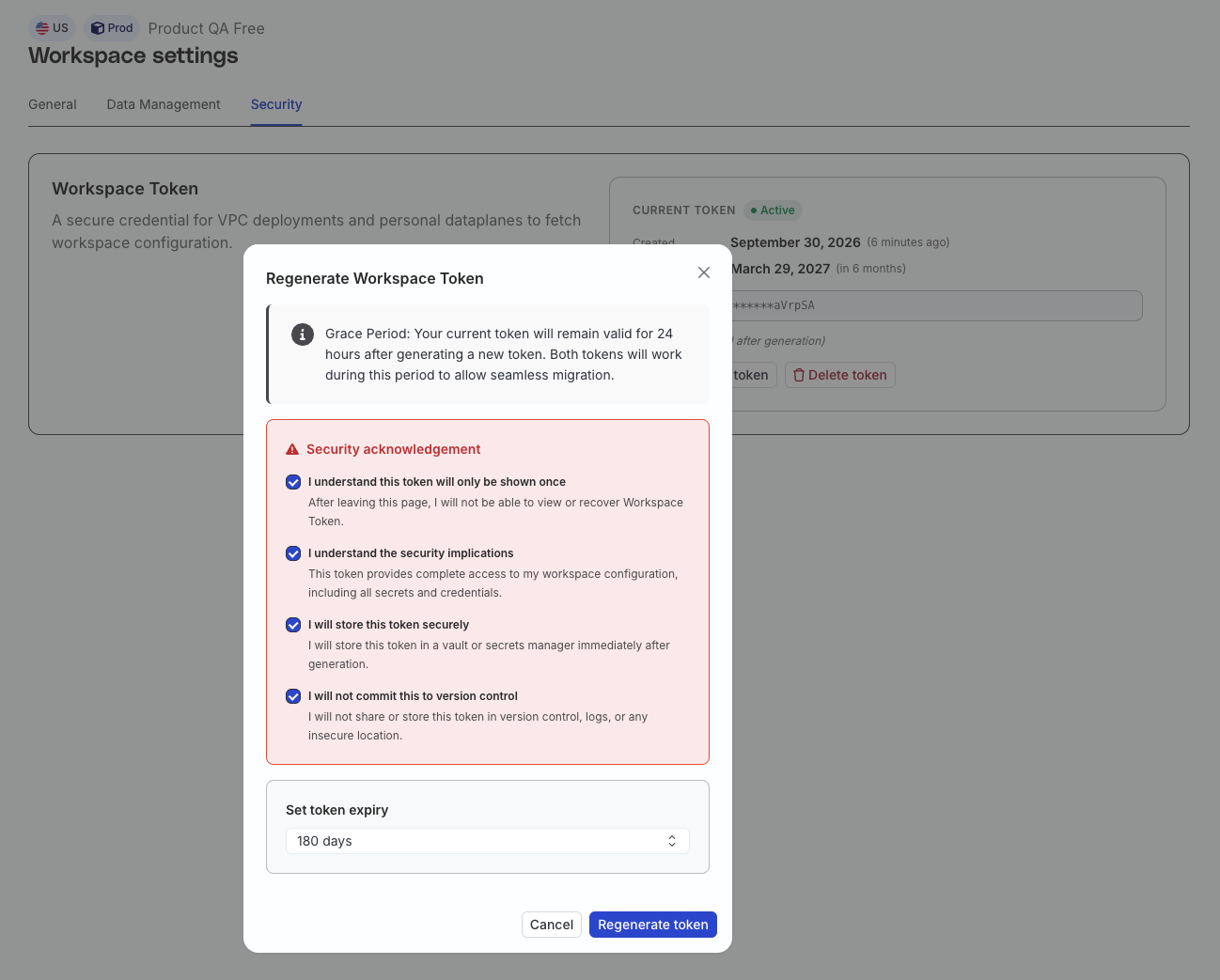
- Under Set token expiry, select an expiry period: 30 days, 60 days, 90 days, 180 days, or Never. By default, the expiry period is set to 180 days. Select Never only if the token must remain valid until you manually revoke it.
- Carefully review the Security acknowledgement and select all the checkboxes. The Generate token button stays disabled until you do.
If you selected Never as the expiry period, make sure to select the additional never-expiry acknowledgement as well.
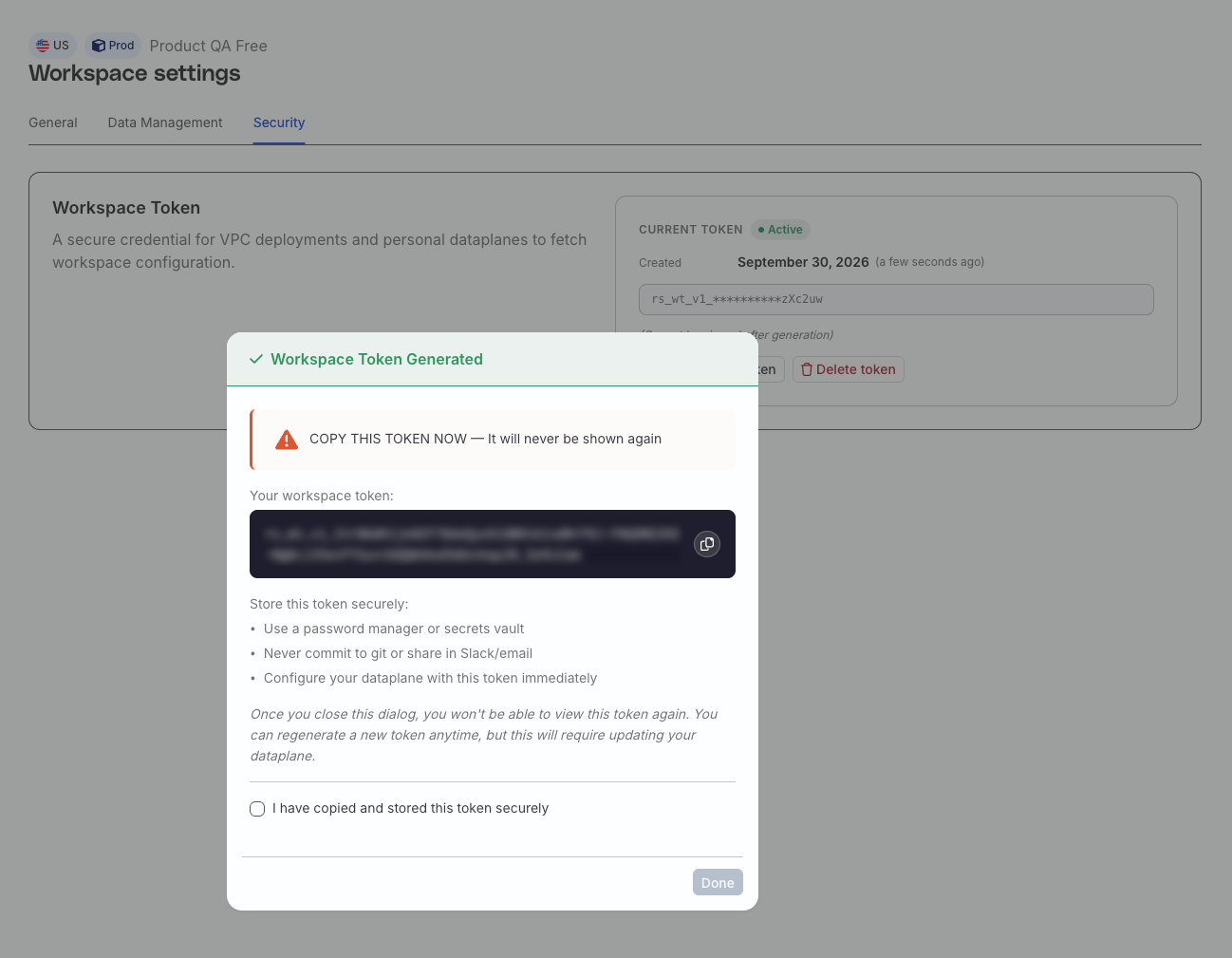
- Generate the token and copy its value immediately.
Save the token
The workspace token appears only once in plain text, immediately after generation. Save it in a secure secrets manager before closing the modal.
RudderStack stores only a SHA-512 hash and a display mask after generation, so neither you nor RudderStack Support can retrieve the plaintext value later. If you lose it, you will need to generate a new token.
Note that:
- New tokens use the format
rs_wt_v1_<base64url>. - After generation, the dashboard displays them as
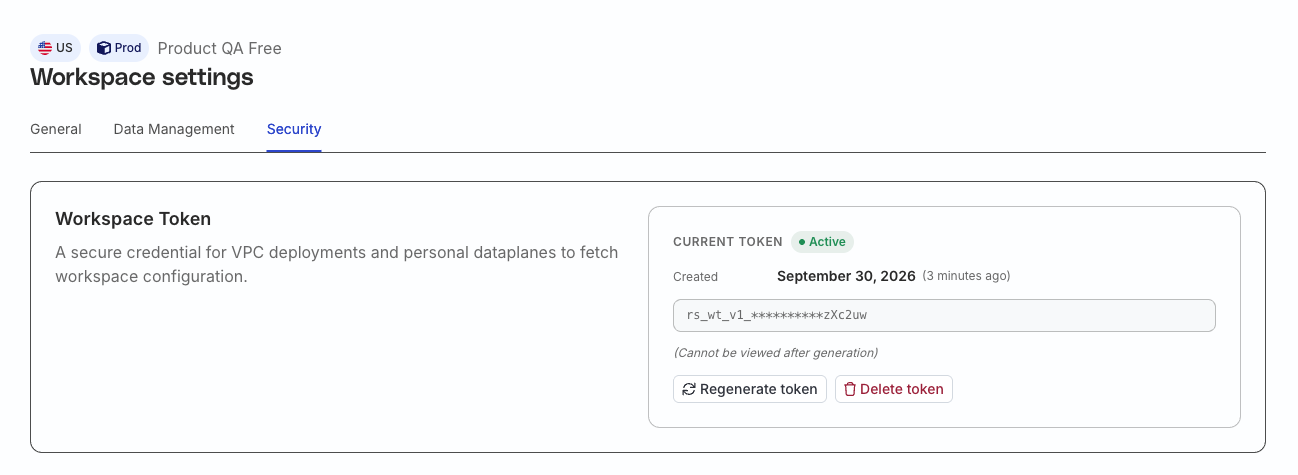
rs_wt_v1_**********<last 6 characters>.
Check token status
The pill next to the Current token and Previous token headers shows the status of your tokens:
| Status | Meaning |
|---|---|
| Active | Valid — more than 30 days remaining or no expiry set |
| Expiring Soon | 30 days or fewer until expiry |
| Expiring | Superseded by a newer token and in its grace period — the card shows the time remaining and an Auto-deletes date |
Important considerations
- Expired tokens are removed from the list. A data plane using an expired token cannot read workspace configuration.
- Banners and modals appear when a token is in its grace period or has 30 days or fewer until expiry. Organization admins also receive email 30, 14, 7, and 1 days before expiry, when the token expires, and about 2 hours before a grace period ends.
Rotate a workspace token
The Regenerate token button creates a new token — it doesn’t reveal or update an existing workspace token. If the button isn’t shown, the workspace is at its token limit.
Creating the new token starts the previous token’s grace period of 24 hours. Both the new and previous tokens authenticate during this window, so you can migrate without downtime.
Rotation can shorten the previous token’s validity. For example, a token with 180 days remaining stops working at the end of its grace period (24 hours) once you generate a new token.
To rotate a token safely:
- Generate a new token and securely save the show-once value.
- Update the token value in your data plane deployment.
- Restart the data plane.
- Verify that the data plane can read the workspace configuration before the overlap window ends.
Delete a workspace token
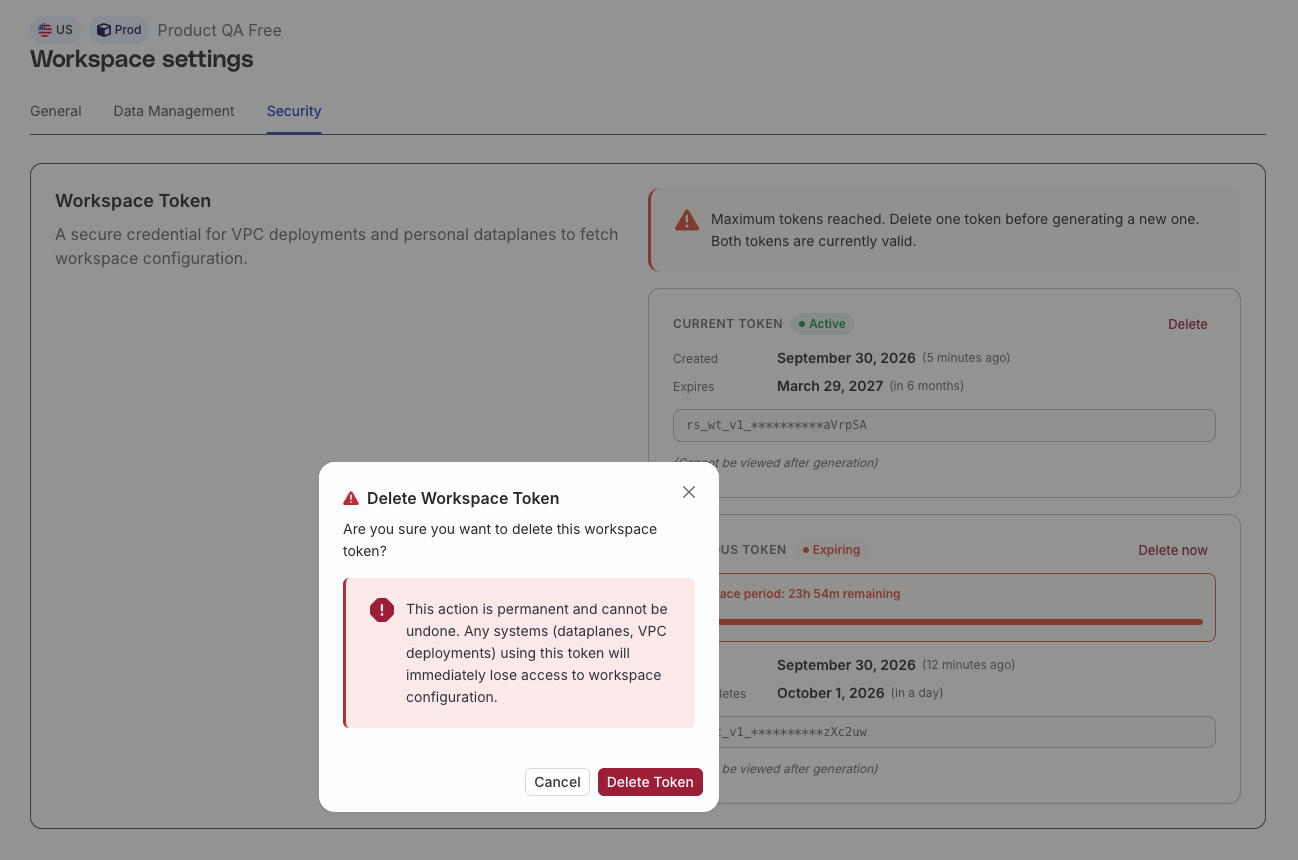
Delete a token to revoke it immediately. Any data plane still using that token loses access to the workspace configuration, so verify that your deployment uses another valid token first.
Audit logs record token creation and deletion events.
Workspace token limits
A workspace can have at most two non-expired workspace tokens — expired tokens do not count toward this limit.
When the workspace is at the limit, the Regenerate token button disappears and the Security tab shows “Maximum tokens reached. Delete one token before generating a new one. Both tokens are currently valid.”
During a rotation, the previous token still occupies a slot, so you stay at the limit until the grace period ends or you click Delete now on the in-grace token card.
Existing workspace tokens
Existing (legacy) workspace tokens continue to work without any action.
For better security, RudderStack recommends generating a new token, updating your data plane, and retiring the migrated token by following the rotation steps.
Add the token to your data plane
Add the generated token to your deployment by following the relevant setup guide:
Workspace tokens vs. access tokens
A workspace token authenticates a self-hosted data plane so it can read workspace configuration. Don’t use it to call RudderStack APIs.
- A Service Access Token authenticates applications that access RudderStack APIs at the organization or workspace level.
- A Personal Access Token is tied to an individual user and authenticates that user’s API requests.
