# How to Update an Audience in RudderStack


<blockquote class="announcement">
  <div class="tip-quote">
    
    <div class="tip-text"><p><strong>This Audiences feature leverages the Reverse ETL workflow.</strong></p>
<p>To build targeted, no-code audience segments from warehouse data and activate them downstream, use <a href="https://www.rudderstack.com/docs/activate/lookout/" >Rudder Lookout</a> instead.</p>
</div>
  </div>
</blockquote>

<p>After you <a href="https://www.rudderstack.com/docs/activate/audiences/create-audience/" >create an audience</a>, you can change its warehouse configuration, description, and filter conditions.</p>
<ol>
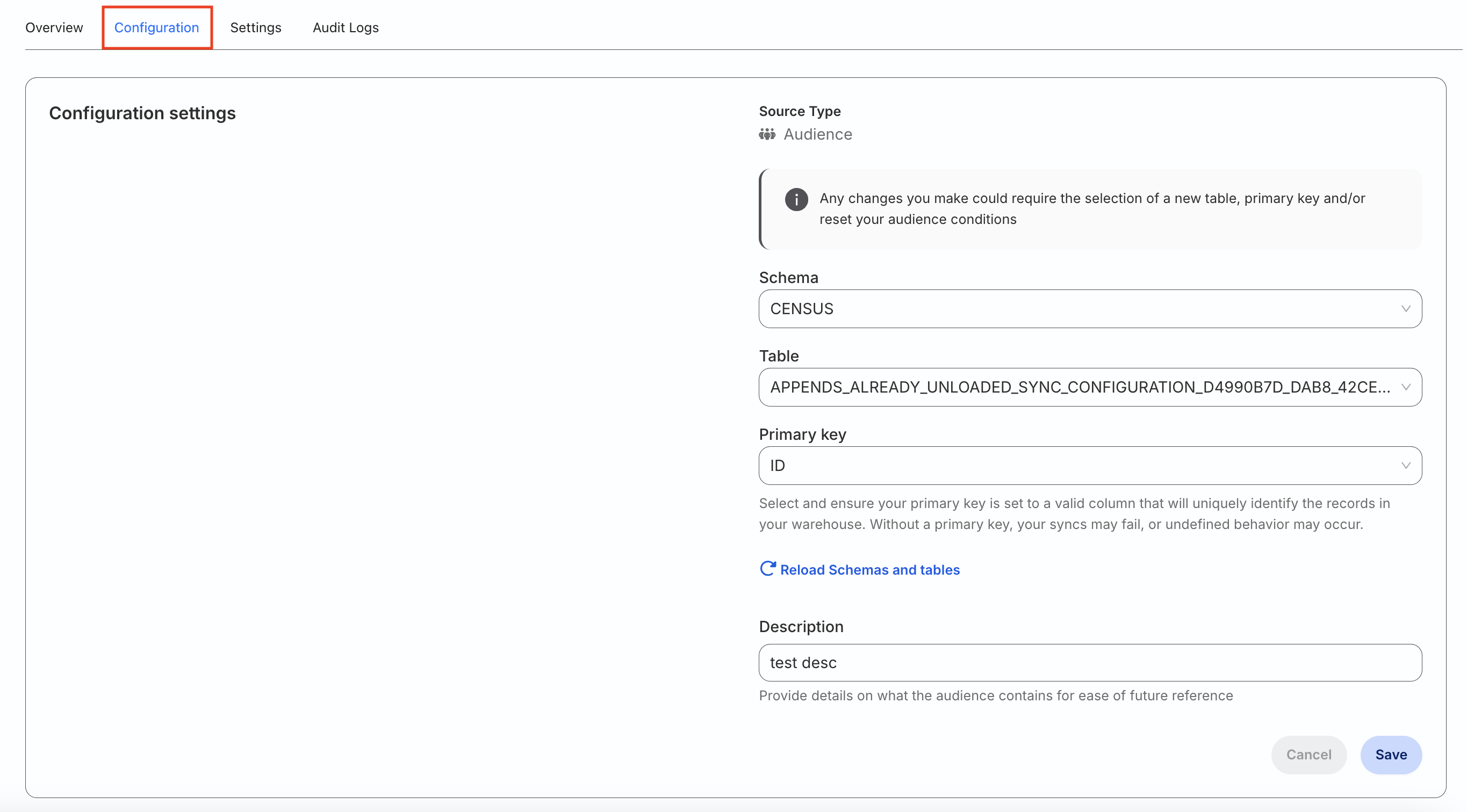
<li>Go to the <strong>Configuration</strong> tab of the audience source.</li>
<li>Click the edit icon in the <strong>Configuration settings</strong> to update the source configuration and audience description.</li>
</ol>

<blockquote class="warning">
  <div class="tip-quote">
    
    <div class="tip-text"><p>Note that:</p>
<ul>
<li>You can update the <strong>Schema</strong> and <strong>Table</strong> fields only if your audience source is <strong>not</strong> connected to any destination. Otherwise, you can only update the <strong>Primary key</strong> and <strong>Description</strong>.</li>
<li>Your audience conditions will be reset if you change the warehouse schema or table.</li>
</ul>
</div>
  </div>
</blockquote>

<figure class="image--main "  >
    <a 
         href="/docs/images/data-pipelines/update-audience-1.webp"
        
        >
        <img src="/docs/images/data-pipelines/update-audience-1.webp" 
         alt="Update audience"  
         
         
        decoding="async" loading="lazy" class="img-shortcode"/>
    </a>
    
</figure>

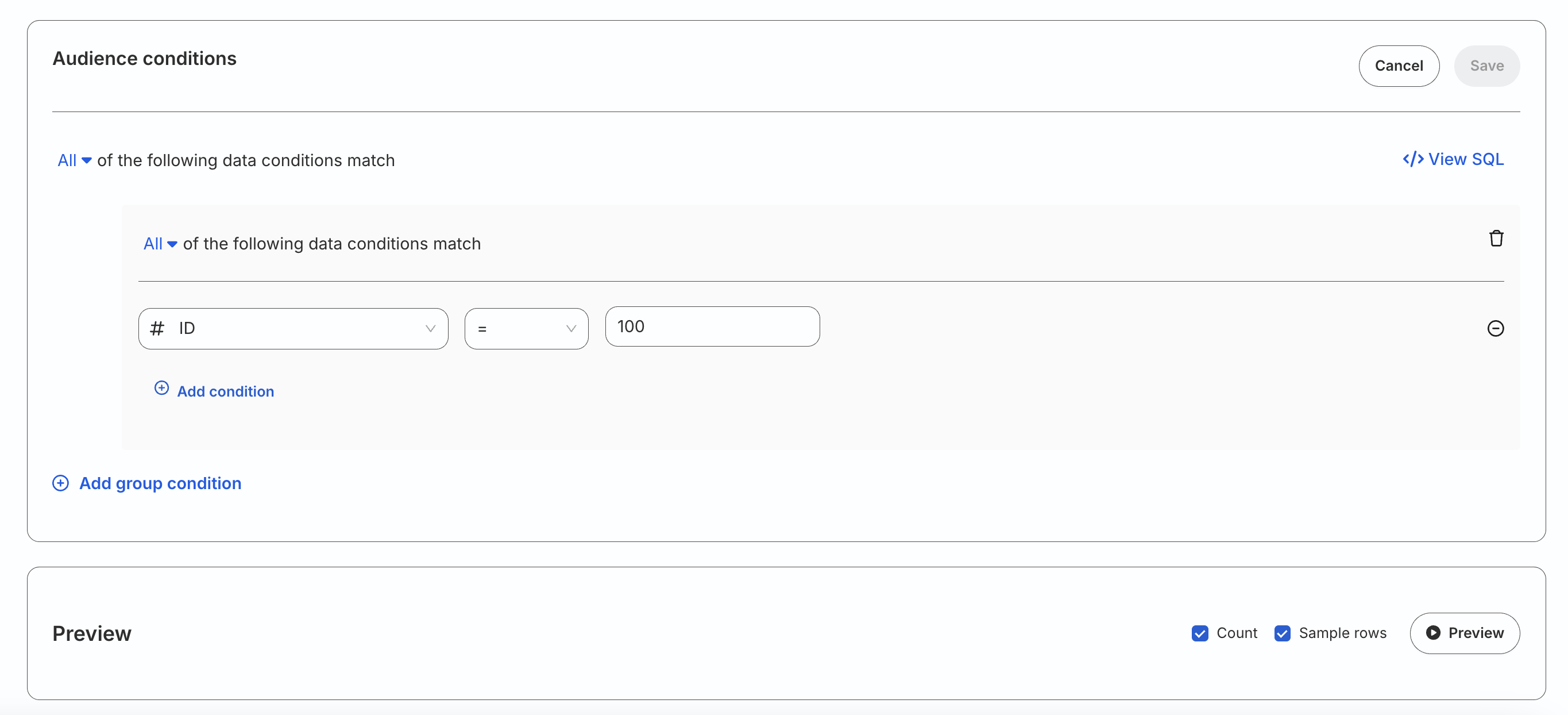
<p>To update the audience conditions, click the <strong>Edit conditions</strong> button and update the conditions. Make sure to preview the data before saving the updated conditions. See <a href="https://www.rudderstack.com/docs/activate/audiences/create-audience/#set-audience-conditions" >Set audience conditions</a> for how filters and group conditions work.</p>

<figure class="image--main "  >
    <a 
         href="/docs/images/data-pipelines/update-audience-2.webp"
        
        >
        <img src="/docs/images/data-pipelines/update-audience-2.webp" 
         alt="Update audience conditions"  
         
         
        decoding="async" loading="lazy" class="img-shortcode"/>
    </a>
    
</figure>