SSO Setup Guide for Other Providers
- enterprise
3 minute read
The Single Sign-On (SSO) feature is available in the Enterprise plan only.
This guide lists the generic configuration settings required to set up and enable SSO for your organization, depending on your SSO vendor.
RudderStack supports only the SAML 2.0 protocol for SSO.
Configuration settings
| Setting | Value |
|---|---|
| Audience (Entity ID) | urn:amazon:cognito:sp:us-east-1_ABZiTjXia |
| Recipient | https://auth2.rudderstack.com/saml2/idpresponse |
| ACS Consumer URL | https://auth2.rudderstack.com/saml2/idpresponse |
| Login URL | https://app.rudderstack.com/sso?domain=<your_website>] |
Make sure to enter the correct domain name in the Login URL setting.
For example, if your employee email is
john@example.com, then your Login URL will behttps://app.rudderstack.com/sso?domain=example.com.
Configure SAML 2.0 custom attributes
Note that the SAML 2.0 custom attributes may vary depending on the SSO vendor. Make sure to:
- Set the property/parameter associated with the user’s email address to
Email. - Set the property/parameter associated with the user’s last name to
LastName. - Set the SAML nameID format to the property associated with the email address. For this setting, the IdP vendors generally provide a dropdown list with various options for selection.
Your SSO authentication will fail if these mandatory custom attributes are not set up correctly.
Enable SSO
Before sharing the final Metadata URL or metadata file, verify that the IdP metadata declares both HTTP-Redirect and HTTP-POST SAML bindings.
RudderStack uses AWS Cognito, which sends the initial login request with HTTP-Redirect, so metadata that advertises only HTTP-POST will be rejected.
Share the final Metadata URL or metadata file with the RudderStack team to enable SSO for your organization.
While sharing the metadata, also let the RudderStack team know:
- Which workspace you would like to set as the default workspace for your organization. New users who sign in through SSO for the first time will automatically land in this workspace.
- Whether you want RudderStack to also create a personal organization for each new SSO user. This is off by default.
You can also opt out of setting up a default workspace altogether if you don’t want your SSO users to get automatic access to a shared workspace.
Debugging
There are times when an SSO login might fail for some users due to some reason. In such cases, the RudderStack team requires a HAR (HTTP Archive) file to inspect the requests and identify any SSO-related issues.
A HAR file is a log of exported network requests from the user’s browser. See the HAR Analyzer guide for steps on generating this file depending on your browser.
Once you generate the HAR file, share it with the RudderStack team to troubleshoot the issue.
Note the following before capturing your HAR file:
- Start from
https://app.rudderstack.com/ssowith a clean session, preferably in incognito mode of your browser.- Complete the SSO flow until the step where you face an error.
- Your HAR file might contain sensitive data - make sure to redact it using a text editor before sharing it with the team.
The following sections contain solutions for some common errors you might encounter while setting up SSO:
Invalid samlResponse or relayState from identity provider
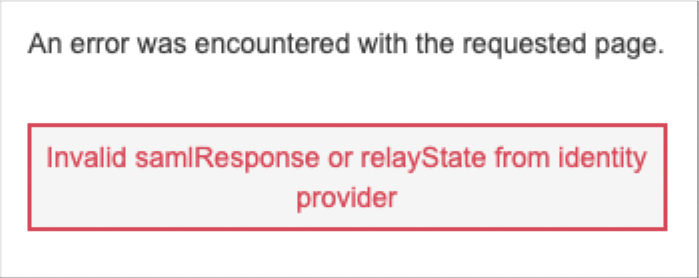
The above error indicates you tried the IdP-initiated authentication flow. RudderStack’s SSO integrations support only Service Provider (SP)-initiated SSO flow.
RudderStack recommends following all the SSO configuration steps correctly and initiating the SSO authentication using the Login URL (https://app.rudderstack.com/sso?domain=<your_website>]).
Required String parameter ‘RelayState’ is not present
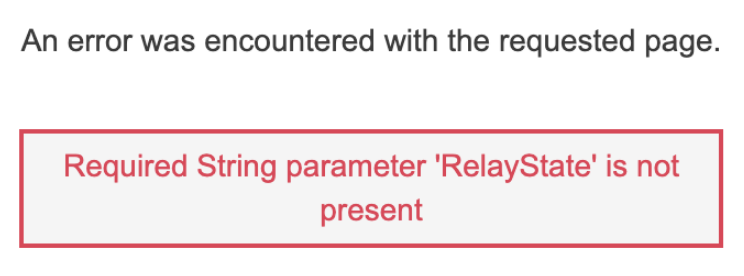
The above error indicates that you did not set up your SSO app correctly. Verify your SSO configuration in that case.
