OneLogin SSO Setup
- enterprise
4 minute read
The Single Sign-On (SSO) feature is available in the Enterprise plan only.
This guide lists the steps to configure and enable OneLogin SSO for your organization.
RudderStack supports only the SAML 2.0 protocol for SSO.
Configure RudderStack SSO app
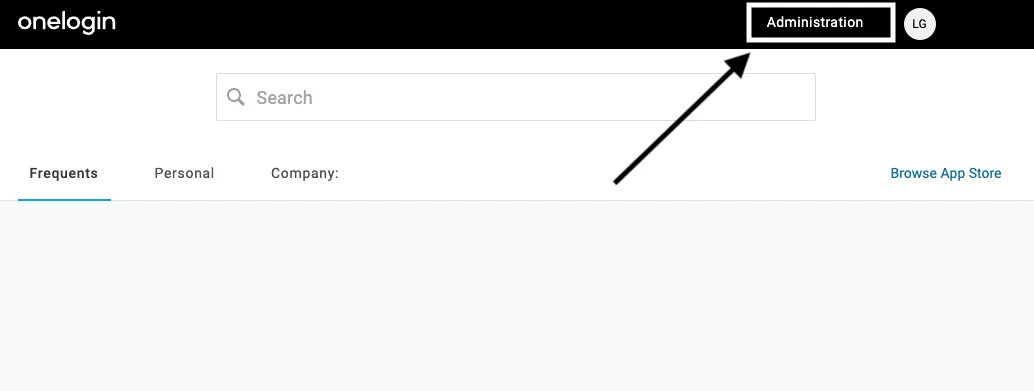
- Log into your OneLogin portal and click Administration in the top menu:
- From the top menu, go to Applications > Applications:

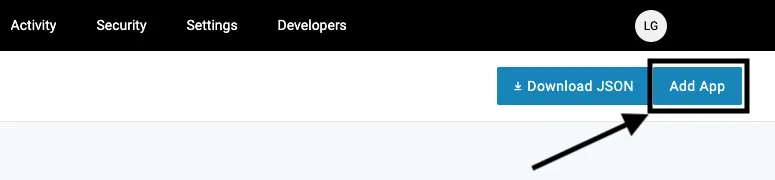
- Then, click Add App:
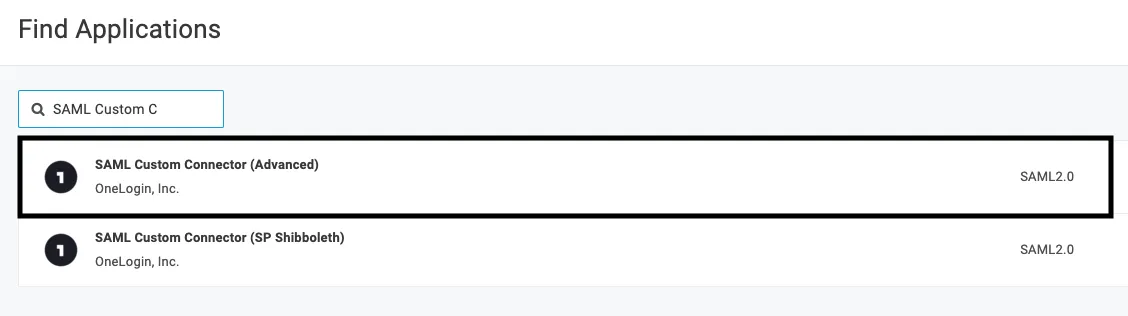
- In the resulting Find Applications page, search for SAML Custom Connector (Advanced). From the search results, select the application:
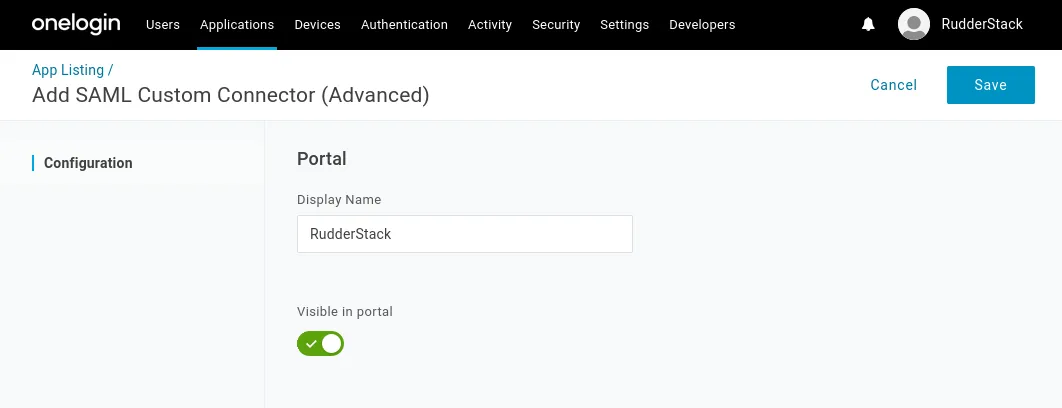
- Name your SAML app and click Save:
- In the Configuration tab, enter the settings as shown in the following image:
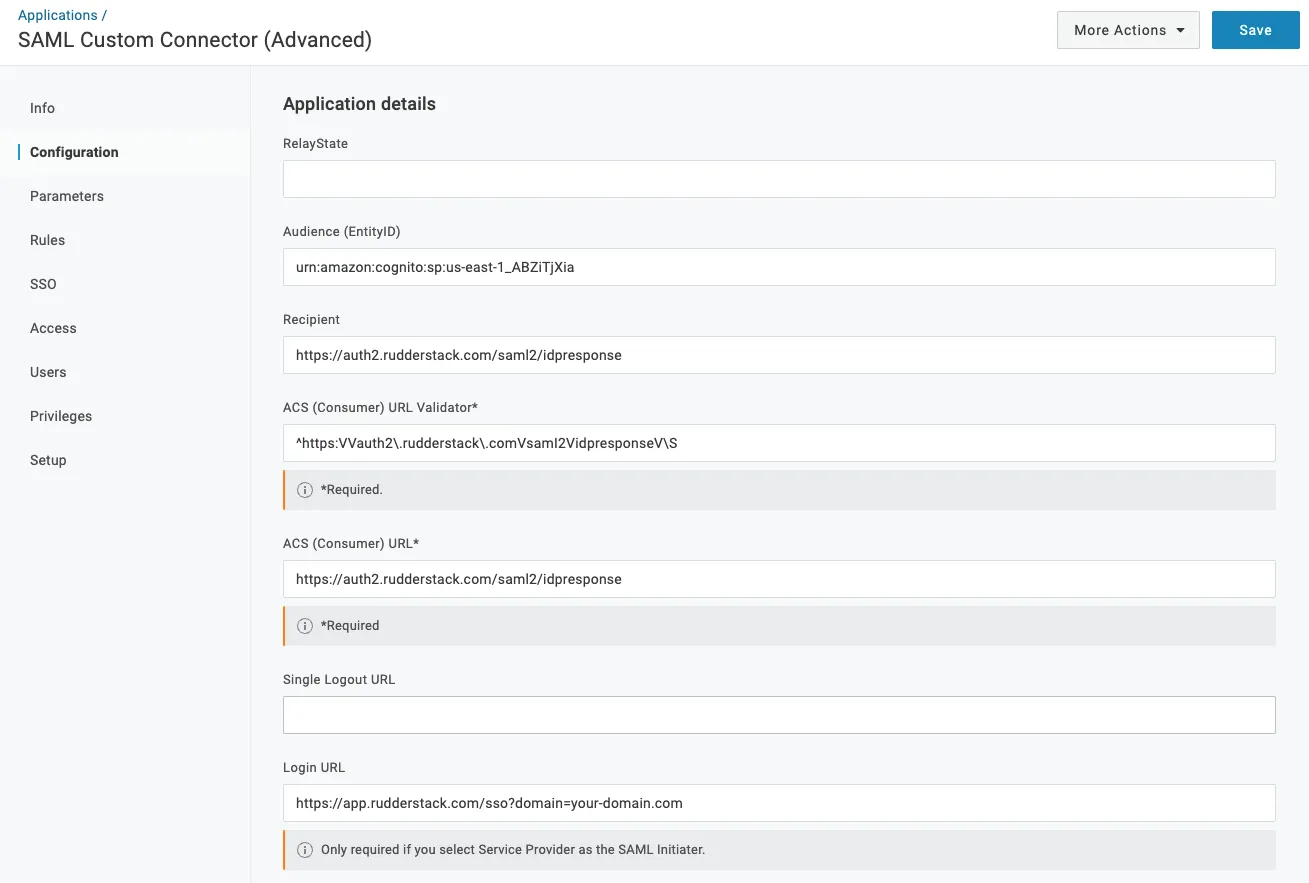
The settings to be configured are listed in the following table:
| Setting | Value |
|---|---|
| Audience (EntityID) | urn:amazon:cognito:sp:us-east-1_ABZiTjXia |
| Recipient | https://auth2.rudderstack.com/saml2/idpresponse |
| ACS (Consumer) URL Validator | ^https:\/\/auth2\.rudderstack\.com\/saml2\/idpresponse\/\$ |
| ACS (Consumer) URL | https://auth2.rudderstack.com/saml2/idpresponse |
| Login URL | https://app.rudderstack.com/sso?domain=<your_website> |
Make sure you enter the correct domain name in the Login URL setting.
For example, if your employee email is
john@example.com, then your Login URL will behttps://app.rudderstack.com/sso?domain=example.com.
- From the dropdown, select the SAML initiator and SAML nameID format fields as shown:
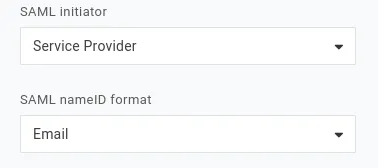
Configure the other SAML settings related to the assertion validity, encryption method, etc. as per your organizational requirements.
- Next, go to the Parameters tab and add the custom parameters as shown below:
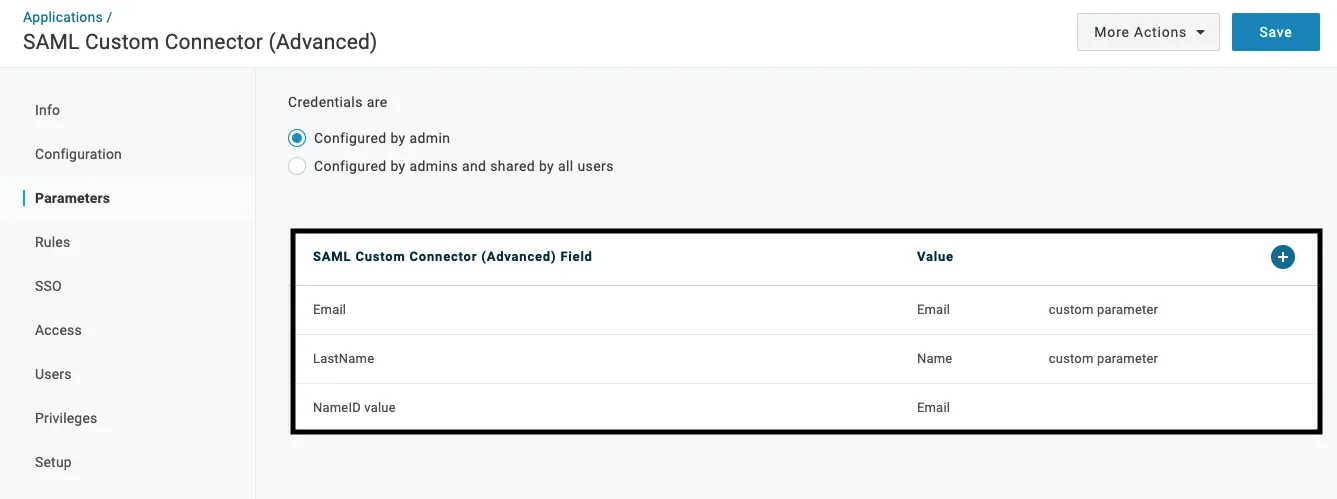
The custom parameters and their values are listed in the following table:
| Parameter | Value |
|---|---|
Email | |
| LastName | Name |
| NameID value | Email |
For the LastName custom attribute, you can specify a single fieldName- which specifies how you would like to see your employees on the RudderStack web app.
- To add any other custom parameter, click the + button, enter the Field name, and select the value from the dropdown:
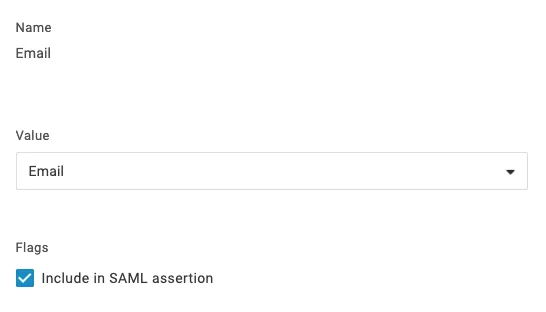
Make sure you enable (tick) the Include in SAML assertion flag for each custom parameter.
- Click Save to save the configuration.
Enable SSO
Go to the SSO tab of your app and copy the Issuer URL:
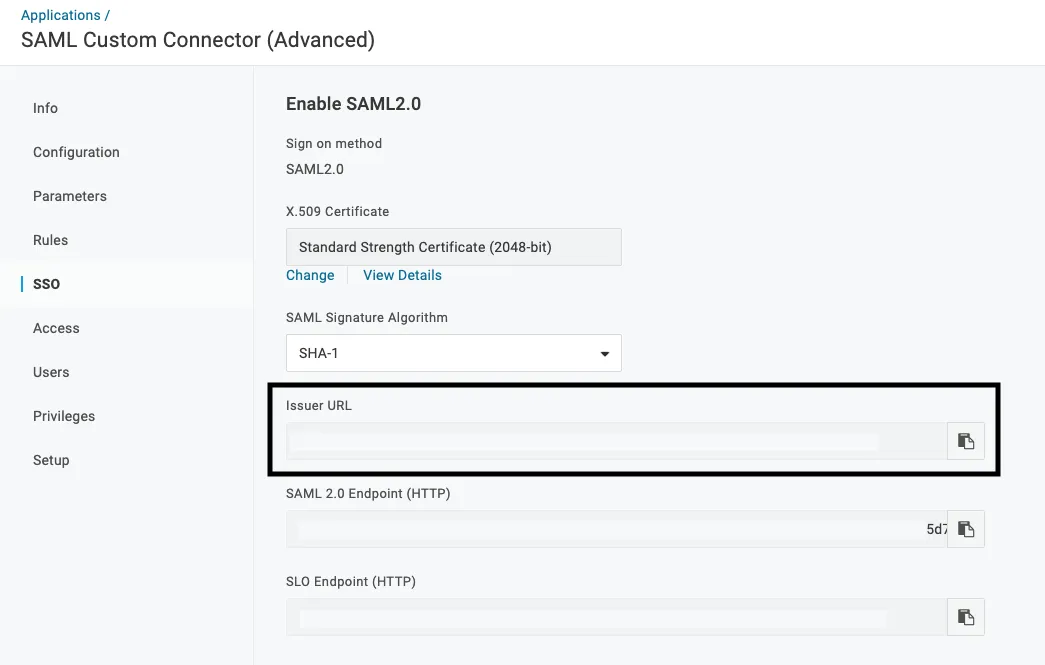
The Issuer URL is the SAML metadata endpoint that contains the certificate and any other information required to enable SSO for your organization.
Before sharing the Issuer URL, verify that the IdP metadata declares both HTTP-Redirect and HTTP-POST SAML bindings.
RudderStack uses AWS Cognito, which sends the initial login request with HTTP-Redirect, so metadata that advertises only HTTP-POST will be rejected.
Share this Issuer URL with the RudderStack team.
While sharing the Issuer URL, also let the RudderStack team know:
- Which workspace you would like to set as the default workspace for your organization. New users who sign in through SSO for the first time will automatically land in this workspace.
- Whether you want RudderStack to also create a personal organization for each new SSO user. This is off by default.
You can also opt out of setting up a default workspace altogether if you don’t want your SSO users to get automatic access to a shared workspace.
Debugging
There are times when an SSO login might fail for some users due to some reason. In such cases, the RudderStack team requires a HAR (HTTP Archive) file to inspect the requests and identify any SSO-related issues.
A HAR file is a log of exported network requests from the user’s browser. See the HAR Analyzer guide for steps on generating this file depending on your browser.
Once you generate the HAR file, share it with the RudderStack team to troubleshoot the issue.
Note the following before capturing your HAR file:
- Start from
https://app.rudderstack.com/ssowith a clean session, preferably in incognito mode of your browser.- Complete the SSO flow until the step where you face an error.
- Your HAR file might contain sensitive data - make sure to redact it using a text editor before sharing it with the team.
The following sections contain solutions for some common errors you might encounter while setting up SSO:
Invalid samlResponse or relayState from identity provider
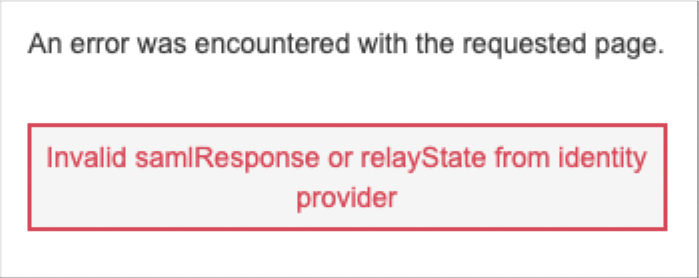
The above error indicates you tried the IdP-initiated authentication flow. As stated above, this integration supports only Service Provider (SP)-initiated SSO flow.
RudderStack recommends initiating the SSO authentication by following all the above SSO configuration steps correctly.
As an alternative, you can simulate the IdP-initiation authentication flow by configuring the RudderStack SSO app and setting the Login URL field to https://app.rudderstack.com/sso?domain=<your-website>] where <your_website> is your organization’s web domain.
Required String parameter ‘RelayState’ is not present
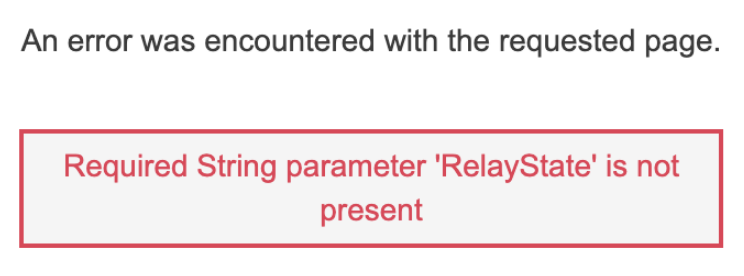
The above error indicates that you did not set up your SSO app correctly. Make sure to:
- Set the Audience (EntityID) field to
urn:amazon:cognito:sp:us-east-1_ABZiTjXia. - Set the SAML nameID format to Email.
- Configure the other SAML settings (Step 6 under Configure RudderStack SSO app) correctly.
FAQ
My organization’s email domain has changed from abc.com to xyz.com and now I am unable to log in. What should I do?
Contact RudderStack support to make the necessary changes to your SSO configuration.
