Google Workspace SSO Setup
- enterprise
6 minute read
The Single Sign-On (SSO) feature is available in the Enterprise plan only.
This guide lists the steps to set up your Google Workspace SAML integration with RudderStack.
Overview
This integration supports the following features:
- SP-initiated SSO
- JIT (Just In Time) Provisioning
- Group-based provisioning (via SAML group membership)
Note that:
- RudderStack supports only the SAML 2.0 protocol for SSO.
- RudderStack does not support IdP-initiated authentication. Make sure the users log in through https://app.rudderstack.com/sso.
- As this is a JIT (Just In Time) provisioning-only integration, RudderStack does not support SCIM with Google Workspace.
- User deletions and group membership changes are not propagated from Google Workspace to RudderStack. When you remove a user or move them between groups in Google Workspace, you must update or remove their access manually in RudderStack.
Step 1: Create a custom SAML app
- Sign in to the Google Admin console as an administrator.
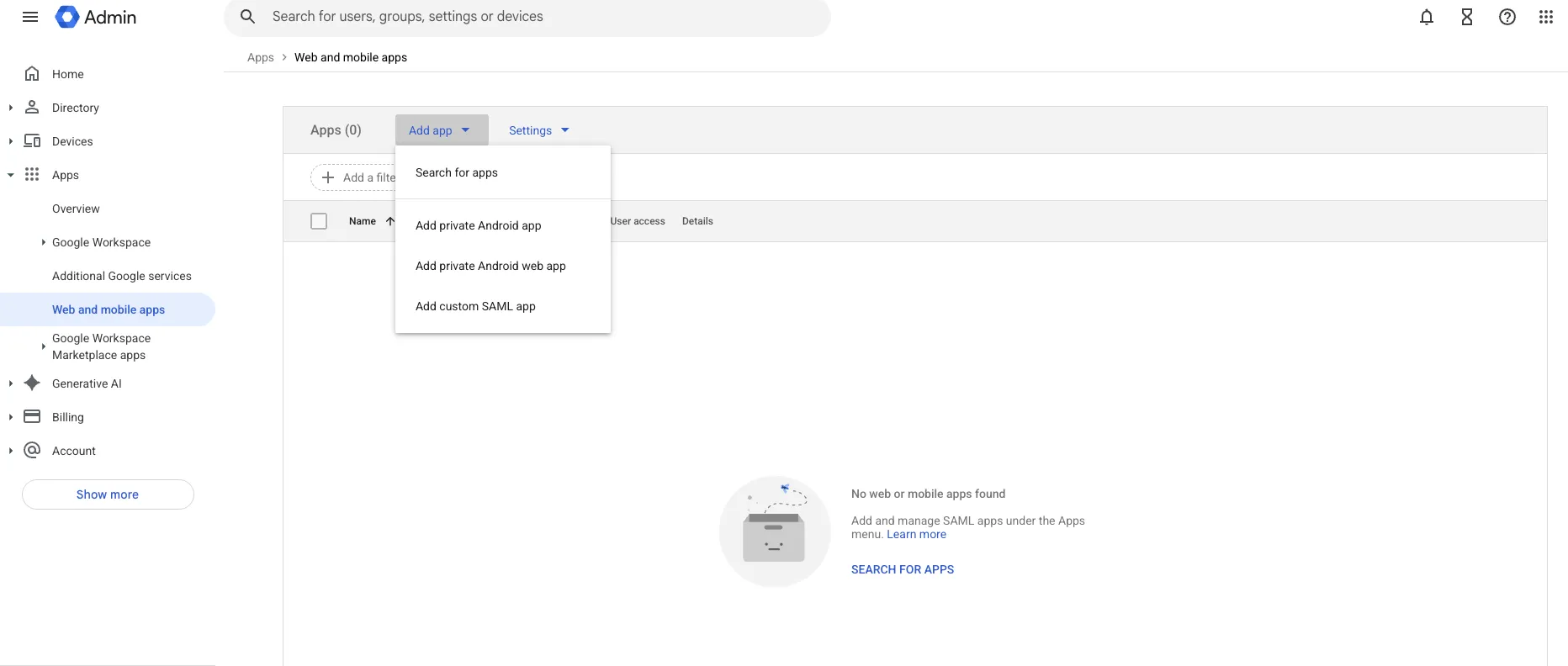
- Go to Apps > Web and mobile apps.
- Click Add app > Add custom SAML app.
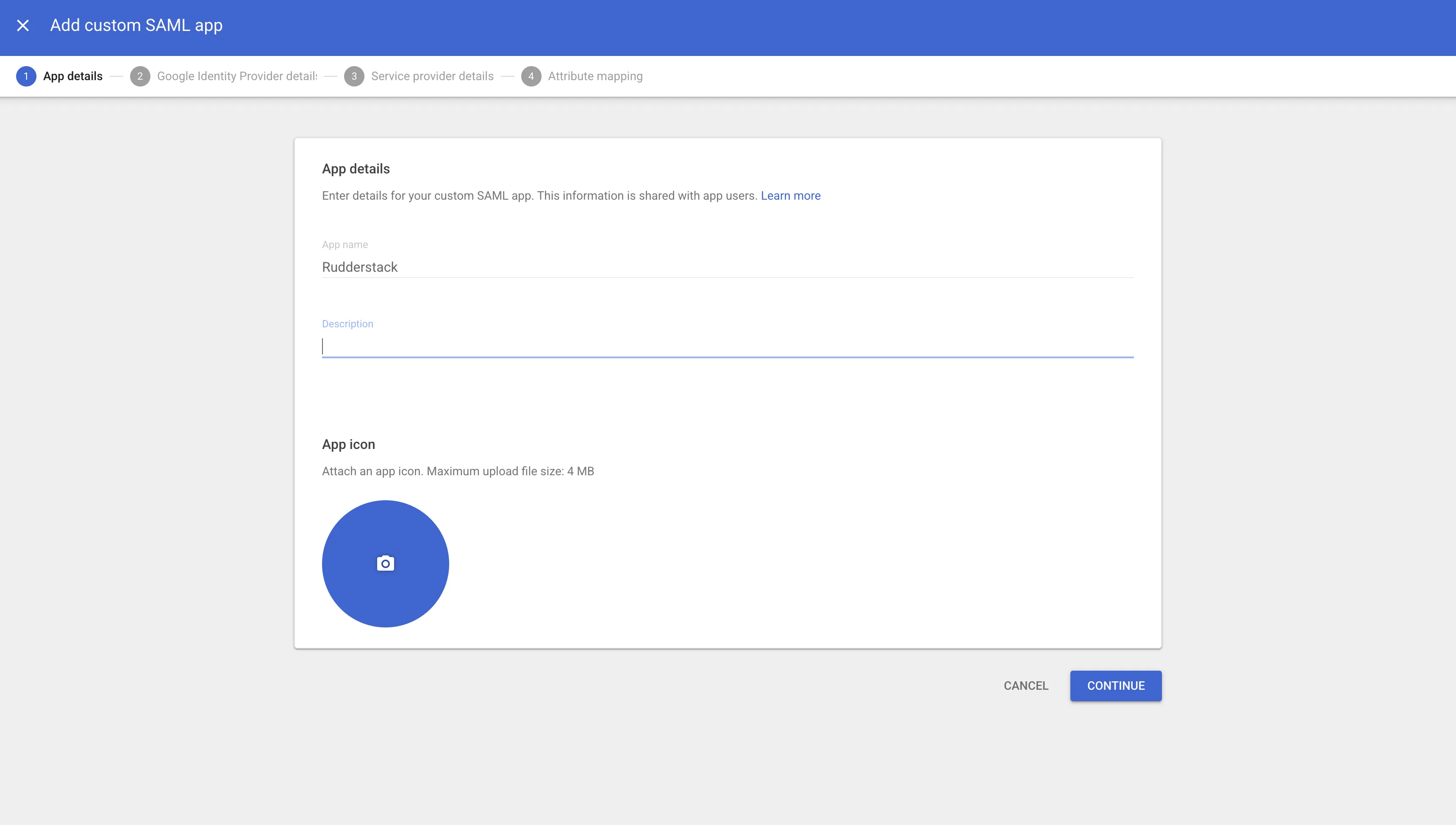
- Enter the App name (for example,
RudderStack), optionally upload an icon, and click Continue.
Step 2: Share the IdP metadata with RudderStack
- On the Google Identity Provider details page, click Download Metadata to download the IdP metadata file. Alternatively, copy the SSO URL and Entity ID and download the Certificate.
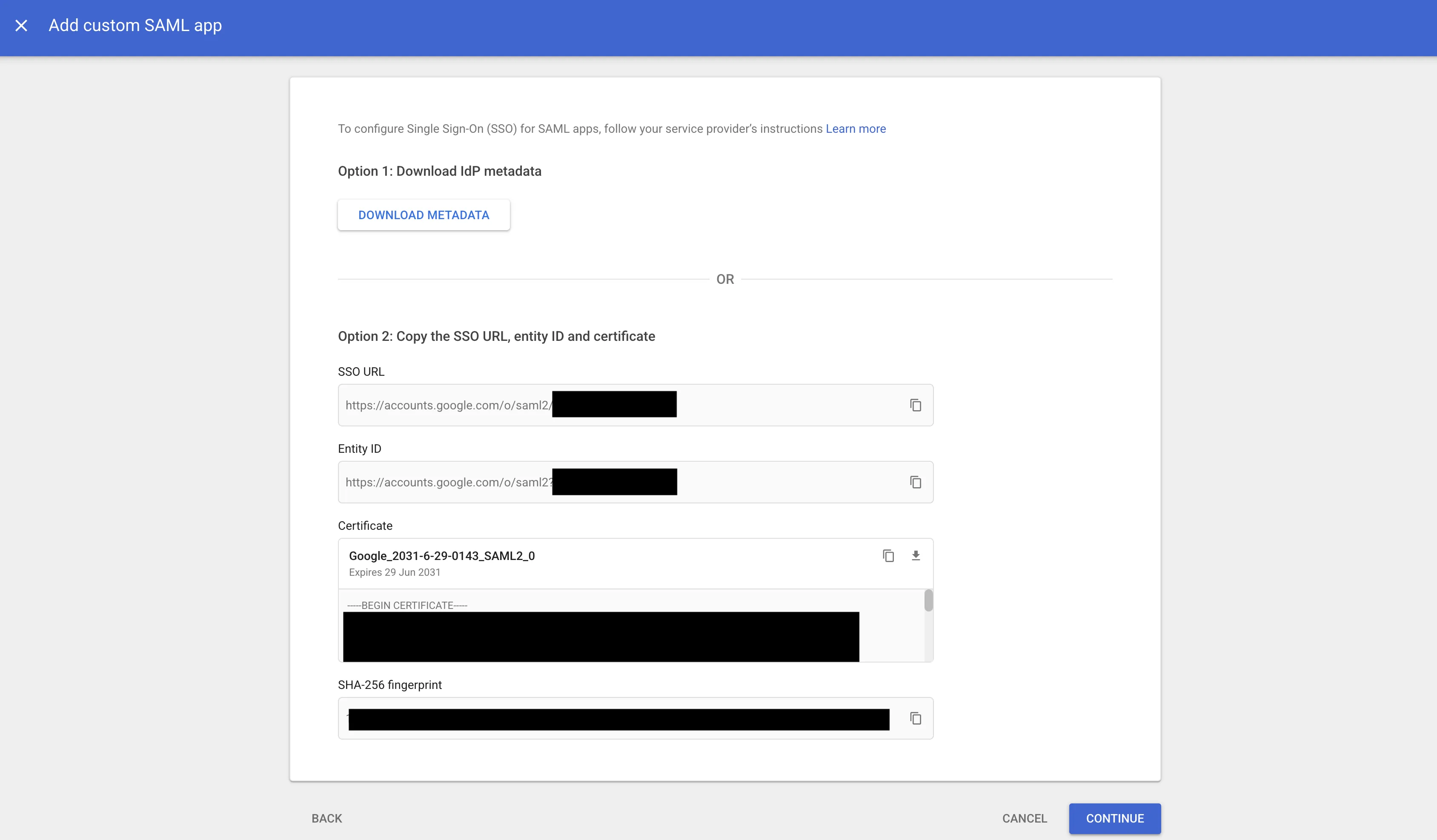
Before sharing the IdP metadata, verify that it declares both HTTP-Redirect and HTTP-POST SAML bindings.
RudderStack uses AWS Cognito, which sends the initial login request with HTTP-Redirect, so metadata that advertises only HTTP-POST will be rejected.
- Share the downloaded metadata file (or the SSO URL, Entity ID, and certificate) with the RudderStack team to enable SSO for your organization.
While sharing the metadata, also let the RudderStack team know:
- Which workspace you would like to set as the default workspace for your organization. New users who sign in through SSO for the first time will automatically land in this workspace.
- Whether you want RudderStack to also create a personal organization for each new SSO user. This is off by default.
You can also opt out of setting up a default workspace altogether if you don’t want your SSO users to get automatic access to a shared workspace.
- Click Continue.
Step 3: Set up the service provider details
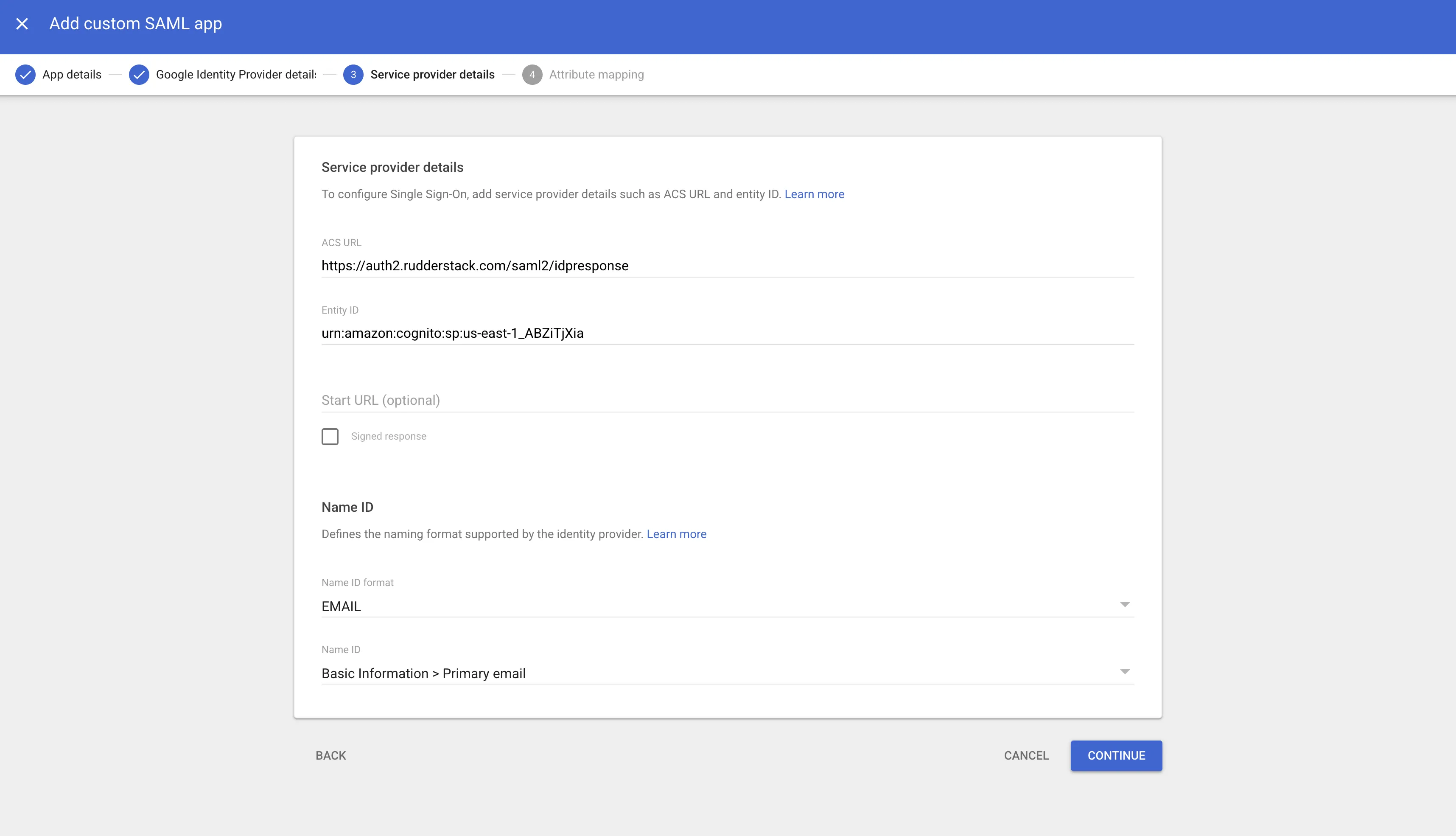
On the Service Provider Details page, enter the following information:
| Field | Value |
|---|---|
| ACS URL | https://auth2.rudderstack.com/saml2/idpresponse |
| Entity ID | urn:amazon:cognito:sp:us-east-1_ABZiTjXia |
| Start URL | https://app.rudderstack.com/sso?domain=<YOUR_EMAIL_DOMAIN>Replace <YOUR_EMAIL_DOMAIN> with your organization’s email domain. For example, if your employee email is alex@example.com, then set the Start URL to https://app.rudderstack.com/sso?domain=example.com.
|
| Name ID format | EMAIL |
| Name ID | Go to Basic Information > Primary email |
Step 4: Configure attribute mapping
On the Attribute mapping page, map the following Google Directory attributes to the app attributes that RudderStack expects:
| Google Directory attribute | App attribute |
|---|---|
| Primary email | Email |
| Last name | LastName |
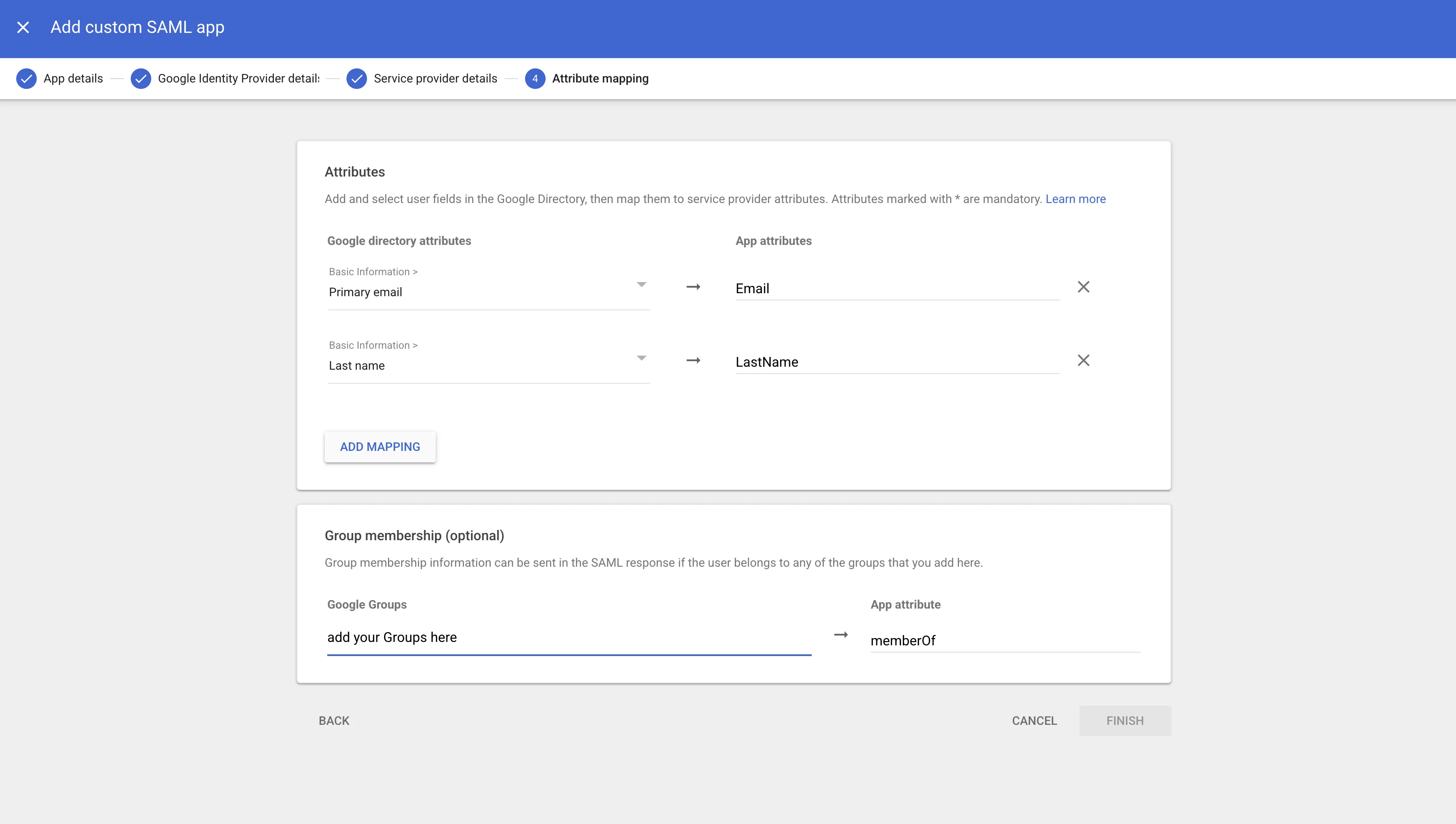
Your SSO authentication will fail if these mandatory attributes are not mapped correctly.
Step 5: Turn on the app
- In the Web and mobile apps list, select your newly created RudderStack SAML app.
- Click User access.
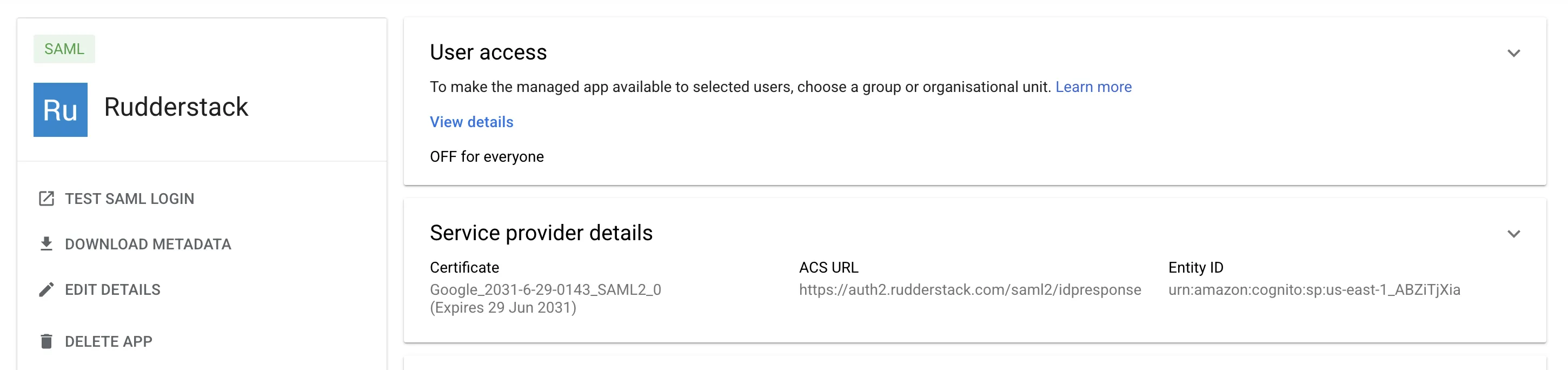
- Turn the Service status ON for everyone (or for the specific organizational units that should access RudderStack), and click Save.

Make sure the email addresses your users use to sign in to RudderStack match the email addresses they use to sign in to your Google Workspace domain.
Step 6: Send group membership in the SAML response
If you want RudderStack to automatically assign users to RudderStack groups based on their Google Workspace group membership, configure your SAML app to send the memberOf attribute in the SAML response.
- On the Attribute mapping page, go to the Group membership (optional) section.
- Under Google Groups, add the Google Workspace groups whose membership you want to send to RudderStack.
- Set the corresponding App attribute to
memberOf. - Click Save.
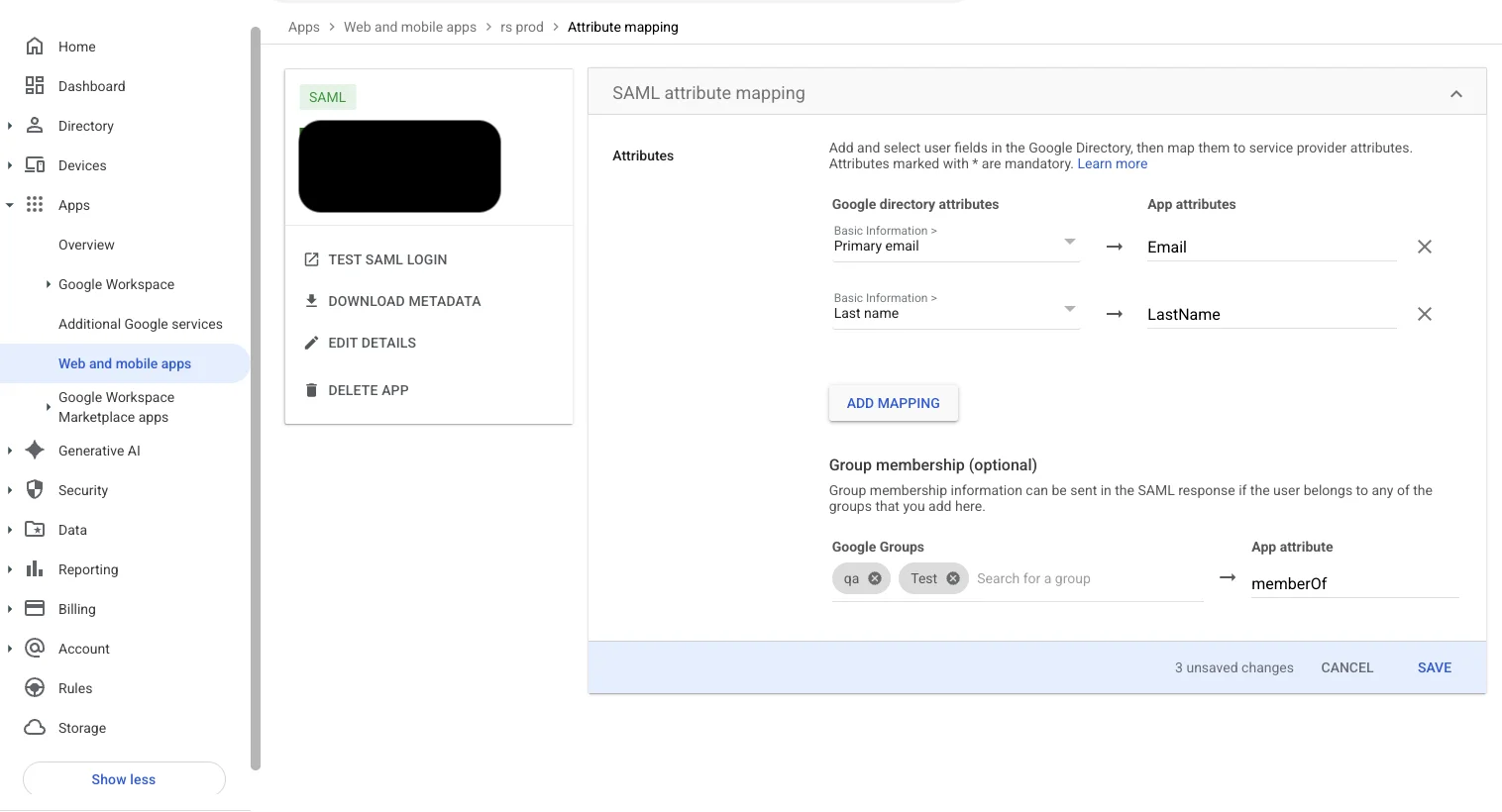
For group-based provisioning to work, your SAML authentication must send thememberOfattribute. If the SAML response does not includememberOf, RudderStack cannot map the user to a group.
Step 7: Map identity provider groups in RudderStack
Once your SAML app sends the memberOf attribute, create a group mapping in RudderStack to link each Google Workspace group to a RudderStack group.
Before creating a mapping, make sure the target RudderStack groups already exist. Refer to the Manage Group Policies guide to create groups.
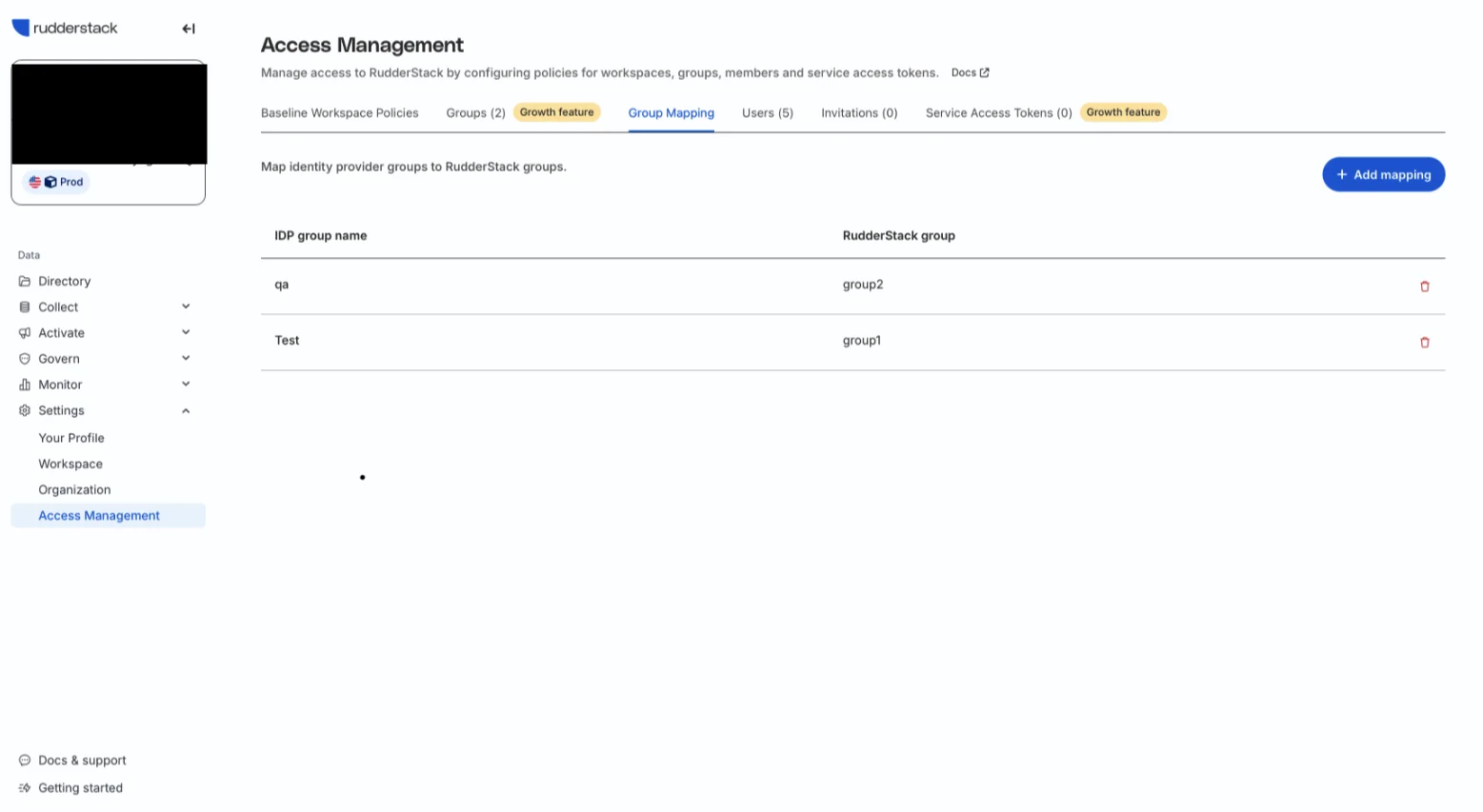
- In RudderStack, go to Settings > Access Management > Group Mapping.
- Click Add mapping.
- In the Add group mapping dialog, enter the IDP group name. This must match the Google Workspace group’s display name exactly as it appears in your identity provider.
- Select the RudderStack group to map it to, and click Save.
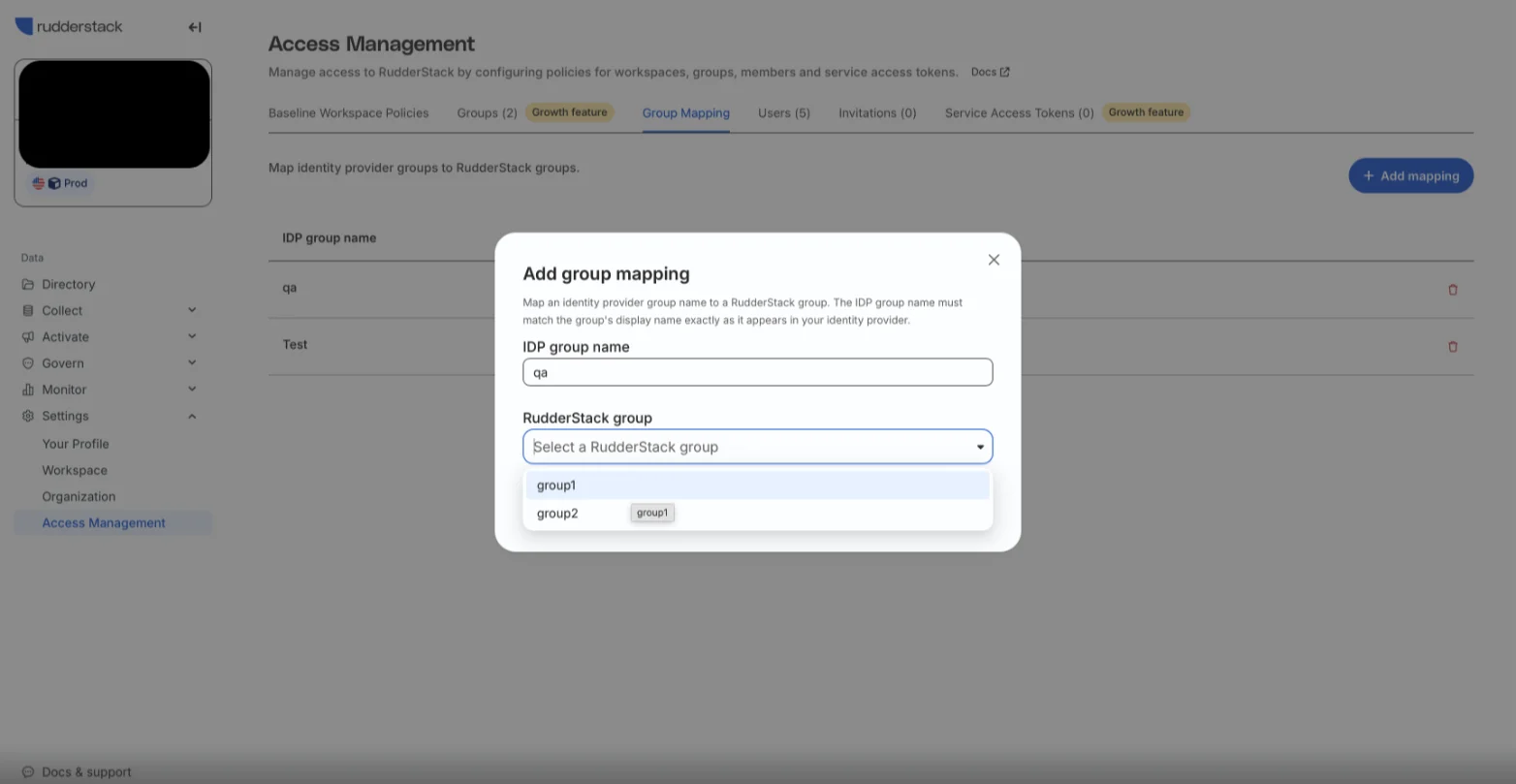
The mapping now appears in the Group Mapping list. In the example below, a user in the qa Google Workspace group is granted access to the group2 RudderStack group on sign-in.
Group-based access is applied only at the first sign-in. If a user is later moved to a different group in Google Workspace, the change is not reflected in RudderStack — you must update their permissions manually in the RudderStack app. The same applies to deprovisioning: to revoke a user’s access, you must remove it manually in RudderStack.
Enable SSO login
Your users can now sign in to RudderStack through https://app.rudderstack.com/sso?domain=<YOUR_EMAIL_DOMAIN> (the Start URL you configured in Step 3).
RudderStack does not support IdP-initiated authentication, so users must always start the login from this URL.
Debugging
There are times when an SSO login might fail for some users due to some reason. In such cases, the RudderStack team requires a HAR (HTTP Archive) file to inspect the requests and identify any SSO-related issues.
A HAR file is a log of exported network requests from the user’s browser. See the HAR Analyzer guide for steps on generating this file depending on your browser.
Once you generate the HAR file, share it with the RudderStack team to troubleshoot the issue.
Note the following before capturing your HAR file:
- Start from
https://app.rudderstack.com/ssowith a clean session, preferably in incognito mode of your browser.- Complete the SSO flow until the step where you face an error.
- Your HAR file might contain sensitive data - make sure to redact it using a text editor before sharing it with the team.
The following sections contain solutions for some common errors you might encounter while setting up SSO:
Invalid samlResponse or relayState from identity provider
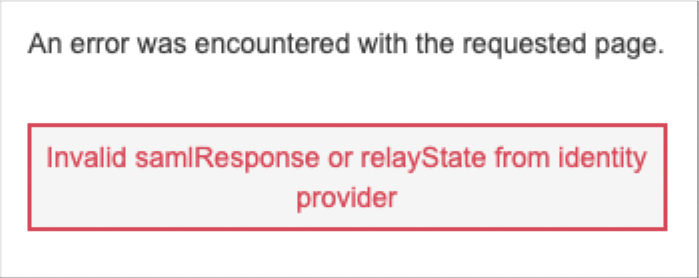
The above error indicates you tried the IdP-initiated authentication flow. As stated above, this integration supports only Service Provider (SP)-initiated SSO flow.
RudderStack recommends initiating the SSO authentication by following all the above SSO configuration steps correctly and making sure the users log in through https://app.rudderstack.com/sso.
Required String parameter ‘RelayState’ is not present
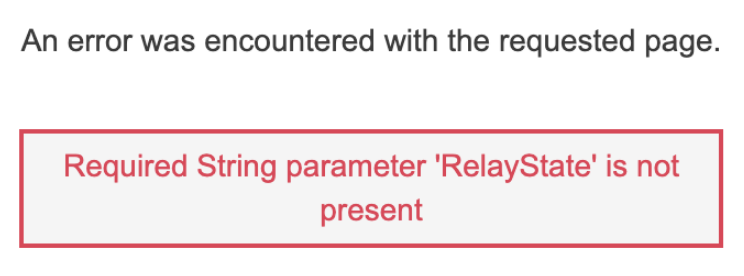
The above error indicates that you did not set up your SSO app correctly. Make sure to:
- Set the Entity ID field to
urn:amazon:cognito:sp:us-east-1_ABZiTjXia. - Set the Name ID format to
EMAILand the Name ID to Primary email. - Configure the other service provider settings correctly.
FAQ
My organization’s email domain has changed from abc.com to xyz.com and now I am unable to log in. What should I do?
Contact RudderStack support to make the necessary changes to your SSO configuration.
