Bucket Configuration Settings for Event Backups
3 minute read
Depending on your data retention policy, RudderStack stores the raw events ingested by RudderStack, including gateway dumps for successfully-ingested events.
Note that:
- RudderStack deletes the events from the bucket upon successful delivery.
- RudderStack does not persist any of the customer data.
Follow the steps in this guide if you want RudderStack to back up the events in your own cloud-specific bucket.
Bucket configuration settings
If you are using RudderStack Open Source and want to use your own bucket to store the events, you need to enable and set certain variables in your RudderStack backend.
Docker setup
The S3 setup for event backup and replay is different to setting up Amazon S3 as a destination.
To store the events in your S3 bucket, uncomment the following lines in your docker.env file:
# JOBS_BACKUP_STORAGE_PROVIDER=S3
# JOBS_BACKUP_BUCKET=<YOUR_S3_BUCKET>
# JOBS_BACKUP_PREFIX=<prefix>
# AWS_ACCESS_KEY_ID=
# AWS_SECRET_ACCESS_KEY=
Then, follow these steps:
- Specify your S3 bucket name for the variable
JOBS_BACKUP_BUCKET. - Add the specific AWS IAM keys by following the Permissions for Amazon S3 section.
The
<prefix>value for theJOBS_BACKUP_PREFIXvariable is the location in the S3 bucket where RudderStack stores the data.For example, if
JOBS_BACKUP_PREFIXis set toABCthen RudderStack stores the data in the location<YOUR_S3_BUCKET>/ABC.
To store the events in your GCS bucket, uncomment the following lines in your docker.env file:
# JOBS_BACKUP_STORAGE_PROVIDER=GCS
# JOBS_BACKUP_BUCKET=<your_gcs_bucket>
# JOBS_BACKUP_PREFIX=<prefix>
# GOOGLE_APPLICATION_CREDENTIALS=/path/to/credentials
Then, follow these steps:
- Specify your GCS bucket name for the variable
JOBS_BACKUP_BUCKET. - Specify the location of the downloaded JSON file containing the required permissions for the variable
GOOGLE_APPLICATION_CREDENTIALS. You can obtain the JSON file by referring to the Permissions for GCS section below.
If you’re a RudderStack Growth or Enterprise plan user, you can share the downloaded JSON containing the required permissions with the RudderStack team. The team will use this service account JSON file to authenticate RudderStack and dump the events into your GCS bucket.
Kubernetes setup
Similar to the Docker setup, you can configure your bucket settings by changing the values in the values.yaml file.
Permissions for Amazon S3
Follow these steps to use your own S3 bucket for RudderStack to store the events:
- Create a new S3 bucket.
- Create a new customer-managed policy with the following JSON:
{
  "Version": "2012-10-17",
  "Statement": [{
    "Effect": "Allow",
    "Action": [
      "s3:GetObject",
      "s3:PutObject",
      "s3:ListBucket",
      "s3:ListObjectsV2",
      "s3:AbortMultipartUpload"
    ],
    "Resource": [
      "arn:aws:s3:::{YOUR_S3_BUCKET_NAME}/*",
      "arn:aws:s3:::{YOUR_S3_BUCKET_NAME}"
    ]
  }]
}- Create a new group and add the above policy to this group.
- Create a new user in Identity and Access Management (IAM) with programmatic access and add the user to the above group.
- Download the Access key ID and Secret Access Key.
- Specify the credentials during the S3 bucket configuration.
Permissions for GCS
This section lists the steps to use your own GCS bucket for RudderStack to store the events:
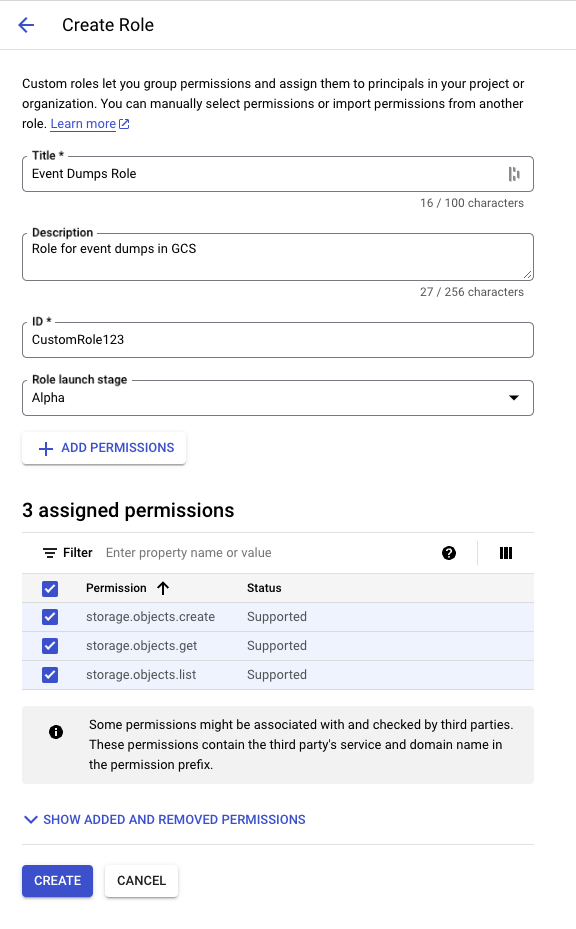
Under Roles in your GCP dashboard, create a role with the below permissions:
- storage.objects.create
- storage.objects.get
- storage.objects.list
Make sure to add the permissions one after the other.
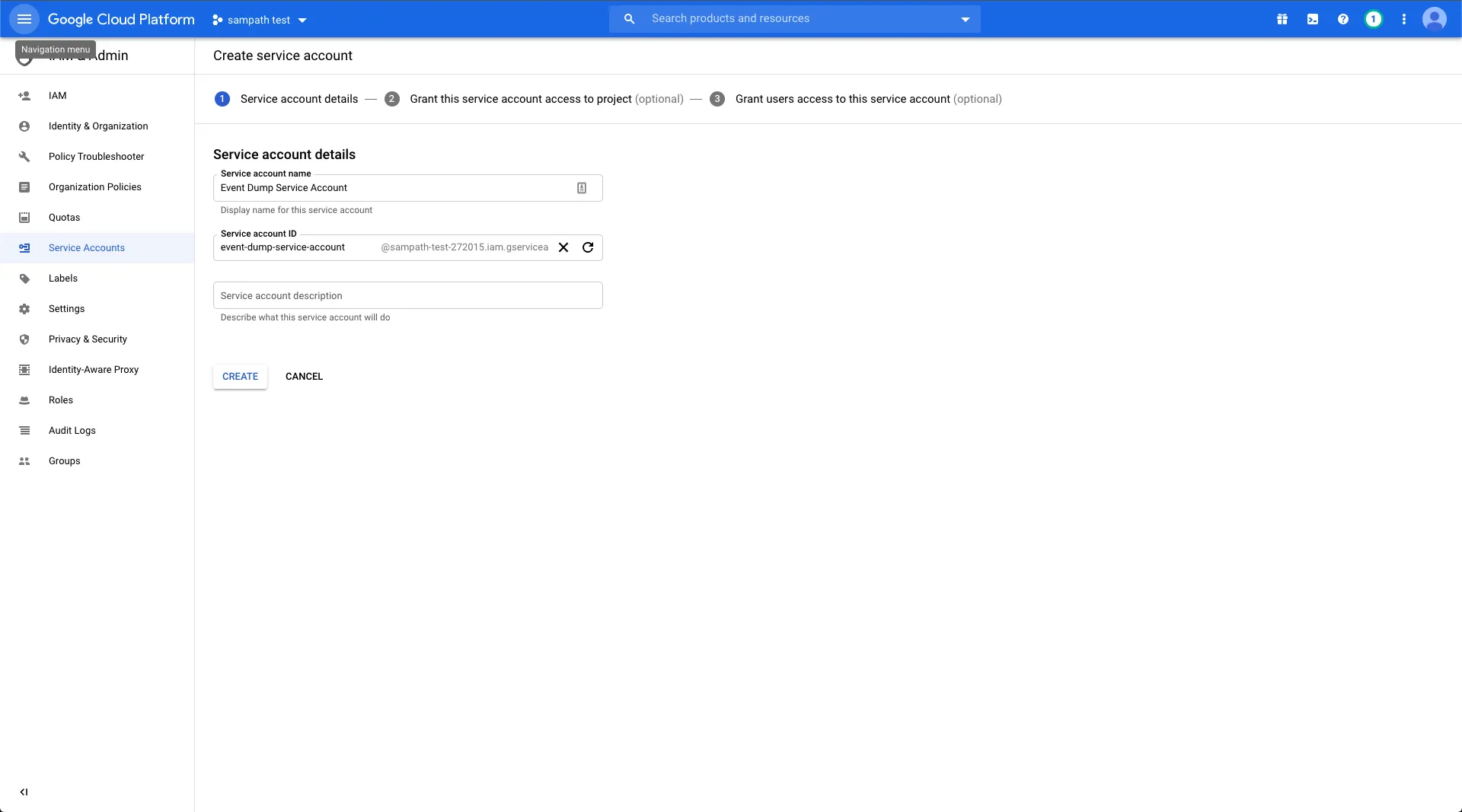
Create a service account
- Assign a name to the service account:
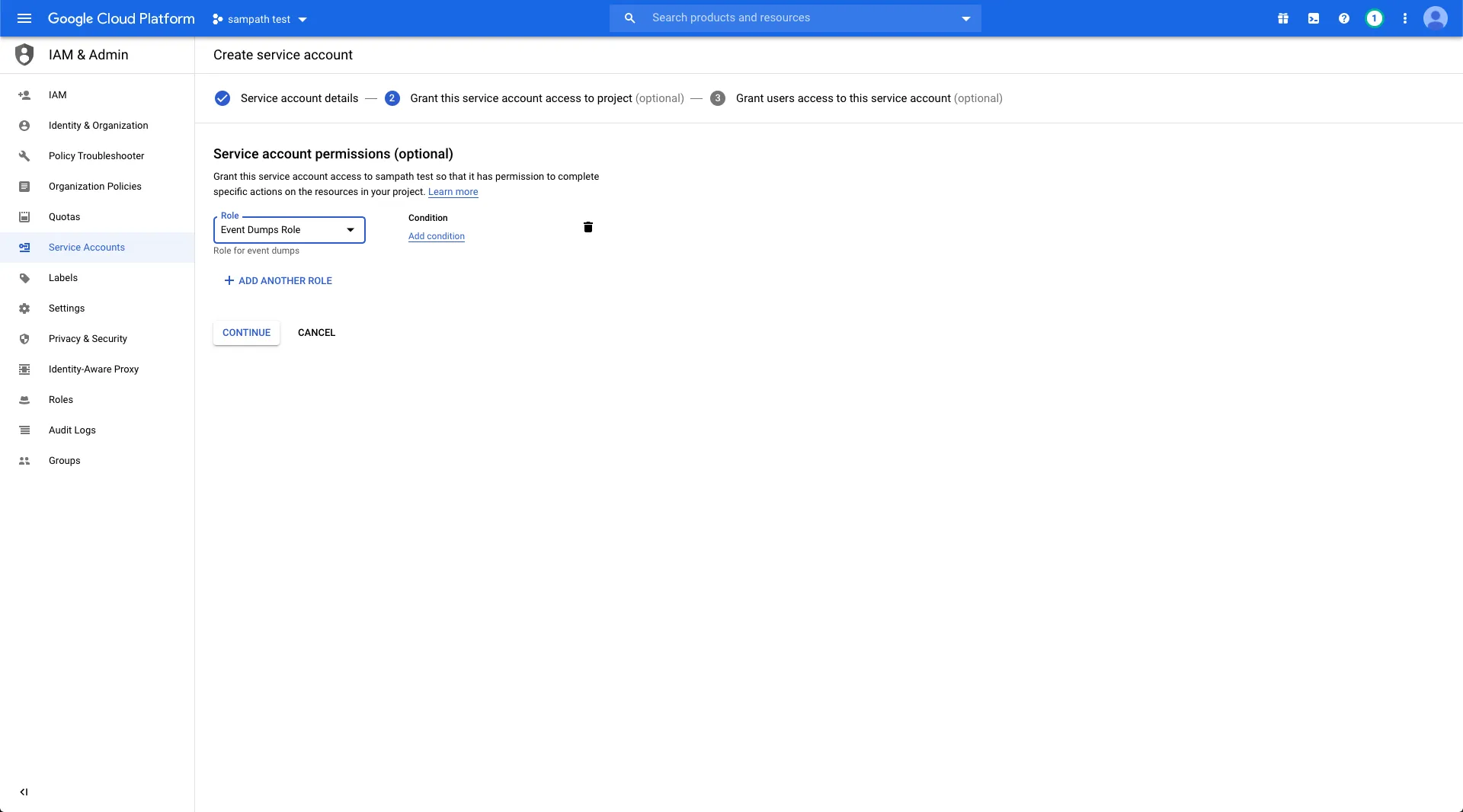
- Add the role you created above.
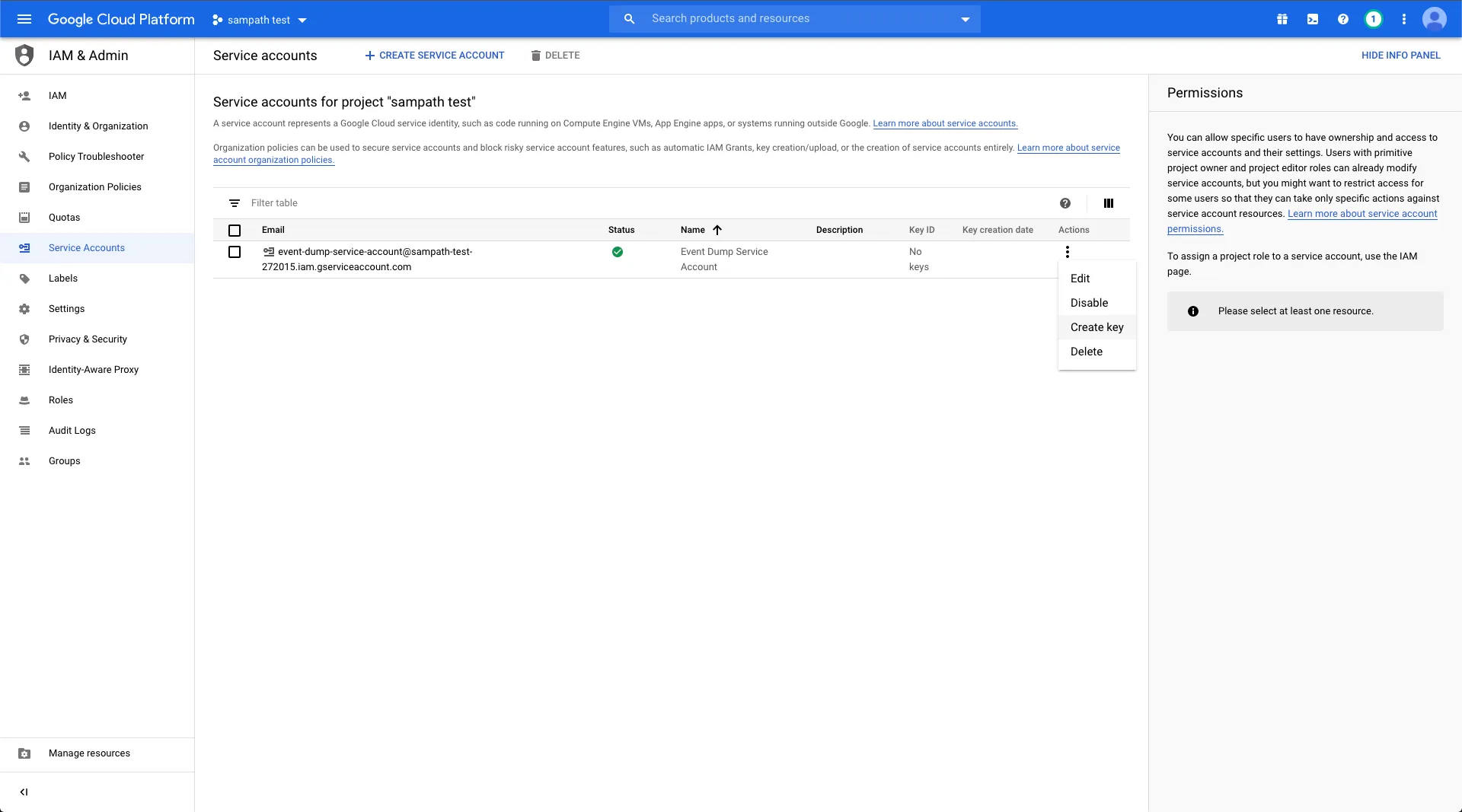
- Create a key of JSON type and save this file locally:
- Create a bucket with the bucket access control set to Uniform:
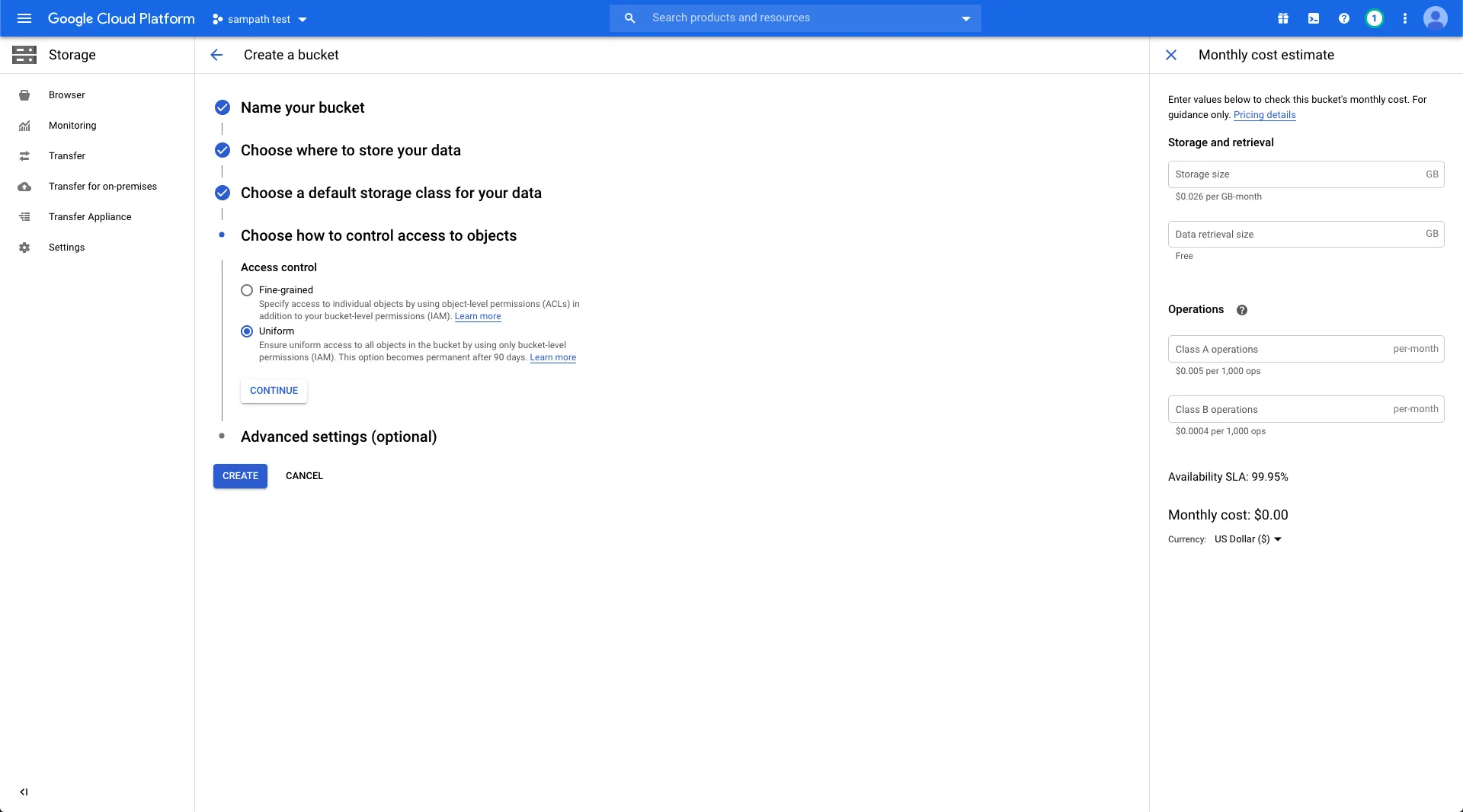
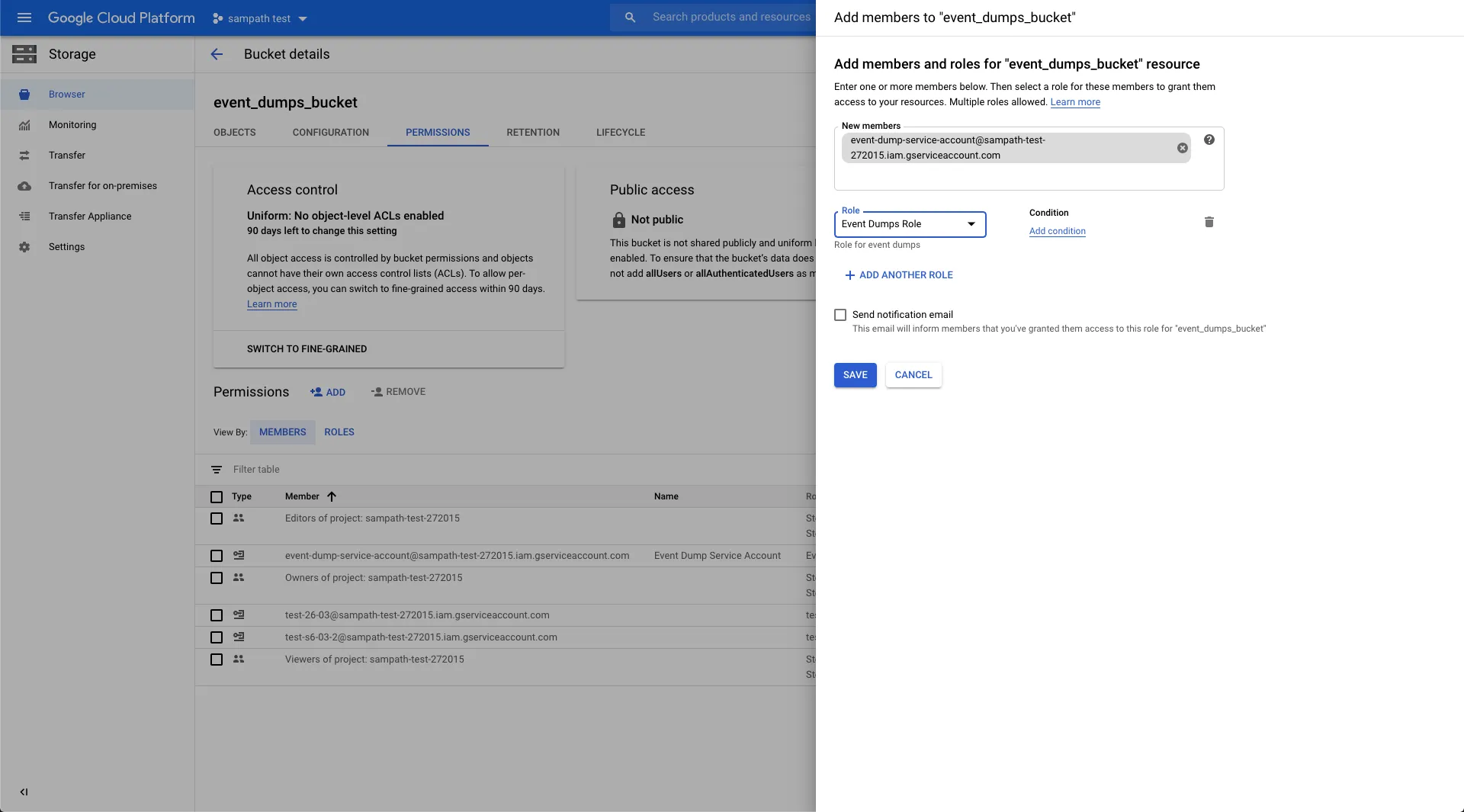
Add the required permissions to your GCS bucket by following the below steps:
- Go to the Permissions tab.
- Add the member with the service account created above.
- Add the role.
- Download the JSON file containing the required permissions.
- Specify the JSON file location during the GCS bucket configuration.
