How to Version and Deploy Transformations
Beta3 minute read
This guide covers how to:
- Save unpublished transformation changes as drafts
- Publish tagged versions for production use
- Deploy an older version when you need to roll back
For draft and version behavior in libraries, see Version and publish libraries.
Save a transformation draft
- Open the transformation in the RudderStack dashboard and go to the Editor tab.
- Update the transformation code.
- Click Save draft.
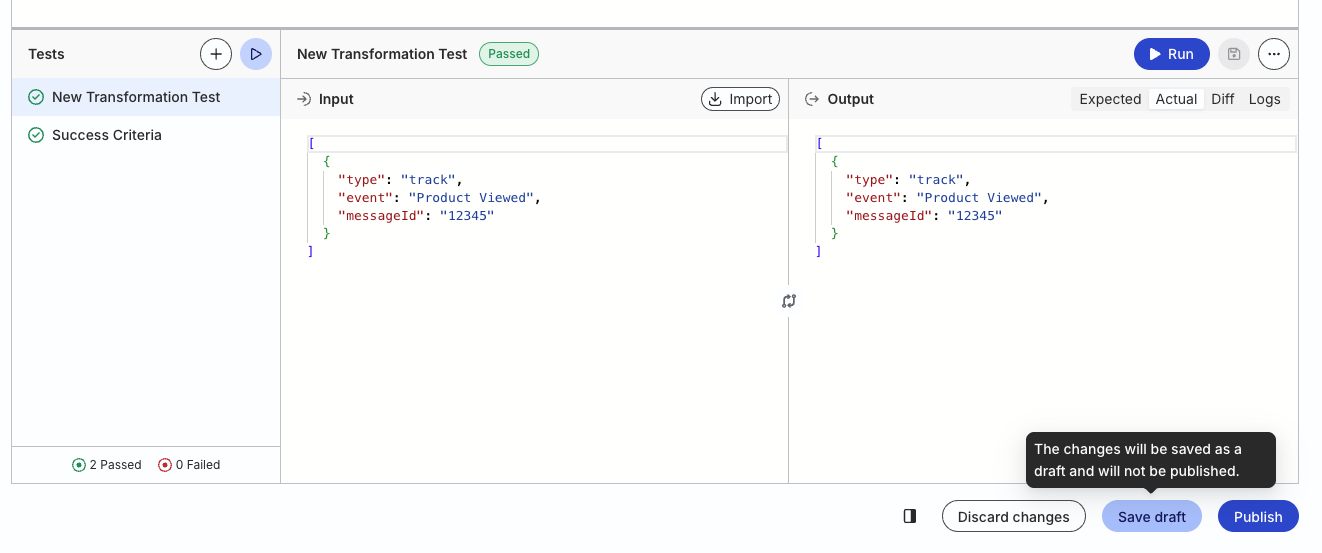
To discard unpublished edits, click Discard changes. The editor reverts to the version you opened for editing.
Important considerations
- Transformation drafts cannot go to production: Destinations always run the published Active transformation version. You cannot connect a transformation that has never been published.
- Draft changes are not published: If a transformation is already connected to destinations, they continue to use the Active published version until you publish or deploy a different transformation version.
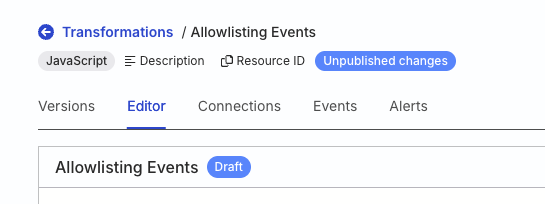
After you save a draft, the transformation shows Unpublished changes in the header and a Draft badge in the editor.
Publish a new transformation version
You can publish a new version directly — you don’t need to save a draft first.
- In the Editor tab, click Publish.
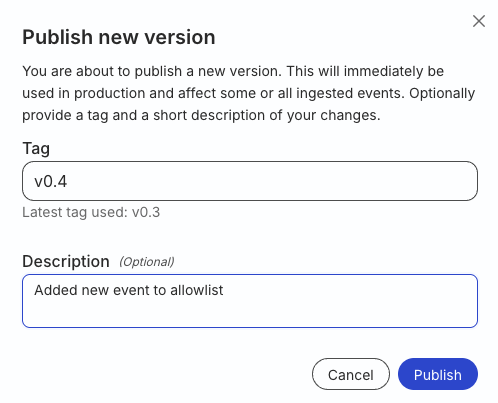
- In the Publish new version modal, enter a Tag for the version. The modal shows the latest tag used so you can choose the next one.
- Optionally add a Description of your changes.
- Click Publish.
Publishing a new version makes it Active immediately. Destinations connected to this transformation start using the new code for newly ingested events.
View version history
- Open the transformation and go to the Versions tab.
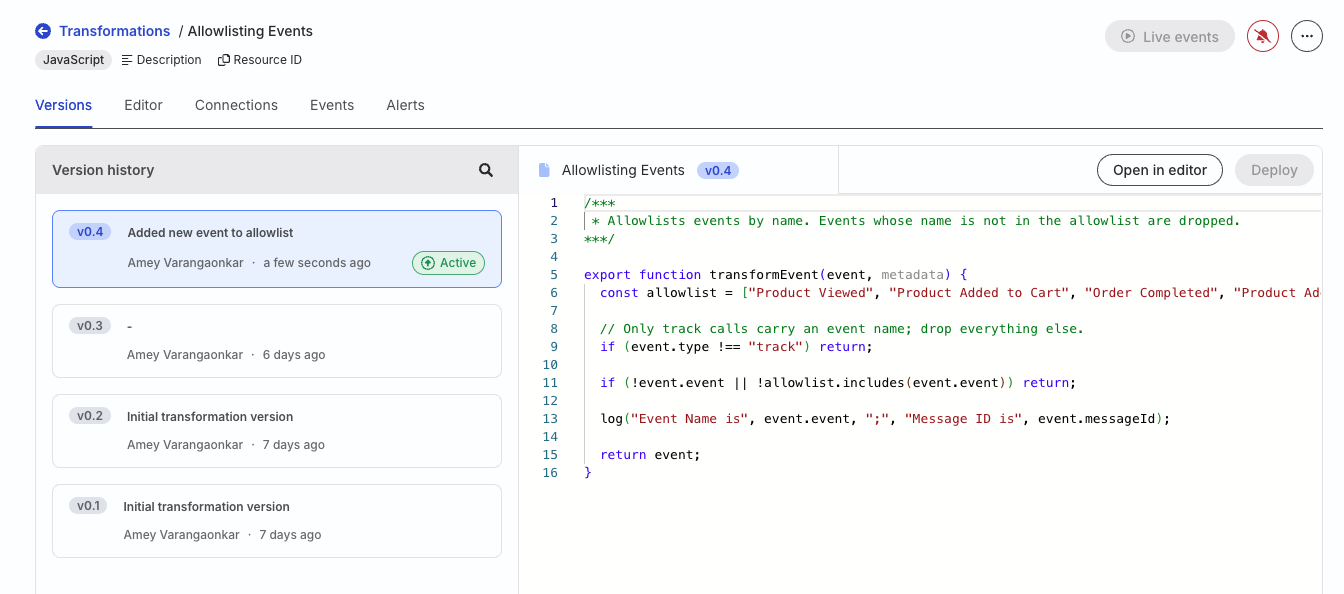
- Select a version in Version history to preview its code, tag, description, author, and timestamp.
The Active badge marks the version currently used in production.
To edit from a specific version without changing the Active version:
- Select the version in Version history.
- Click Open in editor.
The editor loads that version’s code into a draft. The active version stays unchanged until you publish a new version or deploy an older version.
Deploy an older transformation version
You can make a previously published version Active again. This is helpful when you need to roll back to a previous version due to a bug in the current active version.
- Open the transformation and go to the Versions tab.
- Select the older version you want to deploy. Deploy is available for non-Active versions.
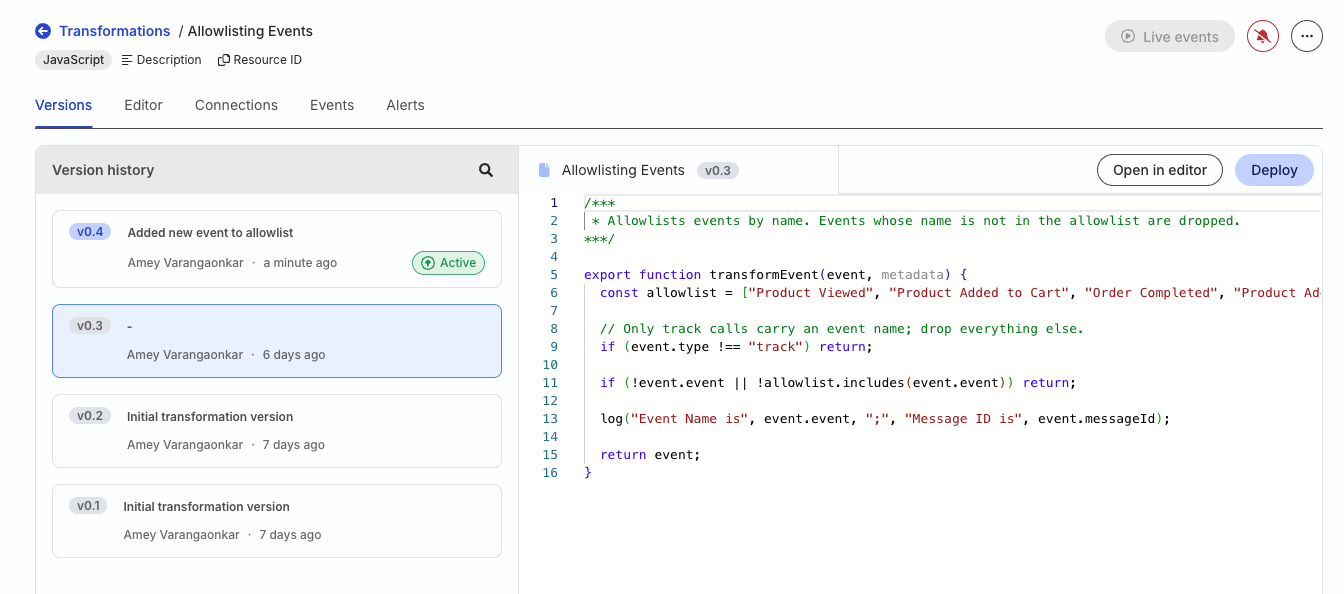
- Click Deploy.
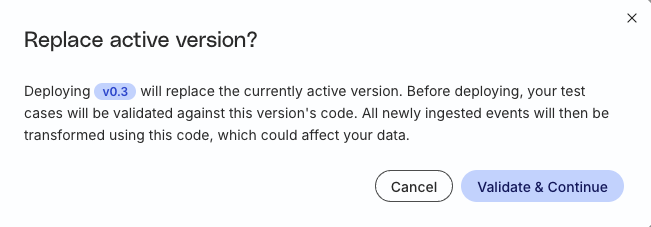
- In the Replace active version? modal, review the impact, then click Validate & Continue. Your test cases are validated against the selected version’s code.
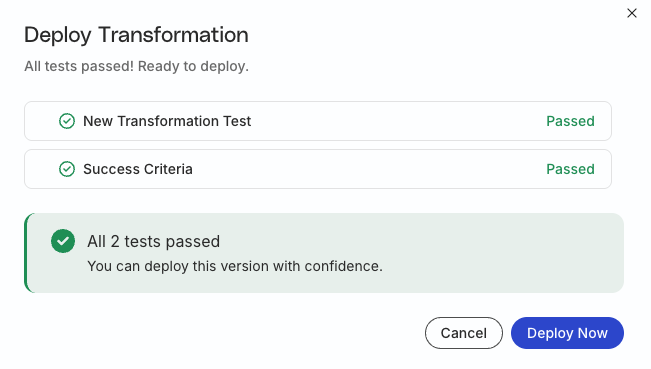
- Complete deployment based on the test results:
- If all tests pass, click Deploy Now.
- If any tests fail, review the failures. You can click Deploy Anyway to proceed, or Cancel to fix the issues first.
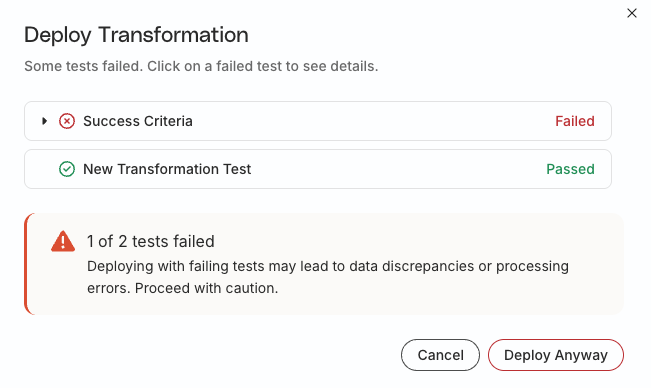
Deploying with failing tests can cause data discrepancies or processing errors. Fix failing tests before you deploy when possible.
After a successful deploy, the selected version shows the Active badge. Connected destinations use that version for newly ingested events.
See more
- Create Transformations: Add a new transformation
- Test Transformations: Create and run transformation test cases
- Manage Transformations: Connect, switch, and delete transformations
- Transformation Libraries: Save drafts, publish library versions, and run inferred library tests
