Use Transformations in Cloud, Device, and Hybrid Mode
12 minute read
This guide explains how to use transformations with destinations connected in different RudderStack connection modes.
Transform a single event
While using a transformation, RudderStack applies the transformEvent function on each event that takes the following two arguments:
| Argument | Description |
|---|---|
event | The input event. |
metadata | The function to access the event’s metadata. See Access event metadata for more information. |
After the transformation is complete, the transformEvent function returns the final event to be sent to the destination.
Make sure your transformation logic adheres to the memory and time limits mentioned in the Limitations section below.
Access event metadata
The metadata function is passed as the second argument to transformEvent and transformBatch — you can use it to access event metadata such as sourceId, destinationId, messageId, and connection mode.
See Runtime Functions in Transformations for more information on using the metadata function.
Make external API requests
You can make external API requests in your transformation functions and use the fetched responses to enrich your events.
JavaScript
JavaScript transformations use the fetch or fetchV2 functions to make these requests — see See Runtime Functions in Transformations for more information.
For JavaScript transformations, RudderStack imposes a strict 4 second execution timeout limit. This limit does not include the time it takes for thefetchorfetchV2calls to complete. RudderStack recommends using batch requests instead of a separate request per event when possible.
Python
Python transformations use the requests package to fetch response properties while making the external API calls:
import requests

def transformEvent(event, metadata):
    res = requests.get("url")
    if res.status_code == 200:
        event["response"] = res.json();
    return event
IP allowlisting
Depending on your use case and the API endpoints you are trying to access via fetch or fetchV2 calls, you will need to allowlist certain RudderStack IP addresses.
Allowlisting is required when the external APIs you call restrict access by IP address.
- For testing transformations that leverage external API calls
Make sure that the API providers allowlist the following IPs depending on your RudderStack region:
|
|
- For production use cases
Make sure that the API providers allowlist the following IPs depending on your RudderStack plan and region:
| Plan | ||
|---|---|---|
| Free and Growth |
|
|
| Enterprise |
|
|
Limitation on port usage
Note that RudderStack blocks all outbound traffic from the standard ports 1 to 1023 except for
HTTP (80)andHTTPS (443)— this is applicable for both the EU and US clusters.Make sure to use a different port for the service you are trying to access via the transformation.
Transform batch of events
You can perform any aggregation or roll-up operation on a batch of events using the transformBatch function instead of transformEvent function:
export function transformBatch(events, metadata) {
    return events;
}def transformBatch(events, metadata):
return eventsTo ensure event ordering when using the
transformBatchfunction, make sure you pass themessageIdfrom the input event to the output event. Without themessageId, RudderStack does not guarantee event ordering.It is highly recommended to use
transformEventas much as possible, as it ensures event ordering.
Cloud mode
When you add a transformation and connect it to a destination in cloud mode, RudderStack does the following:
- Tracks and collects events at the source.
- Applies the user transformation logic to your events.
- Transforms the events in the destination-specific format. This is done internally and requires no user intervention.
- Forwards the transformed events to your destination.
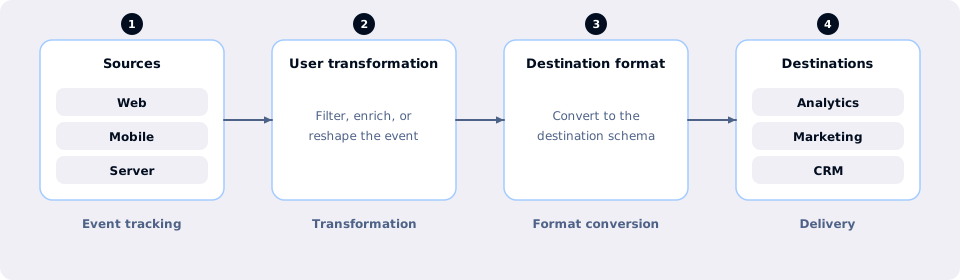
Connect cloud mode destination
You can connect only one transformation to a destination. However, one transformation can be used by multiple destinations.
There are two ways to connect a transformation to a destination in cloud mode:
From transformation
- Click the Connections tab of your transformation and click Connect Destination. You will see a list of all the destinations and the transformations connected to them.
- Scroll to the destination you want to connect to the transformation and click Connect.
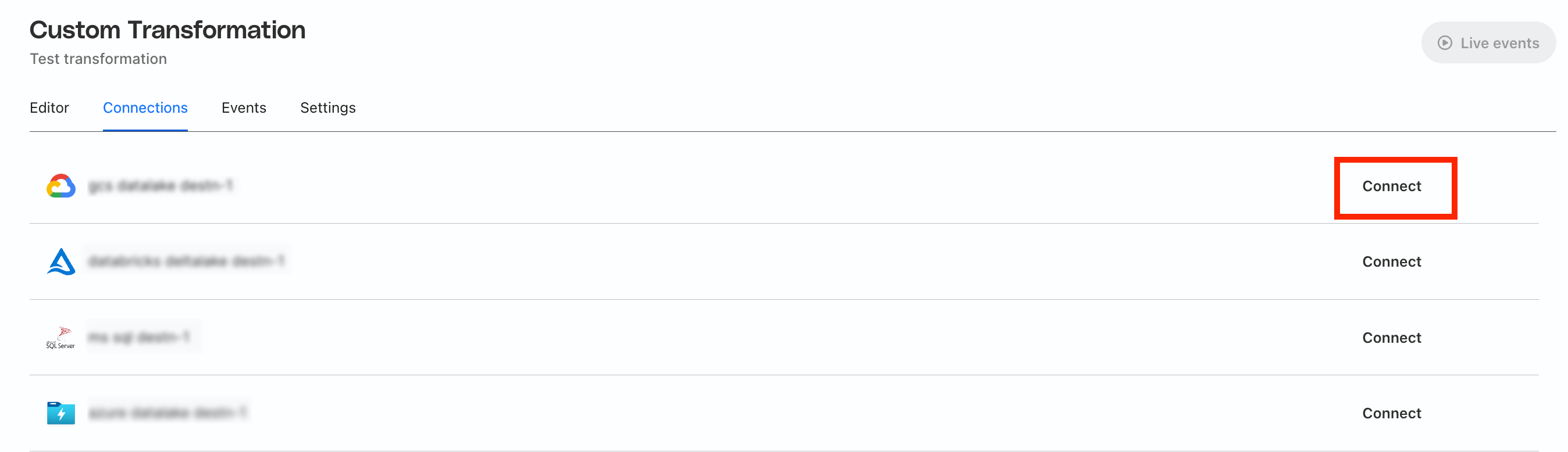
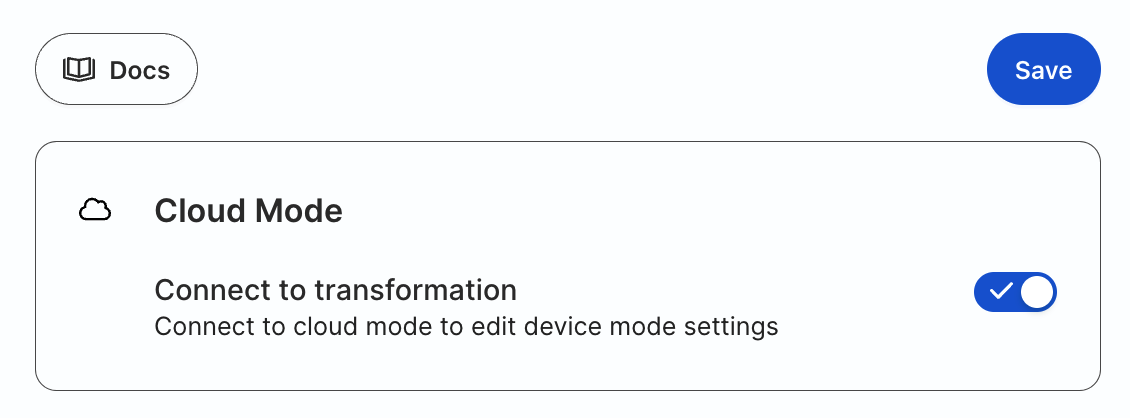
- Enable the Connect to transformation toggle and click Save.
From destination
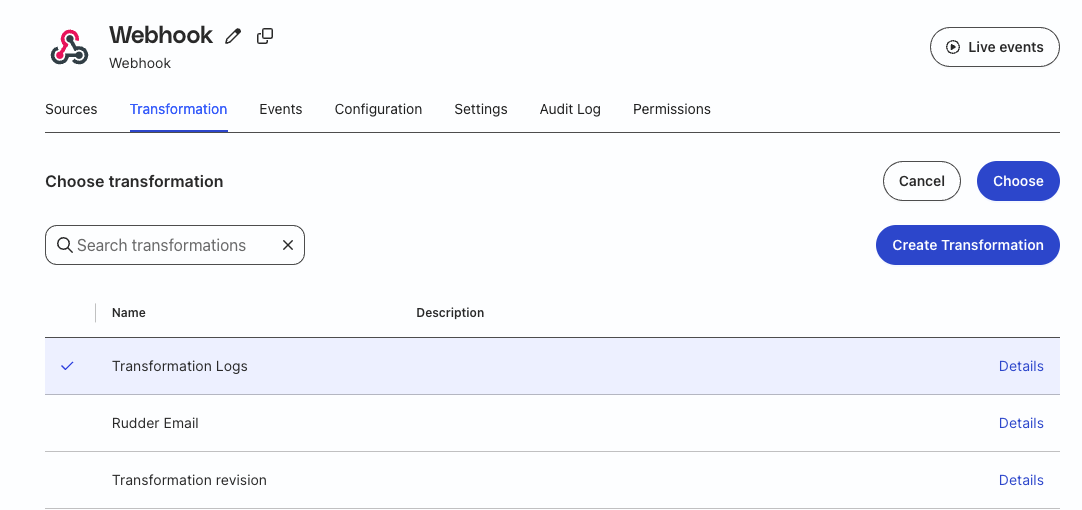
- Go to the destination in the dashboard. Click the Transformation tab and click Add a transformation:
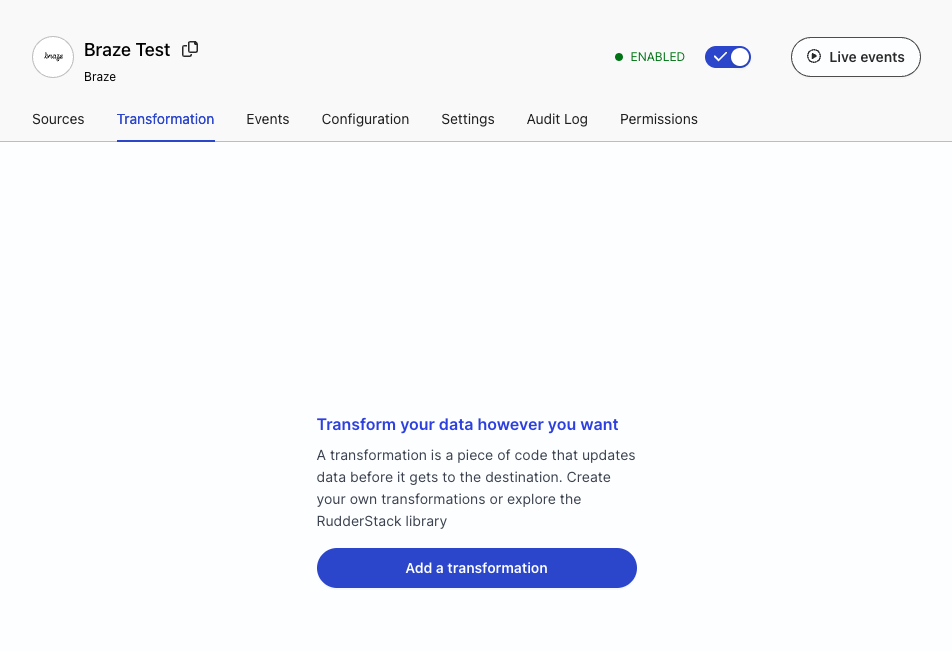
- Select the transformation to connect to the destination and click Choose.
Device mode
Device mode transformations is a beta feature and available for the Enterprise plan users only.
You can use transformations with destinations supporting device mode, like Firebase, Hotjar, and so on.
Device mode transformations leverage the Client Transformation service to transform events, then send the transformed events directly to the device mode destination through their native SDK.
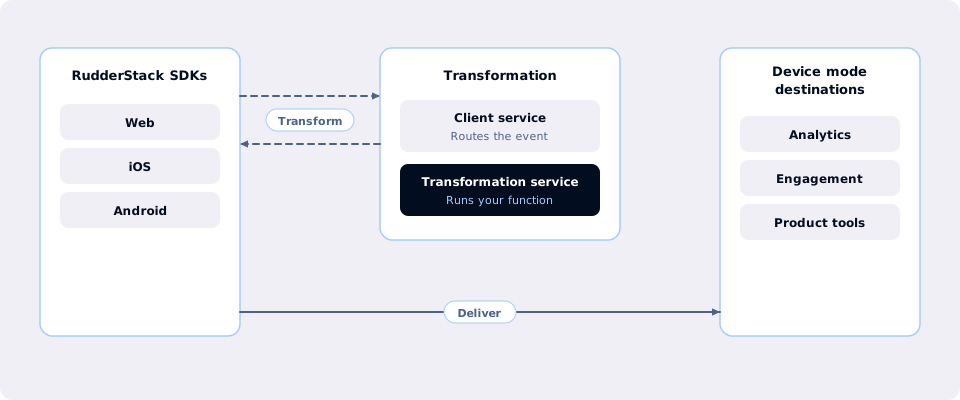
Learn more about the architecture in the Client Transformations Service architecture section below.
Important considerations
The following SDKs support device mode transformations (DMT):
The Android (Kotlin) and iOS (Swift) SDKs do not support DMT.
You can write device mode transformations only in JavaScript — Python is not supported currently.
Device mode transformations must adhere to the RudderStack message schema. Otherwise, the event will be dropped.
Connect device mode destination
You can enable device mode transformations only from the Transformations tab.
Prerequisites
Before you set up a device mode transformation:
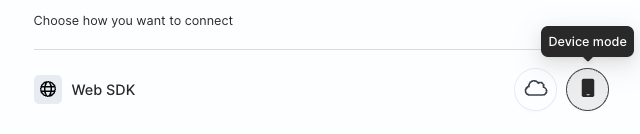
- Choose the connection mode as Device mode while configuring your destination.
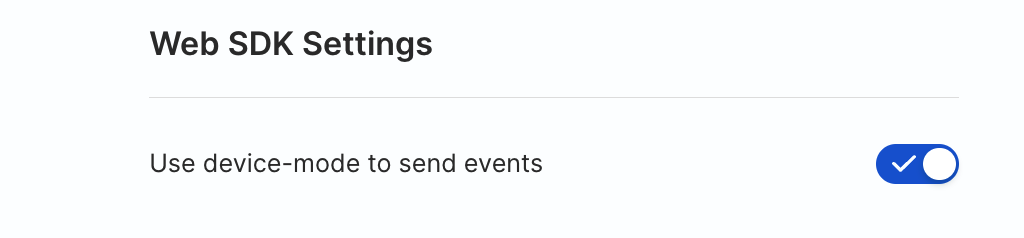
- In some cases, setting up a device mode destination involves enabling the Use device mode to send events toggle while configuring the destination.
- You can also change the connection mode after the destination is set up. Go to the destination’s Configuration tab and click Edit configuration.

- Some destinations support only device mode. See the destination-specific documentation for the supported connection modes.
Connect transformation to device mode destination
- Write the transformation to connect to your device mode destination.
- Set up your device mode destination in RudderStack.
- In the RudderStack dashboard, go to Collect > Transformations in the left sidebar. Then, select the transformation to connect to this destination.
- Click the Connections tab. If you don’t have any destinations connected to it, click Connect Destination. If the transformation already has connected destinations, click Manage destinations.
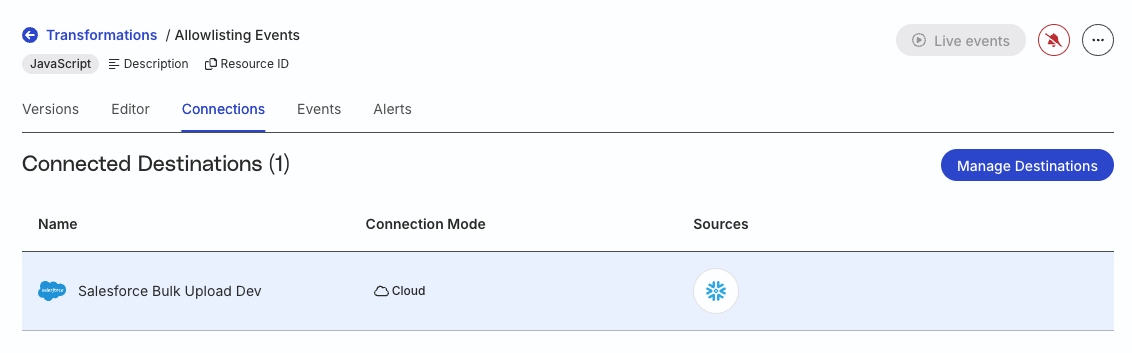
Depending on whether the destination you set up (in Step 1) is already connected to some transformation, there are two ways to add a device mode transformation to it:
- If your destination is not connected to any transformation click Connect. You will see a fly window with these options:
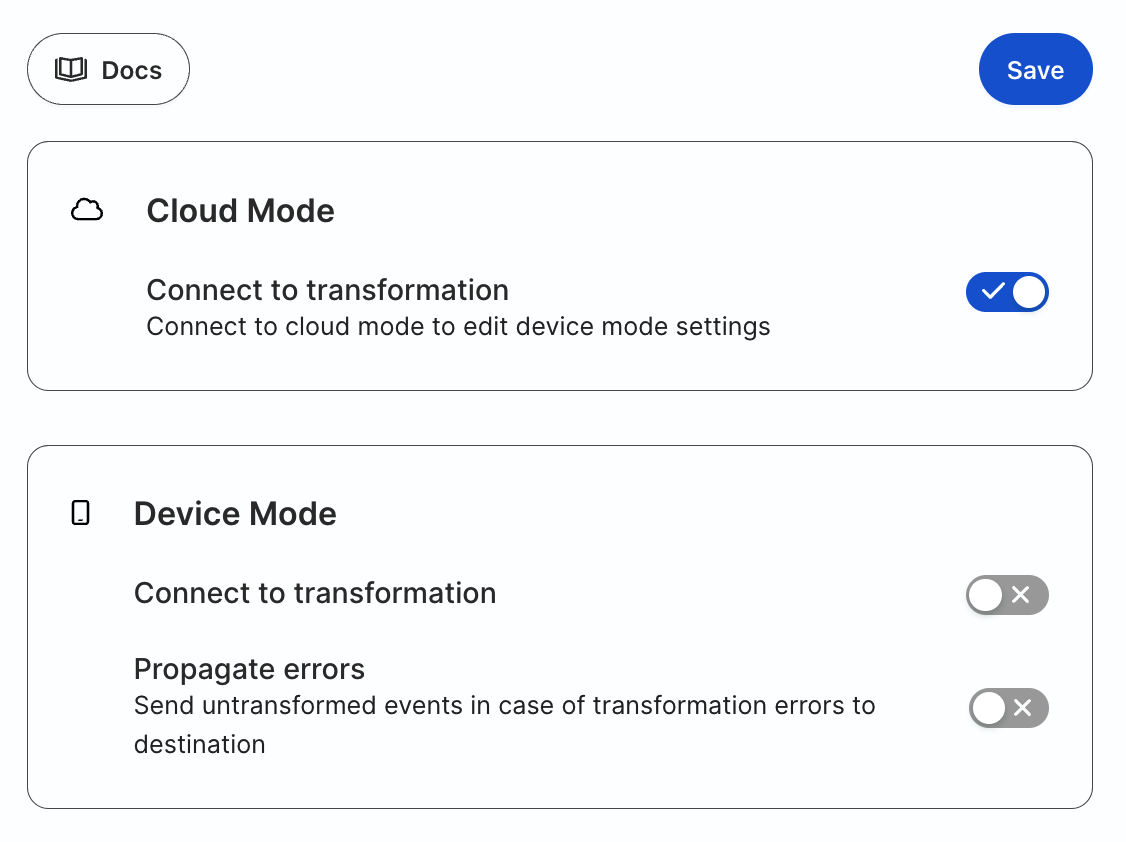
- If your destination is already connected to some other transformation, click the Edit connections button to switch your transformation. See Switch transformation for more information. Once you switch the transformation, you will see the above options to enable the device mode transformation.
- Configure the following settings under Device Mode:
- Enable the Connect to transformation toggle.
- Enable the Propagate errors toggle depending on your requirement.
Note that:
- Under Cloud Mode, the Connect to transformation toggle is enabled by default. Do not disable this toggle as it will not allow you to configure any device mode transformation settings.
- If Propagate errors is enabled, RudderStack sends the events to the destination without transforming the events, for any transformation errors. This is helpful in preventing data loss in case of transformation code or runtime errors.
- If your transformation involves hashing PII, enabling this setting will send the untransformed event data in case of any transformation errors.
- Click Save to confirm the settings and for the changes to take effect.
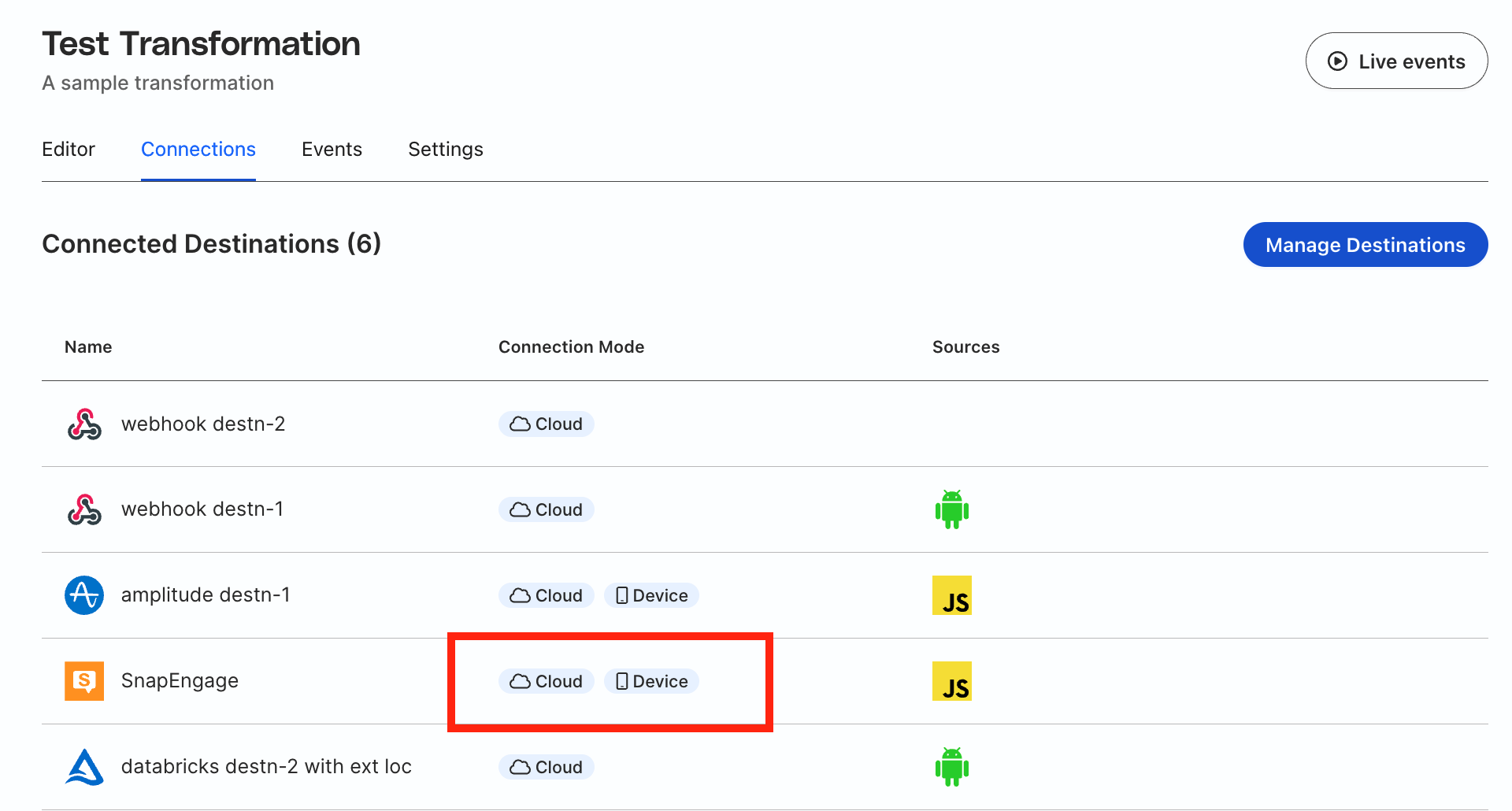
To confirm that the device mode transformation is connected, go to the Connections tab of your transformation and check the Connection Mode column:
SDK setup
After adding a transformation and connecting it to a device mode destination, you can connect your SDK source to it.
Follow the below steps for setting up the required SDK to use device mode transformations:
The detailed steps to set up the JavaScript SDK are mentioned in the Quickstart guide.
The JavaScript SDK loads the
DeviceModeTransformationplugin by default if there is at least one device mode destination connected to the transformation.However, if you are explicitly specifying the plugins while loading the SDK, make sure to include the
DeviceModeTransformationplugin in the list. Otherwise, device mode transformations will not work correctly.
The following example shows how to load the DeviceModeTransformation plugin:
rudderanalytics.load(WRITE_KEY, DATA_PLANE_URL, {
  plugins: ["DeviceModeTransformation",
            "DeviceModeDestinations",
            "NativeDestinationQueue",
            "XhrQueue"
            // ... other plugins
           ]
});
Install Android (Java) SDKAndroid (Java) refers to the legacy RudderStack Android SDK. Note that it will be deprecated soon.
For new implementations, use the Android (Kotlin) SDK instead.
following the detailed steps mentioned in the documentation section. Then, use the following dependency in the Android app level build.gradle:
implementation 'com.rudderstack.android.sdk:core:1.16.0'The iOS SDK v2 (Legacy) does not support device mode transformations. Use the iOS (Obj-C) SDK (stable version) instead.
Install the iOS (Obj-C) SDKiOS (Obj-C) refers to the legacy RudderStack iOS SDK. Note that it will be deprecated soon.
For new implementations, use the iOS (Swift) SDK instead.
following the detailed steps mentioned in documentation section. Then, use the following dependency in Podfile:
pod 'Rudder', '1.17.0'Tokenization
RudderStack provides the tokenization feature in device mode transformations to add an extra layer of security. With this feature, you can validate the requests using the token that you set in the client-side SDK, thereby ensuring the event request is valid and not made by any bad actor.
Note that:
- The token generation and its management is up to the user. RudderStack recommends rotating these tokens frequently to avoid any misuse.
- The token data is included in the request only if you explicitly set it in the client-side SDKs.
Use case
Suppose you have a transformation that enriches the event data with additional data by making an external API call. In such cases, you would want to ensure that the request is not made by any bad actor to take undue advantage of those resources.
You can use the tokenization feature to check if the token is present in the event metadata, as it can only be available otherwise in the event requests coming from the client-side SDK (where you have set the token).
Access token
The token is available as a metadata in the transformation. A sample code to access the token in the transformation is shown:
export function transformEvent(event, metadata) {
  const dmtToken = metadata(event)["Custom-Authorization"];
  //verify the token
  ...
  return event;
}
Attach token to SDK
You can use the following methods to attach the token (in the string format) to the SDK:
rudderanalytics.setAuthToken("my-token");RudderClient.putAuthToken("my-token")[RSClient putAuthToken:@"my-token"];You can call these methods multiple times.
Clear token
RudderStack automatically clears the token when the user logs out, that is, when the reset() API is called.
This is because the reset() API clears all the data persisted in the SDK, including the token.
Client Transformation service architecture
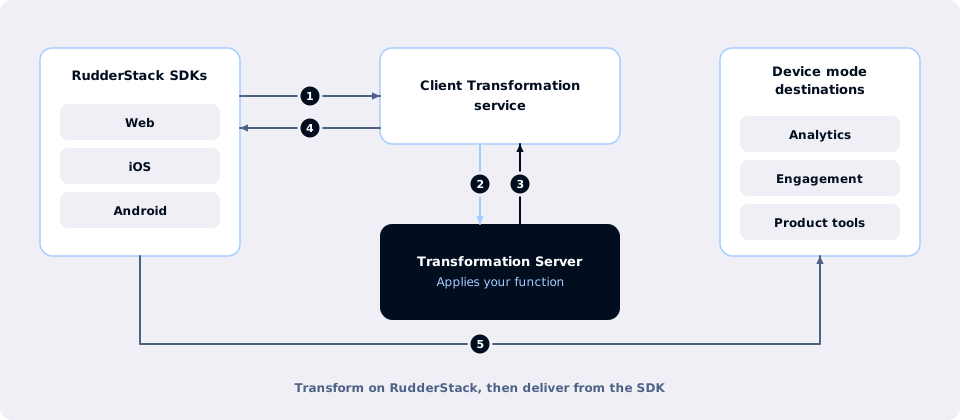
RudderStack provides the Client Transformation service to facilitate transformations for device mode destinations. It ensures that the event ingestion is unaffected, ensuring minimum response time from the RudderStack backend.
Workflow
When you add a transformation and connect it to a device mode destination supporting the device mode:
- RudderStack SDK sends the event to the Client Transformation service. It multiplexes the event for different destinations and connects with the transformations attached to these device mode destinations.
- Client Transformation service sends the event to the RudderStack Transformation service to transform the event according to the functions defined in the attached transformations.
- After the transformation is applied, the transformed event is returned to the Client Transformation service.
- Client Transformation service responds to the SDK with the transformed events for all the destinations.
- Finally, the SDK parses the transformed events and forwards them to the specified device-mode destinations.
If the request to the Client Transformation service fails, the RudderStack SDK makes three retry attempts. If it fails, the SDK forwards the untransformed events to the destination or drops them - based on the Propagate errors toggle while configuring the device mode transformation (see Step 6).
Debugging
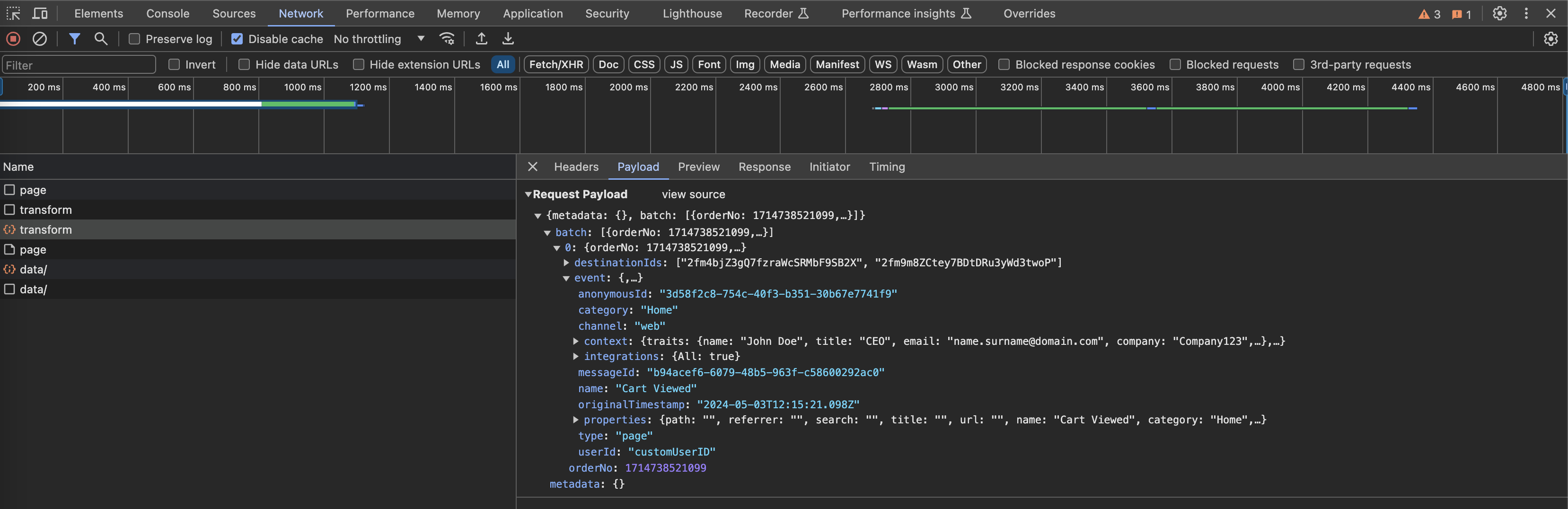
Check the Network tab in the browser’s developer tools for any transform network requests to debug errors in your device mode transformations. These requests can help you determine if:
- The transformation has run as expected.
- The responses are as expected, based on the sent batch or otherwise.
Performance considerations
RudderStack makes a network call for each event (in case of JavaScript SDK) or a batch of events (in case of mobile SDKs) when you use transformations with device mode destinations. Hence, there can be an added performance cost.
Hybrid mode
While using transformations with destinations connected in hybrid mode like GA4, Braze, Leanplum, or Rockerbox, you can choose to transform:
- Events sent in both cloud and device mode: By default, the transformation is applied to both the cloud and device mode events.
- Only device mode events: Access the
modefield in your transformation’s event metadata and check if its value isdeviceMode. Then, specify the transformation logic to be applied to the device mode events:
export function transformEvent(event, metadata) {

  const mode = metadata(event)["mode"];
  if(mode === "deviceMode") {
      //some transformation
      return event;
    }

    return event;
}- Only cloud mode events: Return the device mode events as it is using the
modefield and specify the transformation logic for the rest of the events (cloud mode events), as shown:
export function transformEvent(event, metadata) {

  const mode = metadata(event)["mode"];
  if(mode === "deviceMode") {
      return event;
    }

    ... //some transformation
    return event;
}
Limitations
A transformation connected in either cloud mode or device mode must follow the below memory and time limits. It fails if these limits are exceeded:
| Parameter | Limit |
|---|---|
| Memory limit | 128 MB |
| Execution time limit | 4 seconds |
For JavaScript transformations, the execution timeout limit of 4 seconds does not include the time taken for any
fetchorfetchV2call to be completed.RudderStack recommends ensuring that your transformation code and any external API calls that you make are as performant as possible. If these take too long to execute, your pipelines could be impacted and events can start to pile up.
JavaScript transformations run in an isolated environment — no Node.js modules (likefs,require) or browser APIs (likewindow,btoa) are available. Only standard JavaScript features are supported.
The following limitations are applicable when invoking a transformation in device mode:
- The native destination SDKs might persist some captured data, mainly identifiers and traits — you cannot transform these fields using device mode transformations.
- Network unavailability can lead to higher latency than expected while sending the events to the destinations. RudderStack doesn’t lose data due to the network loss and stores the events in the client device until they are successfully delivered to the destination.
- The iOS (Obj-C) SDKiOS (Obj-C) refers to the legacy RudderStack iOS SDK. Note that it will be deprecated soon.
For new implementations, use the iOS (Swift) SDK instead. does not support background processing of an event when the app is closed. However, it sends the pending events the next time the app is opened.
