Test Transformations
Beta4 minute read
RudderStack lets you test your transformations to identify and prevent any transformation errors. With this feature, you can thoroughly test various scenarios and edge cases on your event payloads, and ensure effective event processing within RudderStack.
Create test cases
- In the Editor tab of your transformation, click the + button to create a new transformation test.
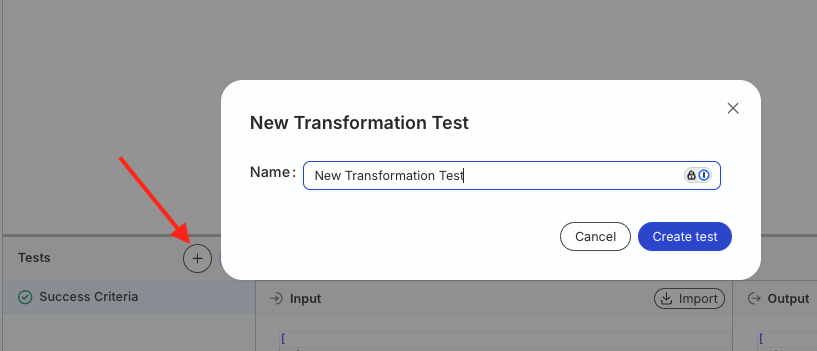
- Under Input, click Import and choose how to supply the event payload — see Import event payload for details.
- Under Output, choose how to inspect results:
- Expected: Specify the output payload you expect from your transformation
- Actual: View the output payload the transformation produced
- Diff: Compare the expected and actual payloads line by line
- Logs: View the transformation logs
Click Run to run the test case.
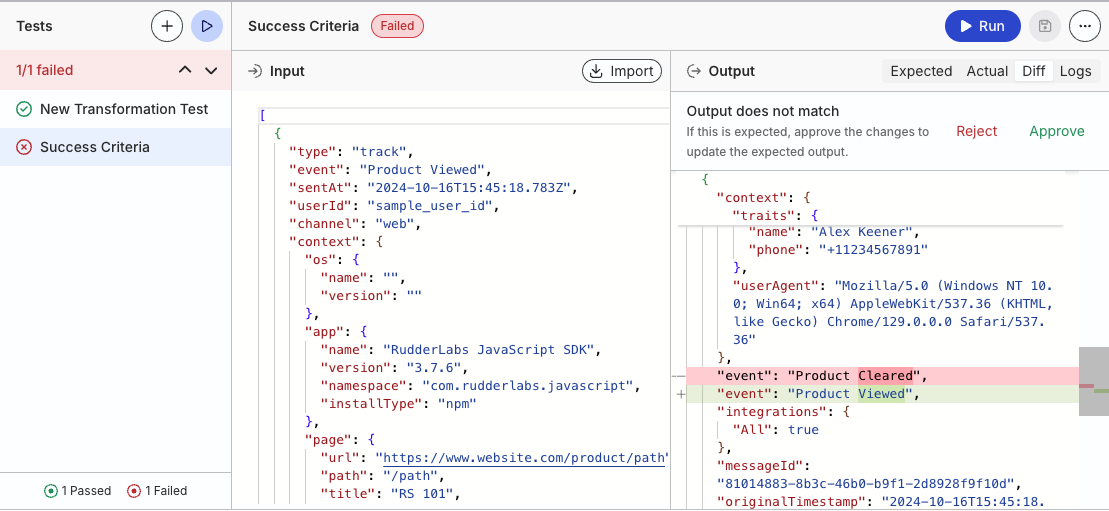
Click Diff between the Input and Output panels to review the comparison. This view highlights what the transformation changed and, if the test failed, how the actual output differs from Expected (removed fields in red, added fields in green).
If the output does not match and that result is correct, click Approve to update the expected output. Click Reject to keep the current expected payload.
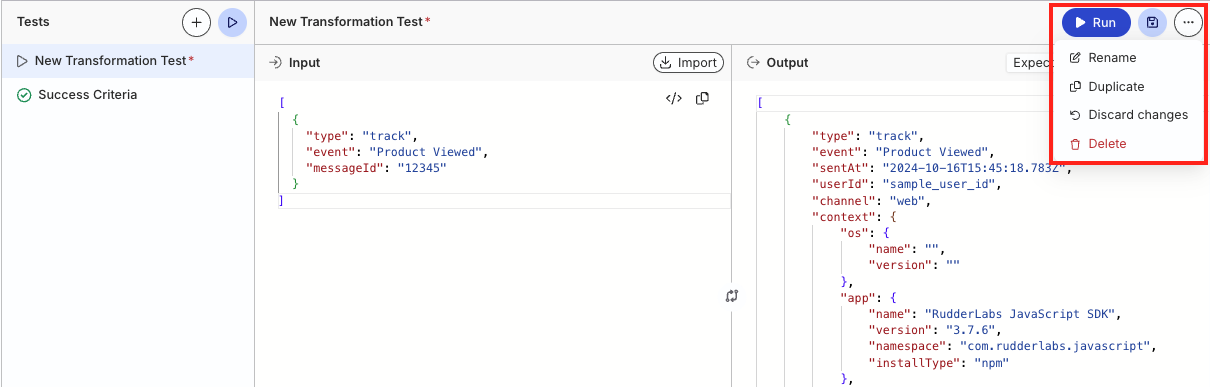
- Manage the test case (save, duplicate, rename, delete) using the options in the kebab (…) menu.
After your tests pass, save a draft or publish the transformation.
If this transformation imports a library, library tests are inferred from these test cases. A breaking library change fails the inferred tests.
Import event payload
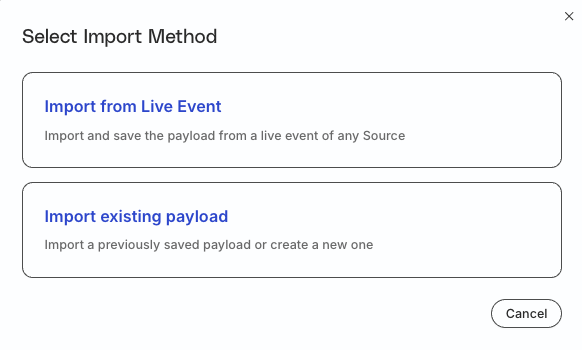
RudderStack provides the following options to import event payloads:
- Import from live event: Import and save a live event payload from your source
- Import existing payload: Import a previously-saved event payload or create a new one from scratch — helpful when you don’t have any live events flowing through your workspace
Import from live event
This option leverages the Live Events feature to import a live event payload from your source.
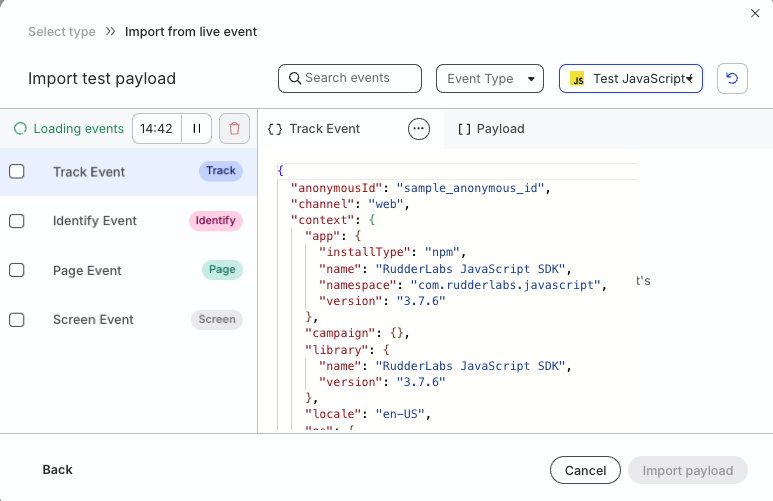
You can choose multiple live events to create your test event payload. Then, click Import payload to test your transformation on it.
Important considerations
- The live events contain payloads present at the source. They do not resemble the enriched events you see in the Live Events viewer in your transformation.
- Once you import a live event, all the live events shown in the window are lost. You need to send new events to import a live event again.
Import existing payload
This option lets you import a default RudderStack event payload containing sample/placeholder event data to test your transformation. This is helpful when you don’t have any live events in your workspace.
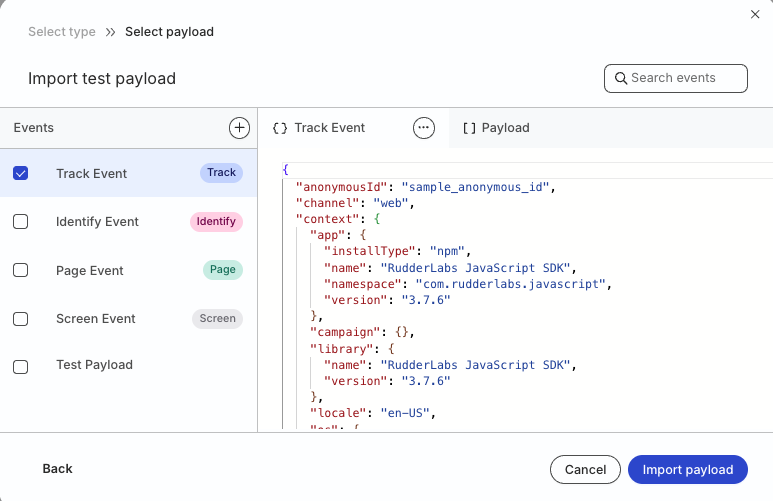
You can choose multiple events to create your test event payload. Then, click Import payload to test your transformation on it.
Modify an existing event or payload
You can also modify an existing event or payload before importing it:
- Click the kebab (…) menu next to the event or payload to modify it.
- Edit the event/payload as required, assign it a name, and click Save.
- Click Import payload to test your transformation on it.
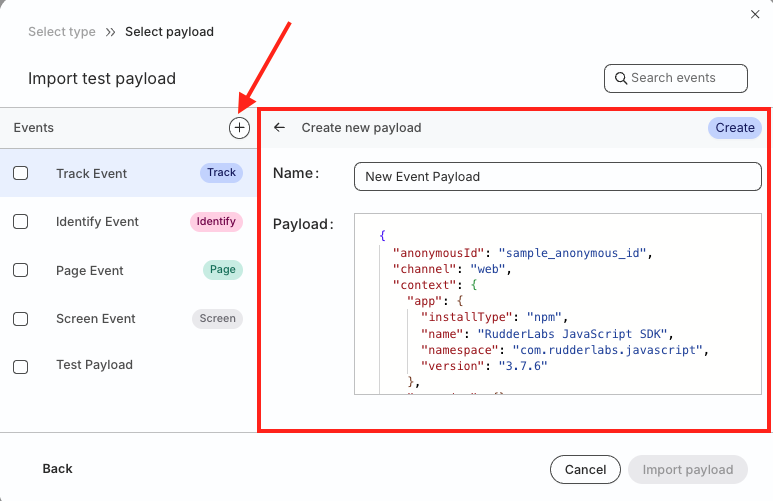
Create a new test event payload
- Click the + icon next to Events.
- Assign a name and add the payload snippet.
- Click Create to create the new payload — you can now import this payload to test your transformation.
Capture event information with logs
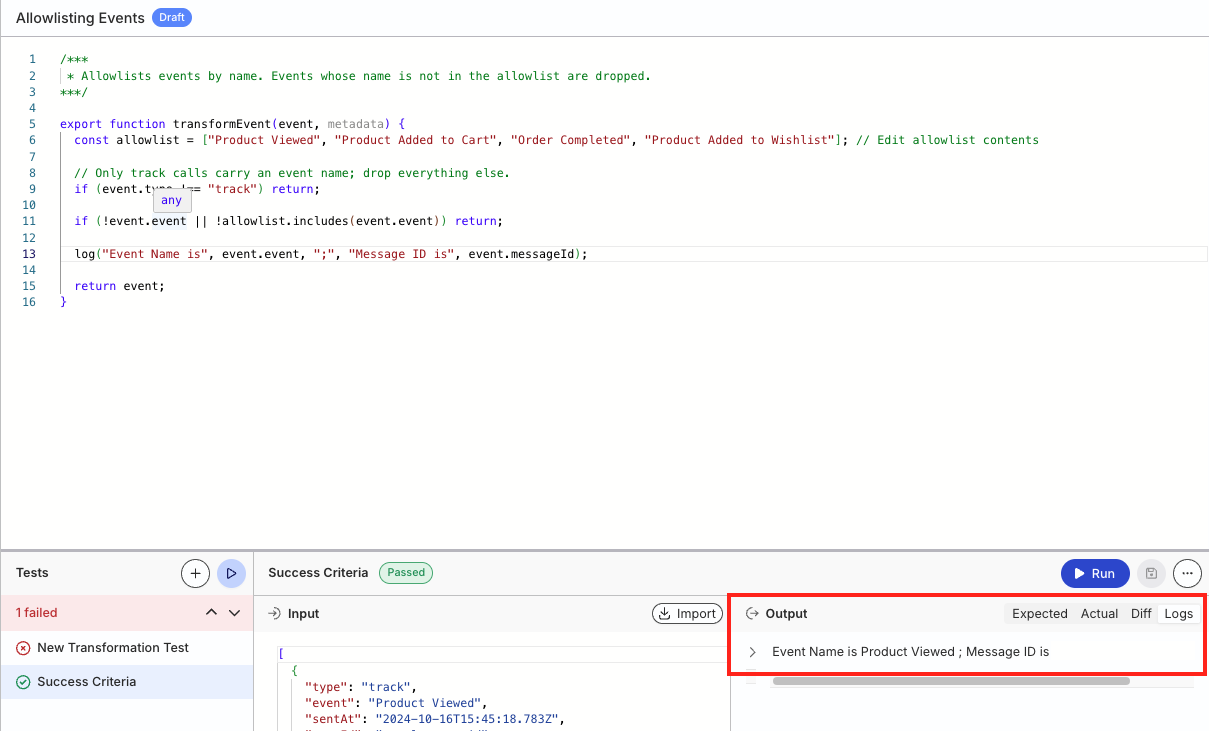
Once you add a transformation, you can capture any event-related information in the form of logs while testing it. To do this, include the log function in your transformation code, as shown:
export function transformEvent(event, metadata) {
  const meta = metadata(event);
  event.sourceId = meta.sourceId;

  log("Event Name is", event.event, ";", "Message ID is", event.messageId);
  log("Source ID is", meta.sourceId);

  return event;
}def transformEvent(event, metadata):
meta = metadata(event)
event['sourceId'] = meta['sourceId']
log("Event Name is", event['event'], ";", "Message ID is", event['messageId'])
log("Source ID is", meta['sourceId'])
return eventOn adding the above transformation and running the test case, you can see the resulting log in the Logs section of the dashboard:
IP allowlisting
For testing transformations that leverage external API calls, make sure that the API providers allowlist the following IPs depending on your RudderStack region:
Allowlisting these IPs is required when you want to make API calls to servers or services that control the IPs from which they accept API requests.
|
|
For production use cases, the IP addresses to allowlist while making external API calls depend on your RudderStack plan and region.
See the IP allowlisting FAQ for details.
