Manage Transformations
3 minute read
RudderStack provides an intuitive UI to help you manage your transformations. This guide covers how to:
- Connect a transformation to a destination
- Disconnect a transformation
- Switch transformation between destinations
- Delete a transformation
- Manage your transformation-destination connections
To save drafts, publish versions, or deploy an older transformation version, see Version and Deploy Transformations.
Connect transformation to destination
You can connect only a published Active transformation to a destination.
See Version and Deploy Transformations for more information on versioning and publishing a transformation.
You can connect a transformation to many destinations. However, each destination can have only one connected transformation at any given time.
Connect cloud mode destinations
RudderStack supports connecting a transformation to a cloud mode destination, that is, destination that supports sending events via cloud mode.
See Connect transformations to cloud mode destinations for more information.
Connect device mode destinations
Note that:
- Device Mode Transformations (DMT) is currently in Beta.
- You can enable DMT only from the Transformations tab.
You can also connect a transformation to a device mode destination, that is, destination that supports sending events via device mode.
See Connect transformations to device mode destinations for more information.
Disconnect transformation
There are two ways to disconnect a transformation from a destination:
From transformation
- Go to the Connections tab of your transformation and click Manage Destinations.
- Click the Edit Connection button.
- Disable the Connect to transformation toggle and click Save.
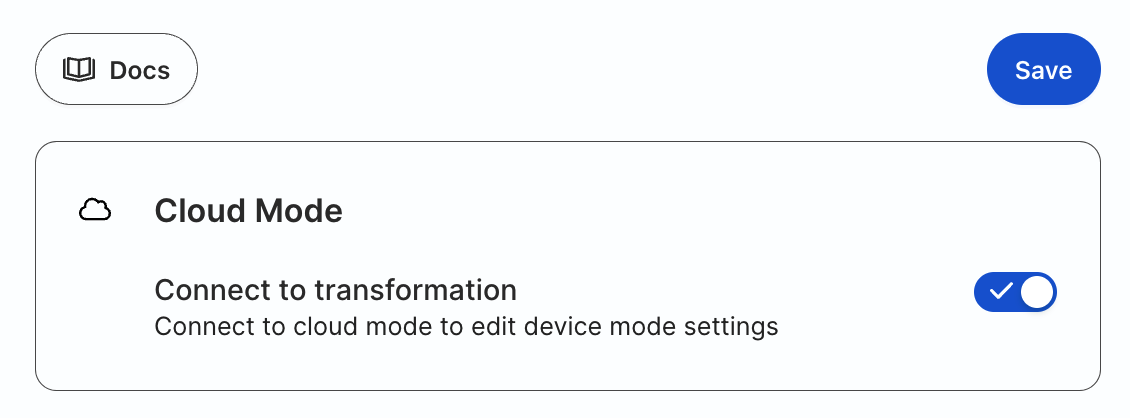
- Click Proceed to confirm.
From destination
- Go to the destination and click the Transformation tab. The connected transformation is shown here.
- Click Remove.
- Click Yes, remove to confirm and disconnect the transformation.
Switch transformation
Switching between transformations affects the data sent to the destination.
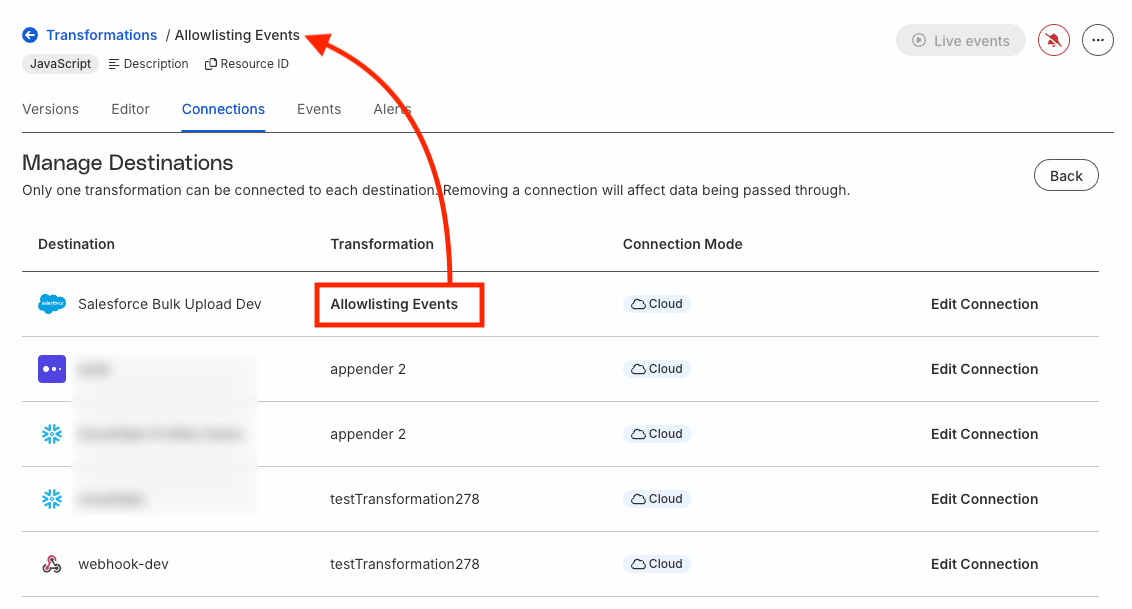
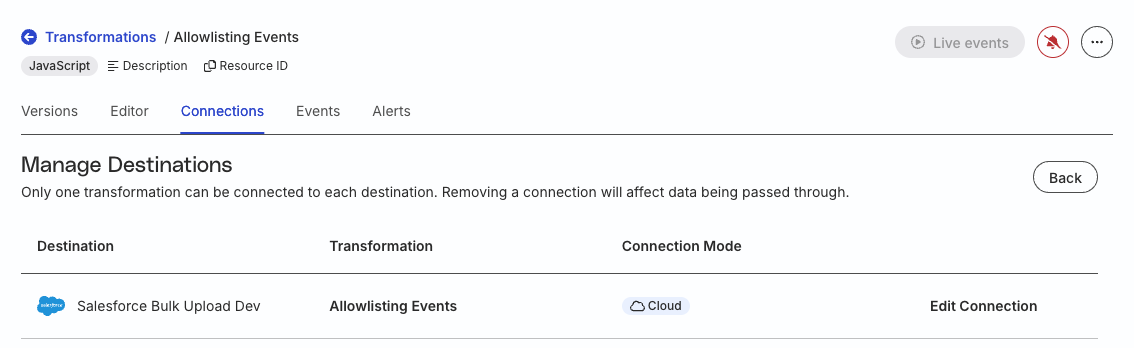
- Click the Connections tab of your transformation. You will see a list of all destinations and the transformations connected to them.
- Suppose you want to switch the transformation from
Geolocation EnrichmenttoAllowlisting Eventsfor the destinationSalesforce Bulk Upload Dev. Click the Edit Connection option next to the destination:

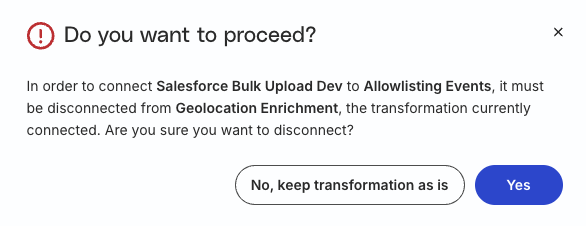
- In the confirmation dialog, click Yes to disconnect the existing transformation and proceed.
You must disconnect the existing transformation from the destination before you connect a new transformation.
- The Connect to transformation toggle is enabled by default. Click Save > Switch to confirm the switch.
You must click the Save button for any connection-related changes to take effect.
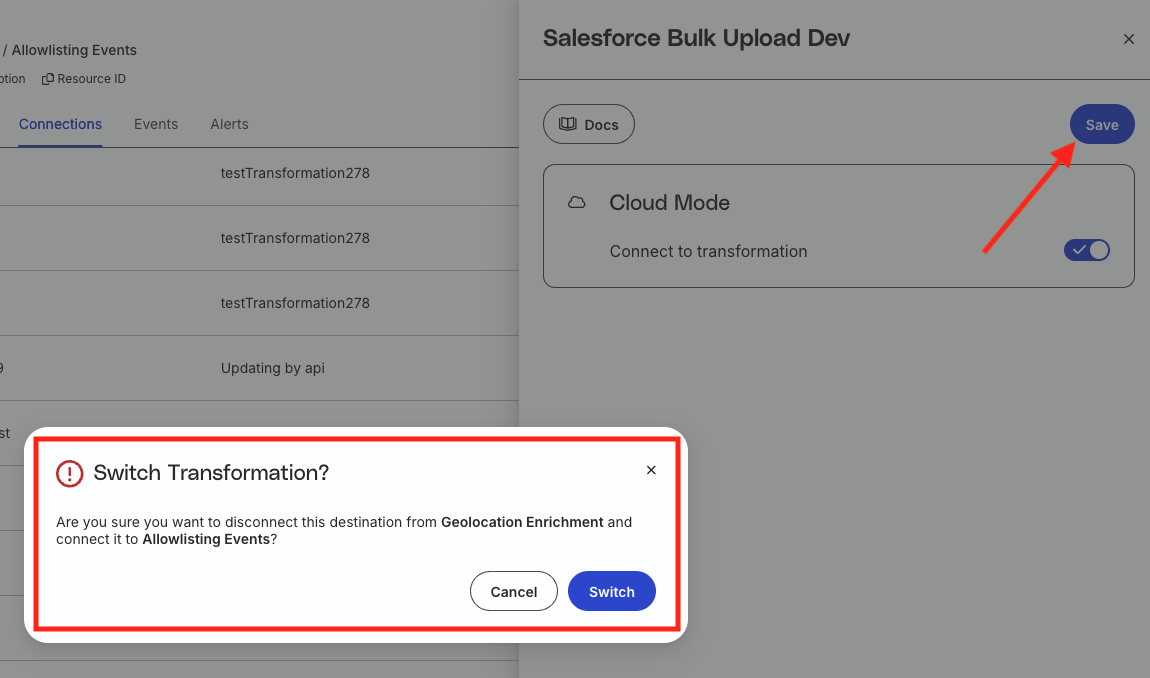
On successful switching, you will see the new transformation connected to the destination.
Delete transformation
To delete a transformation, click the meatballs menu (…) next to it and click Delete.
You cannot delete a transformation connected to a destination.

Manage connections
RudderStack gives you clear visibility into which transformation is connected to a destination at a given point. This is helpful in cases where you have many transformations connected to various destinations.
To manage your transformation-destination connections, go to the Connections tab of your transformation and click Manage Destinations.
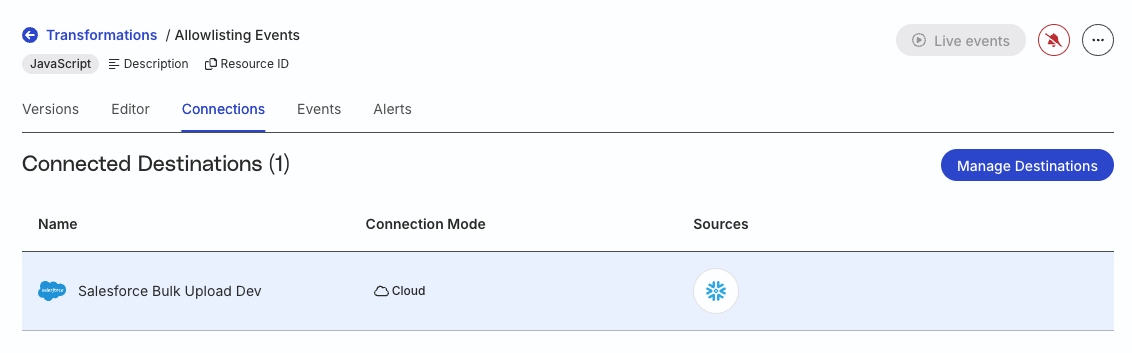
You will see a list of all the destinations and the transformations connected to them. The transformation you’re currently viewing will be highlighted in bold.