Transformation Libraries
- free
- growth
- enterprise
8 minute read
RudderStack’s transformation libraries feature lets you reuse the same code in multiple transformations.
Required permissions
- Admins have full access to manage transformation libraries.
- Members must have the Transformation Libraries permission in their workspace policy.
Click here to see how these permissions appear in the workspace policy.
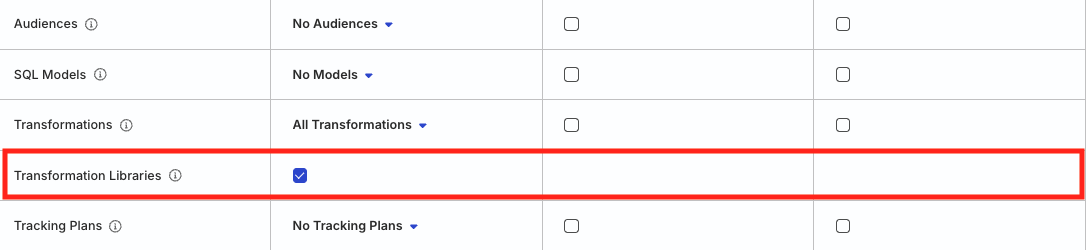
Permissions for legacy RBAC system
In the legacy Permissions Management (RBAC) system:
- Org Admins can edit transformation libraries
- Members must have the Grant edit access permission in Transformations and Library toggled on to edit transformation libraries
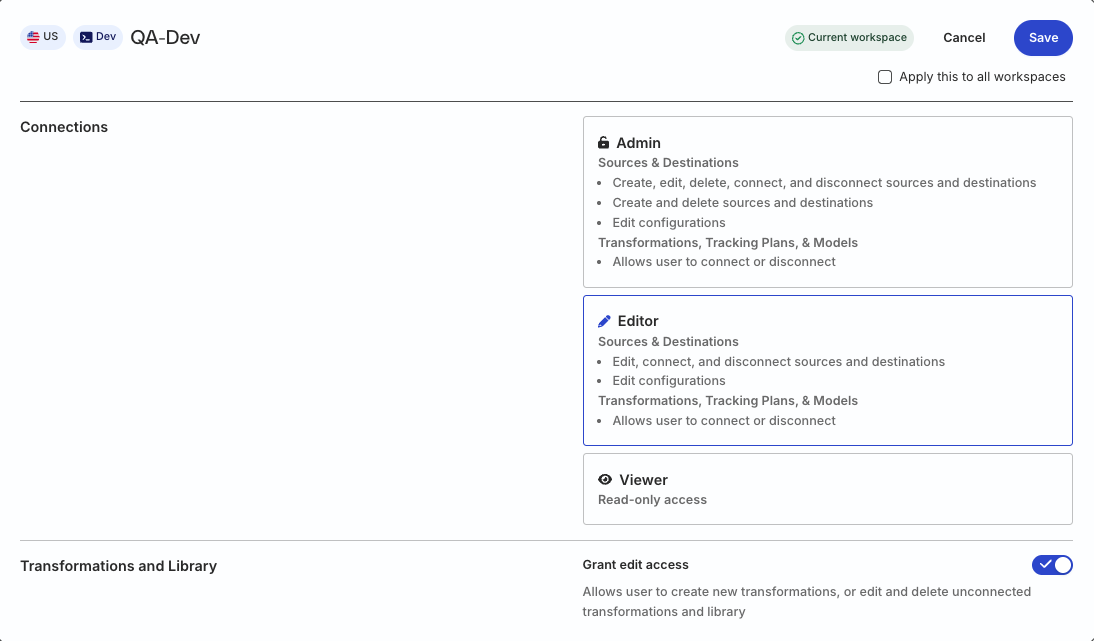
Add transformation library
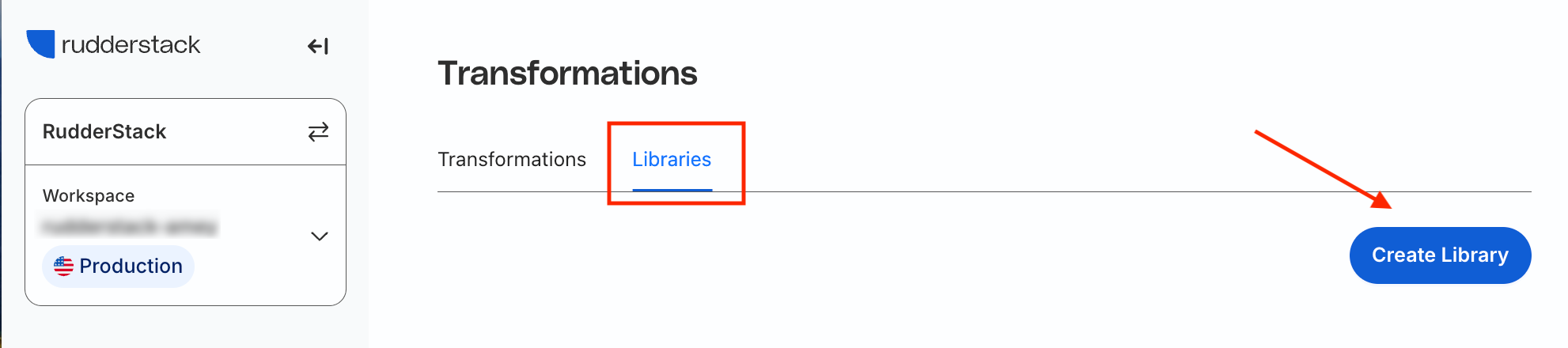
- In the RudderStack dashboard, go to Collect > Transformations and click the Libraries tab. Then, click Create Library.
- Add the library Name, Description and select the language to write the library function. You can also add multiple functions in a single library.
RudderStack supports Python libraries only in the RudderStack Growth and Enterprise plans.
JavaScript transformation libraries run in an isolated environment — no Node.js modules (likefs,require) or browser APIs (likewindow,btoa) are available. Only standard JavaScript features are supported.
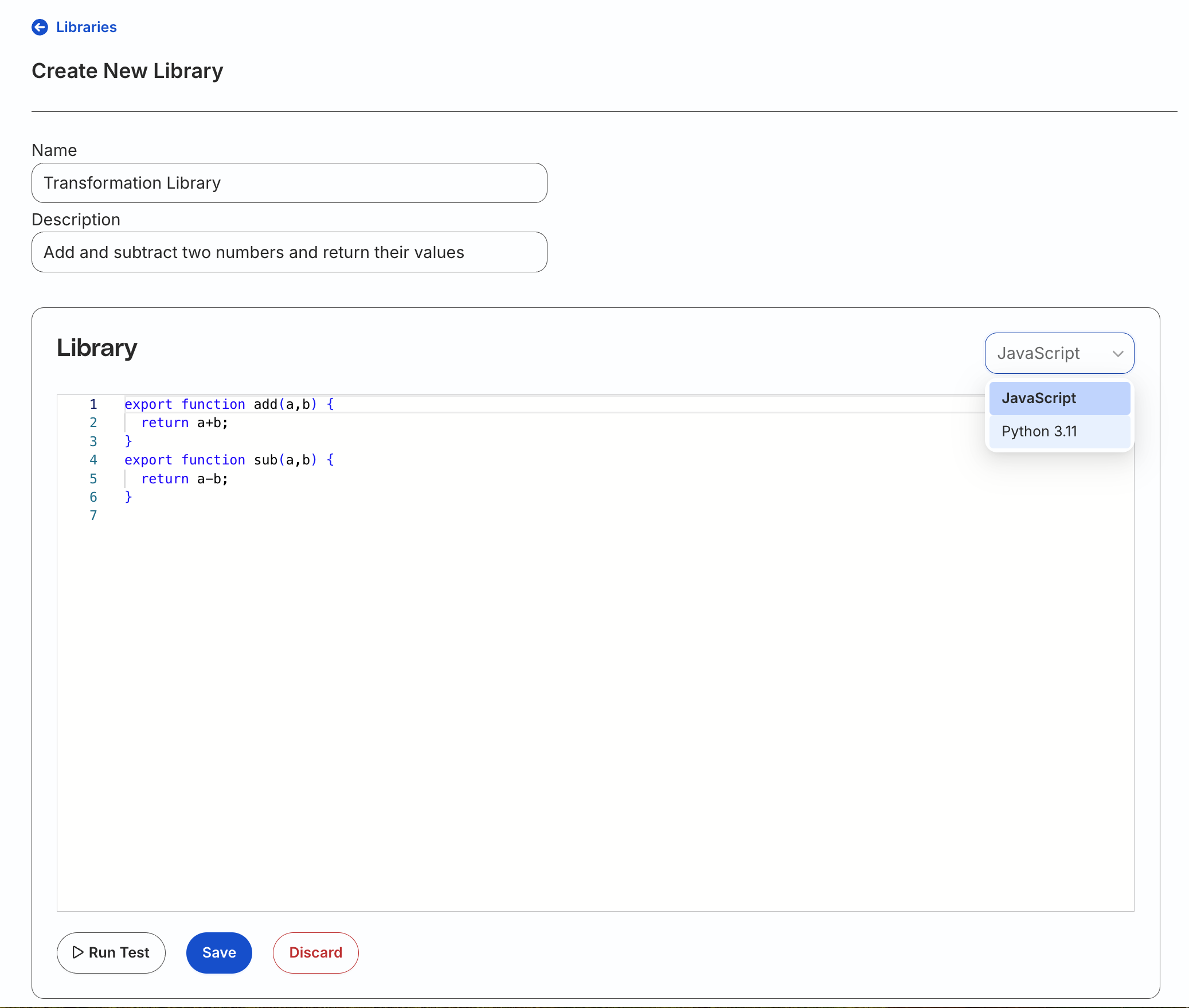
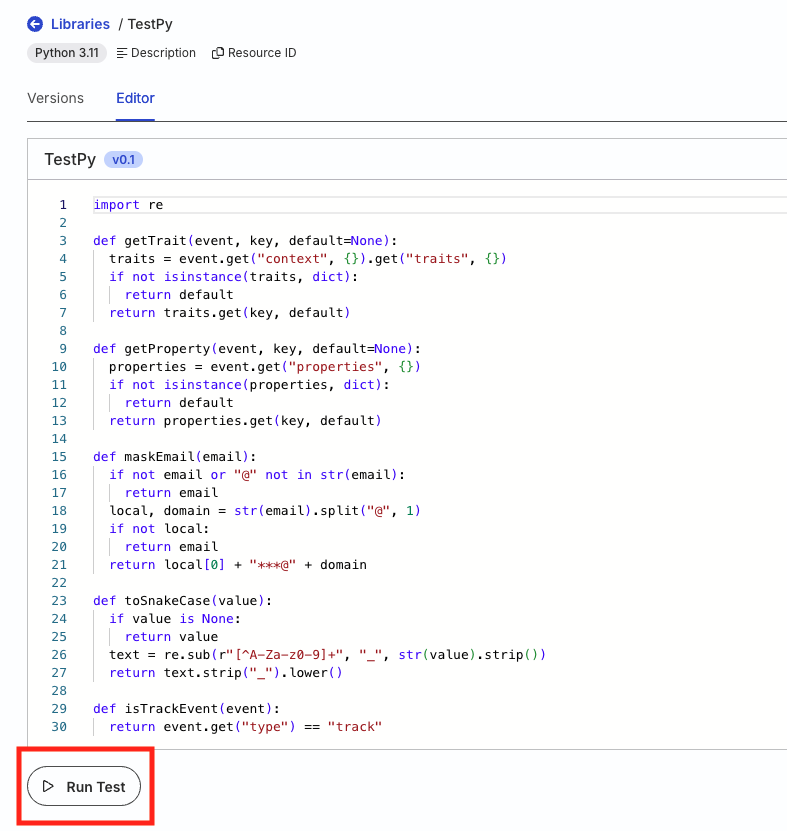
- Click Run Test to validate the library. See Test a library for how RudderStack infers tests from importing transformations.
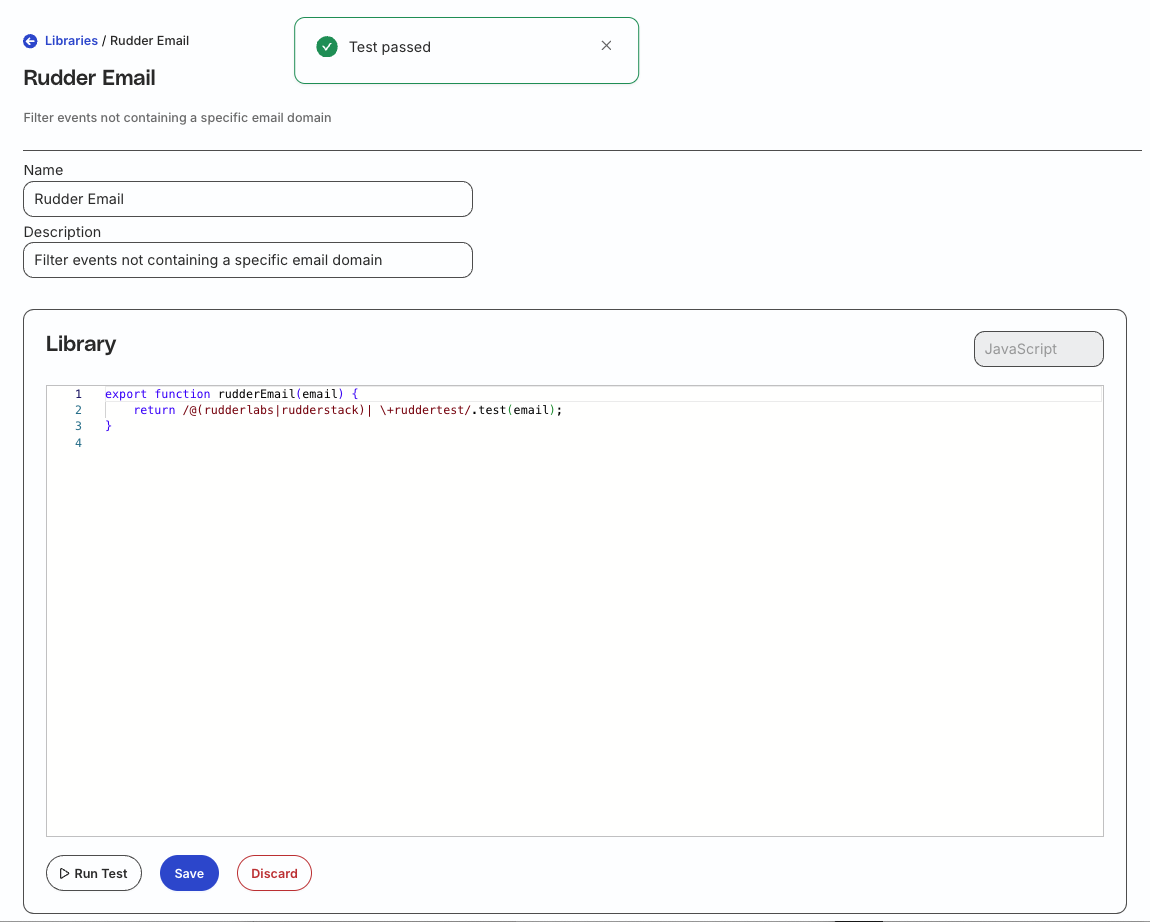
- Click Save draft to store unpublished changes, or Publish to create a published version. See Version and publish libraries for details.
Test a library
Libraries don’t have their own test cases. When you click Run Test, RudderStack infers tests from every transformation that imports the library and runs those transformation test cases against your library code.
If you make a breaking change to the library, the inferred tests fail. Fix the library or update the affected transformation tests before you publish.
If no transformation imports the library yet, Run Test checks that the library syntax is valid.
Version and publish libraries
You can save unpublished library changes as drafts and publish tagged versions for use in transformations.
Important considerations
- Library drafts cannot be applied: Transformations always run the Active published library version. You cannot import a library that has never been published.
- Publishing replaces the active version: When you publish a new library version, it becomes active immediately and the previous Active version loses that status.
- Unlike transformations, you cannot deploy an older library version to make it active.
Save a library draft
- Open the library and go to the Editor tab.
- Update the library code.
- Click Save draft.
Draft changes are not published. Transformations that already import this library continue to use the Active published version until you publish a new version.
After you save a draft, the library shows Unpublished changes in the header and a Draft badge in the editor.
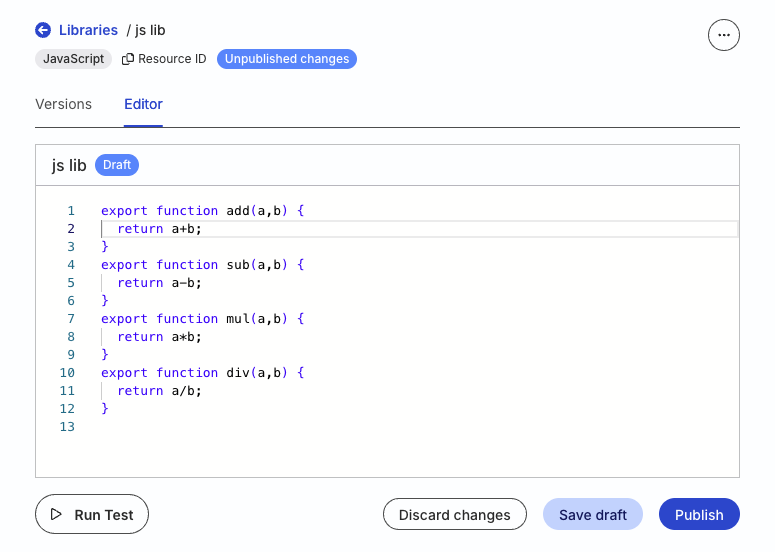
To discard unpublished edits, click Discard changes. The editor reverts to the version you opened for editing.
Publish a new library version
You can publish a new version directly — you don’t need to save a draft first.
- In the Editor tab, click Publish.
- Enter a Tag for the version and optionally add a Description.
- Click Publish.
The published version becomes Active immediately. Transformations that import this library use the new active version for newly processed events.
View library version history
Open the library and go to the Versions tab. You will see all the library versions in the Version history section.
The Active badge marks the latest published version.
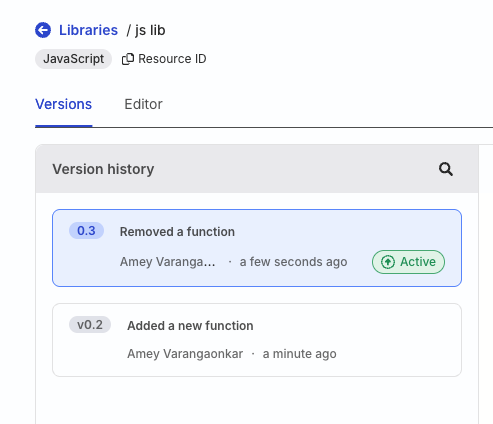
To edit from a specific version without changing the active version, open that version’s code in the editor, update it as needed, then save a draft or publish a new version.
Publishing creates a new active version — it does not reactivate an older tag.
Use libraries in transformations
Transformations always use the Active library version. Publish the library before you import it — you cannot reference a draft.
To use the libraries in your existing transformations, note the library name listed in the Import library name column in the RudderStack dashboard:
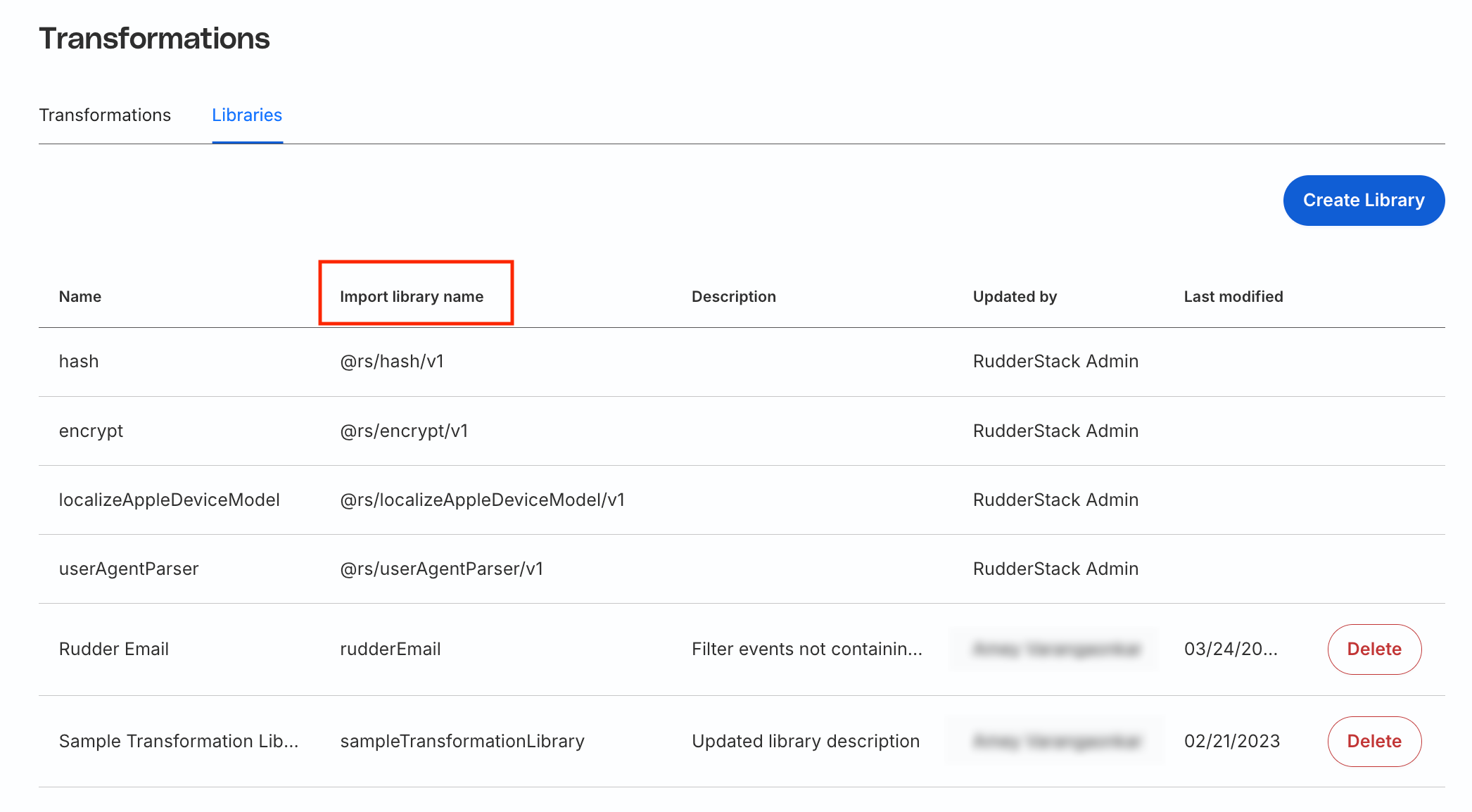
RudderStack converts the library name into camel case without spaces; this becomes your library handle which you can use across multiple transformations. For example, if your library name isSample Transformation Library, then the library handle would besampleTransformationLibrary.
You can then use the library in a transformation with a simple import statement. Refer to the below use case for more information.
Use case
Suppose you want to filter the events that don’t contain an email address with the RudderStack domain. To do so, you can import a rudderEmail function from the transformation library isRudderEmail.
The rudderEmail function containing the filtering logic is shown below:
export function rudderEmail(email) {
    return /@(rudderlabs|rudderstack)| \+ruddertest/.test(email);
}import re
def rudderEmail(email):
match = re.search('@(rudderlabs|rudderstack)|\+ruddertest', email)
if match:
return True
return FalseThe following snippets demonstrate how you can import this function in a transformation:
import { rudderEmail } from "isRudderEmail";
export function transformEvent(event) {
  const email =
    event.context && event.context.traits && event.context.traits.email;
  if (email) {
    if (!rudderEmail(email)) return;
  }
  return event;
}from isRudderEmail import rudderEmail
def transformEvent(event, metadata):
email = event.get("context", {}).get("traits", {}).get("email")
if email:
if not rudderEmail(email):
return
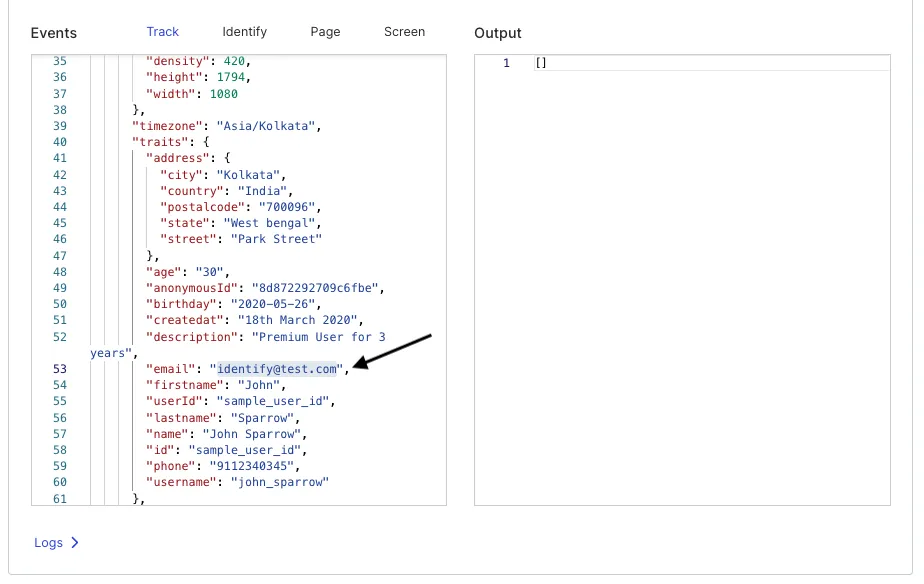
return eventOn clicking Run Test, a sample event not containing the RudderStack email domain is filtered out:
Import multiple functions from single library
The following snippets highlight how to correctly import functions from a library:
// ---------------
import { getLoss } from "getFinanceData";

// OR

import { getLoss, getRevenue, getProfit } from "getFinanceData";
import {
  getLoss,
  getRevenue,
  getProfit
} from "getFinanceData";

// For default getPrice import
import getPrice, { getRevenue, getProfit } from "getFinanceData";

// alias imports
import getPrice as gp, { getRevenue as gr, getProfit } from "getFinanceData";
// usage: gp(event), gr(event), getProfit(ev)

import * as GFD from "getFinanceData";
// usage: GFD.getRevenue(ev), GFD.getProfit(ev)
// for default import: GFD.default(ev)
from getFinanceData import getRevenue, getProfit
// usage: getRevenue(event), getProfit(event)

from getFinanceData import getRevenue as gr, getProfit
// usage: gr(event), getProfit(ev)

import getFinanceData
// usage: getFinanceData.getRevenue(event), getFinanceData.getProfit(event)
The following snippets highlight the incorrect way of importing the library functions:
// -----------------
import * from "getFinanceData";
getPrice(ev)

// OR

import getPrice as gp from "getFinanceData";
getPrice(ev)import getRevenue, getProfit from getFinanceData
import { getRevenue, getProfit } from getFinanceData
from getFinanceData import *Delete library
You cannot delete a library that is referenced or imported in a transformation.
To delete a library, go to Collect > Transformations > Libraries and click the Delete button next to the library that you want to delete.
Default RudderStack libraries
RudderStack provides some default libraries that you can import in your transformations for implementing various use cases like encrypting, decrypting, or hashing PII, parsing user agent, and using the localized version of Apple’s device mode information in your events.
See the GitHub codebase for the code and implementation-specific details for these libraries.
Currently, these predefined RudderStack libraries are available only for JavaScript.
Use the following structure to import the RudderStack libraries:
@rs/<libraryname>/v1A sample import statement is shown below:
import { JSEncrypt } from "@rs/encrypt/v1";The following table lists the default RudderStack libraries and their usage:
| RudderStack library name | Usage |
|---|---|
encrypt | Used in the Encryption / Decryption transformation template. Lets you encrypt or decrypt PII, including PII stored in cookies. |
hash | Used in the Hash PII transformation template. Hides sensitive PII like the user’s email, birthday, social security number, etc. You can use either MD5, SHA256, or cyrb53 to hash your PII. |
userAgentParser | Used in the Parse User Agent transformation template. Adds the user’s browser, engine, OS, device, and CPU-related information to the events. |
localizeAppleDeviceModel | Used in the Localize Apple Device Model transformation template. Lets you use the localized version of Apple’s device model information present in your event’s context.device.model. |
FAQ
How can I use a npm package not provided by RudderStack in my transformations?
To use a different library (other than the default libraries provided by RudderStack) in your transformations:
- Add a pure vanilla script as a transformation library.
All the imports and functions referenced in the code must have their implementation in the same file — essentially, a self-sufficient minified JavaScript implementation of the required package.
- Import the library in your transformation.
Example
Suppose you want to use the blueimp/JavaScript-MD5 library to hash your PII.
- Your MD5 function looks as follows:
! function(n) {"use strict";function d(n, t) {var r = (65535 & n) + (65535 & t);return (n >> 16) + (t >> 16) + (r >> 16) << 16 | 65535 & r} ... ... module.exports = t : n.md5 = t}(this);For this example, note that:
The
min.jsfile is readily available — hence no other action is required. Otherwise, you will need to write a.jsfile separately.The method used as the entry point method is
md5and it uses the MD5 (hexadecimal), MD5 (raw), HMAC-MD5 (hexadecimal), and HMAC-MD5 (raw) functions — make sure to include these function implementations in the file.
- The above functions may also reference other methods — make sure to include their implementations in the file, and so on.
Include only minimal and relevant code in the file to avoid performance issues.
- Add the above code in a new transformation library, for example,
md5Library. - Import the above library in your transformation to hash sensitive PII:
// Import the MD5 function from your library
// Assuming the library handle is 'md5Library'

import { md5 } from "md5Library";

export function transformEvent(event) {
  // Get email from event properties
  const email = event.properties?.email;

  if (email) {
    // Hash the email using MD5
    event.properties.email = md5(email);
  }

  return event;
}
This transformation will hash any email address in the event properties using the provided MD5 algorithm.
