Transformation Credentials
- growth
- enterprise
3 minute read
The credential store is a central repository in the RudderStack dashboard for securely storing and efficiently managing your configuration data.
By storing secrets and variables in RudderStack’s credential store, you can avoid hardcoding sensitive information in your transformations and avoid any security risks.
Credentials overview
RudderStack supports two types of credentials - Secrets and Variables.
| Credential | Description | Examples |
|---|---|---|
| Secret | Lets you store sensitive information as encrypted text values and use them as environment variables in your transformations. Note that you cannot see the secrets in the dashboard after setting them. | Passwords, app secrets, API tokens. |
| Variable | Lets you store non-sensitive configuration data as non-encrypted strings. | Application configuration, paths. |
Access credential store
This tab is visible in the RudderStack Growth and Enterprise plans only.
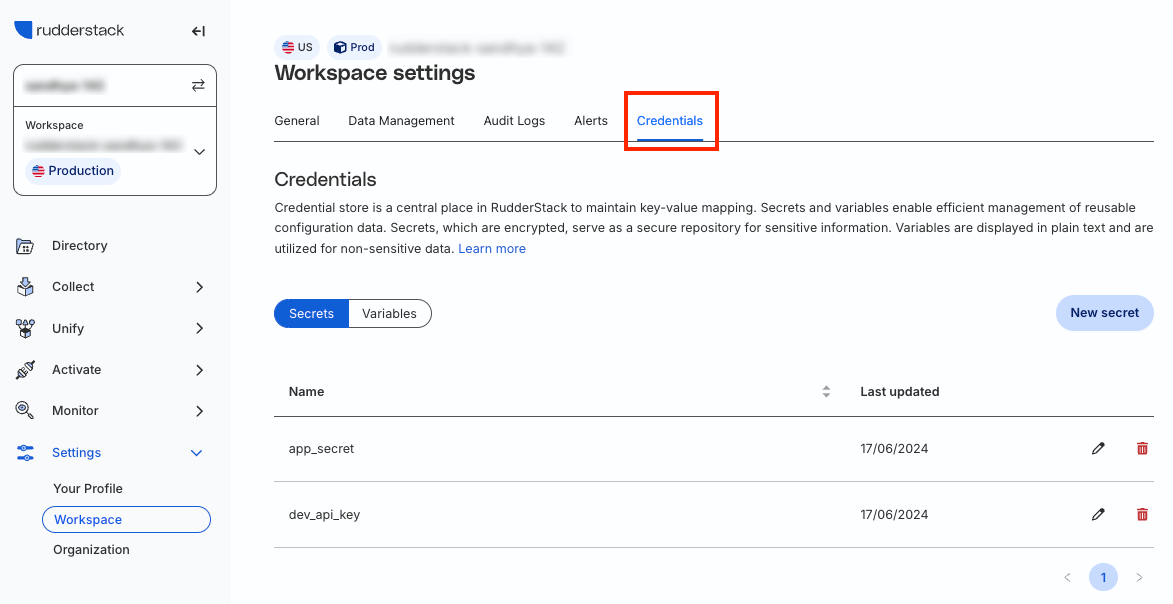
Go to Settings > Workspace > Credentials to access the credential store and create your secrets and variables.
Required permissions
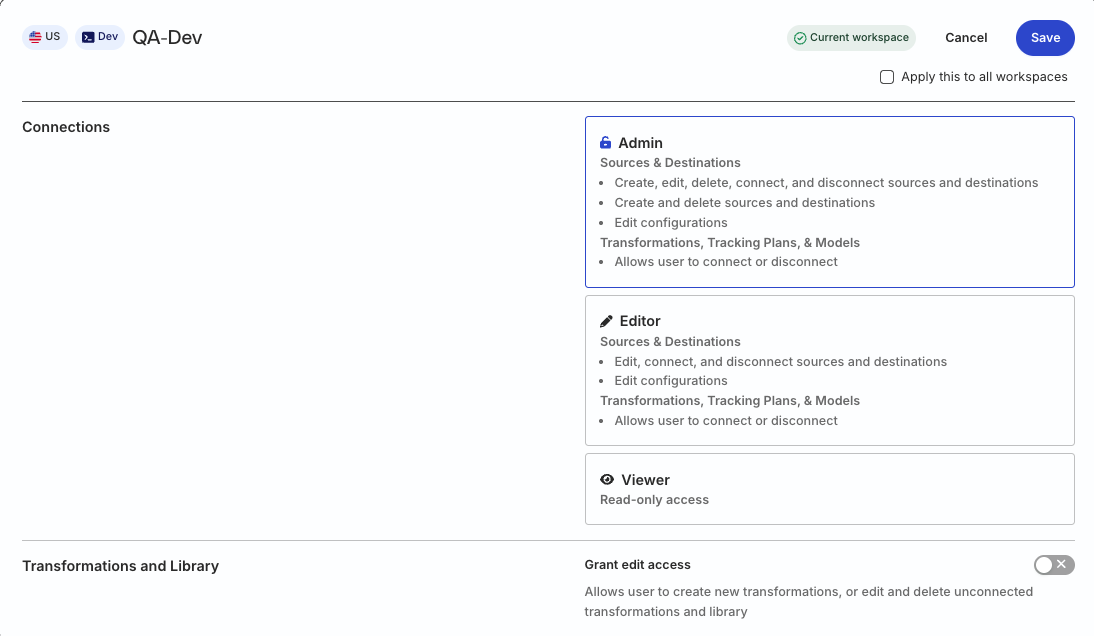
- Admins have full access to create and manage secrets and variables in the credential store
- Members must have the Credential Store permission in their workspace policy
Click here to see how these permissions appear in the workspace policy.

Permissions for legacy RBAC system
In the legacy Permissions Management (RBAC) system, only Org Admins and members with the Connections Admin role in their workspace policy can access and manage secrets and variables in the credential store.
Create secrets
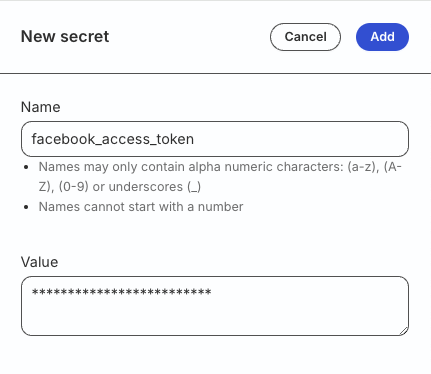
- Go to the Secrets tab of the credential store.
- Click New secret.
- Enter the secret name and value.
Secret names can contain only alphanumeric characters and underscores and they cannot start with a number.
- Click Add to save the secret.
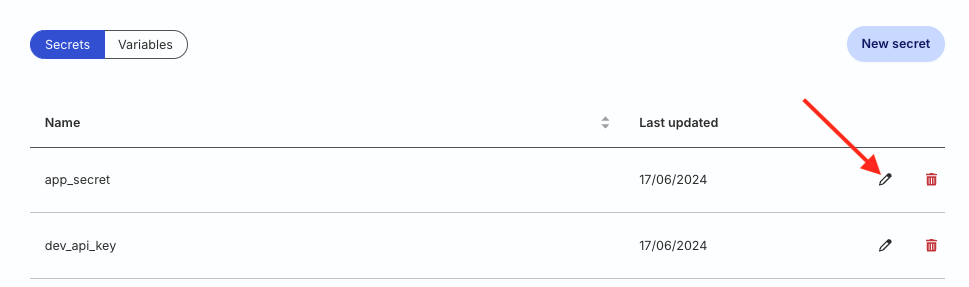
To edit a secret, click the edit icon, enter the new secret value, and click Save. Note that the previous secret value will not be visible.
Create variables
- Go to the Variables tab of the credential store.
- Click New variable.
- Enter the variable name and value.
Note the following:
- Variable names must contain only alphanumeric characters and underscores.
- They cannot start with a number.
- The name must not exceed 2048 characters.
- Click Add to save the variable.
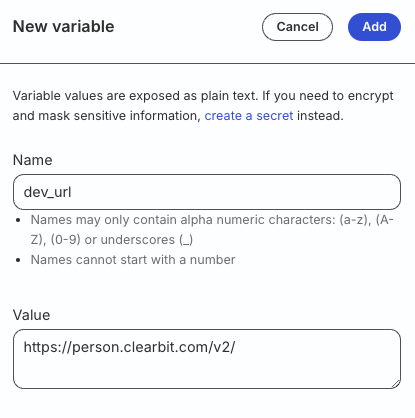
To edit a variable, click the edit icon, enter the new value, and click Save.
Use credentials in transformations
Once you create the credentials in the credential store, you can reuse them by referencing them within the getCredential() function in your transformations.
See Runtime Functions in Transformations for more information on using the getCredential function.
Note the following while using credentials in transformations:
- Any workspace member can use the credentials in their transformations.
- You cannot use credentials in transformation libraries.
getCredentialis a restricted keyword in transformations. You must not use it for naming functions or variables.- RudderStack drops the event in case of any error while using the
getCredentialfunction in a transformation that is connected to a destination.
Do not log or embed secrets in the event payload from the transformation.
All workspace users (including read-only users) have access to the transformation logs and live events and can get access to these secrets if you do not handle them properly in the transformation.
