Trino Reverse ETL Source
9 minute read
Trino is a distributed SQL query engine for efficient, low-latency big data analytics.
RudderStack supports Trino as a data source from which you can ingest data and route it to your desired downstream destinations.
Prerequisites: Trino server setup
Before you set up Trino as a source in RudderStack, make sure your Trino server is configured correctly by following these sections:
- RudderStack supports only password file authentication mechanism for this source. Make sure to enable password file authentication for your Trino instance and create a password file.
- RudderStack uses the file-based access control mechanism for Trino. To use the access control plugin, see Configuration section.
- This integration supports only the Apache Hive connector currently. To use this connector, make sure to add the following configuration in the catalog properties file using the Hive connector:
hive.allow-drop-table=true
hive.metastore.thrift.delete-files-on-drop=true
Grant permissions
Before you set up Trino as a source, you must grant certain permissions on your Trino instance for RudderStack to access data from it.
Run the SQL queries listed in the following sections in the exact order to grant these permissions:
Step 1: Assign read access to tables
This step gives RudderStack the necessary permissions to read the relevant table records in Trino.
RudderStack uses the file-based access control mechanism for this integration.
To sync a table sample_table in user_schema for a user test, copy the below JSON in to your access control config JSON file:
{
  "tables": [{
    "user": "test",  // Replace with your RudderStack user name
    "catalog": "catalog_name ", // Replace with the catalog you wish to sync
    "schema": "user_schema ",
    "table": "sample_table ",
    "privileges": ["SELECT"]
  }]
}
Step 2: Create RudderStack schema and grant permissions
CREATE SCHEMA "_rudderstack"To add this schema to a particular location, run the following query:
CREATE SCHEMA "_rudderstack" WITH (location = "s3://<your_location>/")Create the
_rudderstackschema before syncing your data. Do not change this name.See
_rudderstackSchema Reference for more details.
Step 3: Grant ownership to _rudderstack schema
The following grants RudderStack the necessary permissions to perform relevant actions on the tables in the _rudderstack schema:
{
  "catalogs": [{
    "user": "test",
    "catalog": "catalog_name ",
    "allow": "all"
  }],
  "schemas": [{
    "user": "test",
    "catalog": "catalog_name ",
    "schema": "_rudderstack ",
    "owner": true
  }],
  "tables": [{
    "user": "test",
    "catalog": "catalog_name ",
    "schema": "_rudderstack ",
    "privileges": ["SELECT",
      "INSERT",
      "DELETE",
      "UPDATE",
      "OWNERSHIP"
    ]
  }]
}
Set up Trino source in RudderStack
- Log in to your RudderStack dashboard.
- On the Connections page, click Add source.
- Under Sources, click Reverse ETL and select Trino.
Configure warehouse credentials
You can choose to proceed with your existing warehouse credentials if you have configured them in the RudderStack dashboard previously. Otherwise, click Add new credentials to add new credentials for your warehouse.
- Host: Enter the host name or IP address of your Trino coordinator server.
Make sure to enter only the host name and not the complete URL. Otherwise, you will encounter an error.
For example, if the URL is
https://trino-server.example.com, host name should betrino-server.example.com.
- Catalog Name: Specify the catalog to use when RudderStack executes queries in Trino.
- User: Enter the user with relevant access to the above settings.
- Password: Enter the password for the above user.
- Port: Enter the port number of your Trino coordinator server. This is an optional setting.
Click the Verify button on the top right. RudderStack will then verify and validate your credentials. Once verified, click Continue to proceed.
Specify name and source type
Specify the source name and type in this step.
- Source name: Assign a name to uniquely identify the source in the RudderStack dashboard.
- Select your source type: RudderStack lets you set up a Reverse ETL source from a warehouse Table, Model, or Audience.
| Source type | Description |
|---|---|
| Table | Use an existing warehouse table as a data source. See Use warehouse table as source for detailed setup. |
| Model | Use custom SQL queries to fetch specific warehouse data and send them to your destinations. See Use model as source for detailed setup. |
| Audience | Filter data in your warehouse tables to create target customer lists and send them to downstream destinations. See Use audience as source for detailed setup. |
Use warehouse table as source
Under Select your source type, choose Table and specify the below fields:
- Schema: Select the warehouse schema from the dropdown.
- Table: Choose the required table from which RudderStack syncs the data.
- Primary key: Select the column from the above table that uniquely identifies your records in the warehouse.
RudderStack uses the primary key column for diffing in case of incremental syncs. You can generate it by:
- Generating your table with a primary key, OR
- Creating a table view
You can use a composite key in cases where one column cannot be considered as a primary key. For example, you can a declare a composite key of
user_idandtimestampby creating a view on your warehouse table.
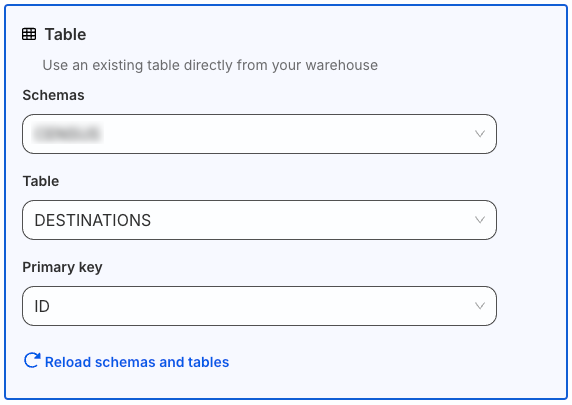
Finally, review and complete your source setup.
Use model as source
Under Select your source type, choose Model and click Continue.
To configure a model as source:
- Enter an optional description and specify the custom SQL query in Query section.
- Click Run Query to fetch the data preview.
- Select the Primary key to use a column that uniquely identifies your warehouse records.
You can set a primary key only after you run the SQL query successfully using the Run Query option.
RudderStack uses the primary key column for diffing in case of incremental syncs. You can generate it by:
- Generating your table with a primary key, OR
- Creating a table view
You can use a composite key in cases where one column cannot be considered as a primary key. For example, you can a declare a composite key of
user_idandtimestampin SQL query of the model.
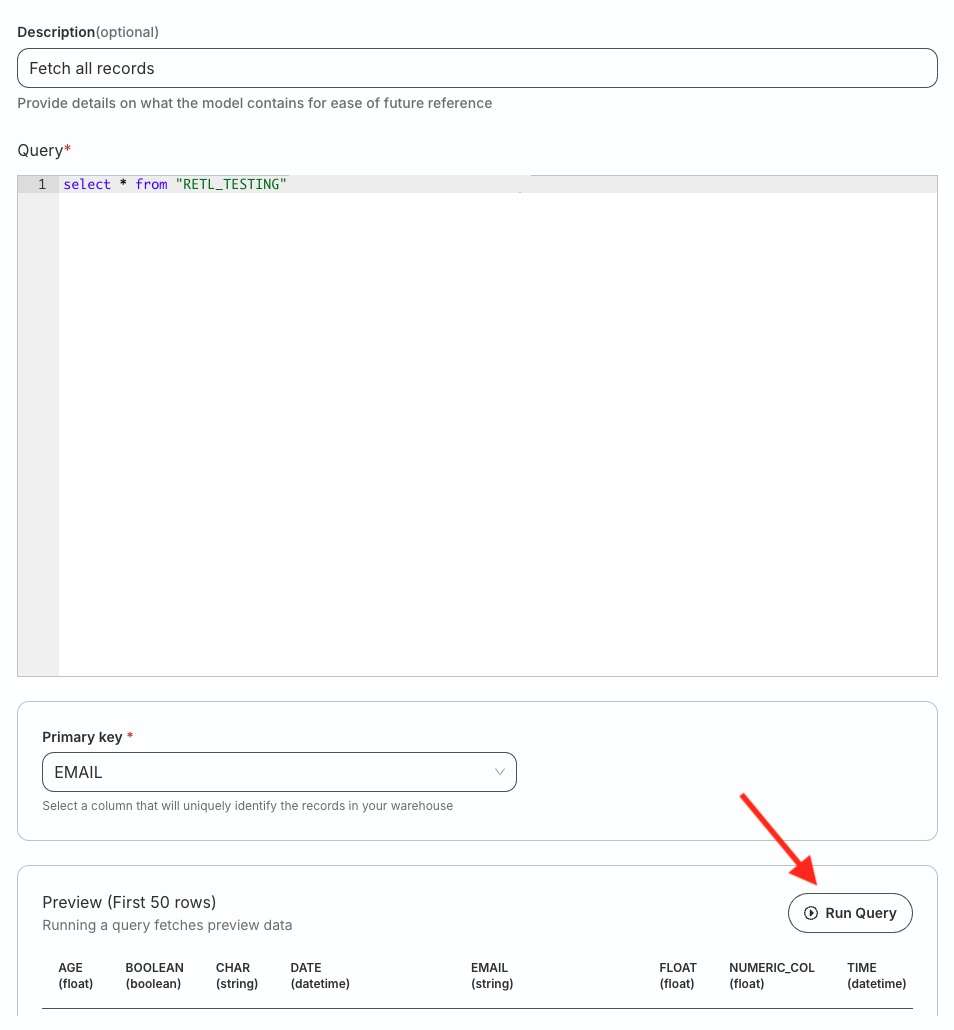
Finally, review and complete your source setup.
Use audience as source
This Audiences feature leverages the Reverse ETL workflow.
To build targeted, no-code audience segments from warehouse data and activate them downstream, use Rudder Lookout instead.
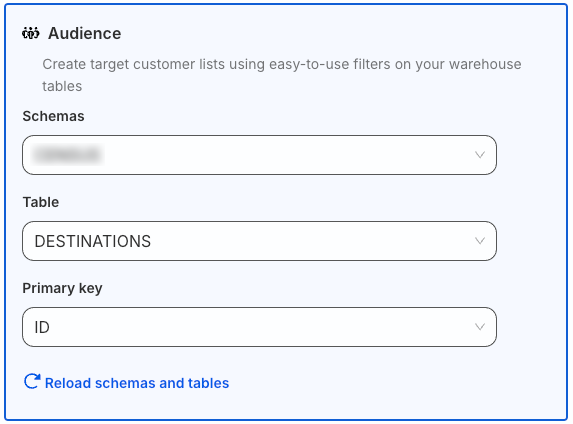
Under Select your source type, choose Audience and follow these steps:
Configure your audience source by specifying the below fields:
- Schema: Select the warehouse schema from the dropdown.
- Table: Choose the required table from which RudderStack syncs the data.
- Primary key: Select the column from the above table that uniquely identify your records in the warehouse.
RudderStack uses the primary key column for diffing in case of incremental syncs. You can generate it by:
- Generating your table with a primary key, OR
- Creating a table view
You can use a composite key in cases where one column cannot be considered as a primary key. For example, you can a declare a composite key of
user_idandtimestampby creating a view on your warehouse table.
- Set your audience conditions.
- Click Preview to see the resulting data. Then, click Continue to proceed.
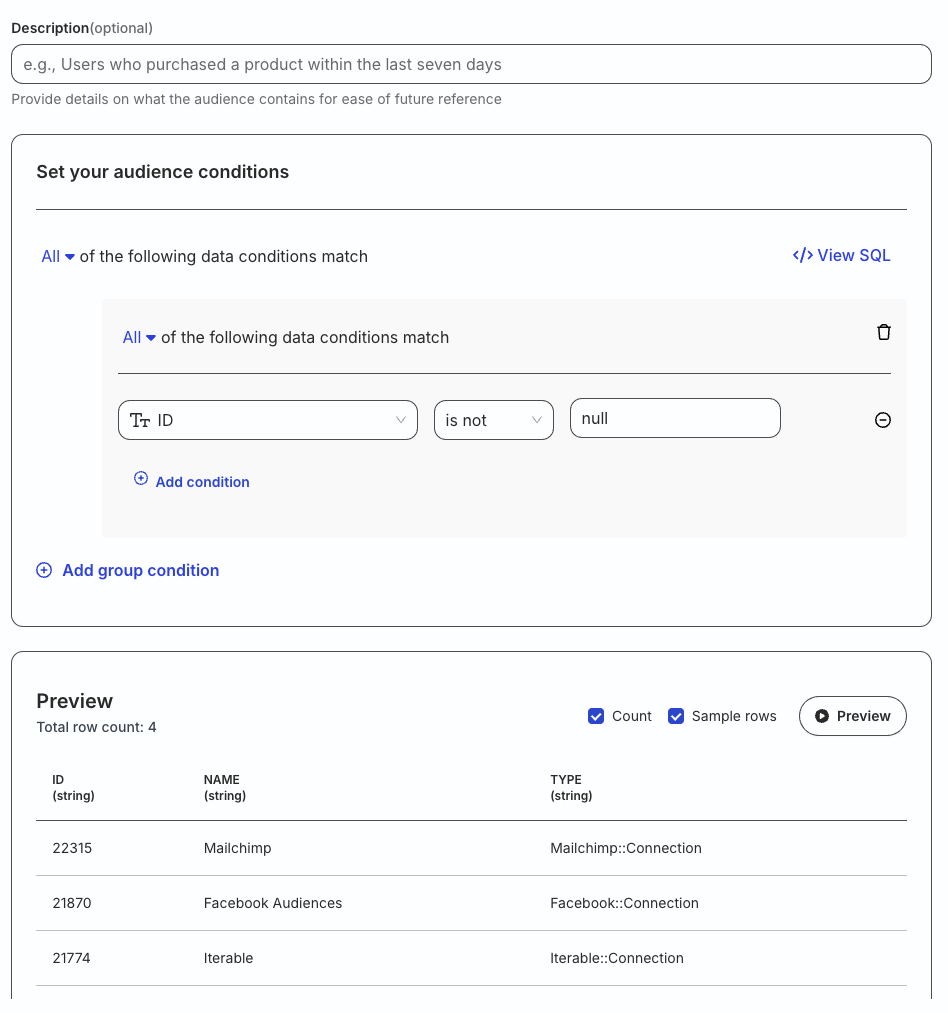
Finally, review and complete your source setup.
Review and complete setup
To make any changes to the warehouse credentials or source configuration, click the edit icon present next to those sections.
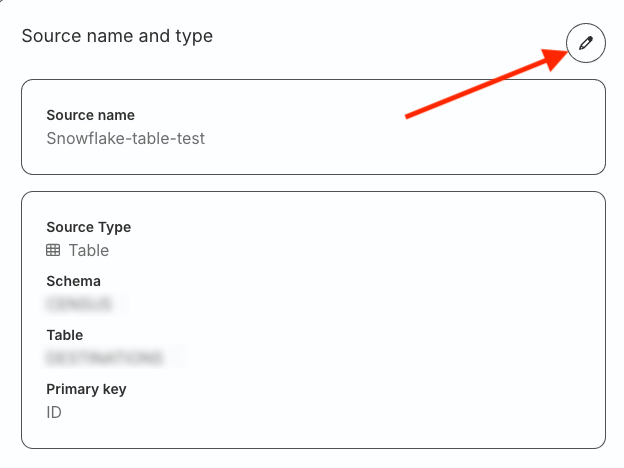
Review your configuration and click Create source to complete the setup.
Connect destination
To start using the newly-created source, you can connect it to:
- A new destination, or
- An existing destination that is not already connected to any other source.
To connect to a destination later, click Done on the top right:
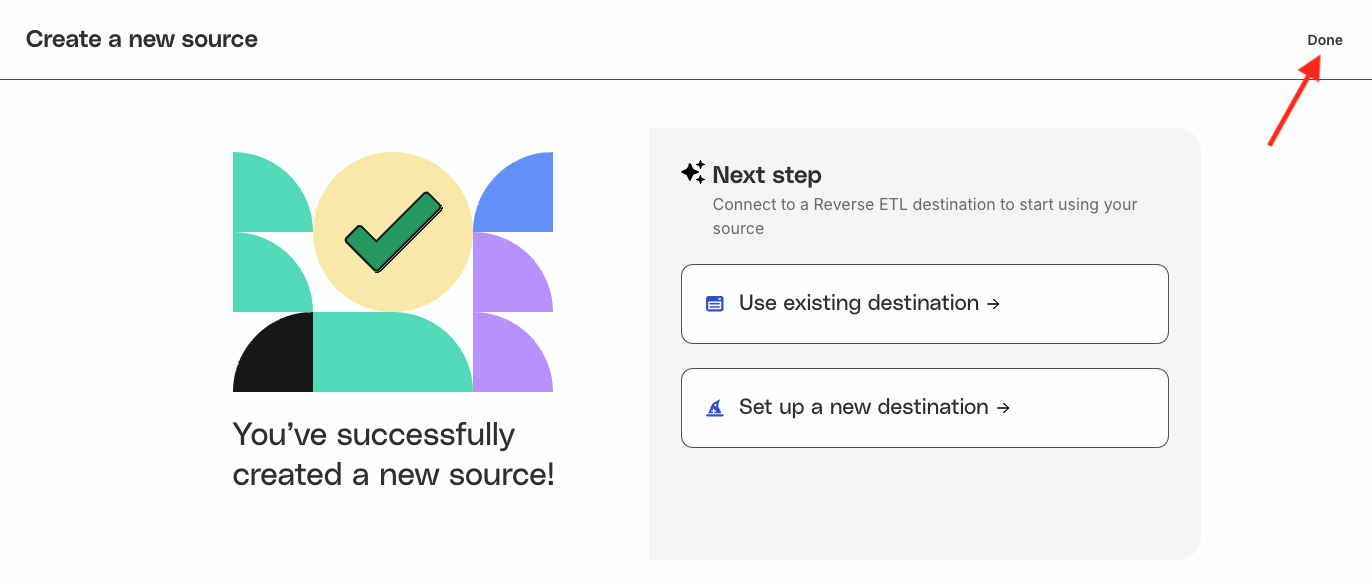
You will then be redirected to the Overview page of the source where you will see the option of connecting it to a new or existing destination.
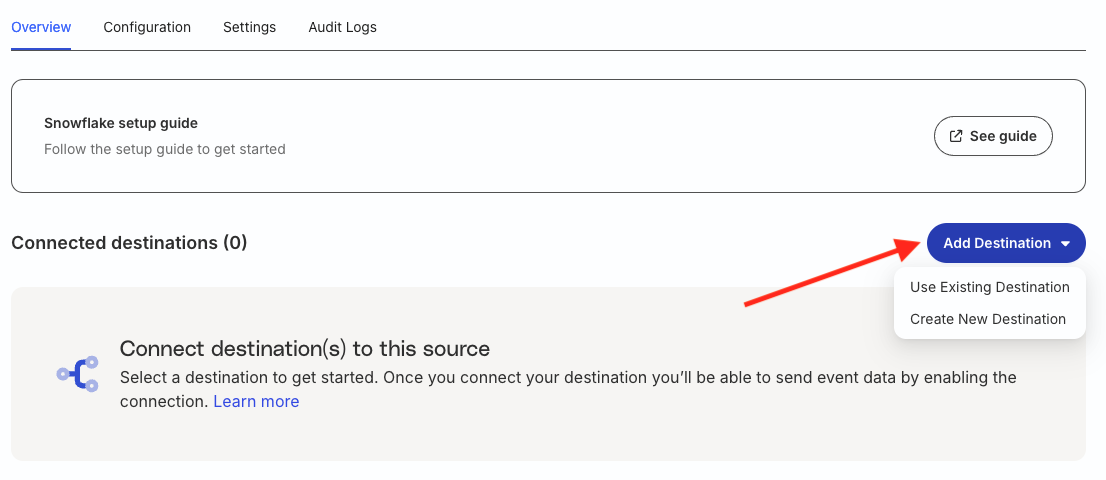
See Set up Reverse ETL Connection section for more information.
Update source configuration and settings
Go to the Configuration tab of your Reverse ETL source to update the configuration depending on your source type:
You cannot change the source type on this page.
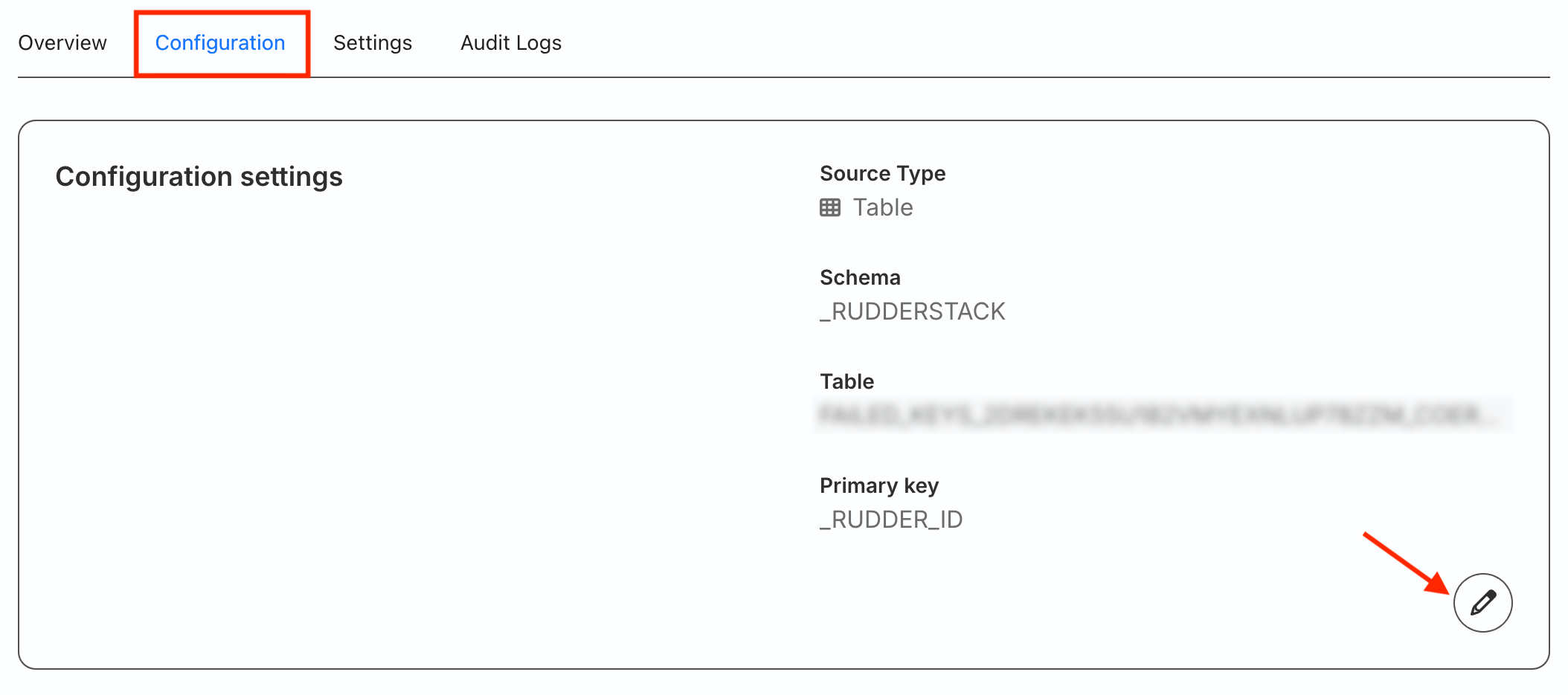
The below table lists the options you can update:
| Source type | Configurable options |
|---|---|
| Table | Schema, Table, Primary key |
| Model | Note: You can set the primary key only after the SQL query runs successfully. |
| Audience |
After updating the configuration, the next sync will be a full sync.
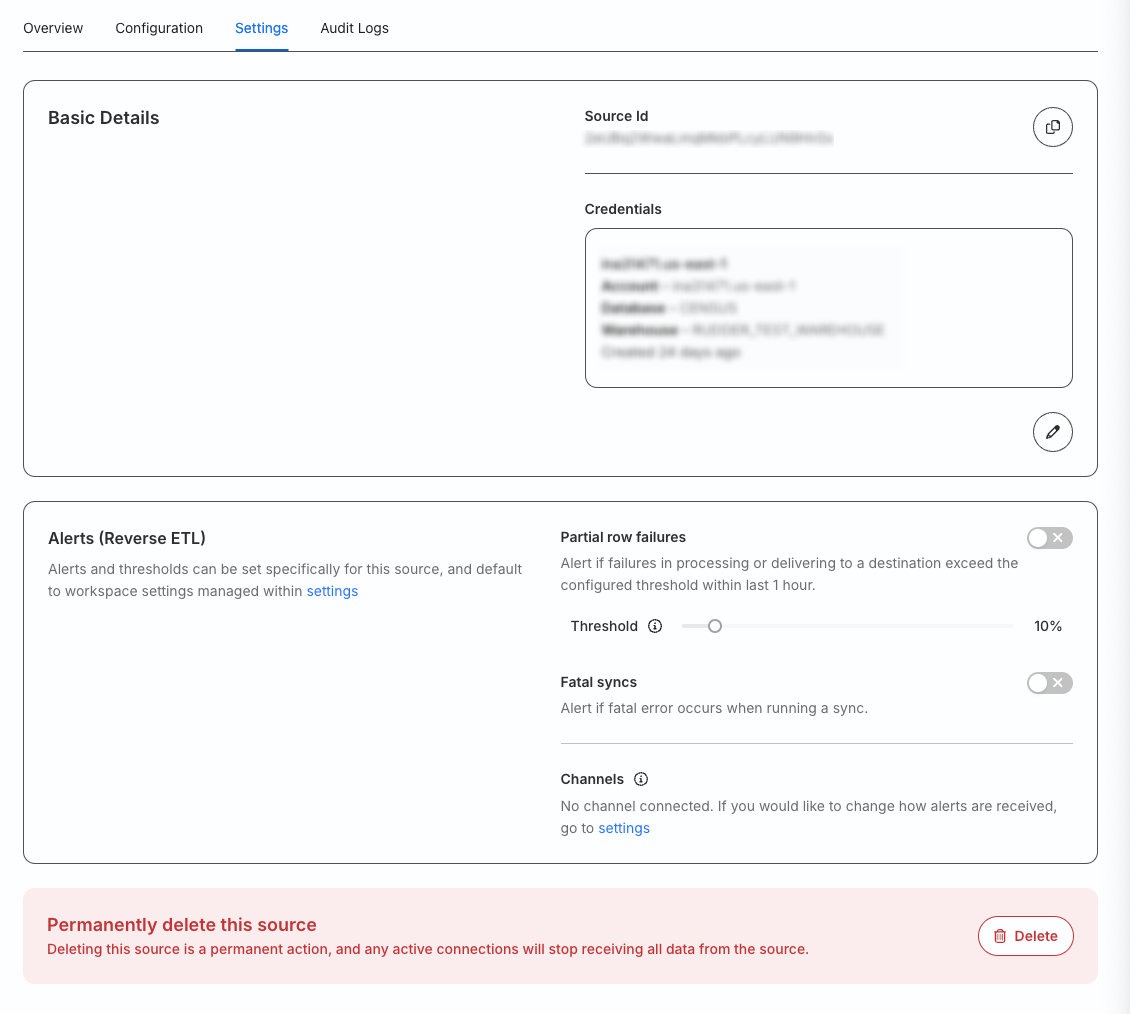
Go to the Settings tab to:
- Get your source ID.
- Change your warehouse credentials.
- Set up custom alerts for your Reverse ETL source.
- Delete the source permanently.
You cannot delete a source that is connected to any destination.
FAQ
Which Trino connectors are supported for the Trino source integration?
The Trino source supports only the Apache Hive connector currently.
To use this connector, make sure to add the following configuration in your object store:
hive.allow-drop-table=true
hive.metastore.thrift.delete-files-on-drop=true
Which data types are supported for this integration?
The Trino source supports all data types listed in the Trino documentation except the Row data type.
What do the three validations under Verifying Credentials imply?
When setting up a Reverse ETL source, you will see the following three validations under the Verifying Credentials option once you proceed after entering the warehouse credentials:
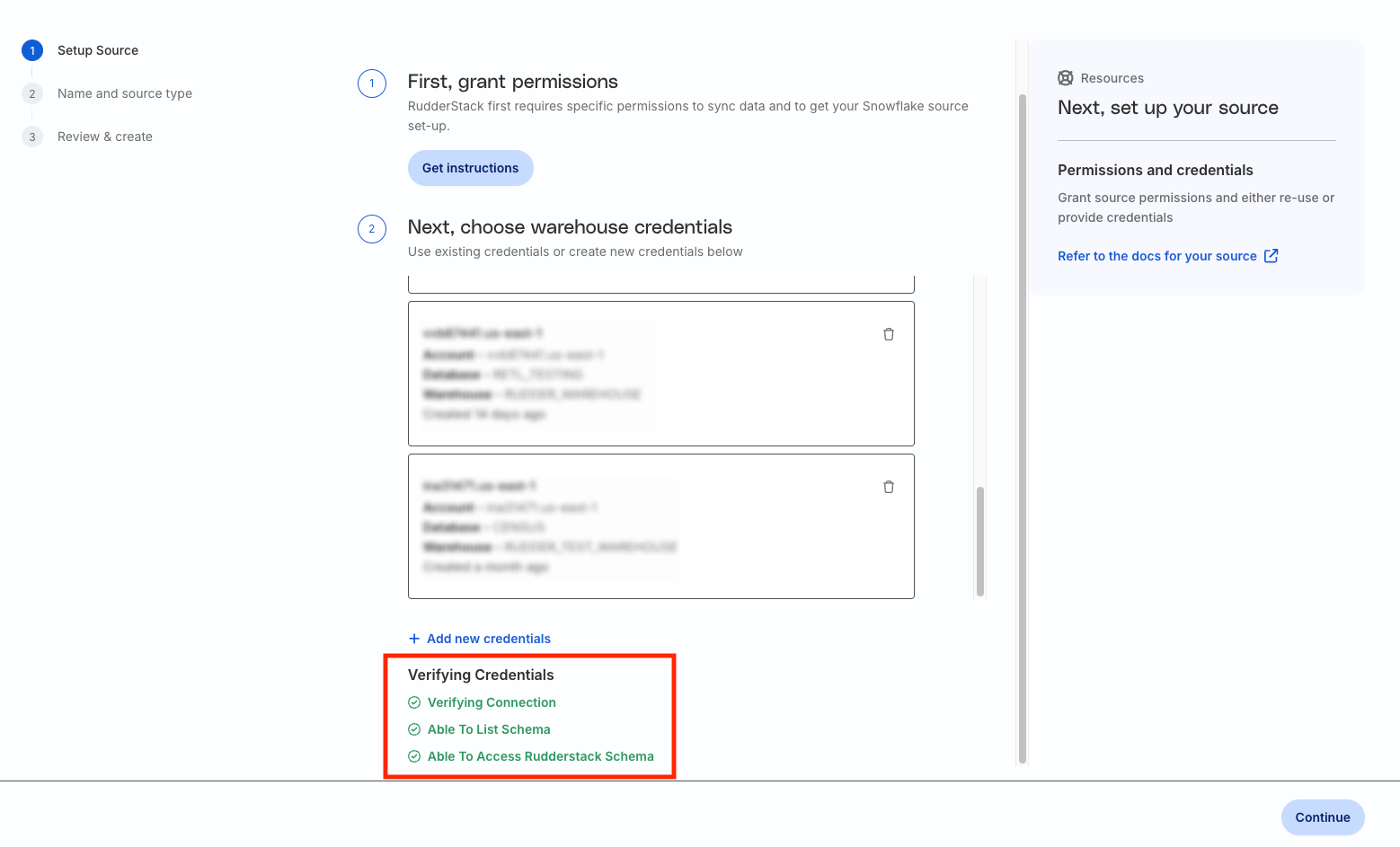
These options are explained below:
- Verifying Connection: This option indicates that RudderStack is trying to connect to the warehouse with the provided warehouse credentials.
If this option gives an error, it means that one or more fields specified in the warehouse credentials are incorrect. Verify your credentials in this case.
- Able to List Schema: This option checks if RudderStack is able to fetch all schema details by using the provided credentials.
- Able to Access RudderStack Schema: This option implies that RudderStack is able to access the
_rudderstackschema you have created by running all commands in the User Permissions section.
If this option gives an error, verify if you have successfully created the_rudderstackschema and given RudderStack the required permissions to access it.
What is the difference between the Table, Model, and Audience options when creating a Reverse ETL source?
When creating a new Reverse ETL source, you are presented with the following options from which RudderStack syncs the data:
| Source type | Description |
|---|---|
| Table | RudderStack uses an existing warehouse table as a data source. See Use warehouse table as source for detailed setup. |
| Model | RudderStack uses custom SQL queries to fetch specific warehouse data and sends them to your destinations. See Use model as source for detailed setup. |
| Audience | RudderStack filters data in your warehouse tables to create target customer lists and sends them to downstream destinations. See Use audience as source for detailed setup. |
