SFTP Reverse ETL Source
Private Beta6 minute read
The SFTP Reverse ETL source is in Private Beta, where we work with early users and customers to test new features and get feedback before making them generally available.
Reach out to Customer Success if you are interested in enabling this feature for your workspace.
SFTP (SSH File Transfer Protocol) is a standard way for partners and internal systems to exchange files over an encrypted connection.
RudderStack supports SFTP as a data source: it reads the CSV or JSON Lines files a partner drops on a server and routes each row to your downstream destinations.
Set up SFTP source in RudderStack
- Log in to your RudderStack dashboard.
- On the Connections page, click Add source.
- Under Sources, click Reverse ETL and select SFTP.
Connection credentials
Configure the following settings to let RudderStack connect to your server:
| Setting | Description |
|---|---|
| Host | Hostname or IP address of the SFTP server, without the port. For example, sftp.example.com. |
| Port | Port the server listens on. Defaults to 22. |
| Username | User RudderStack authenticates as. |
| Authentication | Either Username + SSH Key (recommended) or Username + Password. |
| Private Key | For SSH key authentication, the full private key including its BEGIN and END lines. |
| Private Key Passphrase | Passphrase protecting the private key, if it has one. |
| Password | For password authentication, the user’s password. |
Before proceeding, RudderStack connects to the server, reads the configured folder, and reports any credential or permission problems.
Server permissions
The user RudderStack authenticates as needs read access only. RudderStack never writes, renames, or deletes anything on your server.
If your SFTP server is AWS Transfer Family backed by an S3 bucket, the minimum permissions on the role behind the server are:
{
  "Version": "2012-10-17",
  "Statement": [
    {
      "Effect": "Allow",
      "Action": "s3:ListBucket",
      "Resource": "arn:aws:s3:::example-bucket",
      "Condition": {
        "StringLike": { "s3:prefix": "partner-a/exports/*" }
      }
    },
    {
      "Effect": "Allow",
      "Action": "s3:GetObject",
      "Resource": "arn:aws:s3:::example-bucket/partner-a/exports/*"
    }
  ]
}
The prefix in this policy is the S3 key prefix, which is not the same as the Folder Path you enter in RudderStack. Transfer Family resolves the folder path relative to the user’s home directory.
In the above example, the home directory maps to example-bucket/partner-a/ and the folder path is /exports, so the objects live under the key prefix partner-a/exports/.
See HomeDirectory and HomeDirectoryMappings in the AWS documentation.
Adds3:GetObjectVersionif the bucket has versioning enabled, andkms:Decrypton the key if objects are encrypted with SSE-KMS. Without the KMS permission, reads fail withAccessDeniedand no mention of KMS.
Name, format, and folder
| Setting | Description |
|---|---|
| Source name | Assign a name to uniquely identify the source in the RudderStack dashboard. |
| File Format | Either CSV or JSON Lines. RudderStack reads only the files matching this format and ignores the rest of the folder. |
| Folder Path | This is an optional setting. Specify the folder to read from, for example, /data/exports. Leave it empty to read the directory the user logs in to. |
| Include subfolders | Turn on this setting to read files in folders below the one you specified. When off, only files directly in that folder are read. |
Important considerations
- CSV files must have a header row. RudderStack reads the column names from it.
- RudderStack reads whichever files match the configured File Format and skips any other files in the folder.
- Files compressed with gzip (
.csv.gz,.jsonl.gz) are read and decompressed automatically.
Review and complete setup
To make any changes to the warehouse credentials or source configuration, click the edit icon present next to those sections.
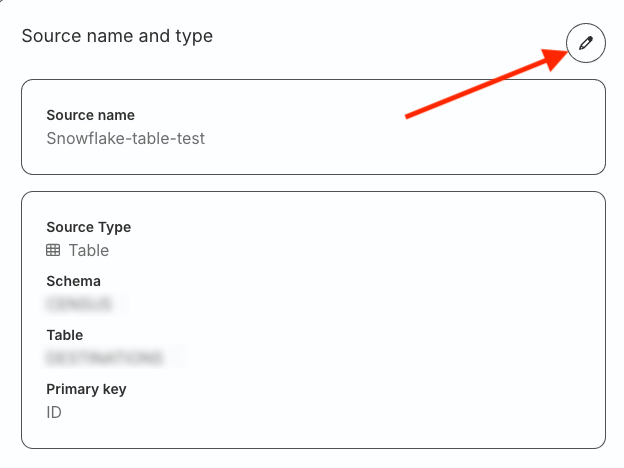
Review your configuration and click Create source to complete the setup.
Update source configuration and settings
Go to the Configuration tab of your SFTP source to update the file format, folder path, and subfolder setting.
Go to the Settings tab to:
- Get your source ID.
- Change your connection credentials.
- Set up custom alerts for your Reverse ETL source.
- Delete the source permanently.
You cannot delete a source that is connected to any destination.
Sync considerations
- RudderStack reads every matching file in the folder during the first sync.
- For subsequent syncs, it reads only the files modified after the most recent file it synced successfully, and ignores the rest. A sync where nothing has changed reports 0 delta files.
- RudderStack always reads the entire file. To add or update data, drop a new file rather than editing an existing one. RudderStack does not perform diffing at the record level.
- RudderStack reads files oldest first, so a backlog drains in the order it arrived.
- RudderStack does not automatically retry a sync that fails. Resolve the underlying issue (for example, a connection or permission error) and wait for the next scheduled sync, or trigger one manually.
- If you cancel or stop a sync, RudderStack stops immediately. The next sync continues from the last file that completed successfully — rows from that file are not re-sent.
Because RudderStack decides what to read from each file’s modification time, a partner that uploads files while preserving the original timestamps — for example with
sftp -porrsync -a— can drop a file that appears older than files already synced, and RudderStack does not read it.Ask partners to upload without preserving timestamps, or touch the files after upload to update their modification time.
File handling
- Updated files: Editing a file in place updates its modification time, so RudderStack reads it again in full on the next sync and re-sends every row in it.
- Changes to a file during sync: If a file is updated or deleted while RudderStack is in the process of syncing it, the sync might not capture the changes. RudderStack handles them in the next sync.
Troubleshooting
| Issue | Solution |
|---|---|
| The sync reports no files | Check the following:
|
| A file is uploaded but never synced | The file’s modification time is probably older than the files already synced. See the warning under Sync considerations. |
FAQ
Which file formats are supported?
CSV and JSON Lines, optionally gzip-compressed. Parquet is not supported by this source.
Note that:
- If your data is in Parquet, see the Amazon S3 Source guide for details.
- New S3 source setups require existing S3 Select access due to AWS restrictions.
Contact RudderStack Support for alternative options.
Does the SFTP source need a primary key?
No. Primary keys apply to warehouse tables. A file-based source syncs whole files, so RudderStack does not ask for one.
