MaxCompute Reverse ETL Source
Private Beta19 minute read
The MaxCompute Reverse ETL source is in Private Beta, where we work with early users and customers to test new features and get feedback before making them generally available.
Reach out to Customer Success to enable it for your workspace.
MaxCompute is Alibaba Cloud’s data warehouse service. It was previously called ODPS.
RudderStack reads rows from your MaxCompute project with a SQL model or a table and sends them to your destinations. It runs each sync as SQL jobs in your project, with the credentials you give it. It keeps its own tables in a separate _rudderstack schema in your project, and it never writes to your data.
What you can sync
| Supported | Not supported |
|---|---|
|
|
Prerequisites
- Reach out to Customer Success to enable MaxCompute for your workspace.
- Your MaxCompute project must have the three-layer model (
project.schema.table) turned on. MaxCompute calls this setting Enable Schema. Turning it on can’t be undone, and it takes a few minutes to apply. - Create a RAM user for RudderStack and an AccessKey for it. Record the AccessKey ID, the AccessKey secret, and the user’s numeric RAM user ID (shown as UID in the RAM console).
- Find your project’s region and its public endpoint. The endpoint has the form
https://service.<region>.maxcompute.aliyun.com/api, for example,https://service.me-east-1.maxcompute.aliyun.com/api. - A MaxCompute project administrator must run the statements in Grant permissions.
- If your project restricts access by IP address, allowlist the RudderStack IPs.
Grant permissions
RudderStack needs a small set of privileges. It reads only the tables you grant it, and it creates its own tables only in the _rudderstack schema. It owns the tables it creates, so it needs no Drop, Alter, or Select grant on them.
| Privilege | Granted on | Why RudderStack needs it |
|---|---|---|
Project membership (ADD USER) | The project | A RAM user must be a member of the project before it can hold privileges in it. |
CreateInstance | The project | Every SQL statement runs as a job (an instance). |
CreateTable | The project | RudderStack creates its snapshot, failed-keys, sync, and sync log tables in _rudderstack. |
List | The project | RudderStack lists schemas and tables. |
Select | Each table or view that your SQL models or table sources read | RudderStack reads your data. |
Describe | Each table used as a table source | RudderStack reads the table’s columns and checks whether it is partitioned. It’s recommended on the tables your SQL models read, too. |
Download | Each table that RudderStack reads, only if your project has download control on | A project with download control on (odps.security.enabledownloadprivilege=true) requires it to download query results. |
Run the following statements as a project administrator, as SQL jobs, in this order. Replace these placeholders:
| Placeholder | Replace with |
|---|---|
<account-uid> | Your Alibaba Cloud account UID |
<ram-user-id> | The numeric UID of the RAM user you created for RudderStack. The user name does not work: ADD USER fails with ODPS-0030001 … is not a valid account. |
<project> | Your MaxCompute project |
<schema>.<table> | Each table or view that RudderStack reads |
-- Resolve three-part names (project.schema.table) in this job.
SET odps.namespace.schema=true;

-- 1. Add the RudderStack RAM user to the project.
ADD USER `RAM$<account-uid>:<ram-user-id>`;

-- 2. Grant the project privileges.
GRANT CreateInstance, CreateTable, List ON PROJECT <project> TO USER `RAM$<account-uid>:<ram-user-id>`;

-- 3. Create the RudderStack working schema.
CREATE SCHEMA IF NOT EXISTS _rudderstack;

-- 4. Grant read access. Repeat for each table or view that RudderStack reads.
GRANT Select, Describe ON TABLE <schema>.<table> TO USER `RAM$<account-uid>:<ram-user-id>`;

-- 5. Only if your project has download control on. Repeat for each table.
GRANT Download ON TABLE <schema>.<table> TO USER `RAM$<account-uid>:<ram-user-id>`;
Keep the backticks around the user name.
New grants take about a minute to apply. Wait a minute after you run the statements before you verify the credentials in RudderStack.
The _rudderstack schema
You create the _rudderstack schema yourself, in step 3 above. RudderStack does not create it, so the RAM user needs no CreateSchema privilege. If the schema does not exist, the credentials check fails at the third step.
Do not drop and re-create the_rudderstackschema. For a few minutes after a schema is dropped and created again with the same name, MaxCompute can report that a table was created or dropped when it was not. Syncs that run in that window can fail or read stale state.
See What RudderStack keeps in _rudderstack for the tables RudderStack creates there.
Read from another project
A SQL model can read a table in another project, for example, otherproject.schema.table. Grant the RudderStack RAM user the same read privileges in that project too.
IPs to allowlist
This section applies if your MaxCompute project accepts requests only from known IP addresses. RudderStack connects from these addresses to verify the credentials, preview data, and run every sync.
To enable network access to RudderStack, allowlist the following RudderStack IPs depending on your region and RudderStack plan:
| Plan | |||
|---|---|---|---|
| Free and Growth |
|
| |
| Enterprise |
|
|
|
All the outbound traffic is routed through these RudderStack IPs.
Lookout connects to your warehouse from three of the US addresses:
3.216.35.97,34.198.90.241, and54.147.40.62. Lookout uses these addresses for workspaces in every region. If you use Lookout with an EU or IN workspace, allow them too. See Allow Lookout to reach your warehouse.
Add the addresses of the region and plan that serve your RudderStack workspace to your project’s IP allowlist.
Set up the MaxCompute source in RudderStack
- Log in to your RudderStack dashboard.
- On the Connections page, click Add source.
- Under Sources, click Reverse ETL and select MaxCompute.
Configure warehouse credentials
You can choose to proceed with existing MaxCompute credentials if you added them in the RudderStack dashboard before. Otherwise, click Add new credentials and enter the following settings:
| Setting | Description |
|---|---|
| Endpoint | The public endpoint of your project’s region, including /api, for example, https://service.me-east-1.maxcompute.aliyun.com/api. RudderStack accepts only this form: https, no port, and the /api path. VPC and classic network endpoints are not supported. |
| Project | The name of your MaxCompute project: 3 to 28 letters, digits, and underscores, starting with a letter. |
| AccessKey ID | The AccessKey ID of the RudderStack RAM user. |
| AccessKey secret | The AccessKey secret of the same RAM user. RudderStack stores it in its secrets store. |
RudderStack derives the region from the endpoint. RudderStack uses the _rudderstack schema as its working schema.
If you later change the Endpoint or the Project of saved credentials, enter the AccessKey secret again. RudderStack never sends a stored secret to a new endpoint or project.
Verify the credentials
Click Verify. RudderStack runs these checks in order and stops at the first failure:
| Step | What RudderStack checks |
|---|---|
| Verifying Connection | That the endpoint answers, the project exists in that region, and MaxCompute accepts the AccessKey. |
| Able To List Schema | That the RAM user can list the schemas in the project. |
| Able To Access Rudderstack Schema | That the _rudderstack schema exists, and that RudderStack can create a test table in it and drop it. If the schema is missing or the RAM user cannot see it, the step fails with “The schema _rudderstack does not exist in the MaxCompute project, or the user cannot see it”. If the user lacks a privilege, it fails with “The MaxCompute user is missing a privilege the sync needs”. |
Once verified, click Continue.
If a step fails, check these common causes:
- Wrong endpoint form: An endpoint without
/apiis refused in the form. An endpoint that does not resolve fails with a network error. - Wrong region: An endpoint of a different region than your project’s fails with “The MaxCompute project was not found”.
- Grants not applied yet: Wait a minute after you run the grant statements, then click Verify again.
- IP allowlist: If your project restricts IP addresses, allowlist the RudderStack IPs.
See Troubleshooting for each error message.
Specify name and source type
- Source name: Assign a name to identify the source in the RudderStack dashboard.
- Select your source type: Choose Table or Model. See Specify the data to import for the rules that apply to each.
Use warehouse table as source
Under Select your source type, choose Table and specify the below fields:
- Schema: Select the warehouse schema from the dropdown.
- Table: Choose the required table from which RudderStack syncs the data.
- Primary key: Select the column from the above table that uniquely identifies your records in the warehouse.
RudderStack uses the primary key column for diffing in case of incremental syncs. You can generate it by:
- Generating your table with a primary key, OR
- Creating a table view
You can use a composite key in cases where one column cannot be considered as a primary key. For example, you can a declare a composite key of
user_idandtimestampby creating a view on your warehouse table.
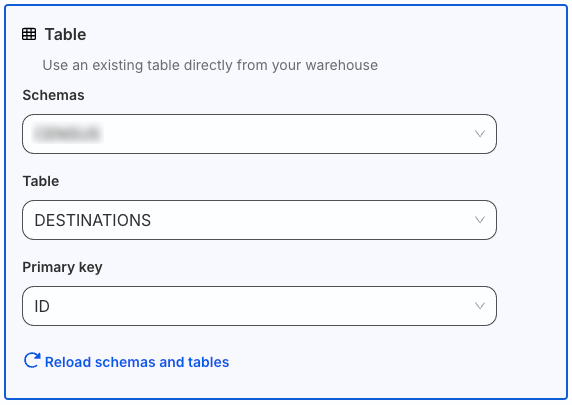
Finally, review and complete your source setup.
Use model as source
Under Select your source type, choose Model and click Continue.
To configure a model as source:
- Enter an optional description and specify the custom SQL query in Query section.
- Click Run Query to fetch the data preview.
- Select the Primary key to use a column that uniquely identifies your warehouse records.
You can set a primary key only after you run the SQL query successfully using the Run Query option.
RudderStack uses the primary key column for diffing in case of incremental syncs. You can generate it by:
- Generating your table with a primary key, OR
- Creating a table view
You can use a composite key in cases where one column cannot be considered as a primary key. For example, you can a declare a composite key of
user_idandtimestampin SQL query of the model.
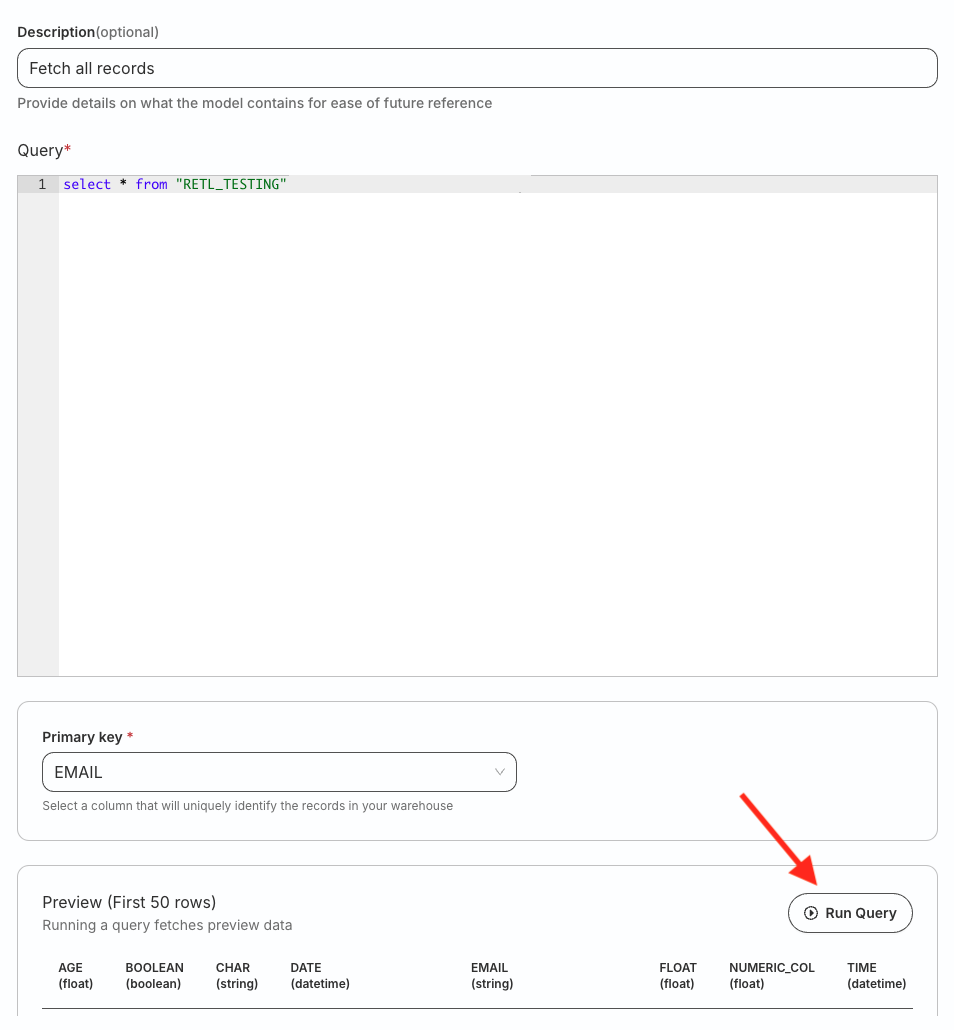
Finally, review and complete your source setup.
Review and complete setup
To make any changes to the warehouse credentials or source configuration, click the edit icon present next to those sections.
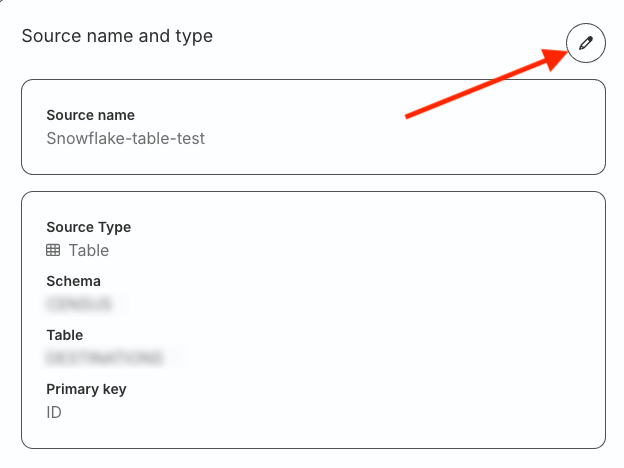
Review your configuration and click Create source to complete the setup.
Specify the data to import
SQL models
A SQL model must be one query: a SELECT statement, or a WITH … SELECT statement. RudderStack refuses a model that contains:
- A
SETstatement - More than one statement
- A DDL or DML statement, such as
CREATE,INSERT, orDELETE - A script variable
- A hint comment (
/*+ … */)
A single semicolon at the end of the query and comments are allowed. RudderStack checks the model when you preview it, so a refused model shows the error before the first sync.
RudderStack sets the MaxCompute settings each job needs itself. Because MaxCompute keeps no session between jobs, a SET in a model would not apply to the next job anyway.
Table sources
A table source reads the table you select as a whole, with no filter. Grant Select and Describe on that table.
Partitioned tables
RudderStack refuses a partitioned table as a table source, whatever your project’s full-scan setting. The sync fails with MC_PARTITIONED_TABLE. A partitioned table often holds a full copy of the data in each partition, such as a daily snapshot. A read of every partition would then repeat each primary key, and RudderStack leaves out rows with a repeated key.
Use a SQL model with a filter on the partition column instead:
SELECT user_id, email, plan
FROM sales.customers
WHERE ds = '20261119'
Choose a filter that returns each primary key once.
The same rule applies to SQL models through MaxCompute’s full-scan protection. If your project refuses full scans (odps.sql.allow.fullscan=false), a model that reads a partitioned table, directly or through a view, without a partition filter fails with full scan with all partitions, please specify partition predicates. RudderStack never turns full scans on: the cost of each sync stays under your control. If your project allows full scans, such a model reads, and pays for, every partition on every preview and sync.
Time zones and timestamps
Your SQL model runs in your project’s time zone, exactly as it does in the MaxCompute console. RudderStack does not change the time zone.
MaxCompute converts some strings to NULL without an error when it compares them with a TIMESTAMP or DATETIME column. This includes a date-only string such as '2026-01-01' and an ISO string such as '2026-11-18T10:00:00Z'. A filter such as created_at >= '2026-01-01' then matches nothing. Write the full date and time instead:
SELECT user_id, email
FROM sales.customers
WHERE created_at >= '2026-01-01 00:00:00'
Or compare the date part only: TO_DATE(created_at) >= '2026-01-01'.
Text columns
Use STRING, not VARCHAR(n) or CHAR(n), for text that can hold non-ASCII characters, such as Arabic or Chinese text. The length n counts bytes, and the MaxCompute SDK loses a value longer than n bytes. RudderStack then fails the sync with “cast the column to STRING” instead of sending an empty value. Cast the column to STRING in a SQL model to fix it.
Sync modes
The MaxCompute source supports upsert mode only.
- The first sync sends every row as an insert.
- Each later sync compares the rows with the previous sync’s snapshot and sends inserts for new rows and updates for changed rows.
- An upsert sync sends no deletes. A row that leaves your model or table stays in the destination.
- A row with an empty (
NULL) or repeated primary key is left out of the sync.
Mirror mode, full sync mode, and cursor columns are not available for MaxCompute. A connection set up with any of them fails with MC_CONFIG_INVALID.
Data types
RudderStack maps MaxCompute column types as follows:
| MaxCompute type | Value sent to the destination |
|---|---|
TINYINT, SMALLINT, INT, BIGINT | Number |
FLOAT, DOUBLE | Number |
DECIMAL(p,s) | Number (a 64-bit floating-point value). See the note below. |
STRING, VARCHAR(n), CHAR(n) | String |
BOOLEAN | Boolean |
DATE | Date-time string in RFC 3339 format, at midnight UTC |
DATETIME | Date-time string in RFC 3339 format, in UTC, to the second |
TIMESTAMP | Date-time string in RFC 3339 format, in UTC, with nanoseconds |
TIMESTAMP_NTZ | Date-time string in RFC 3339 format. The stored wall-clock time is sent as UTC. |
BINARY | Base64-encoded string |
JSON | JSON value |
ARRAY<T> | JSON array |
MAP<K,V>, STRUCT<…> | JSON object |
RudderStack sends aDECIMALvalue as a floating-point number. A value with more than 15 to 17 significant digits loses precision. For example,9999999999999999.99arrives as1e16. To keep every digit, cast the column toSTRINGin a SQL model.
Arithmetic on DECIMAL columns in a SQL model can widen the result type. If you edit a model and a column’s type changes, the next sync is a full resync.
What RudderStack keeps in _rudderstack
RudderStack keeps only its own tables in the _rudderstack schema. Table names are in lowercase and include the connection ID:
| Table | What it holds | Lifecycle |
|---|---|---|
unload_… | The rows a sync read from your model or table. RudderStack drops it after the sync. | 3 days |
snapshot_… | The snapshot of each sync, the baseline for the next sync | 3650 days |
sync_data_… | The rows RudderStack processed in a sync | 3650 days |
failed_keys_…, afk_… | The keys of records that failed, so a later sync can retry them | 3650 days |
rej_… | Failed records with their errors, when failed records are retained | 3650 days |
sync_log | The sync log, when sync logs are on | 3650 days |
See RudderStack Schema Reference for what each table family holds.
Table lifecycle
RudderStack sets a LIFECYCLE on every table it creates, so MaxCompute reclaims a table that is not written to for that many days:
- 3 days on the
unload_table of each sync. RudderStack normally drops it when the sync ends. If a sync is stopped partway, itsunload_table stays until the next successful sync drops it. The lifecycle removes it otherwise. - 3650 days (about 10 years) on every table RudderStack keeps between syncs.
The lifecycle counts from a table’s last write. Because every table carries a lifecycle, the MaxCompute source also works in a project that requires one on every table (odps.table.lifecycle=mandatory).
If a connection does not sync for about 10 years, its snapshot expires, and the next sync sends every row again as an insert.
Do not edit or drop tables in_rudderstackwhile a connection uses them. RudderStack drops old snapshots itself, according to the connection’s retention settings.
Failed records and sync logs
The MaxCompute source supports the connection’s sync settings:
- Retry failed records: RudderStack resends records that failed in earlier syncs.
- Sync logs: RudderStack writes a log of each sync to the
sync_logtable in_rudderstack, and deletes rows older than the retention you set. RudderStack createssync_logas a transactional table, because MaxCompute deletes rows only from transactional tables. - Failed records: The Syncs tab shows the failed records of a sync and their errors.
Find RudderStack’s jobs in MaxCompute
Every SQL job RudderStack runs in your project is labeled, so you can find RudderStack’s jobs and their cost:
| Label | Value |
|---|---|
| Task name | rudderstack_retl |
Setting rudderstack.job.tag | rudderstack-retl:<sync run ID> for a job that belongs to a sync. The sync run ID is the same value as the sync_run_id column of the sync log. A job outside a sync, such as a credentials check or a preview, carries rudderstack-retl. |
Both labels appear in the job’s definition, for example, in Logview or the job details in the MaxCompute console. They carry only RudderStack IDs, never your data.
Each job has a fixed start-up time of a few seconds, and a sync runs several jobs. Even a sync of a few rows takes tens of seconds.
Remove access
RudderStack does not revoke its access when you delete the MaxCompute credentials. To remove it:
- Disable or delete the AccessKey of the RudderStack RAM user in the RAM console.
- Revoke the RAM user’s project and table privileges, and remove the user from the project.
After you delete a connection, its tables stay in _rudderstack until their lifecycle ends. They hold synced rows. To remove them sooner, drop the tables whose names contain the connection’s ID.
Limitations
- Deleting a connection does not delete its tables in
_rudderstack. See Remove access. - AccessKey authentication only. RAM role authentication is not supported.
- Public endpoints only. VPC and classic network endpoints are not supported.
- A SQL model that returns no rows after a sync that returned rows changes no record in the destination. The next sync that returns rows sends every row again as an insert.
- A view keeps the columns it had when it was created, even a
SELECT *view. Re-create the view to pick up new columns. - MaxCompute converts some invalid casts without an error. For example,
CAST('abc' AS BIGINT)returns0. Check the data quality of your SQL model in the MaxCompute console. - A
TIMESTAMPvalue before 1970-01-01 can arrive one second off, because of how MaxCompute encodes it. - A
CHAR(n)orVARCHAR(n)column that holds non-English text, such as Arabic or Chinese, can fail the sync with an error that asks you to cast the column toSTRING. This is a known issue in Alibaba Cloud’s MaxCompute Go SDK, which reads these values by their length in bytes. Cast the column toSTRINGin a SQL model.STRINGcolumns are not affected. See Text columns.
Troubleshooting
When a sync or a credentials check fails, RudderStack shows one of the following messages.
| Message | What to do |
|---|---|
MaxCompute syncs are not enabled for this workspace. (MC_WORKSPACE_NOT_ALLOWED) | Contact Customer Success to enable the MaxCompute source for your workspace. |
The SQL model is not supported by the MaxCompute source. (MC_MODEL_SQL_REFUSED) | Write the model as one SELECT or WITH … SELECT statement, without SET, DDL, DML, script variables, or hint comments. See SQL models. |
The table source is a partitioned MaxCompute table, which a table source cannot read. (MC_PARTITIONED_TABLE) | Use a SQL model with a filter on the partition column. See Partitioned tables. |
This connection’s settings are not supported by the MaxCompute source. (MC_CONFIG_INVALID) | Use a SQL model or table source with the upsert sync mode, without a cursor column. See Sync modes. |
A table the sync created in the _rudderstack schema was not visible to the next statement. (MC_TABLE_NOT_VISIBLE) | Retry the sync. If it fails again, contact RudderStack Support. If you recently dropped and re-created _rudderstack, wait a few minutes. |
The sync read fewer rows from MaxCompute than the result held, so it stopped before marking any rows as synced. (MC_SHORT_READ) | RudderStack retries the read on its own. If the sync still fails, retry it. If it fails again, contact RudderStack Support. |
| The MaxCompute account settings are invalid. | Check the endpoint, the project, and the AccessKey. See Configure warehouse credentials. |
| MaxCompute rejected the AccessKey. | Check the AccessKey ID and AccessKey secret, and that the AccessKey is enabled in the RAM console. |
| The MaxCompute user is missing a privilege the sync needs. | The error names the privilege, for example, odps:CreateTable or odps:Select. Grant it as shown in Grant permissions, then wait a minute. |
| The MaxCompute project was not found. | Check the Project, and that the Endpoint is in your project’s region. |
| The MaxCompute endpoint is not valid. | Use the endpoint https://service.<region>.maxcompute.aliyun.com/api. |
| The _rudderstack schema does not exist in the MaxCompute project. | Create the _rudderstack schema and grant the user access, as shown in Grant permissions. |
| The schema _rudderstack does not exist in the MaxCompute project, or the user cannot see it. | The credentials check shows this message. Create the _rudderstack schema and grant the user access, as shown in Grant permissions. |
| A table or schema the SQL model reads does not exist. | Check the tables and schemas the SQL model names, and that the RAM user can see them. |
| MaxCompute refused a full scan of a partitioned table. | Add a filter on the partition column to the SQL model. See Partitioned tables. |
| MaxCompute could not compile the SQL model. | Fix the SQL model so that it runs in the MaxCompute console. |
| A text value is longer than its column’s declared length in bytes (common with Arabic or other multi-byte text). | Cast the named column to STRING in a SQL model. If you use a table source, switch to a SQL model to apply the cast. See Text columns. |
| A value in the SQL model’s result is invalid in MaxCompute, for example a decimal overflow or a division by zero. | Fix the SQL model so that it runs in the MaxCompute console. |
| MaxCompute didn’t respond in time. | The next sync retries. If this repeats, check network access to your MaxCompute endpoint. |
| RudderStack could not reach MaxCompute. | The next sync retries. If this repeats, check network access to your endpoint, and that your project’s IP allowlist includes the RudderStack IPs. |
| The MaxCompute sync stopped on an internal error. | Retry the sync. If it fails again, contact RudderStack Support. |
| MaxCompute returned an error. | Check the error details. If it persists, contact RudderStack Support. |
FAQ
Can I use a RAM role instead of an AccessKey?
No. The MaxCompute source supports AccessKey authentication only.
Does RudderStack create the _rudderstack schema?
No. Create it as part of the grant statements.
Does RudderStack change my project’s settings?
No. RudderStack sends the settings it needs with each job. They apply to that job only. Your SQL model runs in your project’s time zone.
