Databricks Reverse ETL Source
9 minute read
Databricks is a data analytics platform that lets you easily integrate with open source libraries. It offers a simple collaborative environment to run interactive and scheduled data analysis workloads.
You can now ingest data into RudderStack by running queries on your Databricks cluster or SQL warehouse.
Grant permissions
Before you set up Databricks as a source, you must grant certain permissions in your Databricks instance for RudderStack to access data from it.
Run the queries listed in the following sections in the exact order to grant the required permissions:
Step 1: Add user
Add a new user (for example, user@example.com) by following the steps in the Databricks documentation.
Step 2: Create RudderStack schema and grant permissions to the role
- Create a dedicated schema
_rudderstack.
CREATE SCHEMA `_rudderstack`;The
_rudderstackschema stores Reverse ETL sync state, snapshots, and related tables. Do not change this name.See
_rudderstackSchema Reference for more details.
- Grant full access to the schema
_rudderstackfor the user created in step 1.
GRANT ALL PRIVILEGES ON SCHEMA `_rudderstack` TO `user@example.com`Replace user@example.com with the user created in step 1.
Set up Databricks source in RudderStack
- Log in to your RudderStack dashboard.
- On the Connections page, click Add source.
- Under Sources, click Reverse ETL and select Databricks.
Configure warehouse credentials
You can choose to proceed with your existing warehouse credentials if you have configured them in the RudderStack dashboard previously. Otherwise, click Add new credentials to add the connection details of your Databricks cluster or SQL warehouse:
For most use cases, RudderStack recommends using a SQL warehouse over a cluster as they generally cost less and are faster to spin up. In contrast, clusters are used for much larger operations that require more resources.
Host: Enter the server hostname.
Port: Enter the port number.
Path: Enter the HTTP path.
Authentication Type: Choose the authentication type for authorizing access to Databricks resources. RudderStack provides two options - M2M OAuth and Personal Access Token.
If you select M2M OAuth, then provide the below settings:
- Client ID: The client ID for the service principal.
- Client Secret: The corresponding client secret.
See the Databricks documentation for detailed steps on obtaining the Client ID and Client Secret fields.
If you select Personal Access Token, then provide the below setting:
- Token: Enter your Databricks access token. See Generating the Databricks access token for more information on generating this token.
Databricks strongly recommends using OAuth over Personal Access Tokens for authorization.
OAuth tokens are automatically refreshed by default and do not require you to directly manage the access token, thereby improving your security against token hijacking and unauthorized access.
- Catalog: Enter the name of your Unity catalog. See Databricks documentation for more information on getting the catalog details.
See the following FAQs for more information on obtaining the host, port, path, and token for your Databricks instance depending on type:
Click the Verify button on the top right. RudderStack will then verify and validate your credentials. Once verified, click Continue to proceed.
Specify name and source type
Specify the source name and type in this step.
- Source name: Assign a name to uniquely identify the source in the RudderStack dashboard.
- Select your source type: RudderStack lets you set up a Reverse ETL source from a warehouse Table, Model, or Audience.
| Source type | Description |
|---|---|
| Table | Use an existing warehouse table as a data source. See Use warehouse table as source for detailed setup. |
| Model | Use custom SQL queries to fetch specific warehouse data and send them to your destinations. See Use model as source for detailed setup. |
| Audience | Filter data in your warehouse tables to create target customer lists and send them to downstream destinations. See Use audience as source for detailed setup. |
Use warehouse table as source
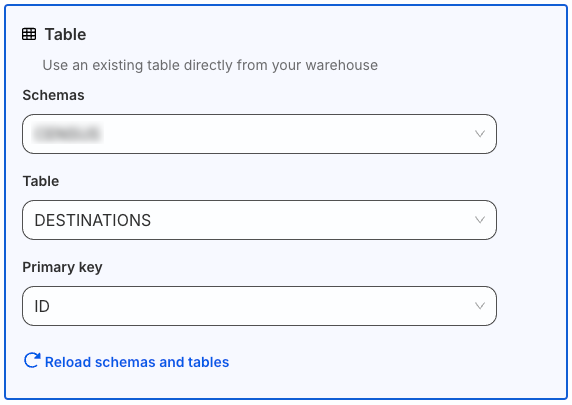
Under Select your source type, choose Table and specify the below fields:
- Schema: Select the warehouse schema from the dropdown.
- Table: Choose the required table from which RudderStack syncs the data.
- Primary key: Select the column from the above table that uniquely identifies your records in the warehouse.
RudderStack uses the primary key column for diffing in case of incremental syncs. You can generate it by:
- Generating your table with a primary key, OR
- Creating a table view
You can use a composite key in cases where one column cannot be considered as a primary key. For example, you can a declare a composite key of
user_idandtimestampby creating a view on your warehouse table.
Finally, review and complete your source setup.
Use model as source
Under Select your source type, choose Model and click Continue.
To configure a model as source:
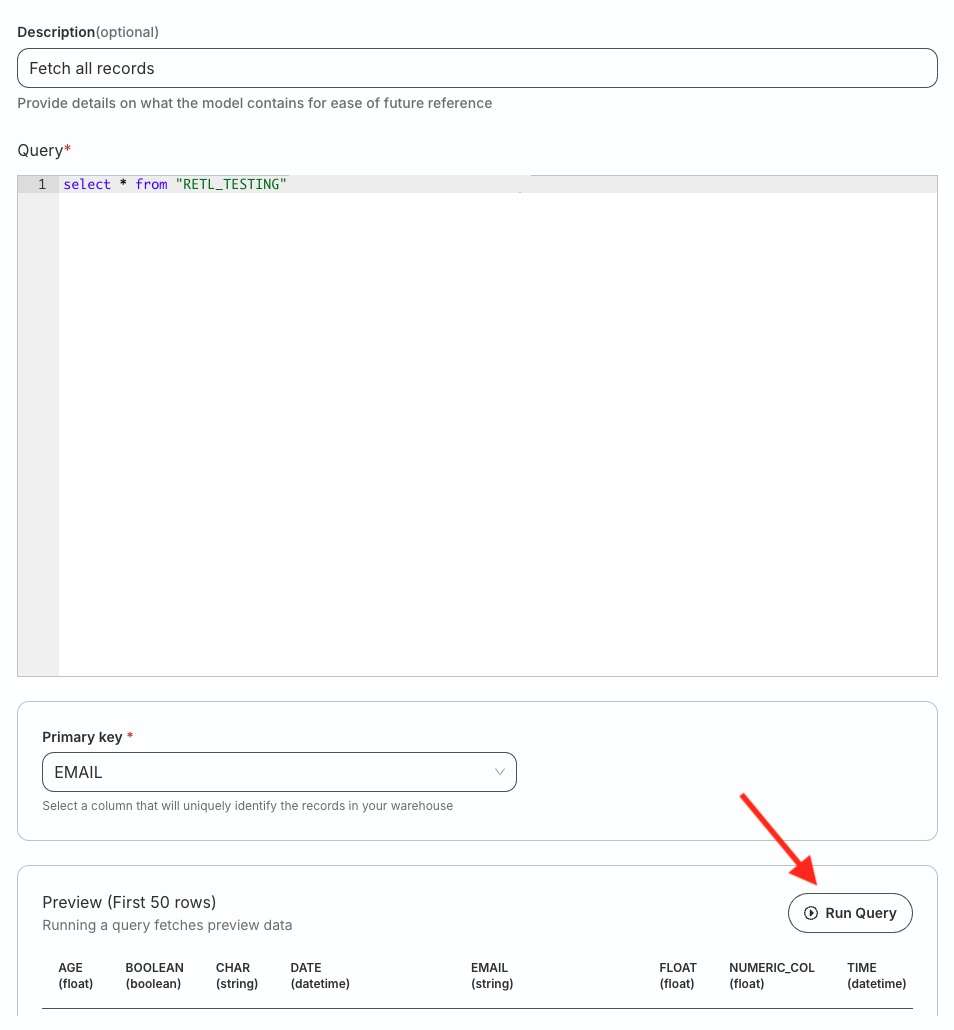
- Enter an optional description and specify the custom SQL query in Query section.
- Click Run Query to fetch the data preview.
- Select the Primary key to use a column that uniquely identifies your warehouse records.
You can set a primary key only after you run the SQL query successfully using the Run Query option.
RudderStack uses the primary key column for diffing in case of incremental syncs. You can generate it by:
- Generating your table with a primary key, OR
- Creating a table view
You can use a composite key in cases where one column cannot be considered as a primary key. For example, you can a declare a composite key of
user_idandtimestampin SQL query of the model.
Finally, review and complete your source setup.
Use audience as source
Under Select your source type, choose Audience and follow these steps:
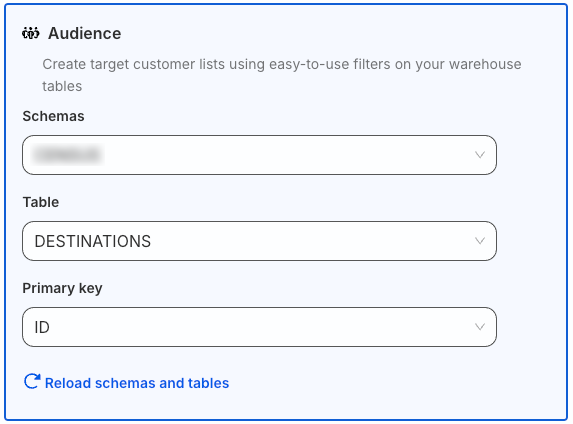
Configure your audience source by specifying the below fields:
- Schema: Select the warehouse schema from the dropdown.
- Table: Choose the required table from which RudderStack syncs the data.
- Primary key: Select the column from the above table that uniquely identify your records in the warehouse.
RudderStack uses the primary key column for diffing in case of incremental syncs. You can generate it by:
- Generating your table with a primary key, OR
- Creating a table view
You can use a composite key in cases where one column cannot be considered as a primary key. For example, you can a declare a composite key of
user_idandtimestampby creating a view on your warehouse table.
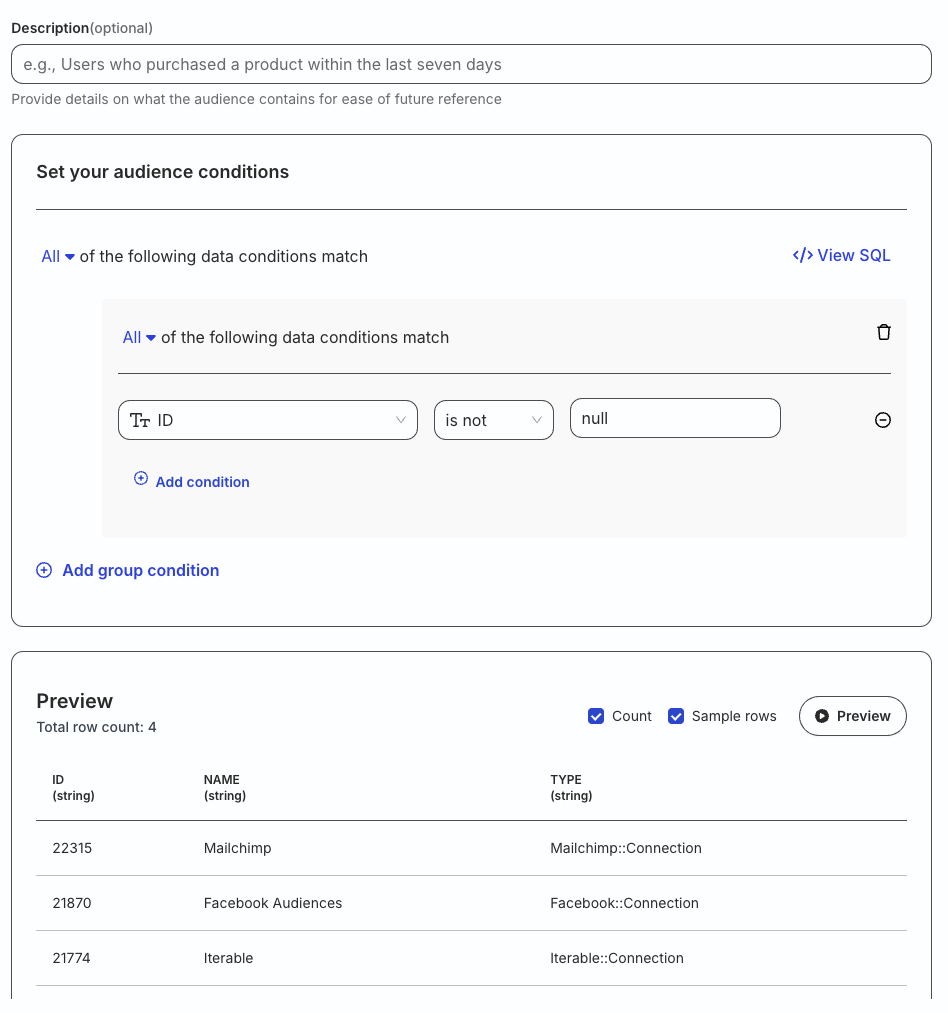
- Set your audience conditions.
- Click Preview to see the resulting data. Then, click Continue to proceed.
Finally, review and complete your source setup.
Review and complete setup
To make any changes to the warehouse credentials or source configuration, click the edit icon present next to those sections.
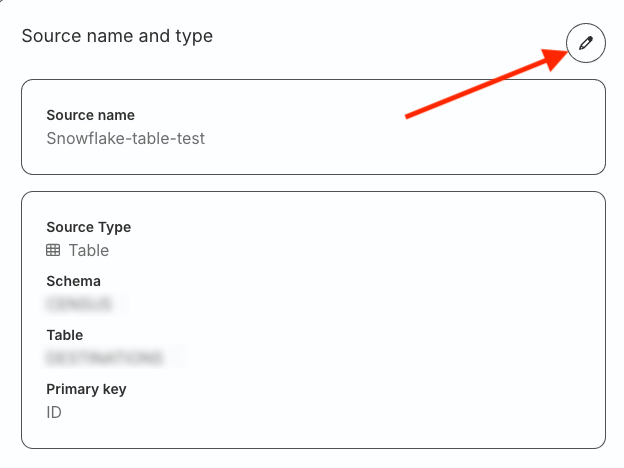
Review your configuration and click Create source to complete the setup.
Connect destination
To start using the newly-created source, you can connect it to:
- A new destination, or
- An existing destination that is not already connected to any other source.
To connect to a destination later, click Done on the top right:
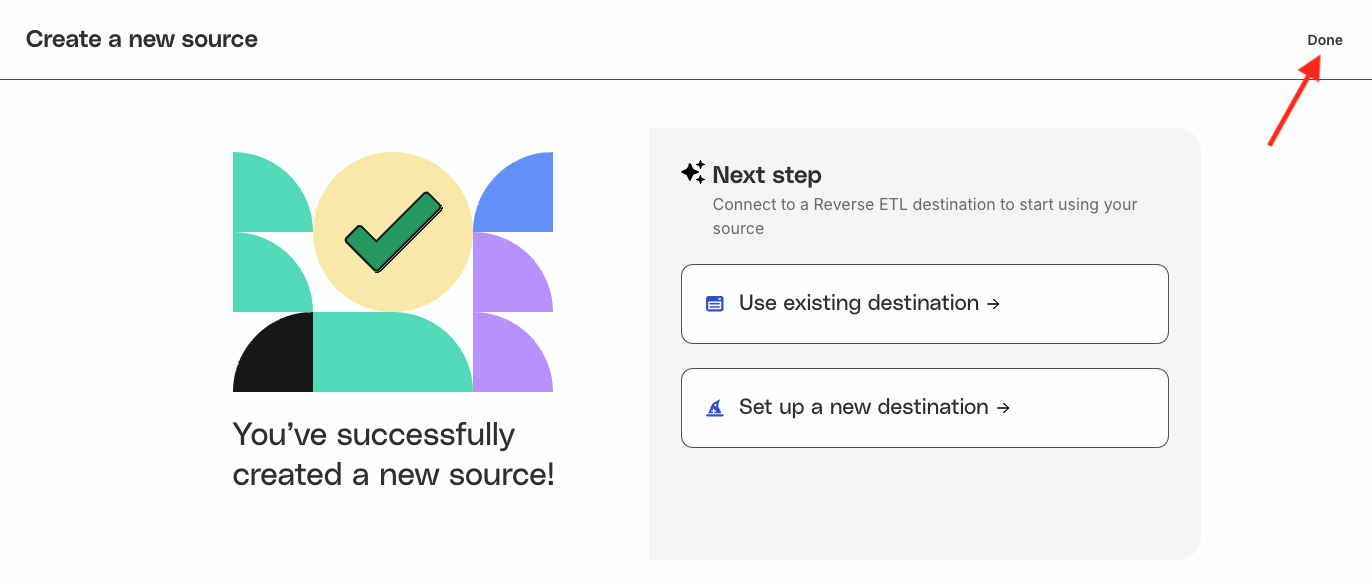
You will then be redirected to the Overview page of the source where you will see the option of connecting it to a new or existing destination.
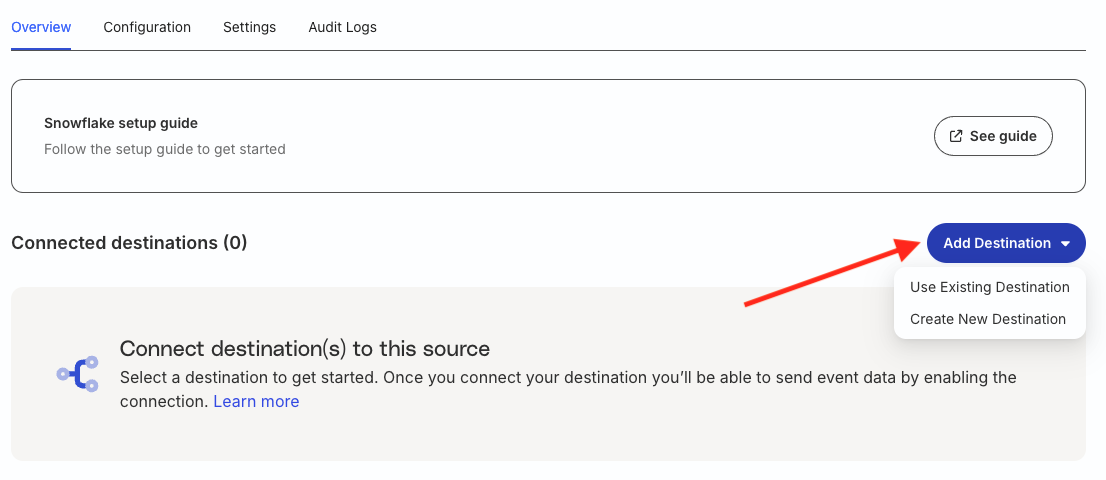
See Set up Reverse ETL Connection section for more information.
Update source configuration and settings
Go to the Configuration tab of your Reverse ETL source to update the configuration depending on your source type:
You cannot change the source type on this page.
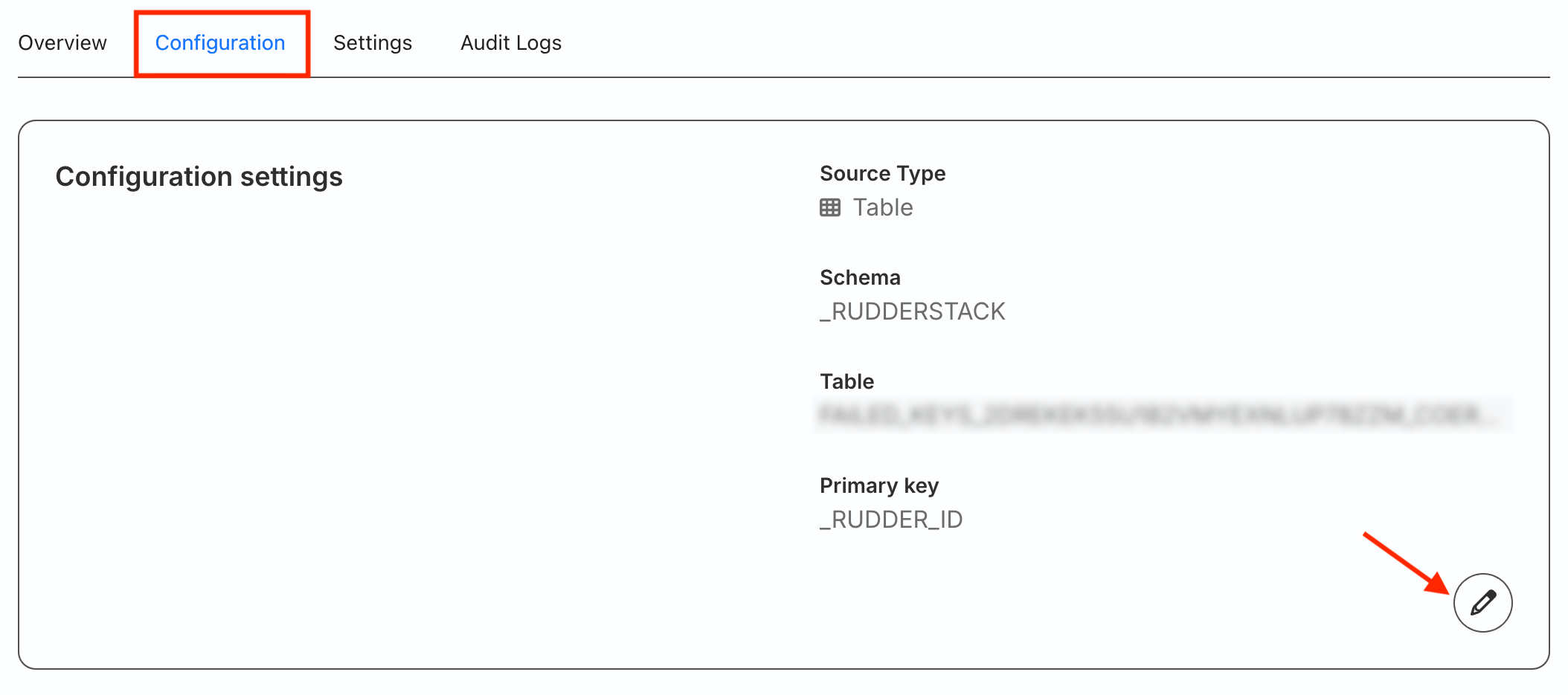
The below table lists the options you can update:
| Source type | Configurable options |
|---|---|
| Table | Schema, Table, Primary key |
| Model | Note: You can set the primary key only after the SQL query runs successfully. |
| Audience |
After updating the configuration, the next sync will be a full sync.
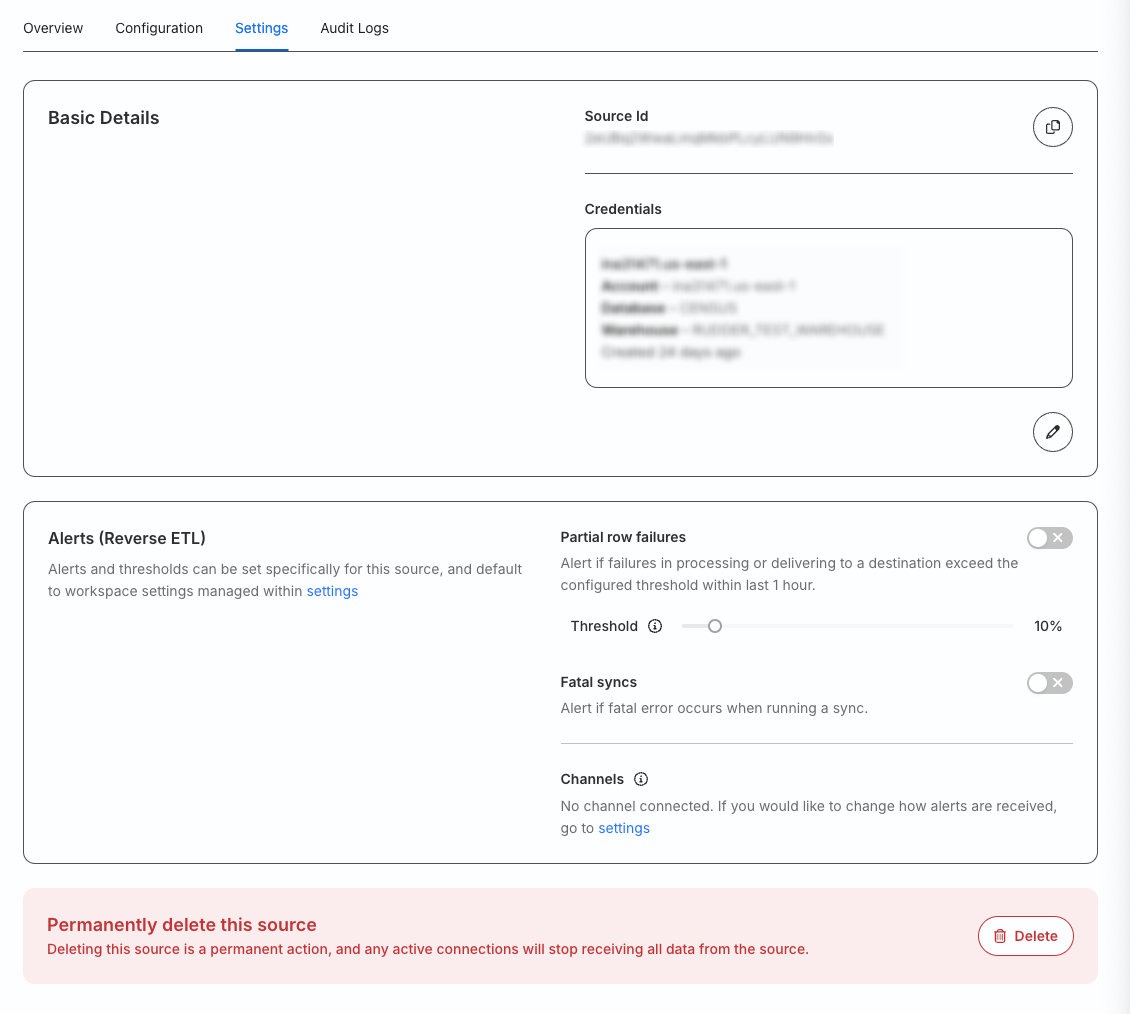
Go to the Settings tab to:
- Get your source ID.
- Change your warehouse credentials.
- Set up custom alerts for your Reverse ETL source.
- Delete the source permanently.
You cannot delete a source that is connected to any destination.
FAQ
Where can I obtain the connection credentials for the Databricks cluster?
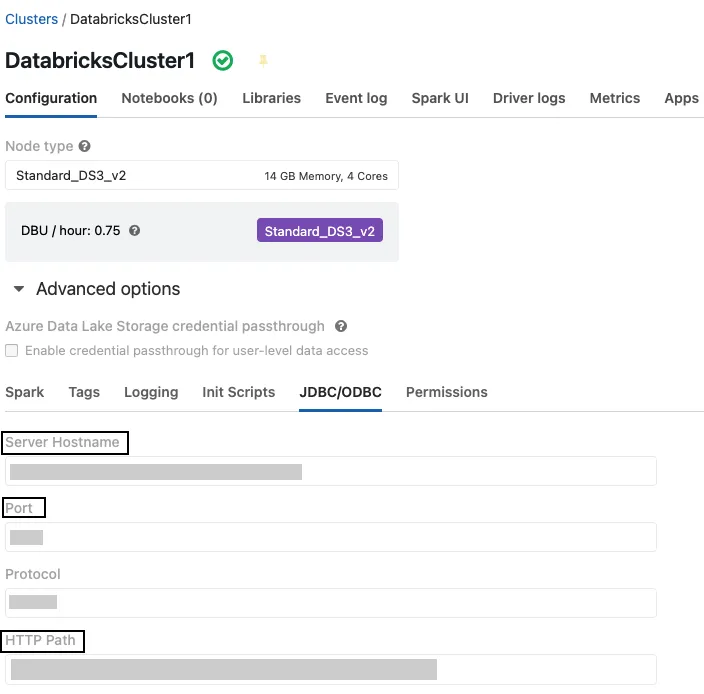
To obtain the Host, Path, and Port number, go to your Databricks account and follow these steps:
- Go to the Compute tab and select your Databricks cluster.
- Click Advanced options > JDBC/ODBC tab to find the required settings:
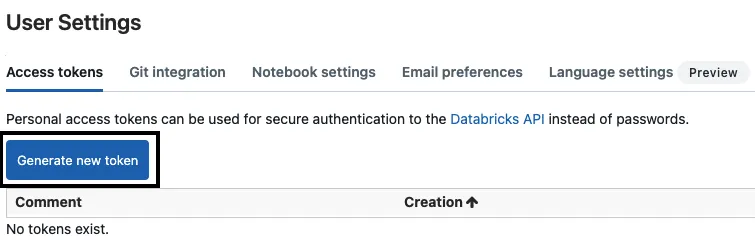
To obtain the Token, go to the Settings > User Settings in your Databricks account and generate a new personal access token:
See Databricks documentation for more details on generating a personal access token.
Where can I obtain the connection credentials for the SQL warehouse?
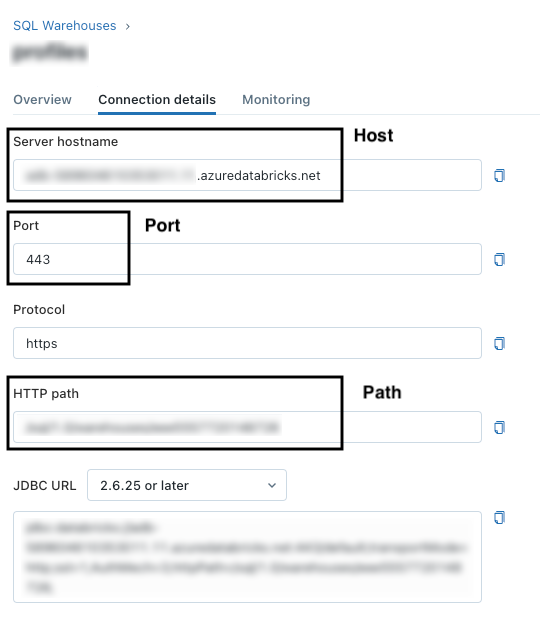
To obtain the Host, Path, and Port number for your SQL warehouse, go to your Databricks account and follow these steps:
- Go to the SQL warehouses tab and select your warehouse.
- Click the Connection details tab to find the Host, Path, and Port number.
To obtain the Token, go to the Settings > User Settings in your Databricks account and generate a new personal access token:
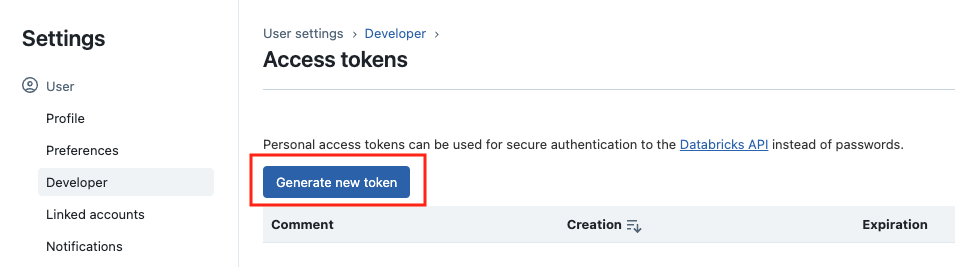
See Databricks documentation for more details on generating the access token.
What do the three validations under Verifying Credentials imply?
When setting up a Reverse ETL source, you will see the following three validations under the Verifying Credentials option once you proceed after entering the warehouse credentials:
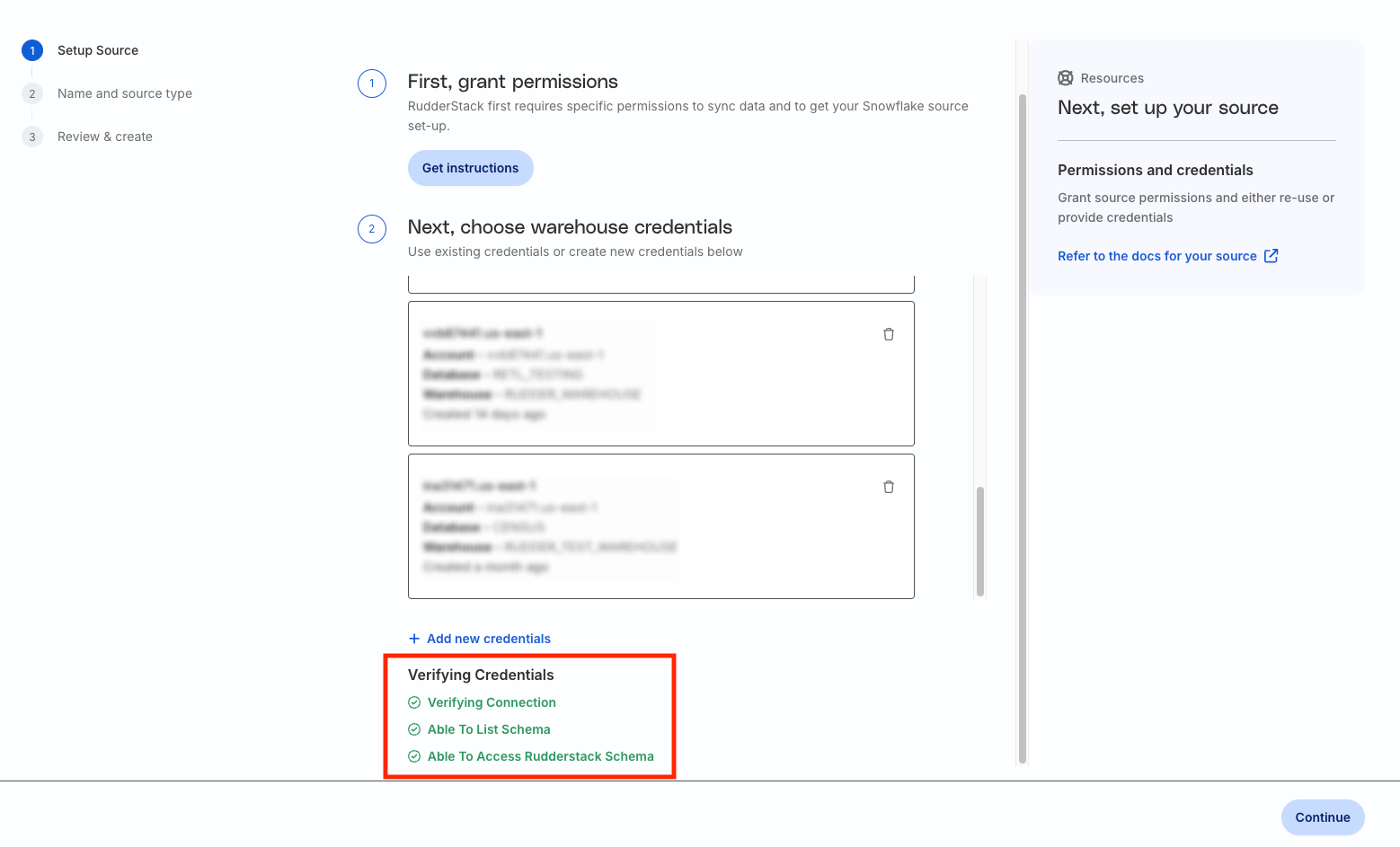
These options are explained below:
- Verifying Connection: This option indicates that RudderStack is trying to connect to the warehouse with the provided warehouse credentials.
If this option gives an error, it means that one or more fields specified in the warehouse credentials are incorrect. Verify your credentials in this case.
- Able to List Schema: This option checks if RudderStack is able to fetch all schema details by using the provided credentials.
- Able to Access RudderStack Schema: This option implies that RudderStack is able to access the
_rudderstackschema you have created by running all commands in the User Permissions section.
If this option gives an error, verify if you have successfully created the_rudderstackschema and given RudderStack the required permissions to access it.
What is the difference between the Table, Model, and Audience options when creating a Reverse ETL source?
When creating a new Reverse ETL source, you are presented with the following options from which RudderStack syncs the data:
| Source type | Description |
|---|---|
| Table | RudderStack uses an existing warehouse table as a data source. See Use warehouse table as source for detailed setup. |
| Model | RudderStack uses custom SQL queries to fetch specific warehouse data and sends them to your destinations. See Use model as source for detailed setup. |
| Audience | RudderStack filters data in your warehouse tables to create target customer lists and sends them to downstream destinations. See Use audience as source for detailed setup. |
Does my SQL warehouse/cluster need to be active when running the validations?
Yes - otherwise, the validations might fail.
