Sync data from Iterable to your warehouse destination via RudderStack.
4 minute read
Cloud Extract (ETL) is sunset
This source is deprecated and no longer supported as of January 10, 2026.
Iterable is a popular growth marketing platform that lets you maximize customer interaction and improve your customers’ overall LTV (Life Time Value).
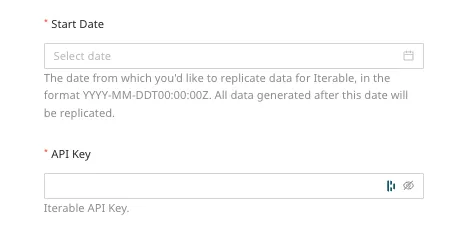
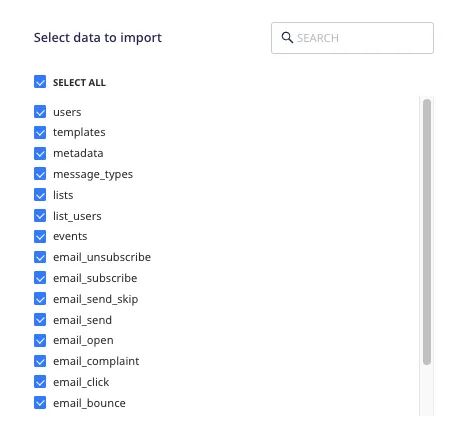
This document guides you in setting up Iterable as a source in RudderStack. Once configured, RudderStack automatically ingests your Iterable data and routes it to your specified data warehouse destination.
Note that:
For sending real-time events from Iterable to RudderStack via webhook, see the Iterable Webhook documentation.
For more information on the Full Refresh and Incremental sync modes, refer to the Common Settings guide.
Iterable is now configured as a source. RudderStack will start ingesting data from Iterable as per your specified schedule and frequency.
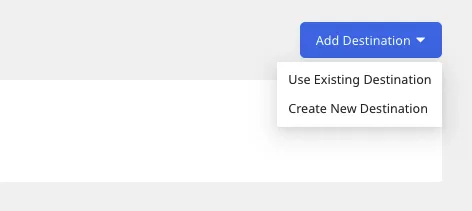
You can further connect this source to your data warehouse by clicking the Add Destination button:
Use the Use Existing Destination option if you have an already-configured data warehouse destination in RudderStack. To configure a data warehouse destination from scratch, select the Create New Destination button.
FAQ
Is it possible to have multiple Cloud Extract sources writing to the same schema?
Yes, it is.
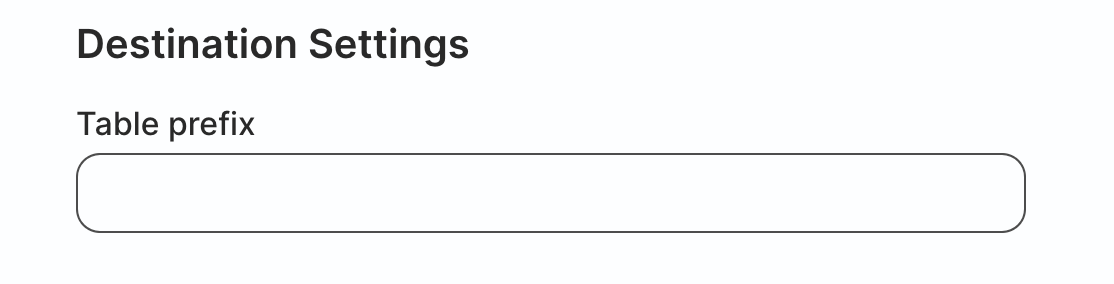
RudderStack associates a table prefix for every Cloud Extract source writing to a warehouse schema. This way, multiple Cloud Extract sources can write to the same schema with different table prefixes.
Where can I find the Iterable API key?
You can get your Iterable project’s API key by logging into your Iterable dashboard and navigating to Integrations > API Keys. For more information, refer to the Iterable documentation.
How does RudderStack count the events for Cloud Extract sources?
RudderStack counts the number of records returned by the source APIs when queried during each sync. It considers each record as an event.
How does RudderStack count the events for Cloud Extract sources?
RudderStack counts the number of records returned by the source APIs when queried during each sync. It considers each record as an event.
How does RudderStack set the table name for the data sent via Cloud Extract sources?
RudderStack sets the table name for the resource you are syncing to the warehouse by adding rudder_ to the Table prefix you set while configuring your Cloud Extract source in the dashboard.
For example, if you set test_ as the Table prefix in the dashboard, RudderStack sets the table name as test_rudder_<resource_name>, where <resource_name> is the name of the resource you are syncing (for example, contacts, messages, etc.).
Note that RudderStack does not add the character _ to the prefix by default. Hence, you need to specify it while setting the prefix.
Questions? We're here to help.
Join the RudderStack Slack community or email us for support
This site uses cookies to improve your experience while you navigate through the website. Out of
these
cookies, the cookies that are categorized as necessary are stored on your browser as they are as
essential
for the working of basic functionalities of the website. We also use third-party cookies that
help
us
analyze and understand how you use this website. These cookies will be stored in your browser
only
with
your
consent. You also have the option to opt-out of these cookies. But opting out of some of these
cookies
may
have an effect on your browsing experience.
Necessary
Always Enabled
Necessary cookies are absolutely essential for the website to function properly. This
category only includes cookies that ensures basic functionalities and security
features of the website. These cookies do not store any personal information.
This site uses cookies to improve your experience. If you want to
learn more about cookies and why we use them, visit our cookie
policy. We'll assume you're ok with this, but you can opt-out if you wish Cookie Settings.