Unity SDK v1
7 minute read
See the GitHub codebase to get a more hands-on understanding of the SDK.
SDK setup requirements
- Download and install the Unity development kit.
- Sign up for RudderStack.
- Set up a Unity source in the dashboard. Note the write keyThe write key (or source write key) is a unique identifier for your source. RudderStack uses this key to send events from a source to the specified destination. for this source.
- You will also need the data plane URL associated with your RudderStack workspace.
Installing the Unity SDK
Follow these steps to integrate the RudderStack Unity SDK with your project:
- Download
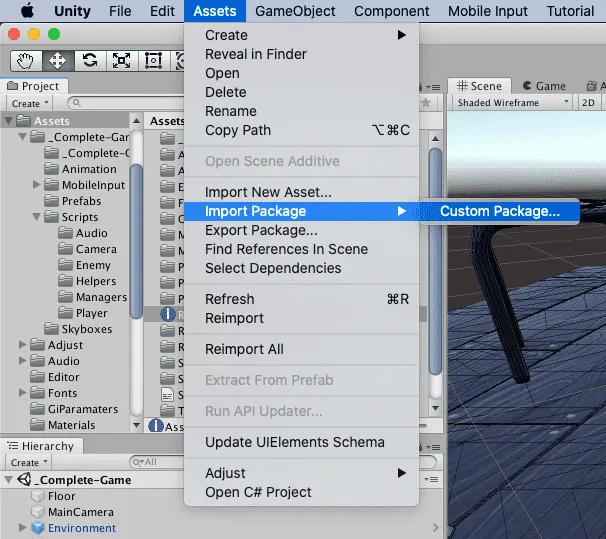
rudder-sdk-unity.unitypackagefrom our GitHub repository. - Import the downloaded package to your project. From the Assets menu, go to Import Package - Custom Package… as shown:
- Select
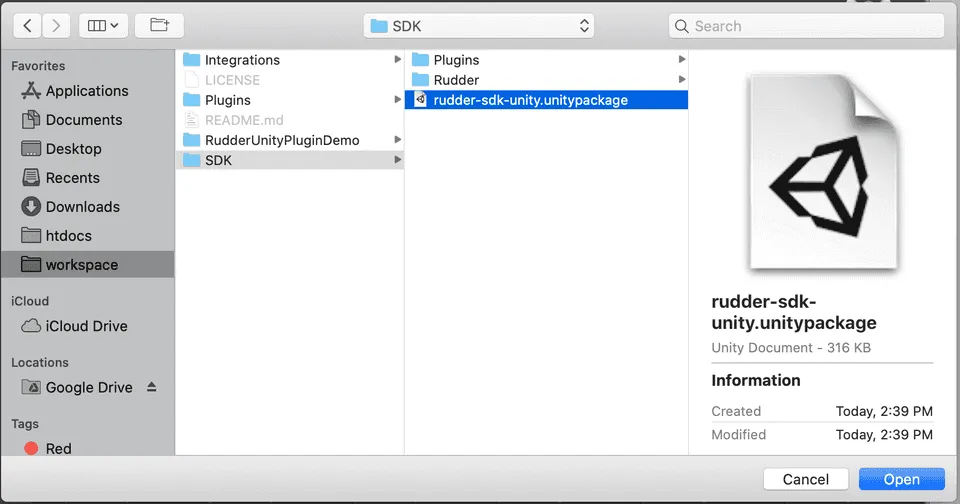
rudder-sdk-unity.unitypackagefrom the downloaded location and click Open:
- Click
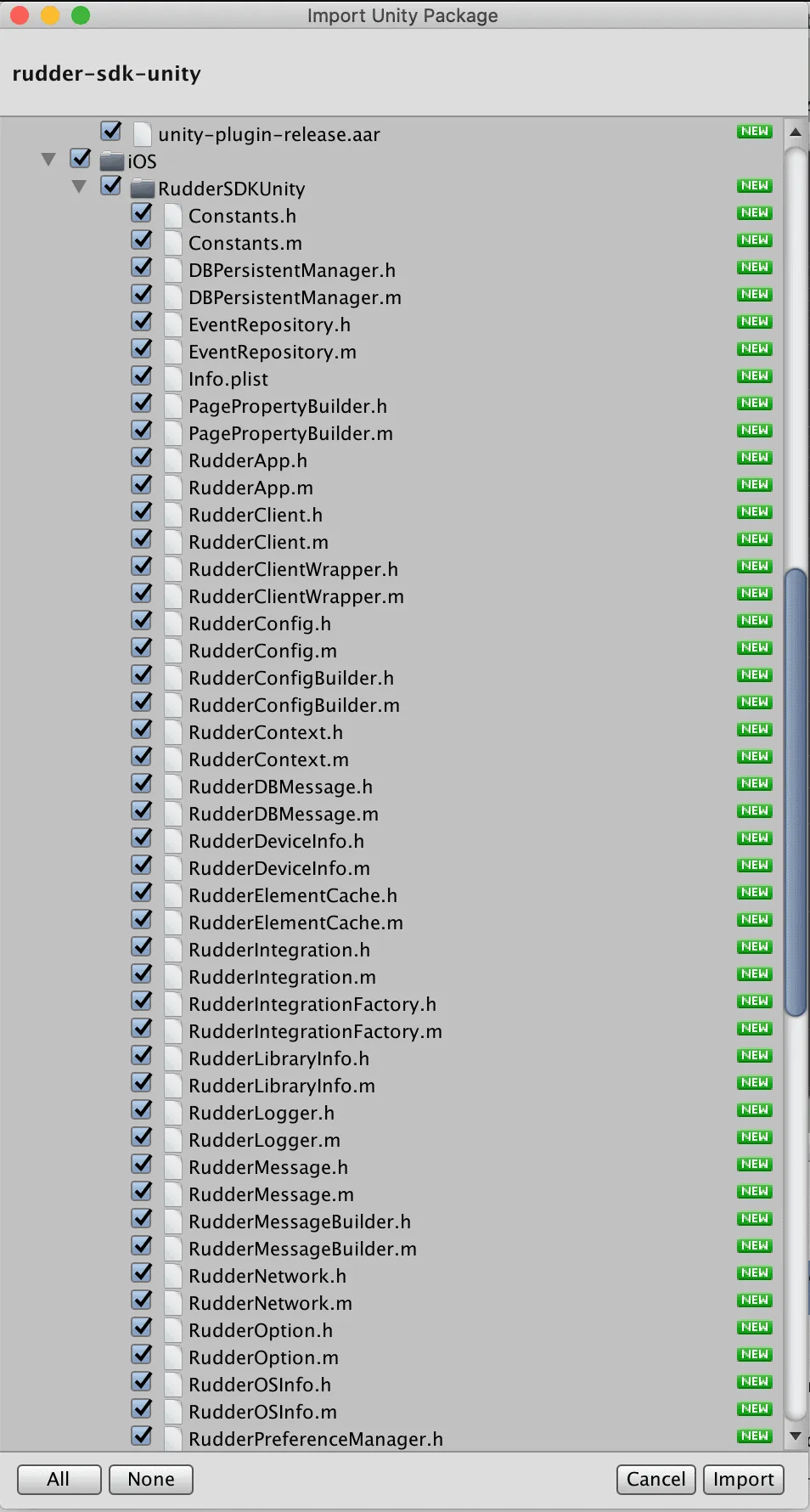
Importin the import popup as shown:
Initializing the RudderStack client
To initialize the RudderStack client, follow these steps:
- Add the
importto all files where you wish to useRudderClient.
using RudderStack;- Then, add the following code in the
Awakemethod of your mainGameObjectScript:
// Critical for iOS Applications where multiple components are using SQLite
// This has no effect for Android, but can be added as a safety check
RudderClient.SerializeSqlite();

// Build your config
RudderConfigBuilder configBuilder = new RudderConfigBuilder()
    .WithDataPlaneUrl(DATA_PLANE_URL);
    .WithLogLevel(RudderLogLevel.VERBOSE)

// get instance for RudderClient
RudderClient rudderClient = RudderClient.GetInstance(
    WRITE_KEY,
    configBuilder.Build()
);
If you are building an iOS project,RudderClient.SerializeSqlite()is important to handle races with SQLite.
Configuring your RudderStack client
You can configure your client based on the following parameters using RudderConfigBuilder:
| Parameter | Type | Description | Default value |
|---|---|---|---|
logLevel | Integer | Controls how much of the log you want to see from the SDK. | RudderLogLevel.INFO |
dataPlaneUrl | String | Your data plane URLThe data plane URL is the location where events are routed and sent to the RudderStack backend for processing. You can find this URL at the top of the Connections page in your RudderStack dashboard. | - |
flushQueueSize | Integer | Number of events in a batch request to the RudderStack server. | 30 |
dbThresholdCount | Integer | Number of events to be saved in the SQLite database. Once the limit is reached, older events are deleted from the database. | 10000 |
sleepcount | Integer | Minimum waiting time to flush the events to the RudderStack server. The minimum value can be set to 1 second. | 10 seconds |
configRefreshInterval | Integer | The SDK will fetch the config from dashboard after the specified time. | 2 hours |
trackLifecycleEvents | Boolean | Determines if the SDK will automatically capture the application lifecycle events. | true |
recordScreenViews | Boolean | Determines if the SDK will automatically capture the screen view events. | false |
autoCollectAdvertId | Boolean | Determines if the SDK will collect the advertisement ID. | false |
controlPlaneUrl | String | Change this parameter only if you are self-hosting the control plane. Check the Self-hosted control plane section below for more information. The SDK will add /sourceConfig along with this URL to fetch the source configuration. | https://api.rudderlabs.com |
Self-hosted control plane
If you are using a device mode destination like Adjust, Firebase, etc., the Unity SDK needs to fetch the required configuration from the control plane. If you are using the Control plane lite utility to host your own Control Plane, then follow the steps in this section and specify controlPlaneUrl in your RudderConfigBuilder that points to your hosted source configuration file.
You should not pass thecontrolPlaneUrlparameter during the SDK initialization if you are using the RudderStack dashboard. This parameter is supported only if you are using the open source Control Plane Lite utility to self-host your control plane.
Identify
The Unity SDK captures the deviceId and uses that as the anonymousId for identifying the user. This helps in tracking the users across the application installation. To attach more information to the user, you can use the identify method. Once the SDK identifies the user, it persists and passes the user information to the subsequent calls.
To reset the user identification, you can use the reset method.
RudderStack provides some pre-defined APIs for building the RudderTraits object like PutEmail(), PutAge(), etc. These APIs can be used to set the values of the standard traits by directly passing them as parameters.
For the custom traits which do not have any pre-defined API, you can use the Put() method and pass a key-value pair of the trait, as shown in the sample identify event below:
RudderMessage identifyMessage = new RudderMessageBuilder().Build();
RudderTraits traits = new RudderTraits();
//pre-defined API's for inserting standard traits
traits.PutEmail("alex@example.com");
traits.PutAge("40");
//Put API to insert custom traits
traits.Put("location", "New Orleans");
traits.Put("gender", "Male");
traits.Put("consent", "Granted");
rudderClient.Identify("some_user_id", traits, identifyMessage);
Overriding anonymousId using setAnonymousId
You can explicitly set the anonymousId for all future events using the setAnonymousId() method:
rudderClient.setAnonymousId("anonymousID1");Track
You can record the users’ in-game activity through the track method. Every user action is called an event.
A sample track event is as shown:
// create event properties
Dictionary<string, object> eventProperties = new Dictionary<string, object>();
eventProperties.Add("test_key_1", "test_value_1");
eventProperties.Add("test_key_2", "test_value_2");

// create user properties
Dictionary<string, object> userProperties = new Dictionary<string, object>();
userProperties.Add("test_u_key_1", "test_u_value_1");
userProperties.Add("test_u_key_2", "test_u_value_2");

// create message to track
RudderMessageBuilder builder = new RudderMessageBuilder();
builder.WithEventName("test_event_name");
builder.WithUserId("test_user_id");
builder.WithEventProperties(eventProperties);
builder.WithUserProperties(userProperties);

rudderClient.Track(builder.Build());// create message to track
RudderMessageBuilder builder = new RudderMessageBuilder();
builder.WithEventName("test_event_name");
builder.WithUserId("test_user_id");
builder.WithEventProperty("foo", "bar");
builder.WithUserProperty("foo1", "bar1");
rudderClient.Track(builder.Build());Screen
The screen call lets you record the user activities on their mobile screen with any additional relevant information about the viewed screen.
A sample screen event is as shown:
// create screen properties
Dictionary < string, object > screenProperties = new Dictionary < string, object > ();
screenProperties.Add("key_1", "value_1");
screenProperties.Add("key_2", "value_2");

RudderMessageBuilder screenBuilder = new RudderMessageBuilder();
screenBuilder.WithEventName("Home Screen");
screenBuilder.WithEventProperties(screenProperties);
rudderClient.Screen(screenBuilder.Build());
Reset
The reset method clears all persisted traits of the previously identified user.
rudderClient.Reset();Upgrading the SDK
To upgrade the SDK, remove all files related to the SDK from the Plugins folder. Also, remove the Rudder folder completely before importing a newer version of the SDK.
You can find the following files in the Plugins folder for the SDK:
Plugins/Android/unity-plugin-release.aarPlugins/iOS/RudderSDKUnity
Advertisement ID
RudderStack collects the advertisement ID only if withAutoCollectAdvertId is explicitly set to true during the SDK initialization:
RudderConfigBuilder configBuilder = new RudderConfigBuilder()
    .WithDataPlaneUrl(DATA_PLANE_URL);
    .WithLogLevel(RudderLogLevel.VERBOSE)
    .withAutoCollectAdvertId(true);
Tracking application lifecycle events on the Android platform
The Unity SDK automatically tracks the Application Lifecycle Events to get insights into the app metrics like installs, opens, updates, etc. However, you can disable the automatic tracking by setting the withTrackLifecycleEvents parameter to false:
RudderConfig config = new RudderConfigBuilder()
  .WithTrackLifecycleEvents(false)
To track the application life cycle events on the Android platform, you need to add the RudderPreferbs.prefab file from the path Assets/Rudder/RudderPreferbs.prefab to every scene in your Unity app. Also, ensure that the RudderPreferbs.prefab is linked to the RudderClient.cs script.
The Unity SDK depends on the lifecycle method
onApplicationFocusof theMonoBehaviourclass to determine the Application Opened and Application Backgrounded events on the Android platform.Hence, when an application is brought to focus, an
Application Openedevent is sent, and when the application is moved out of focus, anApplication Backgroundedevent is sent. So, these events might be triggered even before the RudderStack SDK gets initialized to create the actions and execute them once the SDK is initialized.
Triggering Application Updated lifecycle event
The following requirements must be met to ensure that the Application Updated lifecycle event is triggered:
- For iOS: Make sure the
Bundle versionin theInfo.plistfile of your application is incremented. If theBundle versionof yourtargetpoints to theBundle versionof yourproject, then increment it. - For Android: Make sure the
versionCodein thedefaultConfigobject nested in theandroidobject of your app’sbuild.gradleis incremented.
Refer to the Application Lifecycle Events Specification guide for more information.
FAQ
Do I need to add anything to my Android ProGuard rules?
If you are facing any event delivery issues in your production environment, verify if you have added the following line in your ProGuard rules:
-keep class com.rudderstack.android.** { *; }