RudderStack Assistant Quickstart
4 minute read
This guide walks you through installation and your first use of RudderStack Assistant.
Prerequisites
- A web page with RudderStack JavaScript SDK installed
- A JavaScript source write keyThe write key (or source write key) is a unique identifier for your source. RudderStack uses this key to send events from a source to the specified destination. and data plane URLThe data plane URL is the location where events are routed and sent to the RudderStack backend for processing. You can find this URL at the top of the Connections page in your RudderStack dashboard. from your RudderStack dashboard
Step 1: Install the extension
Install the extension in your preferred browser:
Pin the extension in your browser’s toolbar for quick access.
Chrome
- Go to the extension’s page in the Chrome Web Store.
- Click Add to Chrome.
- Confirm the installation when prompted.
Firefox
- Go to the extension’s page in the Firefox Add-ons.
- Click Add to Firefox.
- Confirm the installation when prompted.
Step 2: Open a page with RudderStack
Navigate to any web page that has RudderStack JavaScript SDK installed.
Step 3: Open the extension
You can access the extension in three ways:
Option 1: Developer Tools panel (Recommended)
Prefer this option as the extension stays open as you navigate between pages.
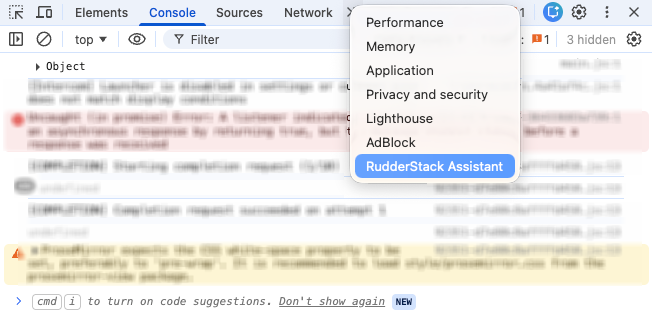
- Open your browser’s Developer Tools (press F12 or right-click > Inspect).
- Click the » menu to see more panels.
- Select RudderStack Assistant.
Option 2: Browser toolbar
Make sure to pin the RudderStack Assistant extension in your browser’s toolbar first.
Click the RudderStack Assistant icon in your browser’s toolbar. Note that the popup closes automatically when you switch tabs or navigate to a different page.

Step 4: View your SDK status
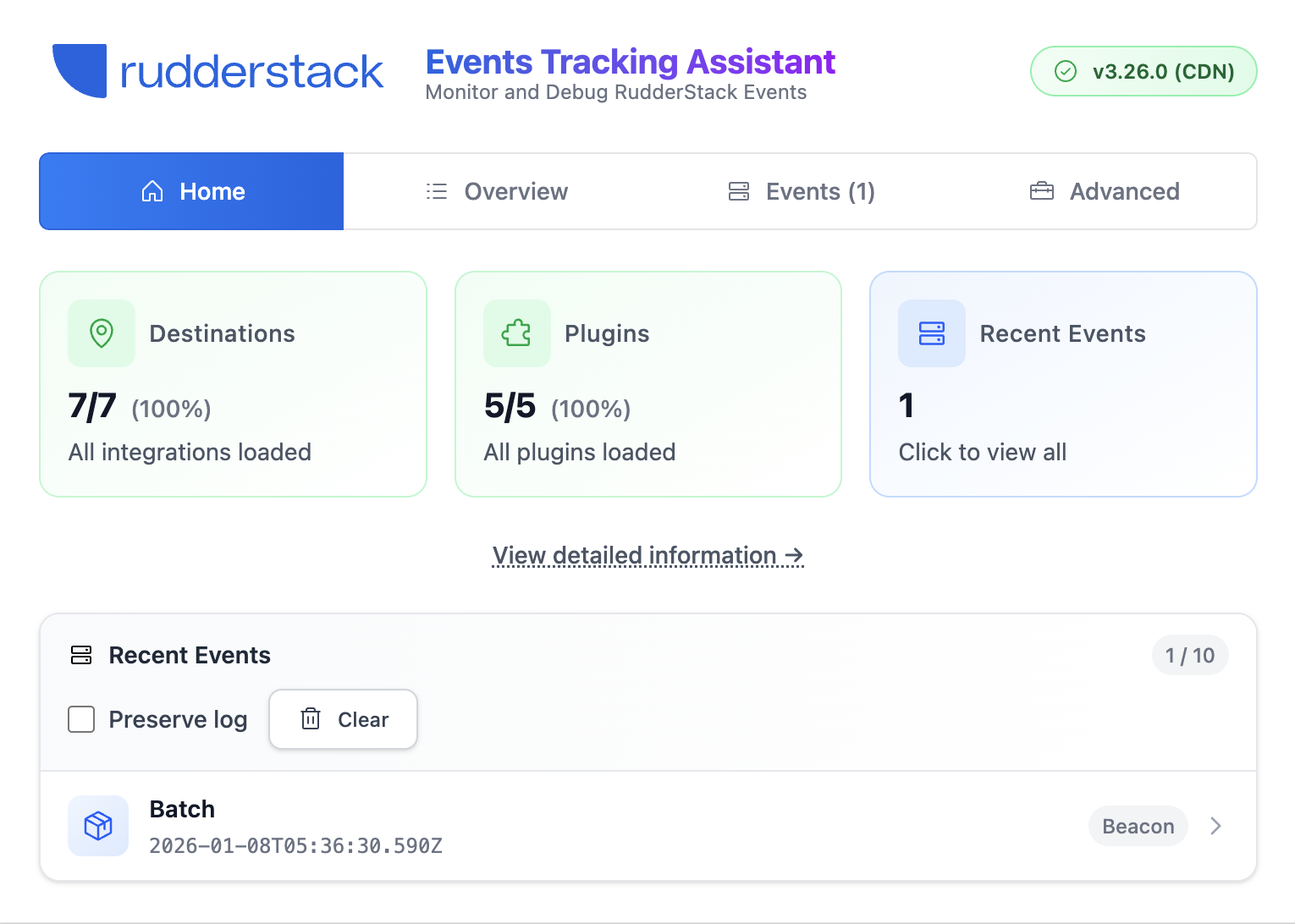
The extension automatically detects your SDK and displays:
- SDK version in the top-right corner
- SDK lifecycle status (Ready, Initializing, or Stalled)
- Loaded destinations and plugins
- Recent events
If no SDK is detected, you can manually inject the SDK for testing. Enter your write key and data plane URL, select the auto-track options you want, then click Inject SDK Script.
Not all sites support SDK injection due to strict Content Security Policy (CSP) headers. The extension indicates if injection is not supported.

Step 5: Trigger events
Open the extension before triggering events. The extension can only capture events sent after it is opened.
- Navigate to the Events tab of the extension
- Interact with your web page to trigger events.
- Watch events appear in real-time with their payloads and HTTP status codes.
Tabs overview
| Tab | What it does | When to use |
|---|---|---|
| Home | Quick health overview including SDK status, destinations, plugins, and recent events | First place to check for issues |
| Overview | Detailed SDK and source configuration, persisted data, destinations, and plugins | Verify setup, check destinations/plugins |
| Events | Real-time event monitoring with search, filtering, and payload inspection | Debug event tracking |
| Advanced | Deep debugging tools: load options, custom domains, storage, browser info, and debug export | Troubleshoot complex issues |
See the Interface Reference guide for more details on these tabs.
See also
- RudderStack Assistant: Learn about RudderStack Assistant and its features
- Interface Reference: Learn about the different tabs available in the extension
- Troubleshooting: Solutions to common issues while using the extension
FAQ
Which browsers does this extension support?
The extension supports Chrome (Manifest v3, minimum version 120) and Firefox (Manifest v2, minimum version 109).
Does this extension work with cloud-mode destinations?
Yes. The extension monitors all events sent from the SDK, regardless of destination mode. However, the Destinations section in Overview only shows device-mode destinations since those load directly in the browser.
Is my data sent to external servers?
No. All data stays local in your browser. The extension only monitors RudderStack SDK activity and does not send any data to external servers.
Can I use this extension in production?
Yes. The extension is safe to use in production for debugging purposes. It only observes SDK activity without interfering with your website’s functionality or performance.
Will this extension slow down my website?
No. The extension runs separately from your website and does not affect your website’s performance.
