Navigate to any web page that has RudderStack JavaScript SDK installed.
Step 3: Open the extension
You can access the extension in two ways:
Option 1: Developer tools (Recommended)
Prefer this option as the extension stays open as you navigate between pages and tabs.
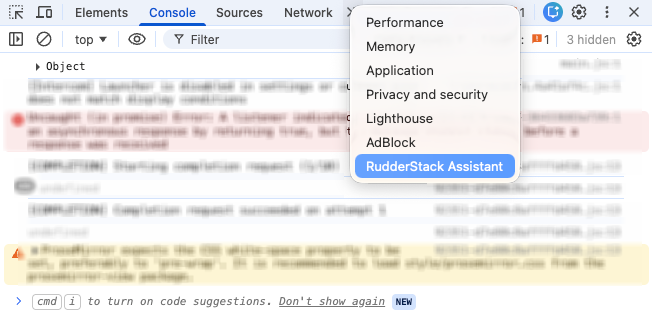
Open your browser’s Developer Tools (press F12 or right-click > Inspect)
Click the » menu.
Select RudderStack Assistant.
Option 2: Browser toolbar
Tip:
Make sure to pin the Events Tracking Assistant extension in your browser’s toolbar first.
Click the Events Tracking Assistant extension icon in your browser’s toolbar. Note that the popup will close automatically when you switch tabs or navigate to a different page.
Step 4: View your SDK status
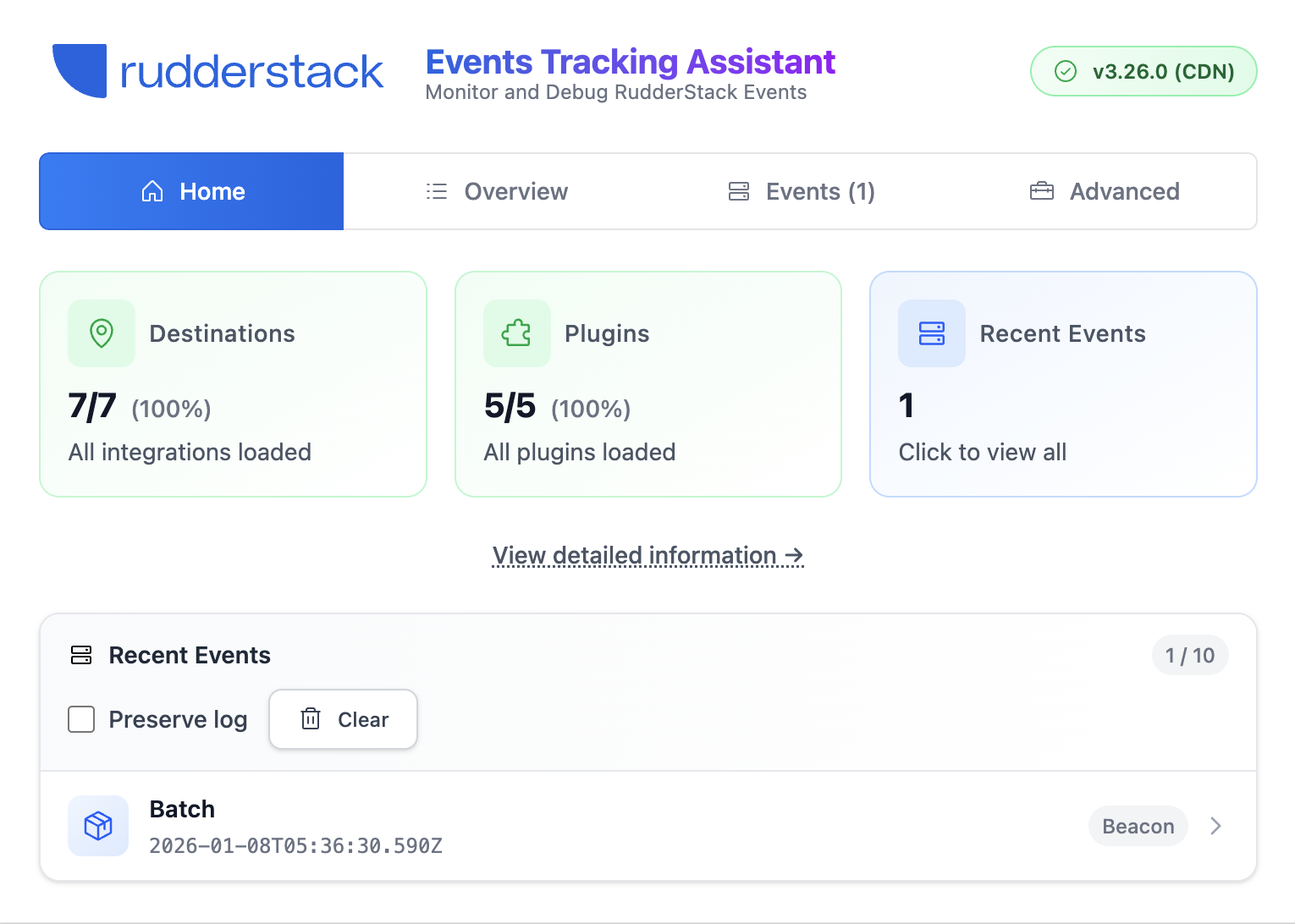
The extension automatically detects your SDK and displays:
SDK version in the top right corner
Configuration status
Loaded destinations
Real-time events
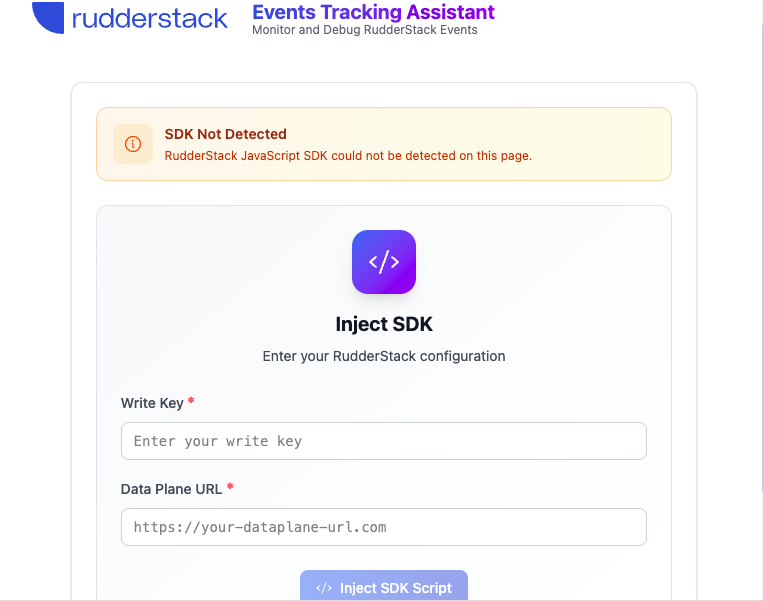
If no SDK is detected, you can manually inject the SDK for testing. Enter your write key and data plane URL, then click Inject SDK.
Not all sites support SDK injection due to strict Content Security Policy (CSP) headers. The extension indicates if injection is not supported.
Step 5: Trigger events
Open the extension before triggering events. The extension can only capture events sent after it is opened.
Navigate to the Events tab of the extension
Interact with your web page to trigger events.
Watch events appear in real-time with their payloads and HTTP status codes.
Does this extension work with cloud-mode destinations?
Yes. The extension monitors all events sent from the SDK, regardless of destination mode. However, the Destinations section in Overview only shows device-mode destinations since those load directly in the browser.
Is my data sent to external servers?
No. All data stays local in your browser. The extension only monitors RudderStack SDK activity and does not send any data to external servers.
Can I use this extension in production?
Yes. The extension is safe to use in production for debugging purposes. It only observes SDK activity without interfering with your website’s functionality or performance.
Will this extension slow down my website?
No. The extension runs separately from your website and does not affect your website’s performance.
This site uses cookies to improve your experience while you navigate through the website. Out of
these
cookies, the cookies that are categorized as necessary are stored on your browser as they are as
essential
for the working of basic functionalities of the website. We also use third-party cookies that
help
us
analyze and understand how you use this website. These cookies will be stored in your browser
only
with
your
consent. You also have the option to opt-out of these cookies. But opting out of some of these
cookies
may
have an effect on your browsing experience.
Necessary
Always Enabled
Necessary cookies are absolutely essential for the website to function properly. This
category only includes cookies that ensures basic functionalities and security
features of the website. These cookies do not store any personal information.
This site uses cookies to improve your experience. If you want to
learn more about cookies and why we use them, visit our cookie
policy. We'll assume you're ok with this, but you can opt-out if you wish Cookie Settings.