Learn how to allow or block an event for a specific destination in the Android (Kotlin) and iOS (Swift) SDKs.
4 minute read
This guide demonstrates how to use the integrations field of the RudderOption instance to implement event filtering, that is, allowing or blocking an event from being sent to a specific destination.
By default, the integrations object is configured to send the event to all destinations which are present and initialized.
json
{//.....
"integrations":{"All":true},//.....
}
You can override this behavior by tweaking the integrations object to allow or block an event from being sent to a specific destination in cloud, device, or hybrid mode.
The Android (Kotlin) and iOS (Swift) SDKs do not persist the integrations field set for an event for subsequent events. Therefore, you must pass this parameter every time you want to allow or block an event for a specific destination.
Allow event for a specific destination
To send an event only to a specific destination, configure the integrations options so that:
The All parameter is set to false
The destination-specific parameter is set to true
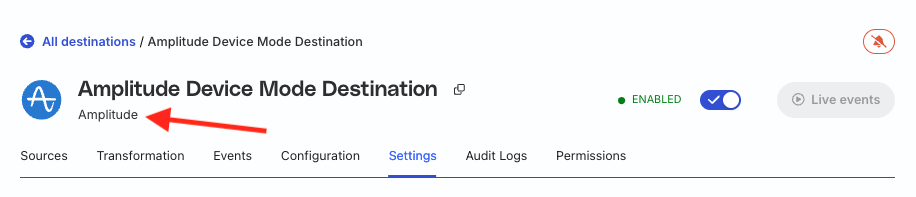
The destination name in the integrations object should match the name exactly as displayed in the RudderStack dashboard. It should not be the name that you assigned to the destination while setting it up in RudderStack.
An example of how to configure the integrations options to allow an event to be sent only to the Firebase destination is shown below:
kotlin
analytics.track(name="Track Event",options=RudderOption(integrations=buildJsonObject{put("All",false)// Event blocked for all destinations
put("Firebase",true)// Event allowed for Firebase destination
}))
analytics.track(name:"Track Example",options:RudderOption(integrations:["All":false,"Firebase":true// Event disabled for all destinations except Firebase]))
The corresponding Objective-C snippet is shown below:
objective-c
RSSOptionBuilder*optionBuilder=[RSSOptionBuildernew];[optionBuildersetIntegrations:@{@"All":@NO,@"Firebase":@YES// Event disabled for all except Firebase
}];[analyticstrack:@"Track Example"options:[optionBuilderbuild]];
After making the above call, the integrations key at the root level of the event payload is shown below. RudderStack then sends this event only to the Firebase destination.
To block an event from being sent to a specific destination, configure the integrations options so that:
The All parameter is set to true
The destination-specific parameter is set to false
The destination name in the integrations object should match the name exactly as displayed in the RudderStack dashboard. It should not be the name that you assigned to the destination while setting it up in RudderStack.
An example of how to configure the integrations options to block an event from being sent to the Firebase destination is shown below:
kotlin
analytics.track(name="Track Event",options=RudderOption(integrations=buildJsonObject{put("Firebase",false)// Event blocked for Firebase destination
}))
analytics.track(name:"Track Example",options:RudderOption(integrations:["Firebase":false// Event disabled for Firebase destination]))
The corresponding Objective-C snippet is shown below:
objective-c
RSSOptionBuilder*optionBuilder=[RSSOptionBuildernew];[optionBuildersetIntegrations:@{@"Firebase":@NO// event disabled for firebase
}];[analyticstrack:@"Track Example"options:[optionBuilderbuild]];
After making the above call, the integrations key at the root level of the event payload is shown below. RudderStack then sends this event to all destinations except Firebase.
analytics.screen(screenName:"Some Screen",options:RudderOption(integrations:["All":false// All integrations blocked]))
The corresponding Objective-C snippet is shown below:
objective-c
RSSOptionBuilder*optionBuilder=[RSSOptionBuildernew];[optionBuildersetIntegrations:@{@"All":@NO// All integrations blocked
}];[analyticsscreen:@"Some Screen"options:[optionBuilderbuild]];
After making the above call, the integrations key at the root level of the event payload is shown below. RudderStack then does not send this event to any destination.
This site uses cookies to improve your experience. If you want to learn more about cookies and why we use them, visit our cookie policy. We'll assume you're ok with this, but you can opt-out if you wish
Privacy Overview
This site uses cookies to improve your experience while you navigate through the website. Out of these cookies, the cookies that are categorized as necessary are stored on your browser as they are as essential for the working of basic functionalities of the website. We also use third-party cookies that help us analyze and understand how you use this website. These cookies will be stored in your browser only with your consent. You also have the option to opt-out of these cookies. But opting out of some of these cookies may have an effect on your browsing experience.
Necessary cookies are absolutely essential for the website to function properly. This category only includes cookies that ensures basic functionalities and security features of the website. These cookies do not store any personal information.