# End-to-End Walkthrough: Event Stream Sources with Rudder CLI
> Step-by-step guide for creating, validating, and deploying an Event Stream source with Rudder CLI.
This tutorial shows you how to use [Rudder CLI](https://www.rudderstack.com/docs/rudder-cli/) to:
- Authenticate against your RudderStack workspace
- Create a project directory and define an Event Stream source in YAML
- Optionally attach a Tracking Plan for data governance
- Validate and deploy the source to your workspace
For feature overview and supported source types, see [Manage Event Stream Sources using Rudder CLI](https://www.rudderstack.com/docs/rudder-cli/event-stream-sources/).
## Prerequisites
- Rudder CLI tool (`rudder-cli`) [installed locally](https://www.rudderstack.com/docs/rudder-cli/installation/)
- An existing [Tracking Plan](https://www.rudderstack.com/docs/rudder-cli/data-catalog-and-tracking-plans/tracking-plans/) defined in your CLI project (optional, but **recommended** for [Data Governance](https://www.rudderstack.com/docs/rudder-cli/data-catalog-and-tracking-plans/))
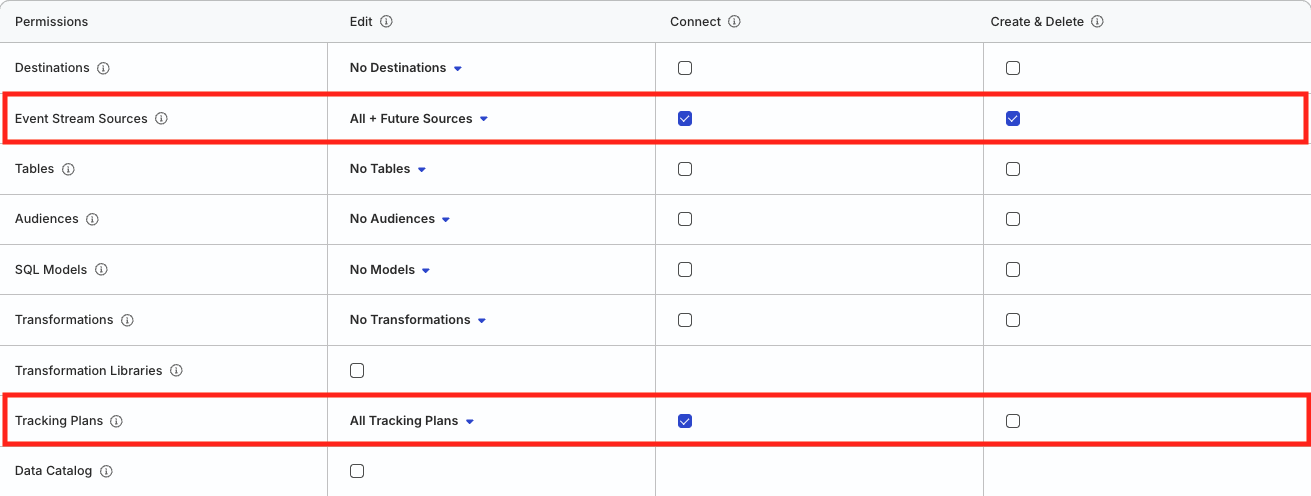
- In your RudderStack workspace, create a [workspace-level Service Access Token](https://www.rudderstack.com/docs/access-management/service-access-tokens/#workspace-sat) with the following [permissions](https://www.rudderstack.com/docs/access-management/policies-overview/#resource-permissions) to manage Event Stream sources:
| Resource | Permissions | Description
|
| :----| :-----| :----|
| Event Stream Sources | **Create & Delete** | Create or delete Event Stream sources in the workspace |
| Event Stream Sources | **Edit** | Make changes to the configuration of Event Stream sources |
| Event Stream Sources | **Connect** | Connect an Event Stream source to a Tracking Plan |
| Tracking Plans | **Edit**, **Connect** | Connect a Tracking Plan to an Event Stream source |
****Click here to see how these permissions appear in the workspace policy**.**
- **If you're on Free or self-hosted plan, or for testing and development only**: Generate a [Personal Access Token](https://www.rudderstack.com/docs/access-management/personal-access-tokens/) with **Read-Write** role
**Warning:** Any action authenticated by a Personal Access Token will break if the user generating the token is removed from the organization or there is a breaking change to their permissions.
**Token permissions for legacy RBAC system**
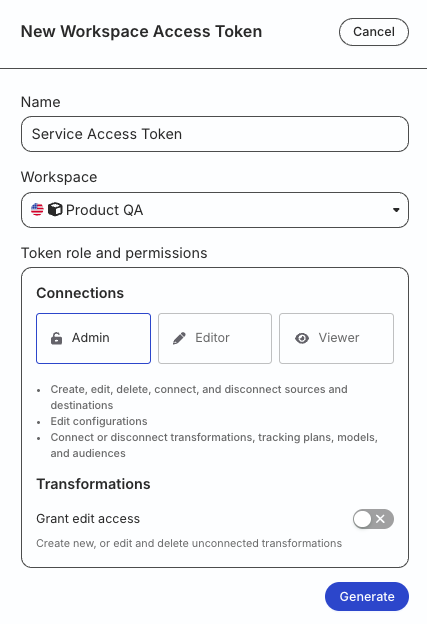
If you are on the [legacy Permissions Management (RBAC) system](https://www.rudderstack.com/docs/archive/dashboard-guides/user-management/), your workspace-level Service Access Token should have minimum **Admin** permissions.
See [Generate a workspace-level Service Access Token](https://www.rudderstack.com/docs/archive/dashboard-guides/service-access-tokens/#generate-service-access-token) for steps to create the token.
## 1. Authenticate the CLI tool
Run the following command and enter your [access token](#prerequisites) when prompted:
```shell
rudder-cli auth login
```
## 2. Create a project directory
Create a project directory to store your source YAML files:
```shell
mkdir ~/tutorial-sources
```
**Info:** If you are already managing Tracking Plans or Data Catalog resources via CLI, you can add source definitions to the same project directory. The CLI processes all YAML files in the directory recursively.
## 3. Review the YAML reference
Before defining your Event Stream source, review the [Source YAML Reference](https://www.rudderstack.com/docs/rudder-cli/yaml-event-stream-sources/) to understand:
- The complete YAML structure for Event Stream sources
- Required and optional fields for source configuration
- Governance validation settings and violation rules
- Reference syntax for linking sources to Tracking Plans
**Success:** Understanding the YAML reference will help you create properly structured files and avoid common validation errors when defining your sources.
## 4. Define an Event Stream source
Create a YAML file for your Event Stream source (`~/tutorial-sources/ios-source.yaml`):
```yaml
version: rudder/v1
kind: event-stream-source
metadata:
name: ios-source
spec:
id: "my-ios-source"
type: "ios"
name: "iOS Source"
enabled: true
```
This example creates a basic iOS source without governance configuration. The source accepts events and is enabled by default.
## 5. Optional: Add governance configuration
If you want to associate a Tracking Plan with your source for data governance, update the YAML file to include governance settings:
```yaml
version: rudder/v1
kind: event-stream-source
metadata:
name: ios-source
spec:
id: "my-ios-source"
type: "ios"
name: "iOS Source"
enabled: true
governance:
validations:
tracking_plan: "#tracking-plan:my-tracking-plan"
config:
track:
propagate_violations: true
drop_unplanned_events: true
drop_unplanned_properties: true
drop_other_violations: true
identify:
propagate_violations: true
drop_unplanned_properties: true
drop_other_violations: true
```
In this example:
- The source is linked to a Tracking Plan referenced as `#tracking-plan:my-tracking-plan`.
- For `track` events, violations are propagated, unplanned events are dropped, unplanned properties are dropped, and other violations are dropped.
- For `identify` events, violations are propagated, unplanned properties are dropped, and other violations are dropped.
**Info**
The Tracking Plan reference follows the format `#tracking-plan:[tracking-plan.id]`, where `tracking-plan.id` is the `spec.id` value of the Tracking Plan.
See [Source YAML Reference](https://www.rudderstack.com/docs/rudder-cli/yaml-event-stream-sources/) for detailed information about these configuration options.
## 6. Validate and deploy
1. Validate your files:
```shell
rudder-cli validate -l ~/tutorial-sources
```
2. **Optional**: Review changes before deploying:
```shell
rudder-cli apply -l ~/tutorial-sources --dry-run
```
3. Deploy changes to your workspace:
```shell
rudder-cli apply -l ~/tutorial-sources
```
## See more
- [Manage Event Stream Sources using Rudder CLI](https://www.rudderstack.com/docs/rudder-cli/event-stream-sources/)
- [Event Stream Sources YAML Reference](https://www.rudderstack.com/docs/rudder-cli/yaml-event-stream-sources/)
- [Manage Destinations using Rudder CLI](https://www.rudderstack.com/docs/rudder-cli/destinations/) to define a destination, then [connect it](https://www.rudderstack.com/docs/rudder-cli/connections-walkthrough/)
- [GitHub Actions for Rudder CLI](https://www.rudderstack.com/docs/rudder-cli/github-actions/)