Workspace Token Generation: Updated Workflow
- free
3 minute read
- Date: Sep 30, 2026
You can now generate, rotate, and revoke a workspace token from Settings > Workspace > Security. A self-hosted data plane uses this token to read its source-destination configuration from the RudderStack-hosted control plane.
Important considerations
- Workspace tokens are available on the Free and Open Source plans.
- Only organization admins can generate and manage them.
- Tokens you already use continue to work. Replacing them is recommended, not required.
See Workspace Tokens for more information on the new workflow.
Why manage workspace tokens?
The previous workspace token lived in the workspace and could be accessed with your account password, but you couldn’t set an expiry, rotate it while the data plane kept running, or revoke it on its own. A leaked or long-lived token stayed valid until you changed the deployment by hand.
This new workflow gives you a token you can expire, replace during an overlap window, and delete.
What’s new
- Expiry you choose: Select 30 days, 60 days, 90 days, 180 days, or Never. The period defaults to 180 days. Never keeps the token valid until you revoke it, and it requires an extra acknowledgement.
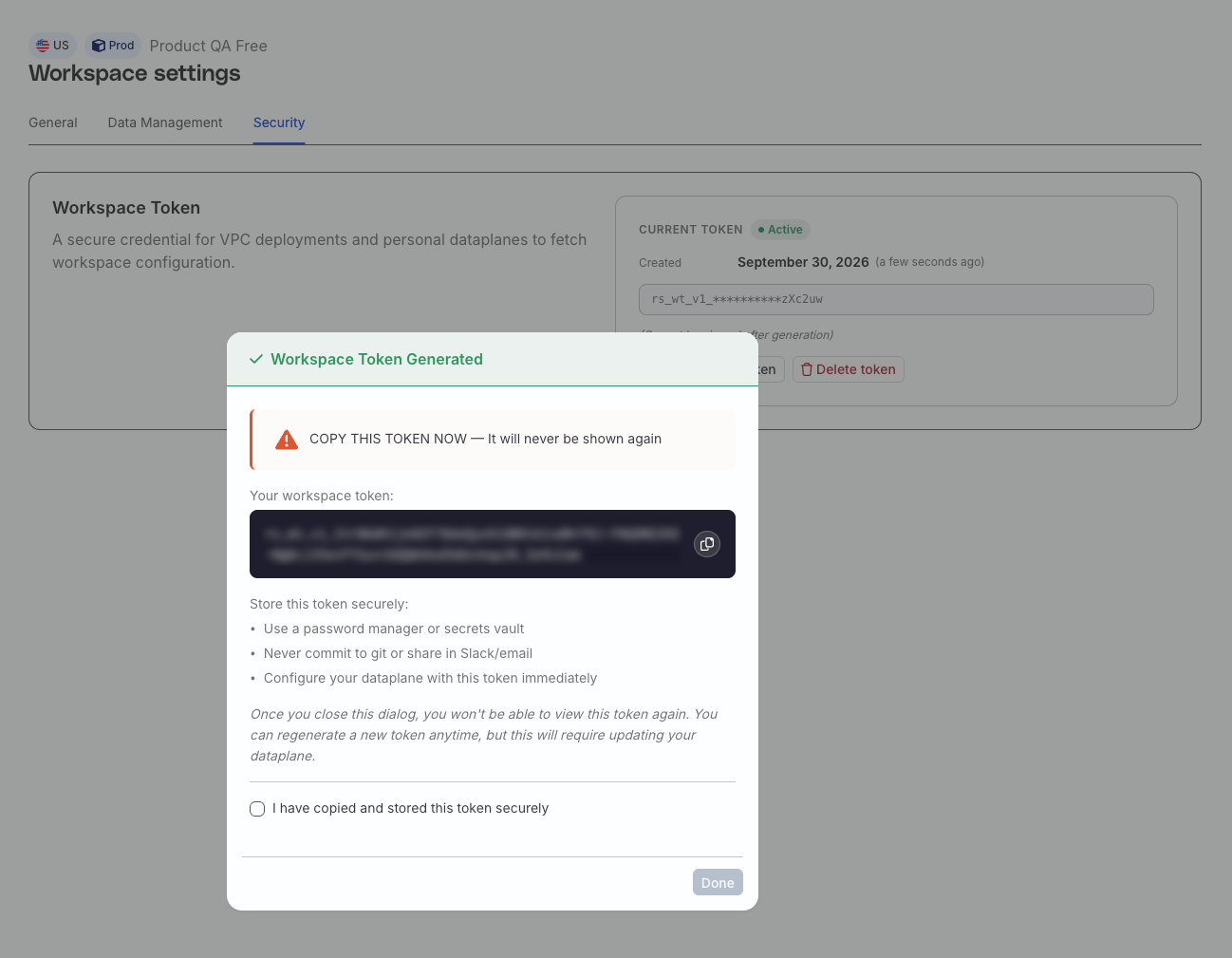
- Show-once secret: The plaintext value appears once. After you close the modal, only a SHA-512 hash and a display mask remain, so you and RudderStack Support can’t retrieve it. If you lose it, generate a new token.
- Rotation without downtime: Regenerate token creates a new secret and starts a 24-hour grace period. Both tokens authenticate during that window, so you can update the data plane before the previous token stops. Rotation can shorten a token that still had months left.
- Immediate revoke: Delete a token to cut off a data plane that still uses it. Audit logs record token creation and deletion.
- A two-token limit: A workspace can hold two non-expired tokens. During a rotation, the previous token keeps its slot until the grace period ends or you delete it.
- Status you can see: The token card shows Active, Expiring Soon, or Expiring. Expired tokens are removed from the list. Banners and modals appear when a token is in its grace period or has 30 days or fewer until expiry. Organization admins also receive email 30, 14, 7, and 1 days before expiry, when the token expires, and about 2 hours before a grace period ends.
Get started
You need an organization admin account on the Free or Open Source plan.
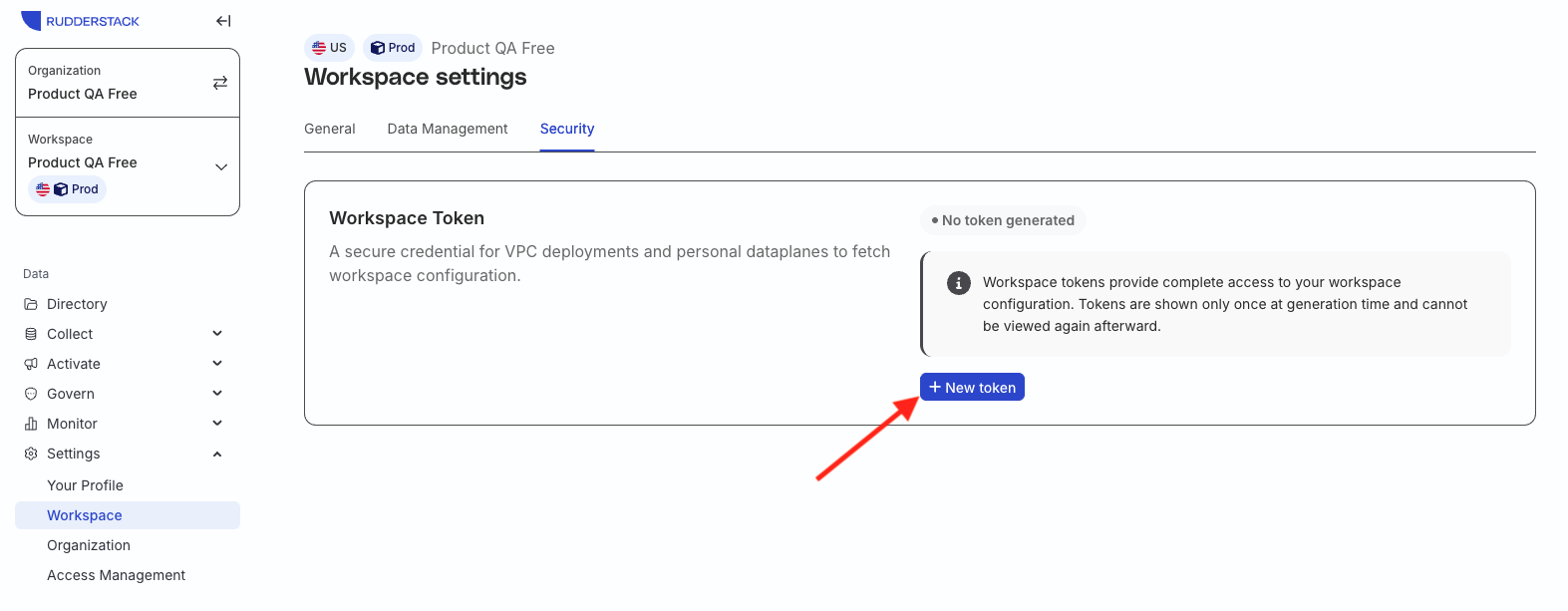
- Go to Settings > Workspace > Security.
- Click New token.
- Under Set token expiry, select a period. The default is 180 days.
- Under Security acknowledgement, select every checkbox. If you selected Never, select the additional never-expiry acknowledgement as well. Then generate the token and copy it before you close the modal.
- Update the token in your data plane deployment and restart the data plane.
See Generate a workspace token for expiry, rotation, and deletion.
Screenshots
New token on the workspace Security tab
Copy the token immediately after generation