TOTP-based Multi-Factor Authentication (MFA)
- free
- growth
- enterprise
3 minute read
- Date: Aug 5, 2026
You can now secure your RudderStack account with an authenticator app. Scan a QR code with Google Authenticator, Microsoft Authenticator, 1Password, Authy, or any other authenticator app, and RudderStack asks for a six-digit code from that app when you sign in. You also get a set of single-use backup codes so you can still get in if you lose your device.
Org Admins can go a step further and require Multi-Factor Authentication (MFA) for everyone in the organization, with a seven-day grace period so no one is locked out without warning.
See the Security Settings guide for full details.
Why authenticator app support?
Until now, SMS was the only second factor available on RudderStack. That works, but it has real limits. Text messages don’t arrive reliably everywhere — international users, roaming, and patchy coverage all cause delays or failures, which turns a security feature into a login blocker. SMS is also the weakest of the common second factors, since a phone number can be hijacked through a SIM-swap attack. Many security teams now require an app-based factor and won’t accept SMS.
Authenticator apps solve both problems. Codes are generated on your device, so nothing has to be delivered over a phone network, and there’s no phone number for an attacker to take over. It’s also what most security teams and questionnaires expect to see.
Key features
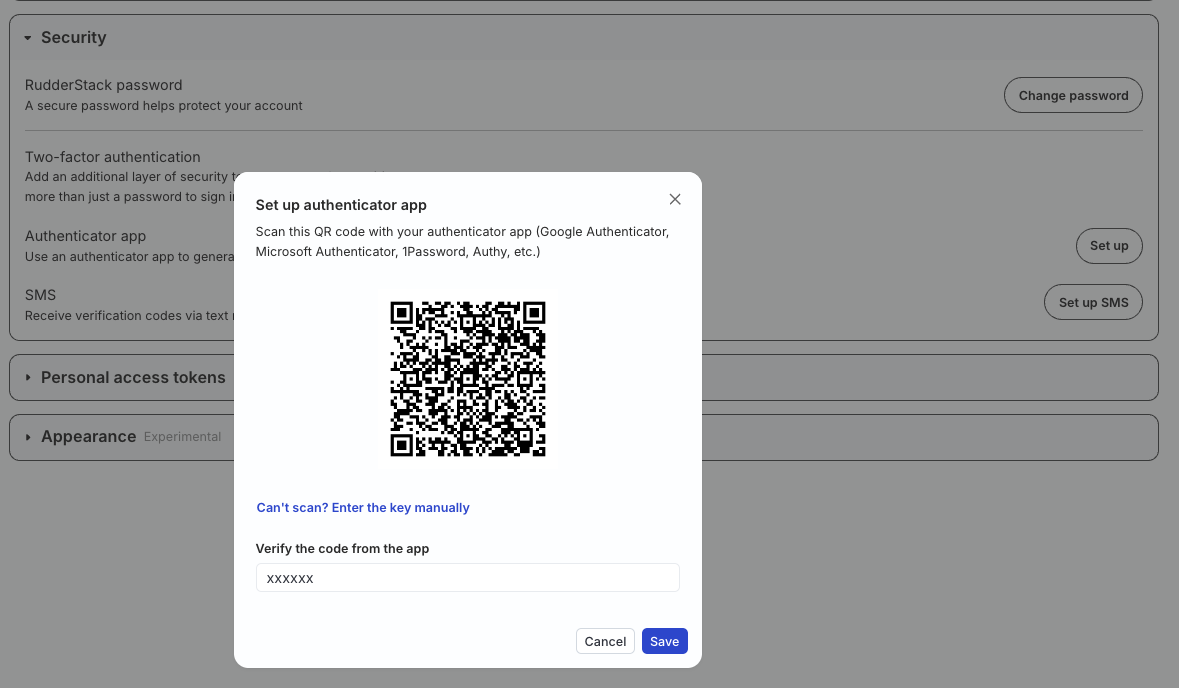
- Authenticator app (TOTP) setup: Scan a QR code — or enter the key manually — and confirm one code to turn it on. Works with any standard authenticator app.
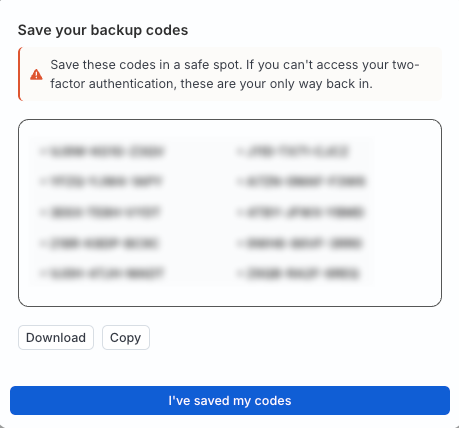
- Backup codes: You get 10 single-use codes when you set up your second factor. They’re your recovery path if you lose your phone, and you can regenerate them if you run low.
- Your codes stay protected: The secret that generates your codes is held in a dedicated, hardened secrets vault — never in the RudderStack application database.
- Require MFA across your organization: Org Admins can turn on the Require 2FA toggle to mandate MFA for all members. Members who don’t have it yet get a seven-day grace period and an email with their deadline.
- Choose your own method: Each user picks their own second factor. If you have both an authenticator app and SMS set up, RudderStack asks for the authenticator app code first — it’s the more secure option — and doesn’t send a text unless you choose Verify with SMS instead.
- Audit visibility for admins: MFA setup, sign-in attempts, and backup code use are recorded in your organization’s audit logs, and admins can export a per-member MFA status report for security reviews and compliance evidence.
If your organization signs in through SSO, RudderStack defers to your identity provider — enforce MFA in Okta, Azure AD, or your IdP of choice and RudderStack honors it, so your users aren’t asked for a second code on top.
Get started
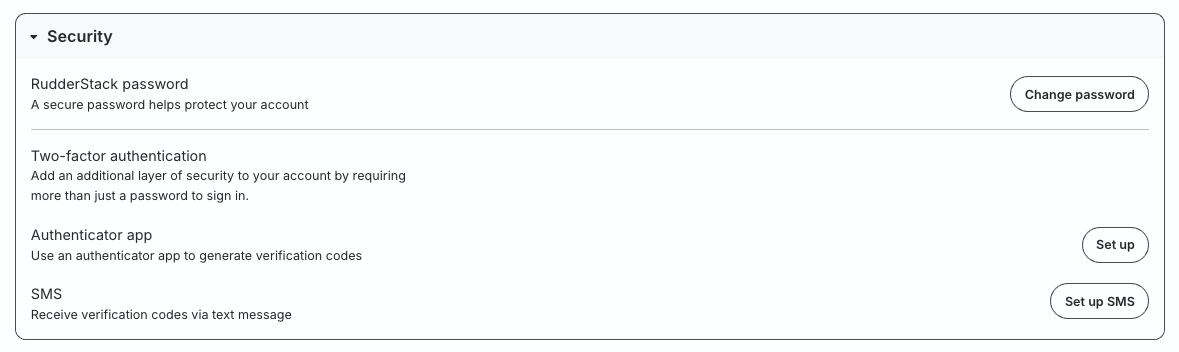
- Go to Settings > Your Profile > Security in the RudderStack dashboard.
- Click Set up next to Authenticator app.
- Scan the QR code with your authenticator app, then enter the generated code and click Save.
- Save the backup codes you’re shown, then click I’ve saved my codes. You’ll be signed out and asked to sign in again with your new second factor.
Org Admins who want to require MFA for the whole organization can use the Require 2FA toggle in Organization settings.
Resources
See the following guides for detailed instructions on using this feature:
- Security Settings: Set up an authenticator app or SMS, and regenerate backup codes
- Require 2FA toggle: Require MFA for all organization members
- Audit Logs: Review MFA-related activity across your organization
- Member Management: Roles and permissions, including who can change organization settings
Screenshots
- Security settings in the RudderStack dashboard
- Setting up an authenticator app
- Single-use backup codes shown after setup