Resource-level Alert Overrides
- growth
- enterprise
3 minute read
- Date: Aug 26, 2026
RudderStack’s Configurable Alerts let you set failure thresholds and delivery channels for your whole workspace. But not every resource deserves the same treatment — a business-critical destination needs a tighter threshold than a low-priority one, and the team that owns a given pipeline may want its alerts in their own Slack channel.
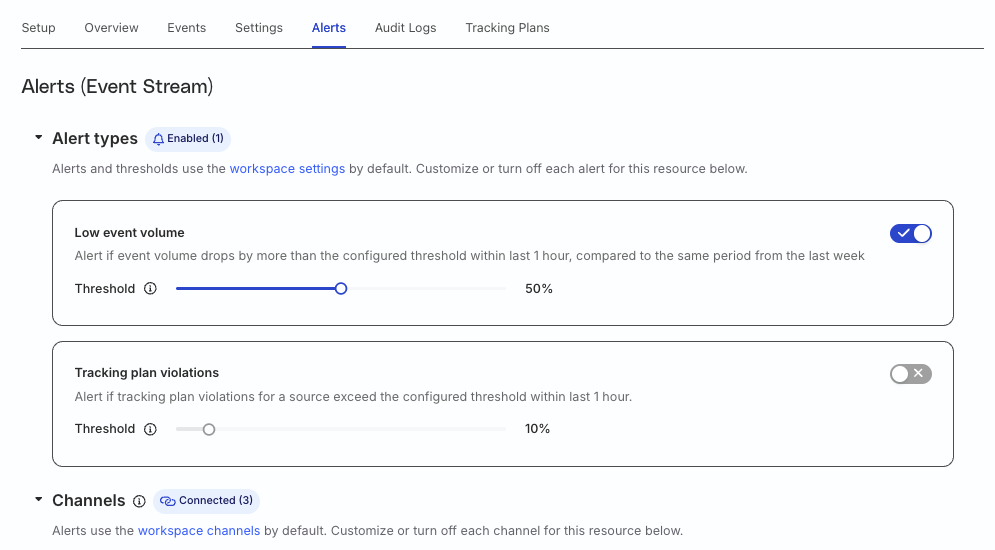
You can now override workspace-level alert settings on individual resources — sources, destinations, and transformations. Set a custom threshold or route alerts to a different channel for one resource, while every other resource keeps inheriting your workspace defaults.
A resource inherits all workspace-level alert settings except the ones you explicitly override. If you override the threshold for one alert type on a source but leave another untouched, the second one keeps reflecting the workspace-level setting.
Why override alerts at the resource level?
Workspace-level alerts are a great baseline, but a single set of thresholds and channels can’t fit every pipeline in a growing workspace:
- Not every resource is equally critical. A destination feeding your revenue dashboard warrants a 0% failure threshold and an immediate page; a scratch destination used for testing does not. Resource-level overrides let you tune sensitivity per resource instead of picking one threshold for everything — so you reduce alert fatigue without missing failures on critical resources.
- Different teams own different pipelines. With channel overrides, a specific source’s alerts can go straight to the owning team’s Slack channel or on-call tool, while the rest of the workspace routes to your central channel.
- Defaults stay intact. Because overrides are scoped to a single resource, you can fine-tune the resources that need it without disturbing the settings protecting everything else.
When to use it: reach for resource-level overrides whenever a specific source, destination, or transformation needs a stricter (or looser) threshold than your workspace baseline, or when its alerts should be routed to a different team or channel than the rest of your pipelines.
Key features
- Custom thresholds per resource: Set a failure threshold for an individual source, destination, or transformation that differs from the workspace default — tighter for critical resources, looser for noisy or low-priority ones.
- Per-resource delivery channels: Route a specific resource’s alerts to its own channels (Slack, Microsoft Teams, PagerDuty, incident.io, email, or webhook), independent of your workspace-level channels. If no channel override is set, the resource falls back to the workspace channels — so alerts are never silently dropped.
- Selective overrides with inheritance: Override only the alert types that need it; everything else on the resource keeps inheriting the workspace settings.
- One-click reset: Revert any threshold or channel override back to the workspace default with the reset icon and a confirmation — no need to remember what the original value was.
- Workspace-level visibility: The Custom alerts setting under each failure type lists every resource with an override, its subscription status, and its custom threshold, so you always know what’s been customized and where.
Get started
Resource-level alert overrides are available on the RudderStack Growth and Enterprise plans. Configuring them requires admin access, or the Alert Overrides permission.
To set a custom threshold for a resource:
- Go to the resource (source, destination, or transformation) and click the Alerts tab.
- Adjust the threshold for any alert type. By default, the tab shows your workspace-level settings.
- Click Create override in the confirmation dialog.
To route a resource’s alerts to different channels, open the same Alerts tab. Under the Channels section, click Setup next to the channel you want to configure. To undo any override, click the reset icon next to the custom setting and confirm.
See Resource-level alerts for full setup details, including the permissions required and the alert types applicable to each resource type.
Resources
- Configurable Alerts — workspace-level thresholds and delivery channels
- Resource-level alerts — thresholds, channel overrides, and resets
- Alert delivery channels — Slack, Microsoft Teams, PagerDuty, incident.io, webhook, and email