Use Profiles IDE with Rudder AI
Use the Profiles IDE powered by Rudder AI to build, run, and debug your RudderStack Profiles projects.
6 minute read
The Profiles IDE is a web-based editor in the RudderStack dashboard that lets you develop your Profiles projects in a production-ready environment.
You can build your project and manage the YAML configuration files completely within the RudderStack dashboard or convert it to a version control repository like GitHub, GitLab, at any time.
To use Profiles IDE as an AI-powered, web-based editor, see Use Profiles IDE with Rudder AI.
You can perform the following operations using the Profiles IDE:
In your Profiles project, navigate to Settings and click Editor mode.
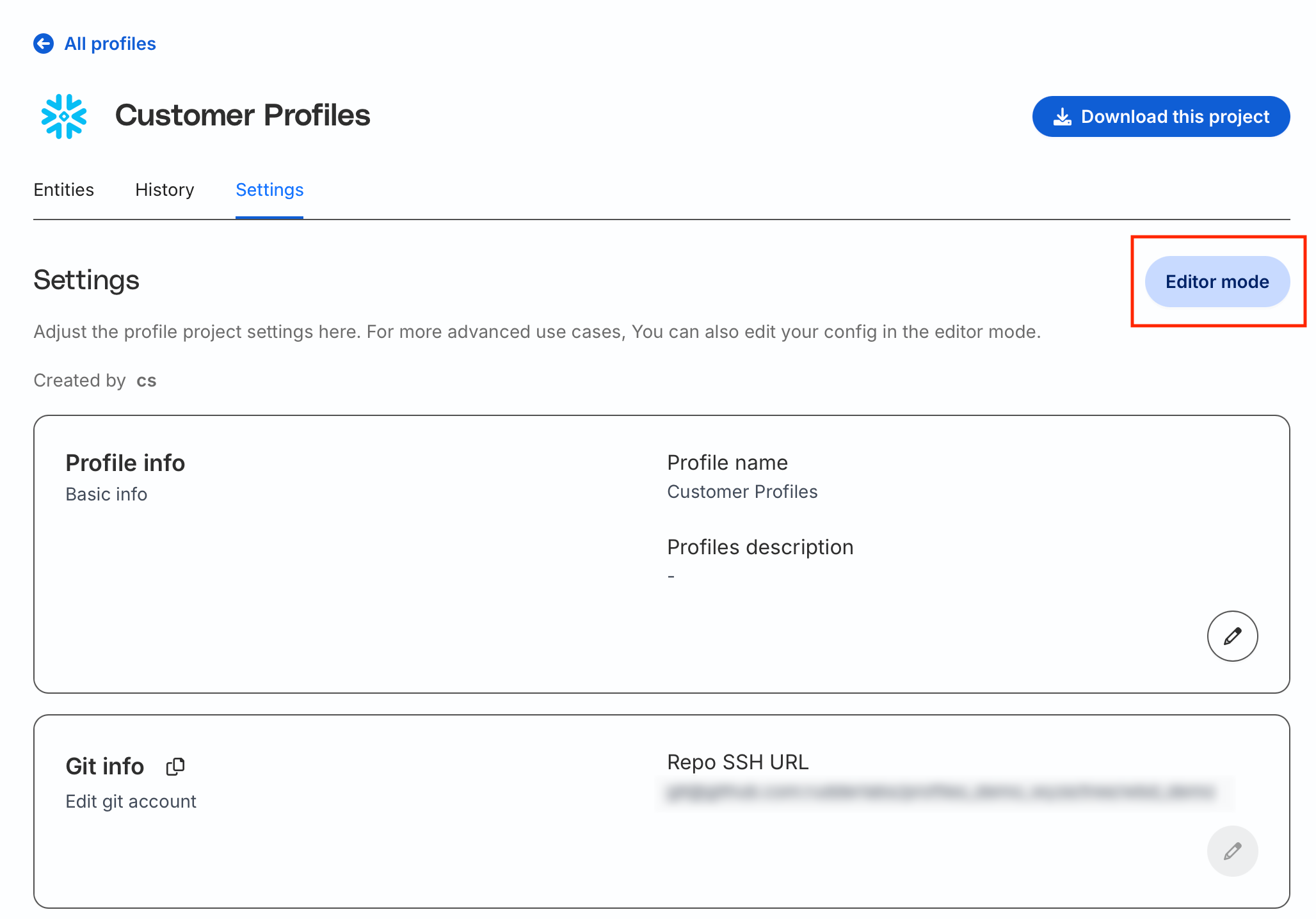
Next, enter the schema name you want to use for development purposes for your editing session and click Continue.
RudderStack recommends using a development schema while editing your project so that you can modify your YAML configuration files, run your changes within the editor, and validate the outputs in a separate development schema.
This makes it convenient to test your changes in the development schema without affecting the outputs in your production schema.
Once you make the changes, you can easily commit them to your RudderStack managed production project.
If you’re using a version control repository, RudderStack will push the commits to the main branch of the remote repository so that you have full access to your commit history. This allows visibility into the historical changes, easy rollbacks, and a reliable project sourced from a repository that can be managed both from the IDE and your local environment.
| RudderStack-hosted project | Git-connected project |
|---|---|
| The files are hosted completely within RudderStack. | The files are stored in the repository of your version control platform. |
| You need not set up and connect your version control provider but you will not have access to the commit history or the ability to revert changes. | You have access to your commit history and can easily rollback any changes. |
You can convert your RudderStack hosted project to a Git repository at any point of time.
Save operation: When a new session starts, the current project loads into the session’s browser storage. Any changes you save are added to the browser storage connected to that session and used during runs performed within that session. Note that the saved changes do not affect the production project.
Commit operation: Once you validate the changes and want to merge them into the production project, you can commit them to save the changes to your production project.
By default, the production project writes its outputs (ID graph, feature views, etc) to a defined schema. Each session prompts you for a schema to save that session’s (or user’s) outputs to so that they are run and validated without affecting the production outputs.
RudderStack recommends using a separate schema for development and the production project so that the editing sessions do not interfere with connected pipelines, activations or audiences.
Multiple users can use the same or separate development schemas to work in isolation and validate outputs directly in the data warehouse.
The IDE sources the Profiles version in the same way as the CLI. So, RudderStack uses the version defined in your IDE configuration to run the project and it can be deployed to the production project as well.
All changes are tied to a user/browser session. The pushed changes will cause conflicting open sessions to reset to the commited changes.
Saving and running the changes within a given user session does not affect the production project (whether RudderStack hosted or Git hosted) until you commit them.
If the origin changes during an editing session(s), RudderStack pulls down and applies the remote changes before applying the editor session changes.
Yes, if you are using the IDE with a Git-connected repository, you will need to provide the write access to your SSH deploy key so that the RudderStack app can commit your changes directly to your remote Git repository.
If you did not initially provide write access, you can use a new SSH deploy key and grant write access to the repository.
RudderStack supports the SSH URLs and the below ones while working with the Profiles IDE:
main branch of the repository: git@<provider-host>:<org-name>/<repo-name>git@<provider-host>:<org-name>/<repo-name>/tree/<branch-name>RudderStack does not support the below URLs while working with Profiles IDE:
git@<provider-host>:<org-name>/<repo-name>/tree/branch-name/subfoldergit@<provider-host>:<org-name>/<repo-name>/tag/v1.0.0git@<provider-host>:<org-name>/<repo-name>/commit/<commit-hash>In addition, you can use these SSH Git URLs to read your Profiles project.
RudderStack stores the project runs triggered from your IDE based on your session ID, not the project ID. Hence, your past runs won’t appear in the History tab.
The red dot indicates that you have uncommitted changes to your file. To remove the dot, you’ll need to commit these changes to your remote repository.
No, RudderStack ties your run history and user preferences to a specific session ID, which is unique to each machine. Therefore, accessing the same project from different machines will result in different histories and preferences.
Currently, the RudderStack IDE only supports viewing and editing the YAML and SQL files. Any other file types within your Git repository like text or image files won’t be visible in the IDE.
No, it’s not possible to modify the Git repository URL of an existing Profiles project. However, you can always create a new project with the required Git URL.
Use the Profiles IDE powered by Rudder AI to build, run, and debug your RudderStack Profiles projects.
