Understand how Profiles IDE uses Git to track changes, manage sessions, and enable team collaboration.
4 minute read
Profiles IDE uses Git to track all changes to your Profiles project. This guide explains how the Git workflow works, how to manage sessions, and how to collaborate with your team.
Every time you work in the IDE, you’re working in a Git branch. When you create a new session, a new development branch is created for your work. When you continue an existing session, you pick up where you left off in that same branch.
This Git-native approach means all your changes are versioned, and you can collaborate with teammates using standard Git workflows like pull requests and code review.
Save vs. publish
Profiles IDE distinguishes between saving work in progress and publishing changes to production:
Save: Commits your current changes to your development branch. Your work is saved, but not yet deployed. You can continue iterating in the same session.
Publish: Pushes your committed changes from your development branch to the deployment branch. Once published, your changes go live in your Profiles project.
Session management
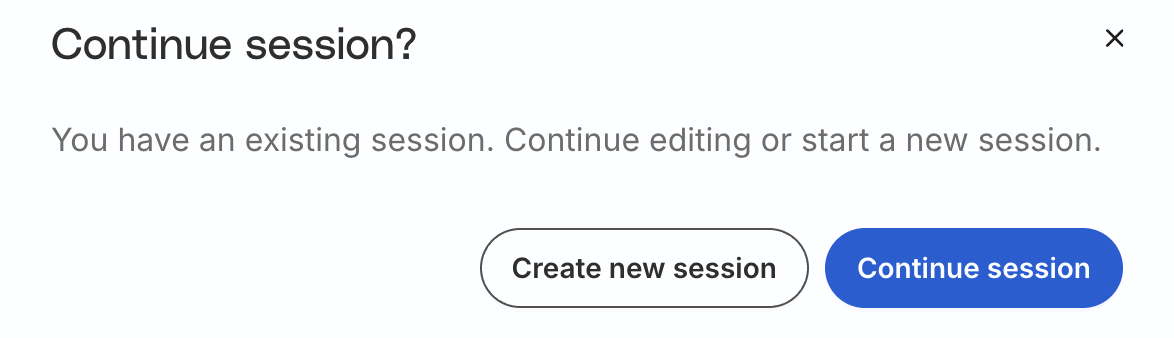
When you launch the IDE from an existing project, you see the following options:
A new session is created automatically if you’re launching it for the first time in a project.
Continue session
Continues working in your existing development branch. Use this when you want to pick up where you left off — your uncommitted changes, file state, and Git history remain intact.
Sessions may time out after extended inactivity. If this happens, you can resume your session from the profiles setting page, by entering the IDE once again. Your saved work will still be available.
Create new session
Starts fresh by creating a new development branch from your deployment branch.
Creating a new session permanently discards any changes not published from your previous session. Make sure to publish your work before starting a new session.
Use this when you want to:
Pull the latest changes from the deployment branch, for example, after a teammate published changes
Start with a clean slate
Collaboration
Profiles IDE supports team collaboration through Git workflows. Each team member works in their own development branch, and changes are integrated through pull requests.
Raise pull requests
When you’re ready to publish your changes, you can raise a pull request from your development branch to the deployment branch. This allows teammates to review your code before it goes live.
To raise a pull request, you need to have your Profiles project connected to your repository. You can configure this in your project settings.
Conflict handling
If multiple team members publish changes to the same files, you may encounter merge conflicts. Here’s how you can handle them:
If there are no conflicts: If your changes don’t overlap with others, the last published change adds to the deployment branch automatically.
If there are conflicts: If there are conflicts, you’ll need to resolve them before publishing. The recommended approach is to raise a pull request from your development branch, review and resolve conflicts, then merge the pull request in GitHub.
Git repository ownership
Even if you don’t connect your own Git repository, Profiles IDE still uses Git internally to track changes. However, connecting your own GitHub repository is strongly recommended for the following reasons, especially once your projects are live:
Pull request workflow: You can raise PRs for team review before changes go live
Full Git history: Git tracks all changes in your repository with proper commit messages
Audit trail: See who made what changes and when
Backup and portability: You own your project code
Save without Publish: You can save your changes without publishing, and preserve the development branches in your git remote
Tip:
Go to your Profiles project settings to connect a GitHub repository.
Branch naming convention
Profiles IDE uses a specific branch naming pattern for development sessions: <username>_dev_<hash>. This helps identify which branches belong to which users and ensures branch names do not conflict.
You don’t need to manage these branch names manually — Profiles IDE handles this automatically when you create or continue sessions.
This site uses cookies to improve your experience while you navigate through the website. Out of
these
cookies, the cookies that are categorized as necessary are stored on your browser as they are as
essential
for the working of basic functionalities of the website. We also use third-party cookies that
help
us
analyze and understand how you use this website. These cookies will be stored in your browser
only
with
your
consent. You also have the option to opt-out of these cookies. But opting out of some of these
cookies
may
have an effect on your browsing experience.
Necessary
Always Enabled
Necessary cookies are absolutely essential for the website to function properly. This
category only includes cookies that ensures basic functionalities and security
features of the website. These cookies do not store any personal information.
This site uses cookies to improve your experience. If you want to
learn more about cookies and why we use them, visit our cookie
policy. We'll assume you're ok with this, but you can opt-out if you wish Cookie Settings.