How to Set Up Alert Delivery Channels
- growth
- enterprise
5 minute read
You can set up dedicated alert delivery channels to get notified whenever your resources (sources, destinations, transformations, or Profiles projects) have failures or errors. This allows you to take proactive measures to fix the problems before they escalate into major issues.
These channels apply to your whole workspace. To route the alerts for a specific resource elsewhere, see Set delivery channels for a resource.
Note that:
- You must enable at least one alert delivery channel to receive alerts.
- You can set up separate alert delivery channels for your Event Stream and Reverse ETL pipelines.
- Toggling off alerts for a channel automatically removes all the configurations. You will have to reconfigure the channel to use it again.
- RudderStack limits the alert delivery to one alert per resource per alert type for each configured channel every 24 hours.
RudderStack provides the following alert delivery channel options:
Slack
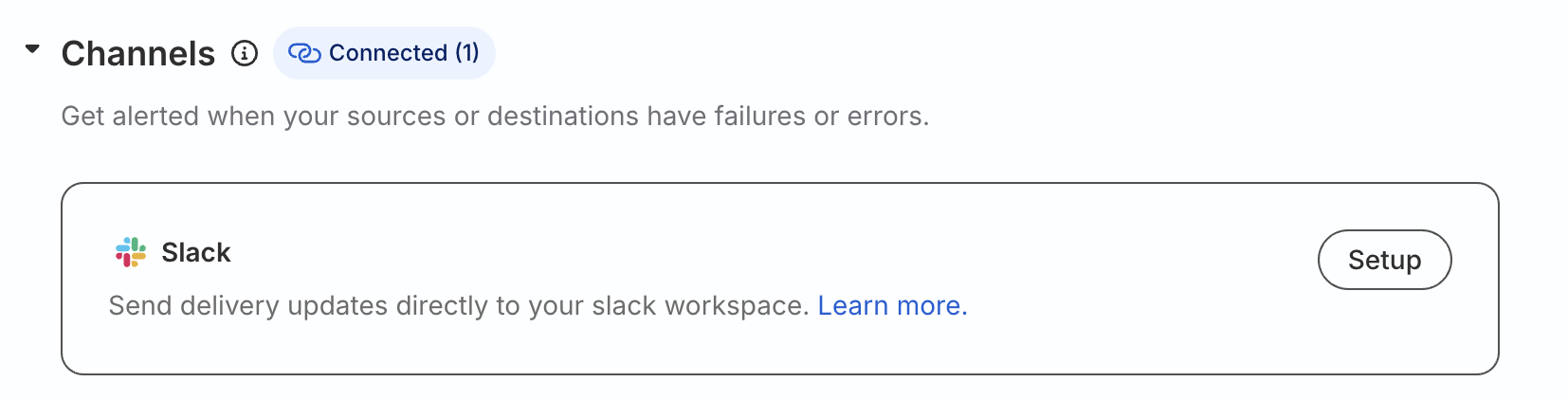
- In the dashboard, click the Setup button next to Slack.
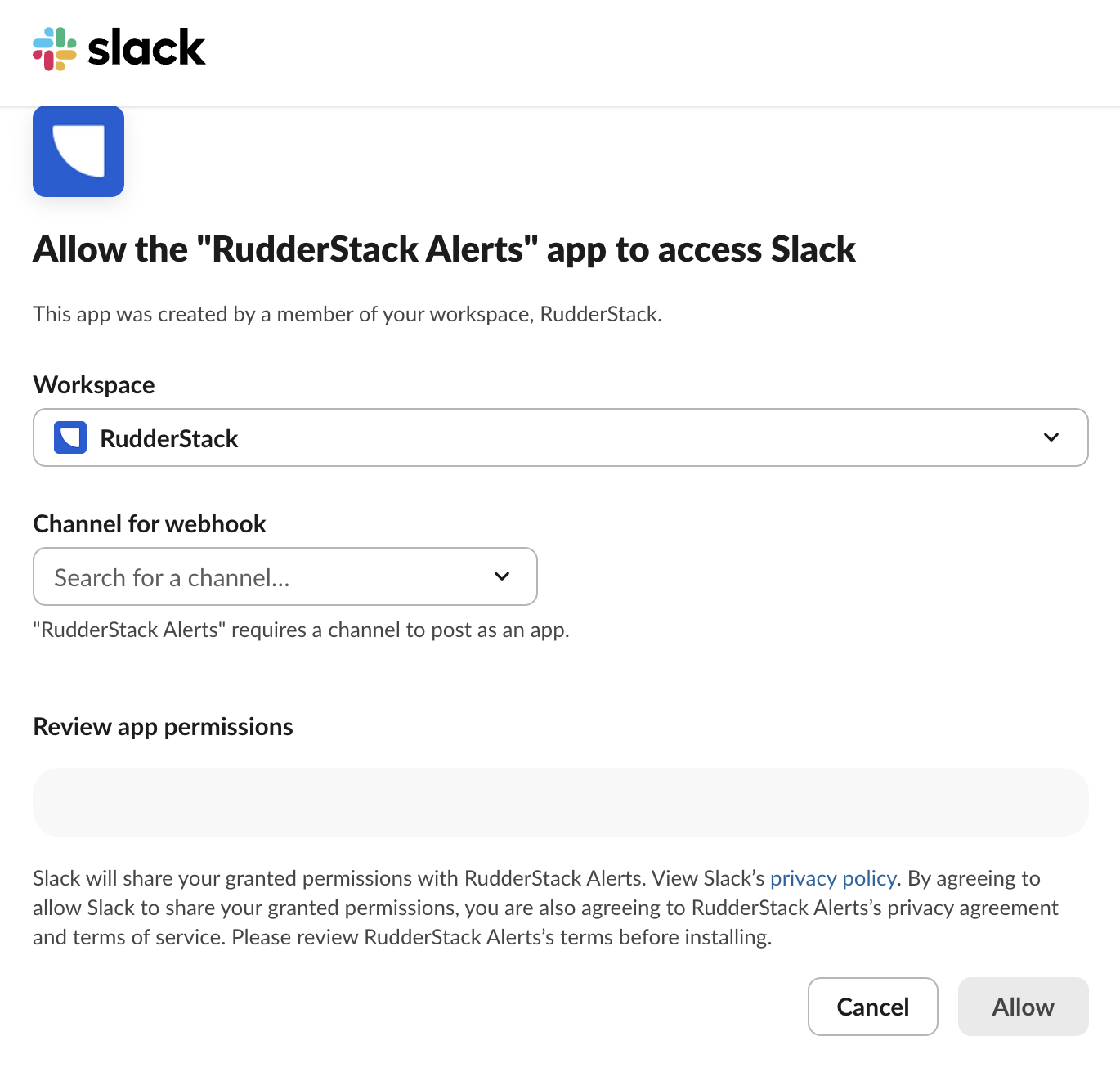
- In the popup window, select your Slack Workspace and Channel. Authorize RudderStack to post the alerts by clicking Allow.
You should be an admin of the Slack workspace to grant RudderStack the necessary permissions to post to that channel.
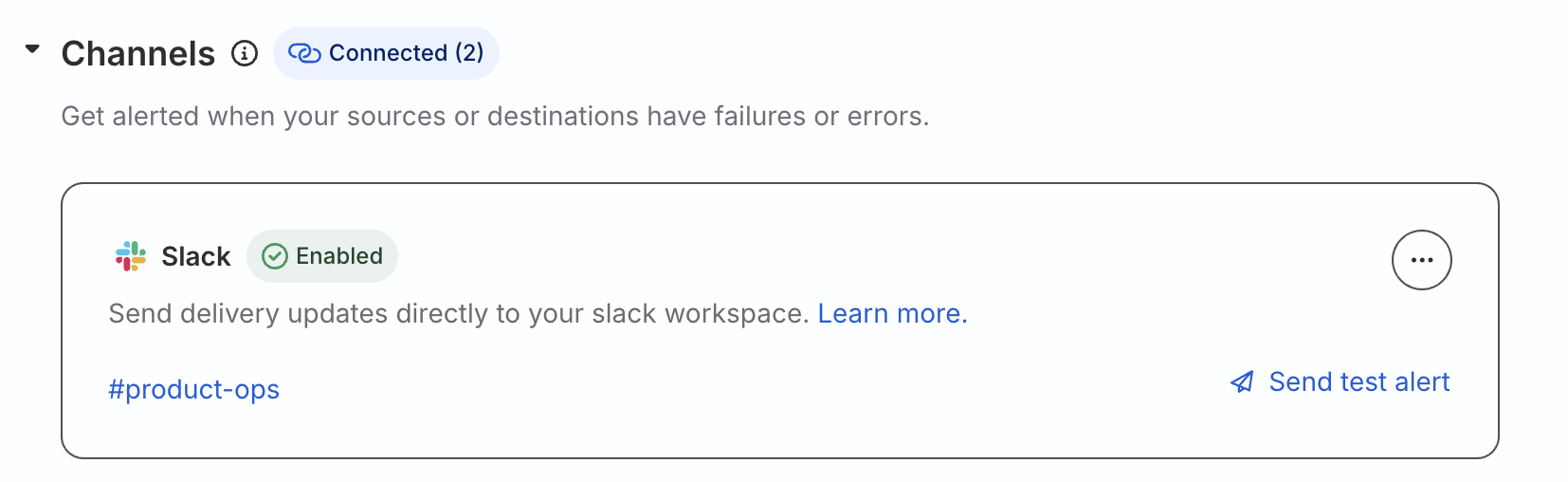
- Click Send test alert to send a test alert to the configured Slack channel.
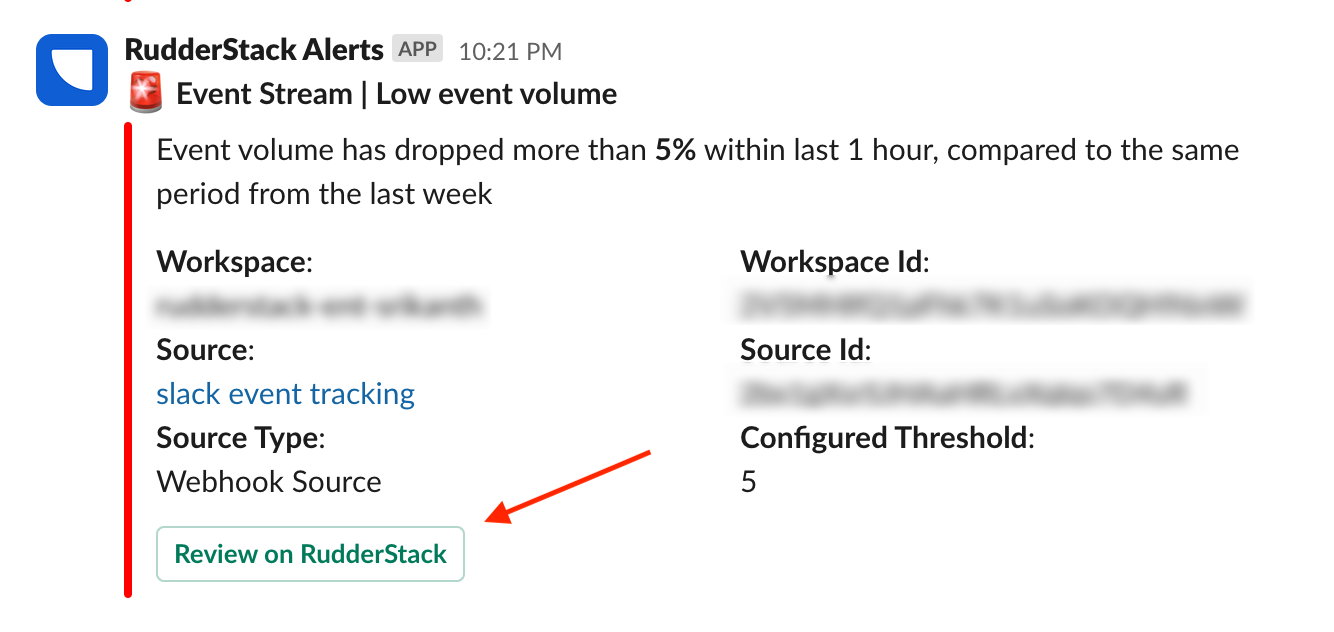
- Once the alert is triggered, RudderStack automatically sends a notification on the specified Slack channel. Click Review on RudderStack to go to the specific resource to investigate and fix the errors.
Microsoft Teams
- Create an incoming webhook for the Teams channel you wish to use.
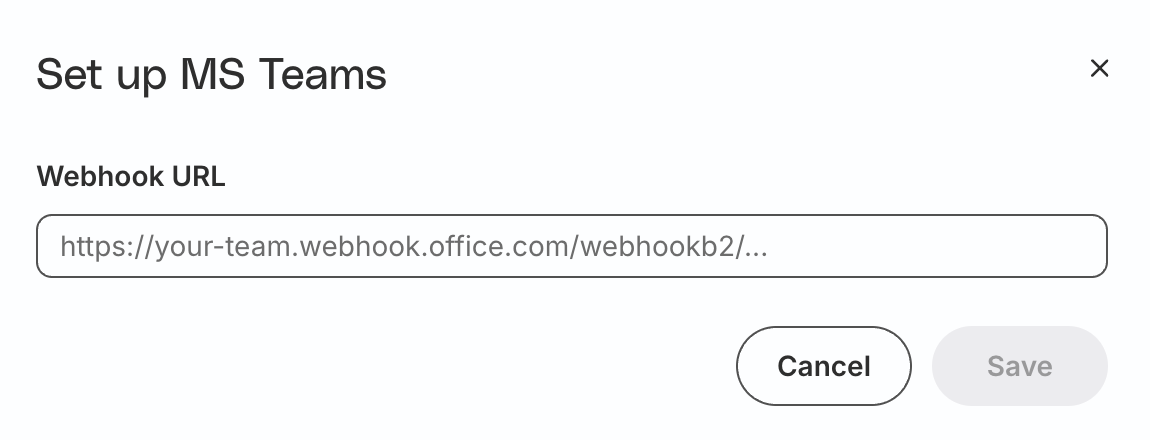
- In the dashboard, click the Setup button next to MS Teams.
- Enter the incoming webhook URL to receive alerts on your preferred Teams channel. Then, click Save.
- Click Send test alert to send a test alert to the configured Teams channel.
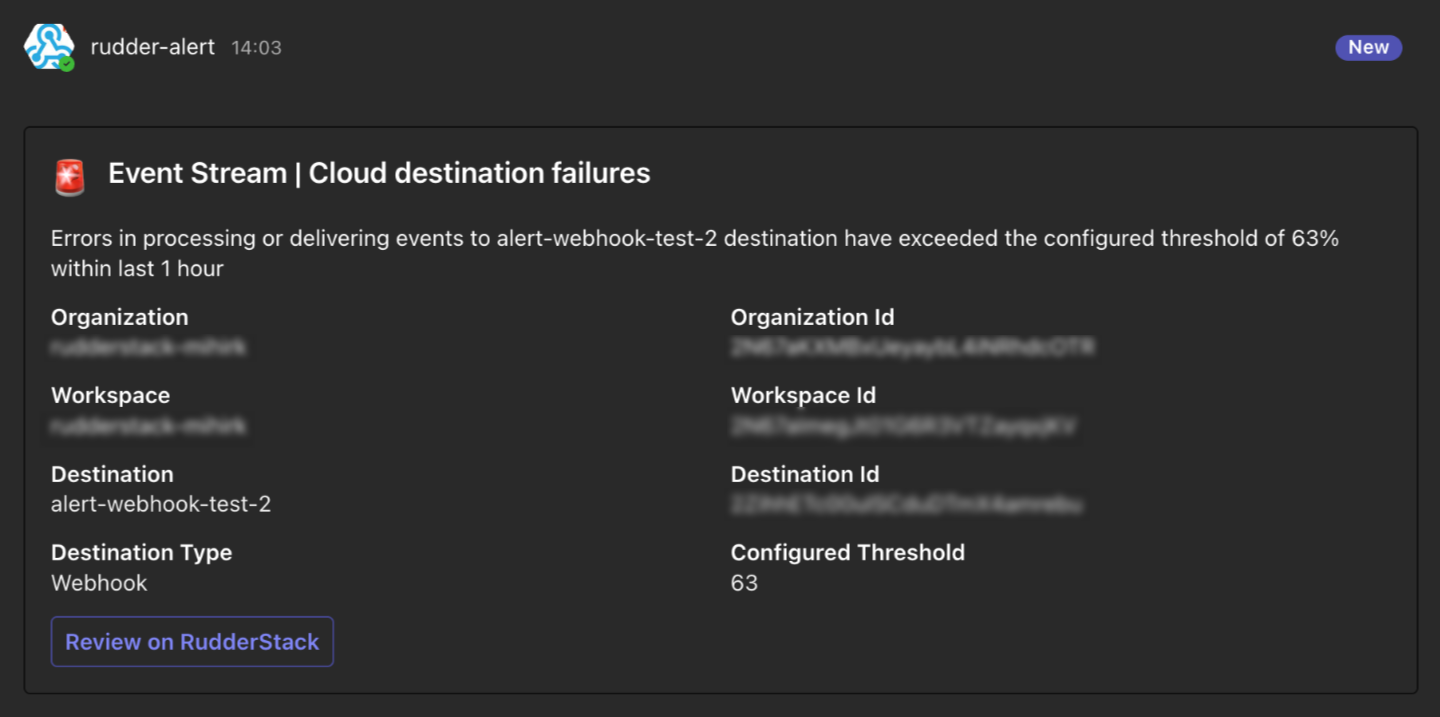
- Once the alert is triggered, RudderStack automatically sends a notification on the specified Teams channel. Click Review on RudderStack to go to the specific resource to investigate and fix the errors.
PagerDuty
- Create a service with an Events API v2 integration in your PagerDuty account and obtain the integration key.
- In the dashboard, click the Setup button next to PagerDuty.
- Specify the Integration Key to receive alerts as PagerDuty incidents.

- Click Send test alert to send a test alert to your PagerDuty account.
Incident.io
- Create an HTTP alert source in your Incident.io account and obtain the following credentials:
- Secret token (API key)
- Alert source config ID
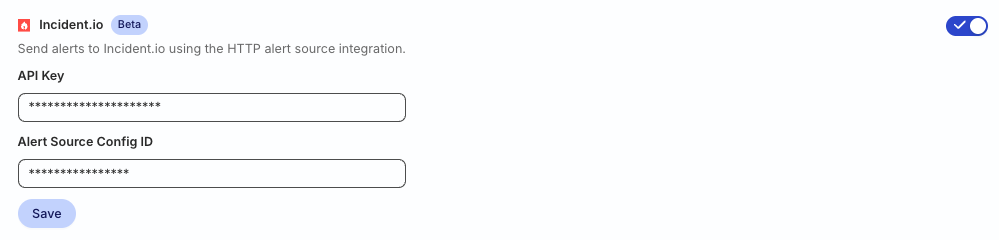
- In the dashboard, click the Setup button next to Incident.io.
- Specify the API Key and Alert Source Config ID to receive alerts as Incident.io incidents.
Webhook
- In the dashboard, click the Setup button next to Webhook.
- Specify the webhook URL to receive the alerts. Then, click Save.
RudderStack sends the alerts as a
POSTrequest to the configured endpoint while following the Prometheus styling format.Prometheus is a widely accepted monitoring and alerting tool. Its alert format is compatible with various other monitoring and incident management tools like Squadcast, PagerDuty, etc.
A sample webhook response is shown:
{
  "alerts": [{
    "endsAt": "0001-01-01T00:00:00Z",
    "labels": {
      "severity": "critical",
      "alertname": "partial-row-failures",
      "workspace": "<workspace_name>",
      "destination": "Failing Webhook",
      "workspaceId": "<workspace_id>",
      "organization": "<org_name>",
      "destinationId": "<destination_id>",
      "organizationId": "<org_id>",
      "configuredThreshold": 61
    },
    "status": "firing",
    "startsAt": "2024-02-05T00:02:49.933Z",
    "annotations": {
      "description": "Errors in processing or delivering events to Failing Webhook destination have exceeded the configured threshold of 61% within last 1 hour"
    },
    "fingerPrint": "d9885cc7f11b8db0"
  }],
  "status": "firing"
}
Send alerts to downstream tools
You can also leverage webhooks to forward the alerts to any RudderStack-supported downstream tool:
- Set up a webhook source. Note the webhook URL containing the source write key parameter.

- Set up a destination integration, for example, PagerDuty. Connect it to the webhook source created in Step 1.
- Once you set up the connection, specify the webhook source URL obtained in Step 1 in the Enter URL field where RudderStack forwards the alerts.

- In the dashboard, click the Setup button next to Email.
- Specify comma-separated email addresses of the users who would like to receive the alerts. Click Add to add more email addresses. Then, click Save.
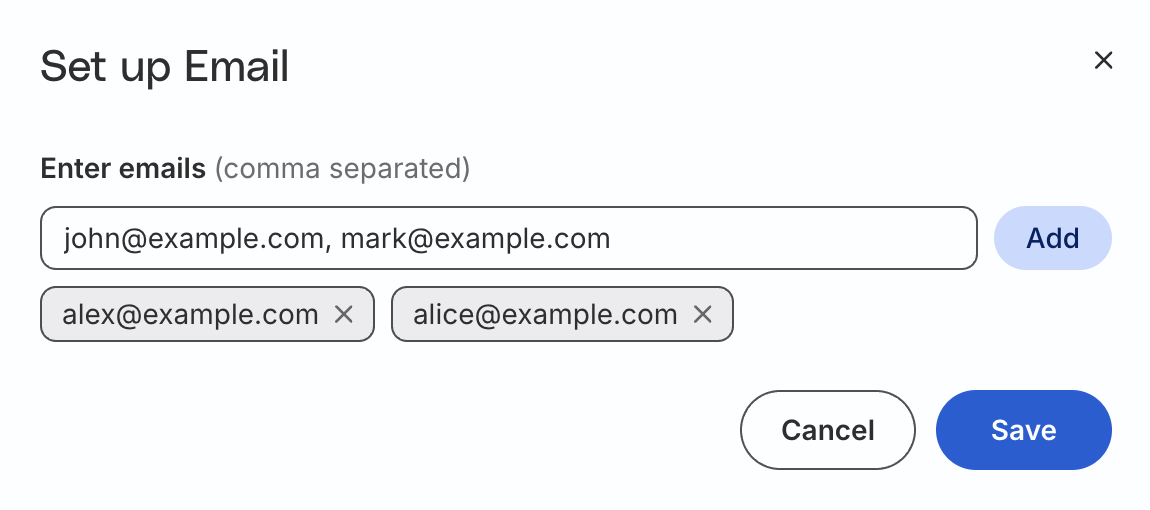
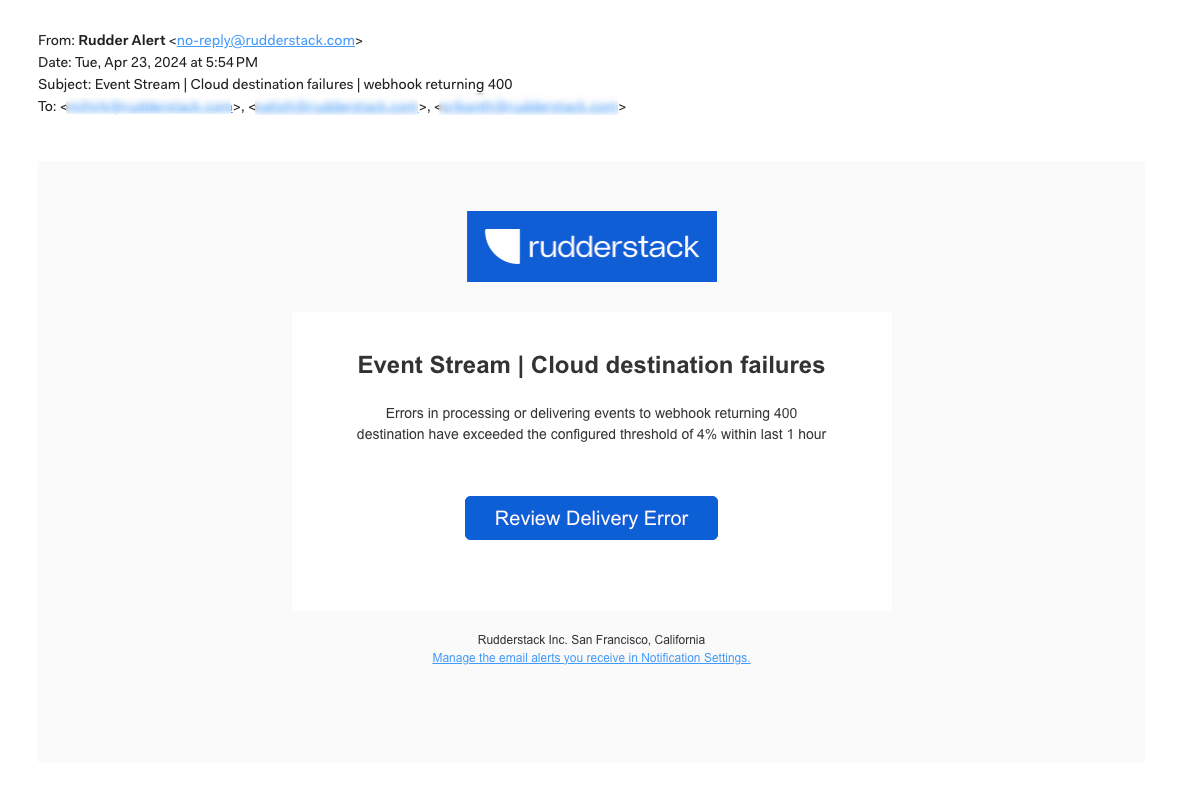
Once the alert is triggered, these users will automatically get email alerts to investigate and fix the errors.
Set delivery channels for a resource
You can set up specific alert delivery channels for individual resources. This gives you fine-grained control over how alerts are routed, allowing different resources to send notifications to different channels based on your operational needs.
To set up resource-level alert delivery channels:
- Go to the resource and click the Alerts tab.
- Under the Channels section, click Setup next to the channel you want to configure.
- Configure your preferred platform using the same steps as the workspace-level setup in the sections above.
Note that:
- These resource-level alert delivery channel settings override the workspace-level settings for that resource only.
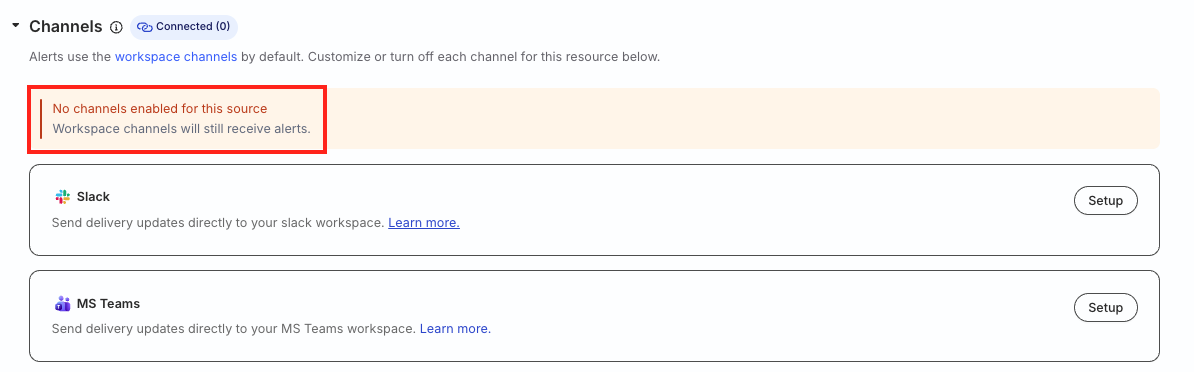
- If no channel overrides are set, or you have explicitly disabled all alert delivery channels for that resource, RudderStack automatically forwards all alerts to the channels configured for your workspace.
To revert the channel overrides back to the default workspace settings:
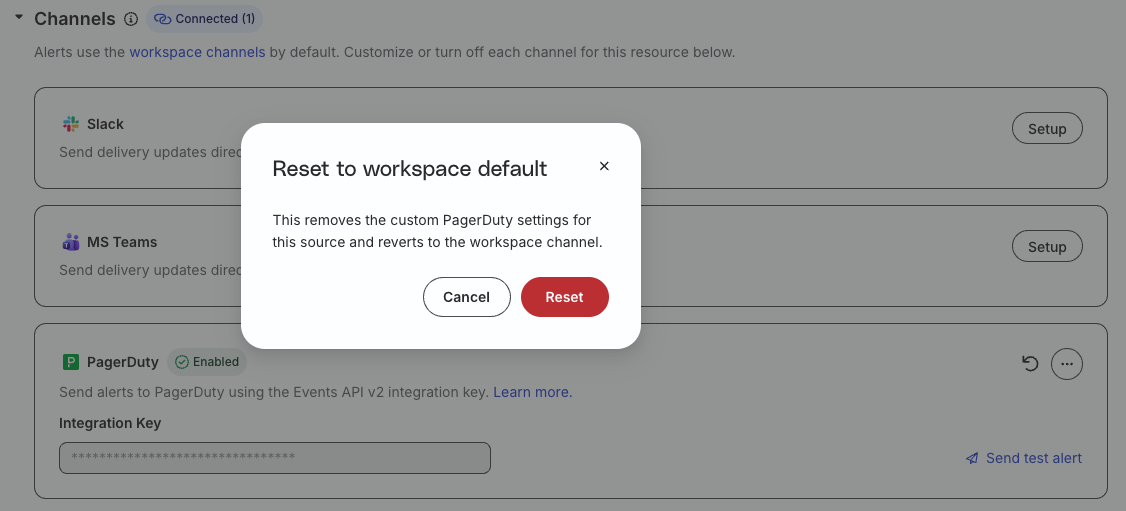
- Click the reset icon (rounded arrow) next to the custom setting for the delivery channel.

- Click Reset on the resulting confirmation dialog to remove the custom settings and revert to the default workspace setting.
Alert delivery frequency
RudderStack limits the alert delivery to one alert per resource per alert type for each configured channel every 24 hours.
This alerting logic ensures you are not spammed with notifications, especially in cases where you have configured multiple alert types for your pipelines and some resources have their own overrides (custom alert settings) in place.
Example
Suppose you get a Partial row failures alert for a particular Reverse ETL source. You will not get another alert for the same failure type for another 24 hours even if your data syncs are scheduled at a lesser frequency (for example, every one, five, or 12 hours).
However, if that source encounters another failure type like a fatal sync, RudderStack will trigger an alert.
