How to Configure Alerts
- growth
- enterprise
2 minute read
This guide covers the steps to configure workspace and resource-level alerts in RudderStack.
Permissions
- Only Admins can set up workspace-level alerts.
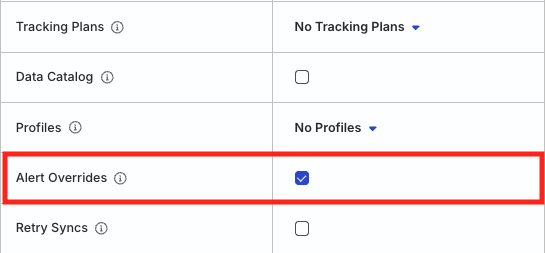
- Only Admins and Members with the Alert Overrides permission can set up resource-level alerts.
For legacy RBAC system
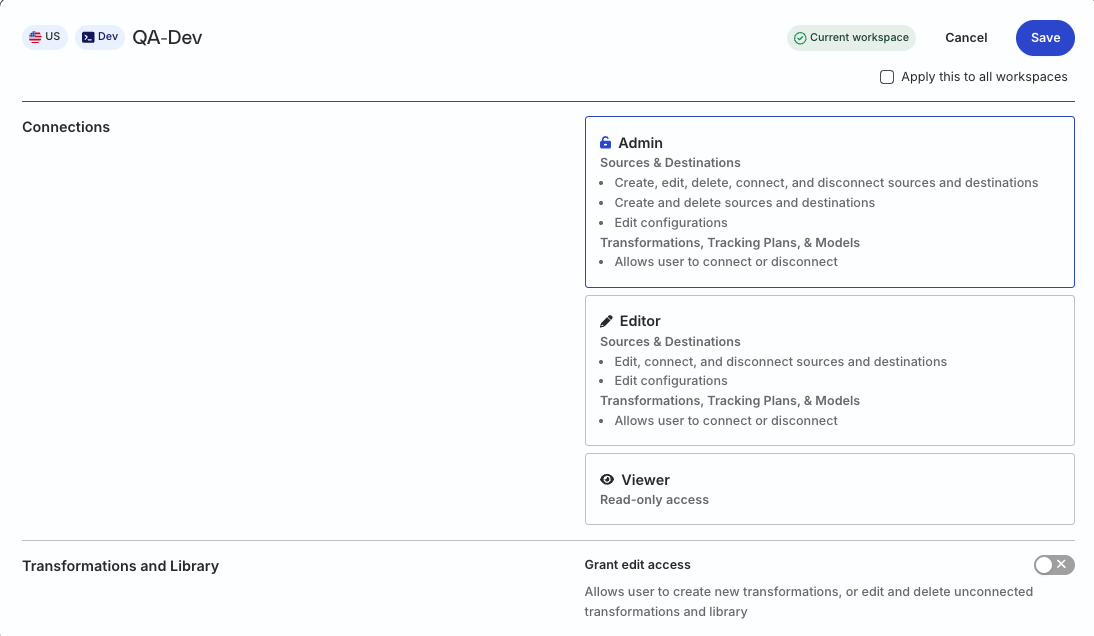
In the legacy Permissions Management (RBAC) system:
- Only Org Admins can set up workspace-level alerts
- Only Org Admins and members with the Connections Admin role in their workspace policy can set up resource-level alerts
Workspace-level alerts
Go to Settings > Workspace and click the Alerts tab to set up the workspace-level alerts.
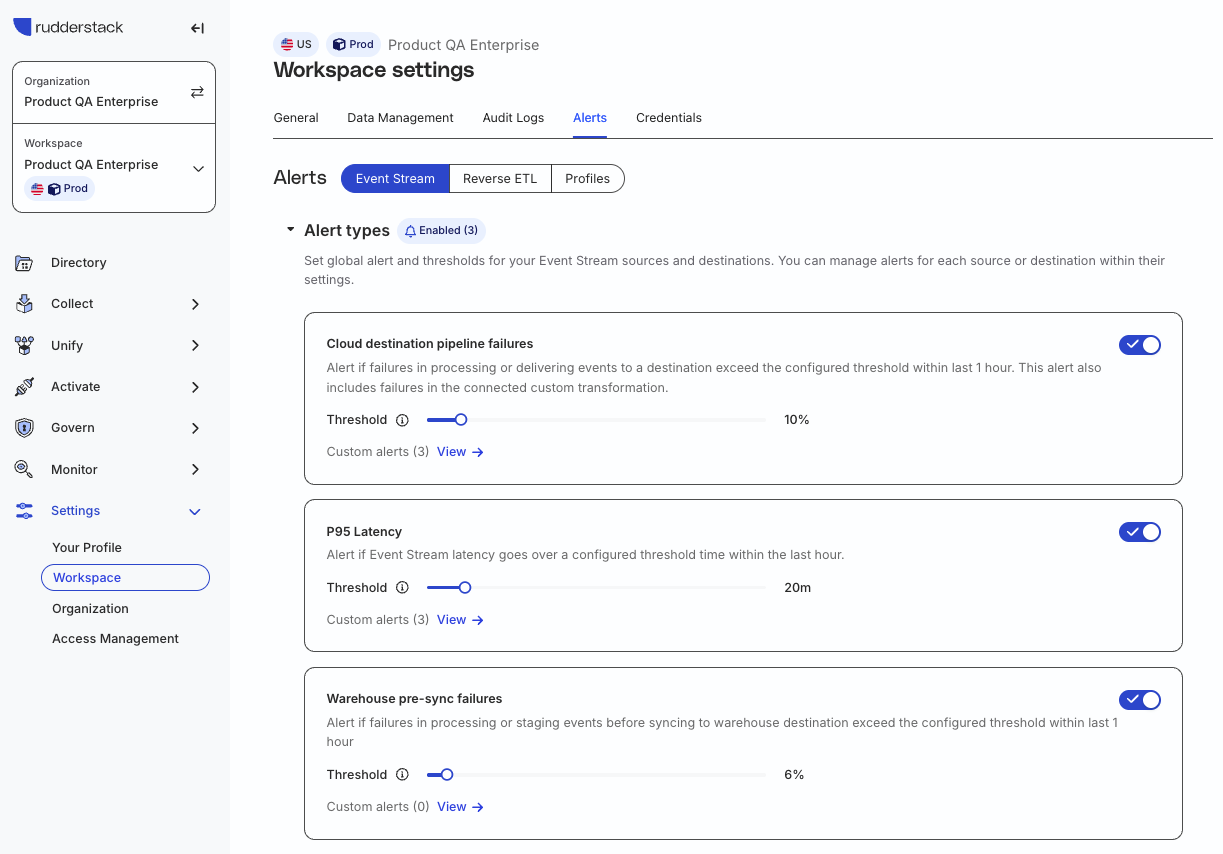
RudderStack automatically delivers alerts on the configured channels if the failures exceed the threshold percentage within the last one hour.
If you set the error threshold to 0%, even a single failure in processing or delivering events will trigger an alert.
See Alert Types Reference for the alerts available for each RudderStack feature.
Custom alerts
Click the Custom alerts setting present below each failure type to view the resources for which custom alert overrides are configured:

The resulting sidebar lists all the resources with custom alerts categorized by failure type. You also see the following information:
- Name: The resource name.
- Subscribed: Whether alerts are on or off for that failure type.
- Threshold: Custom alert threshold value set for that resource.
Click on a resource to change these settings.

Resource-level alerts
A resource inherits all workspace-level alert settings except the ones you explicitly override.
For example, if you override the setting for the Low event volume alert type for an Event Stream source but do not change the Tracking Plan violations alert, then the latter continues to reflect the setting specified at the workspace level.
To configure resource-level alerts:
- Go to the resource (source, destination, transformation, or a Profiles project) and click the Alerts tab.
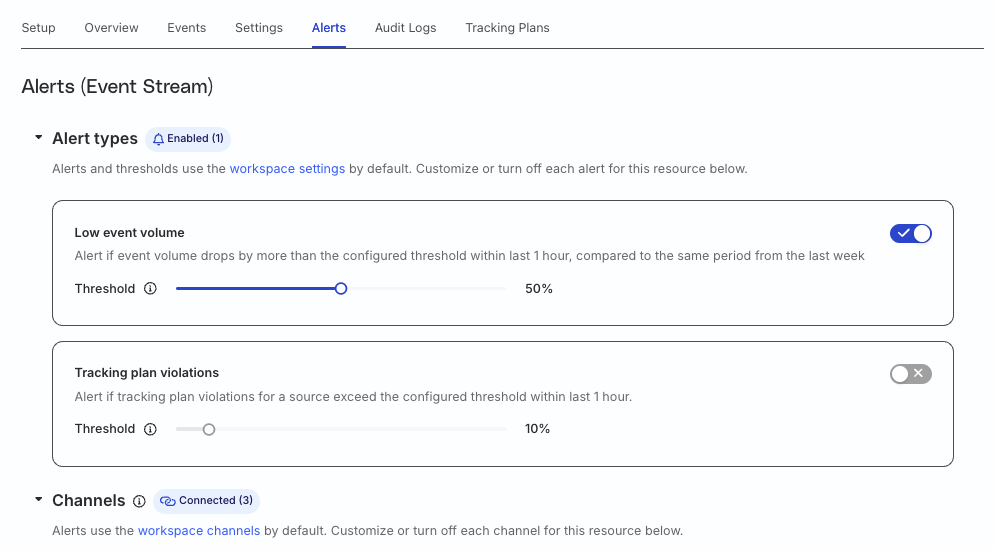
- If configured, you will see the workspace-level alert settings and thresholds for the resource by default. Set custom thresholds for this resource as needed.
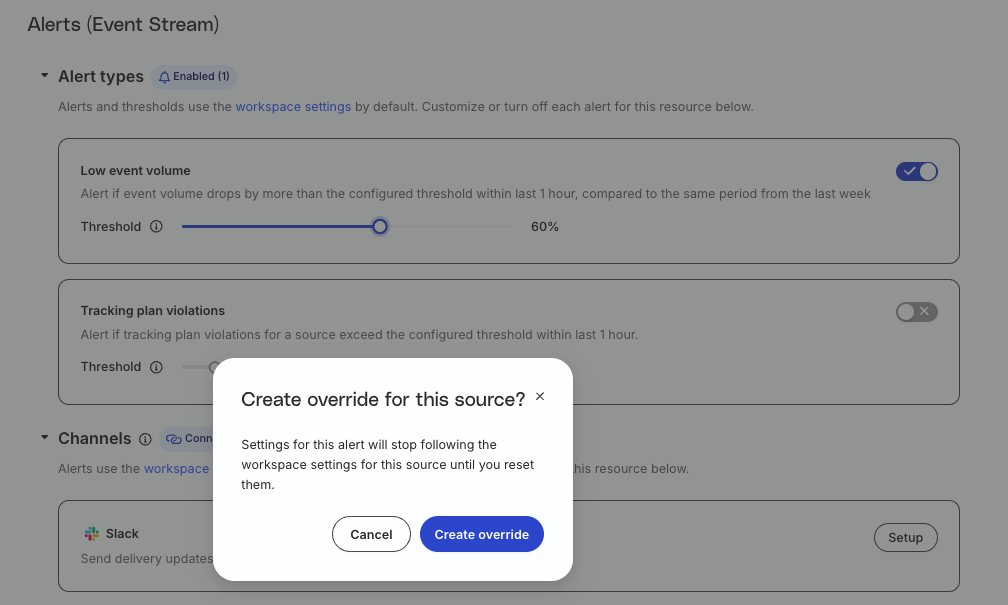
- Click Create override in the confirmation dialog to set the override.
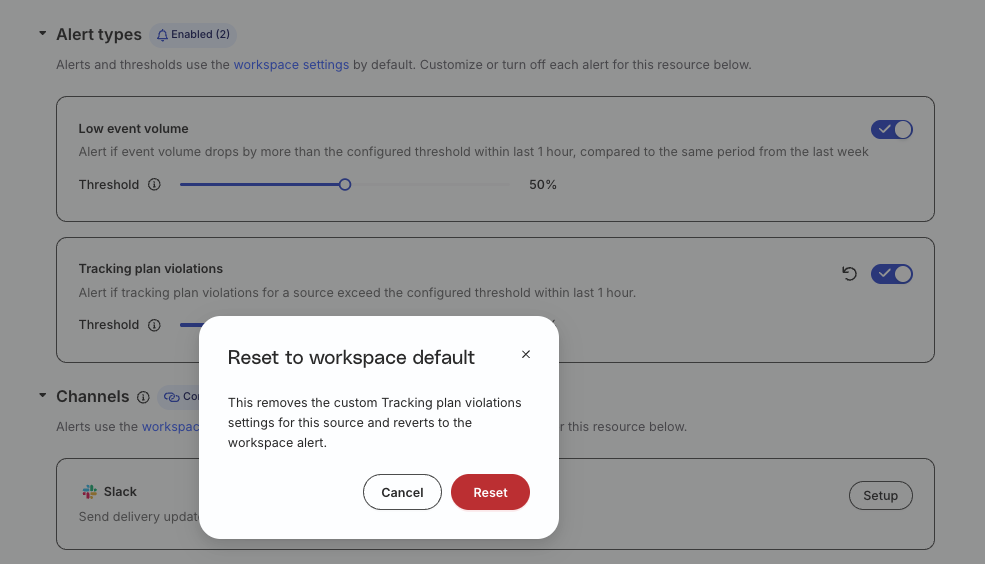
Reset an alert override
To revert an alert override back to the default workspace setting:
- Click the reset icon (rounded arrow) next to the custom setting for the alert.
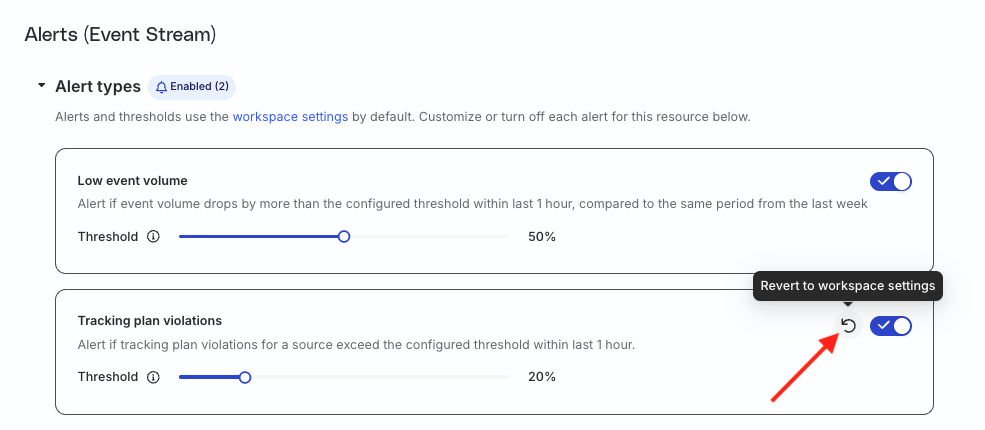
- Click Reset on the resulting confirmation dialog to remove the custom settings.