How to Invite Teammates in Rudder Lookout Private Beta
2 minute read
Rudder Lookout is currently in Private Beta, where we work with early users and customers to test new capabilities and gather feedback before making it generally available.
Contact your Customer Success Manager if you are interested in enabling Lookout for your team.
This guide explains how to manage invitations in Rudder Lookout.
Send an invitation
Only owners and admins can invite people to a workspace.
- Go to Settings > Members and select Invite.
- Enter the person’s email address and choose whether they join as a Member or an Admin.
- Select Send invite.
Lookout emails the invitation to that address. Each invitation is for one person and one address — there is no shareable link that lets anyone join.
See Roles and Permissions for what each role can do.
Manage pending invitations
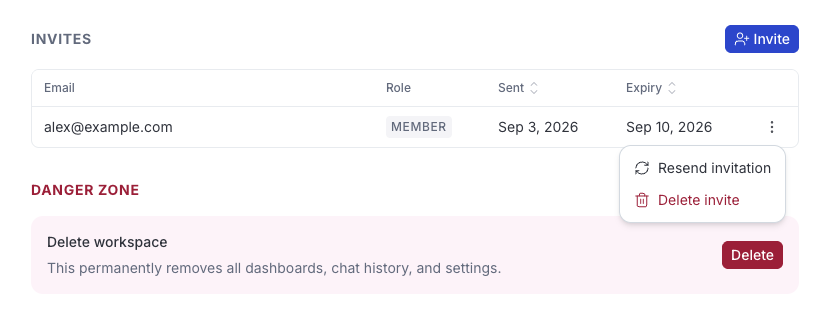
Invitations you have sent are listed under Members until they are accepted. Each one expires after seven days, and from its actions menu you can:
- Resend invitation: Sends the email again, for anyone who lost it. Only available while the invitation is still pending.
- Revoke: Cancels it immediately, before or after it expires.
Accept an invitation
The recipient opens the invitation from their email and accepts, which adds them to the workspace in the role you chose.
They can sign in with whichever method they prefer — accepting an invitation doesn’t require a RudderStack account. Sign-in identifies a person rather than a workspace, so once they have accepted they can open the workspace and start working.
Owners and admins can change a member’s role later, or remove them, from Settings > Members.
