How to Connect Slack to Lookout Private Beta
2 minute read
Rudder Lookout is currently in Private Beta, where we work with early users and customers to test new capabilities and gather feedback before making it generally available.
Contact your Customer Success Manager if you are interested in enabling Lookout for your team.
Connecting Slack to Lookout lets your team talk to the same agent via messages or a bound channel, without opening the web app. They can ask questions, pull metrics, and get answers right in the conversation.
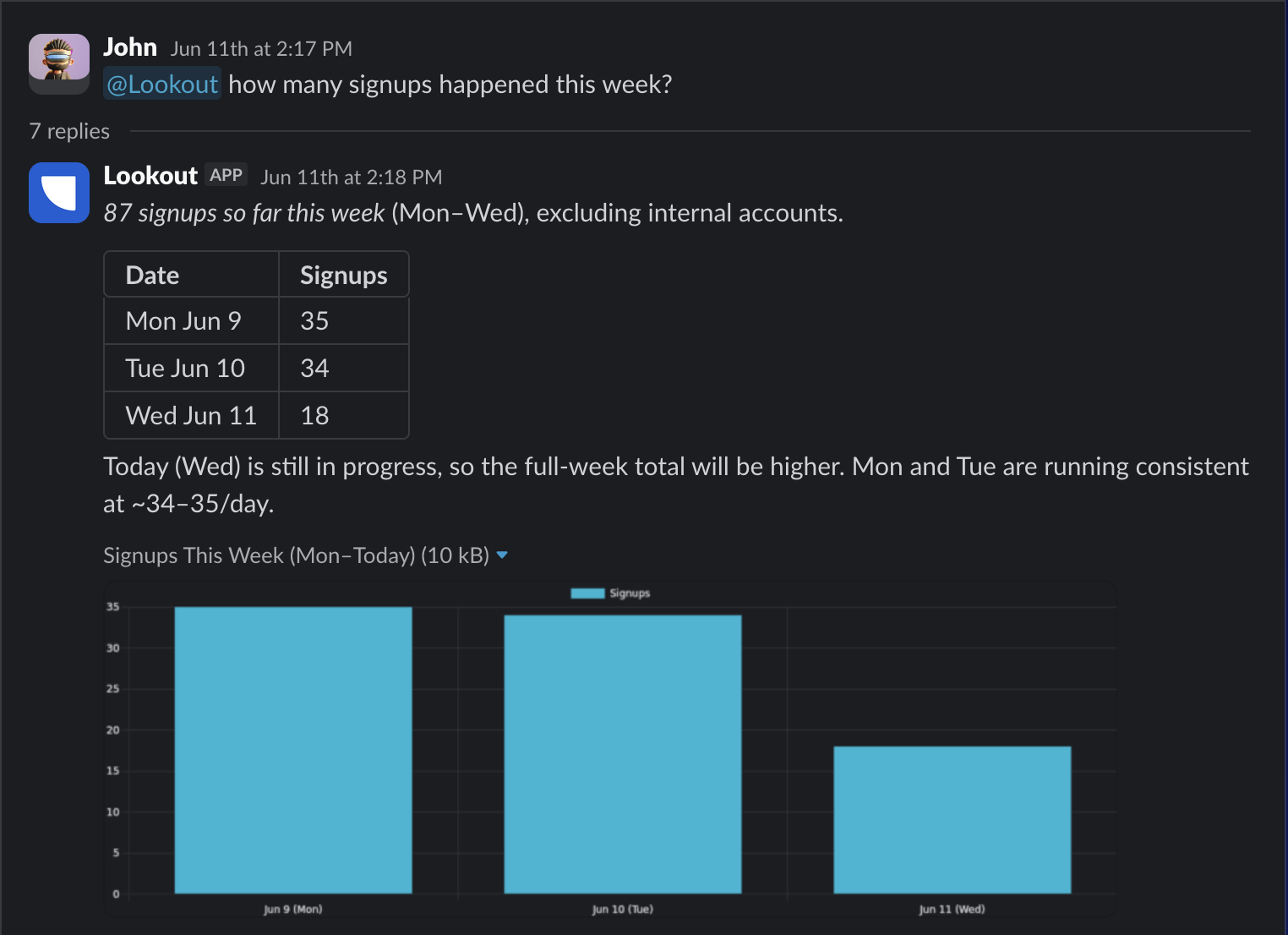
Slack is an access surface, not a data source. It changes where you talk to the agent. The answers still come from the systems that Lookout is connected to, like your warehouse.
Install Slack
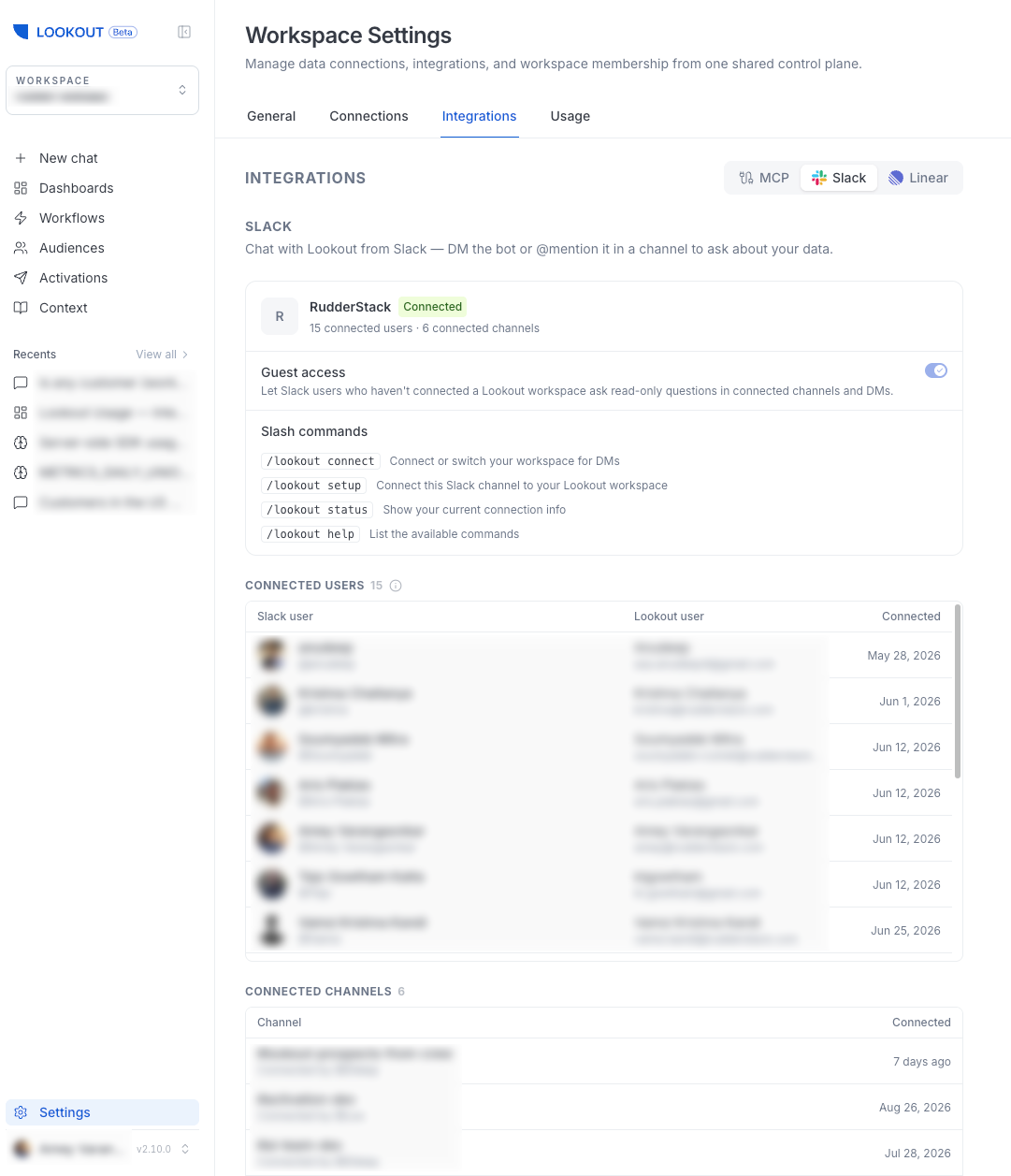
Workspace admins can install Slack from Settings > Integrations via Slack OAuth. Once installed, the settings page shows your installation, linked users, channel bindings, and available commands.
Slack commands
From Slack, your team can use a few simple commands:
| Command | What it does |
|---|---|
/lookout connect | Link your Slack account to a workspace |
/lookout setup | Bind a channel to a workspace |
/lookout status | Show your current connection — the linked workspace, or the channel’s binding |
/lookout help | Show available commands |
Linked users and guest access
- Linked users act as their full workspace identity, with thread-to-session continuity so a conversation can pick up where it left off. A Slack user can link their account with
/lookout connect. - Guest access lets Slack users who haven’t yet linked an account ask read-only questions in bound channels and DMs. It is on by default — an admin can disable it with the Allow guest access in Slack toggle on the Slack settings. See Roles and Permissions for details on how guest access fits into the workspace model.
Channel bindings
Binding a channel to a workspace routes messages in that channel to Lookout’s agent for that workspace. Note that users may still need to run /lookout connect unless guest access is enabled.
Binding is done in Slack with /lookout setup by any workspace member. Admins can view and unbind channels from the Channel Bindings section on Settings > Integrations.
