How to Connect Your RudderStack Workspace to Lookout Private Beta
2 minute read
Rudder Lookout is currently in Private Beta, where we work with early users and customers to test new capabilities and gather feedback before making it generally available.
Contact your Customer Success Manager if you are interested in enabling Lookout for your team.
Every Lookout workspace is linked to one RudderStack workspace. That link is what lets you activate audiences to your destinations, and what lets the agent talk about your sources, transformations, and Tracking Plans.
Link a workspace
Choose Sign in with RudderStack on the login page.
Lookout shows the RudderStack workspaces you belong to and lists them when you create your Lookout workspace. Pick one, name the workspace, and the link is made — there is no access token to generate or paste anywhere.
- Link: Create a Lookout workspace connected to that RudderStack workspace
- Join: If a teammate already linked one, join theirs so your team’s audiences and dashboards stay together
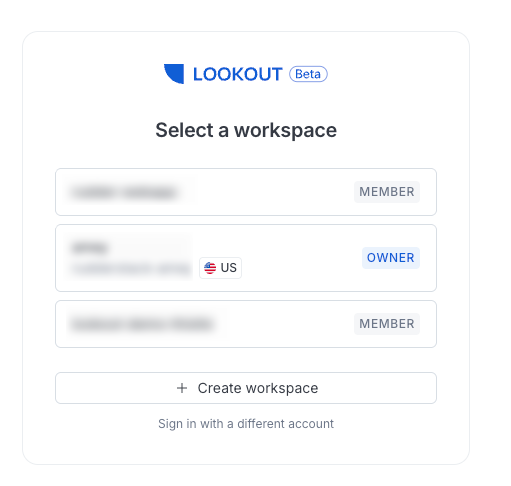
The link is made once per workspace when it is created. Once it exists, any member can use the RudderStack tools in chat.
See Roles and Permissions for more details.
Access in RudderStack
To create a Lookout workspace, you need read-write access in the RudderStack workspace you are linking to. If you only have read access, creating the workspace fails and tells you so — ask a RudderStack admin for read-write access there, then try again.
If you signed in another way
Google and email sign-in get you into a workspace a teammate has invited you to, and everything inside it works normally.
They can’t create one. Lookout offers only the RudderStack workspaces the account you signed in with belongs to, so with any other sign-in there is nothing to link, and the create-workspace screen tells you a RudderStack account is required. Sign in with RudderStack from that screen to continue — the workspaces you already belong to are unaffected either way.
What the link gives you
- Destinations to activate to: The accounts and destinations you choose from in the Activate flow are the ones configured in the linked RudderStack workspace. Each audience you activate appears there as a source feeding that destination.
- Answers that span both sides: The agent can inspect sources, destinations, transformations, and Tracking Plans, and review live event metrics, schemas, and Tracking Plan violations — so one conversation can move from how an event is defined, to where it lands in the warehouse, to the audience built on it.
