How to Build an Audience with the Agent Private Beta
3 minute read
Rudder Lookout is currently in Private Beta, where we work with early users and customers to test new capabilities and gather feedback before making it generally available.
Contact your Customer Success Manager if you are interested in enabling Lookout for your team.
Audiences start as a sentence. You say who you are after, and the agent finds them.
Describe your campaign objective
Every audience begins in chat. The Audiences page lists what you have built, but it has no New audience button — ask the agent for one instead.
In a chat, describe who you want to reach and why — the way you would brief a colleague:
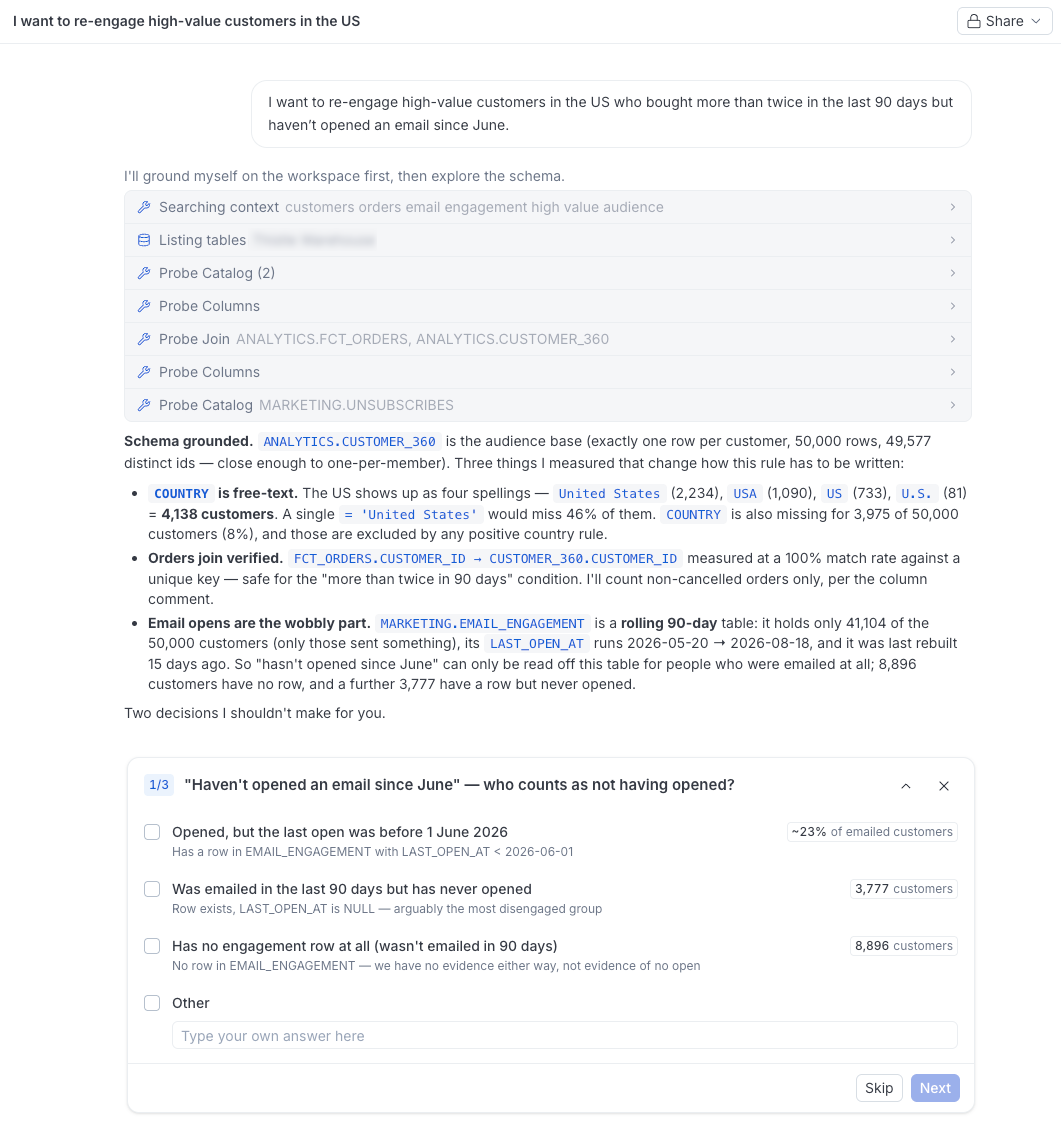
I want to re-engage high-value customers in the US who bought more than twice in the last 90 days but haven’t opened an email since June.
You don’t need to know which tables or columns hold this data. The agent explores your connected warehouse on your behalf — scanning the available tables, sampling the columns it plans to use, and checking how they join. It determines the best way to express your objective as a set of data rules, based on what your warehouse actually contains and what it has learned about your data through the Context Hub.
Note: If something is ambiguous, for example, two tables both look like orders, or “bought” could mean an order placed or an order delivered, the agent asks you before choosing. This human-in-the-loop design means the agent does the data exploration, but you always make the decisions.
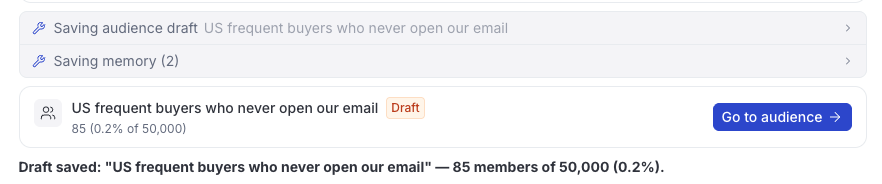
When it has a draft, it saves the audience and shows you a card linking to it. Click Go to audience to see the rules it wrote.
Check what the agent built
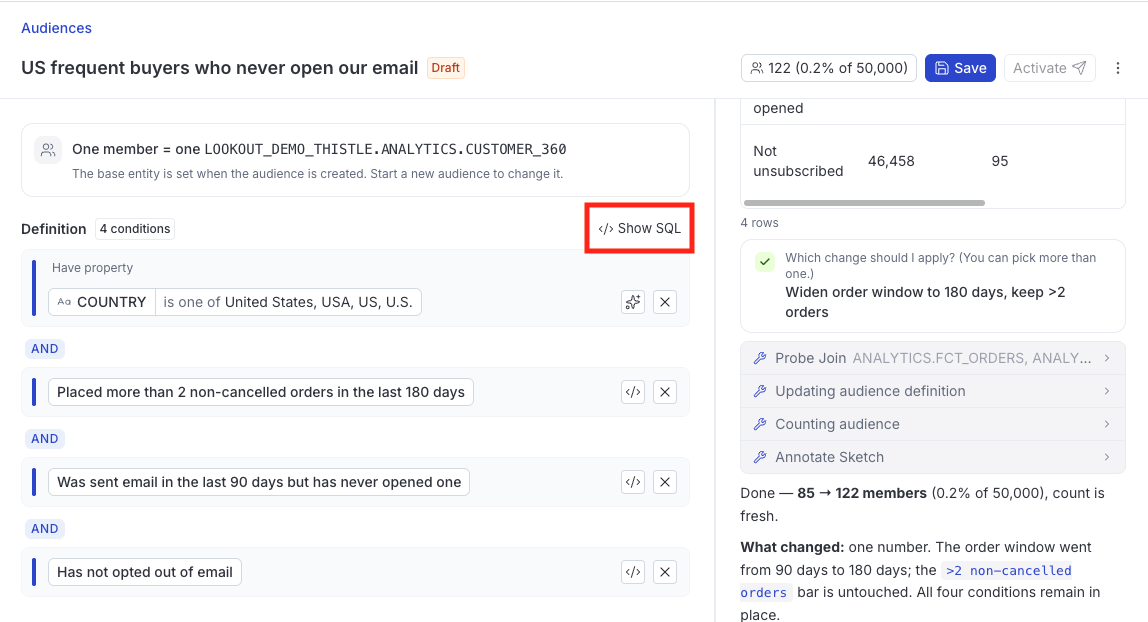
Open the audience to see it in two halves. The definition is on the left, and the agent stays with you on the right, so you can keep talking about the audience while you look at it.
Note that:
- The definition reads as a set of rules grouped under the customer table the audience is built from.
- Each rule names a column, an operator, and a value. For example,
country is US,order_count is more than 2. - Rules inside a group combine with AND or OR, and you can switch a group between the two by selecting the connector between its rules.
To see the query behind the whole audience, select Show SQL.
Size it
The header carries the audience Size. A newly drafted audience shows Unknown until you run a count; refresh it to ask your warehouse how many people currently match.
The size goes Stale whenever the definition changes, because the number on screen no longer describes the rules on screen. Refresh it again to get a current figure.
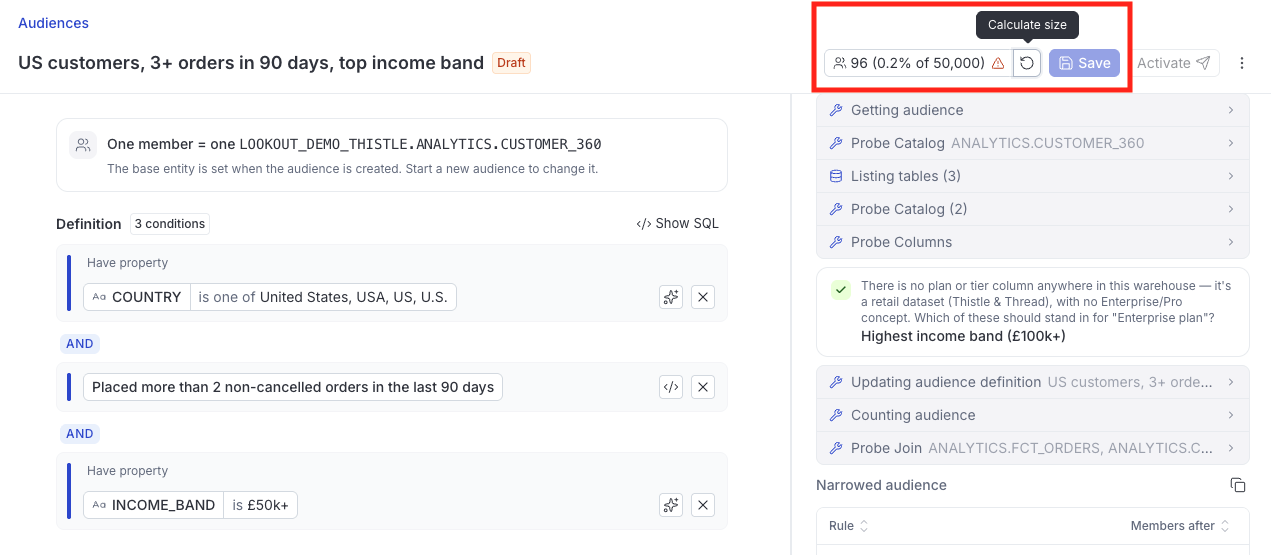
Save stays disabled until the size is fresh. It is a deliberate check — you always know how many people you are about to save before you save them.
Adjust and save
You can change the audience two ways, and they work together:
- Ask the agent: Tell it what is wrong — “drop the email rule”, “make it 3 purchases, not 2” — and it rewrites the definition.
- Edit it yourself: Change an operator or a value directly in the definition. See Refine an Audience with AI Insights for the controls that help you pick a value.
Your own edits are a draft until you save them. If the agent rewrites the definition while you have unsaved edits open, neither version is thrown away — both are shown and you choose which to keep.
Refresh the size once more, then Save.
Next steps
- Refine an Audience with AI Insights: Tune a rule against what is actually in your data
- Activate an Audience: Send it to a destination
