How to Activate an Audience to a Destination Private Beta
3 minute read
Rudder Lookout is currently in Private Beta, where we work with early users and customers to test new capabilities and gather feedback before making it generally available.
Contact your Customer Success Manager if you are interested in enabling Lookout for your team.
An audience is only useful once it reaches the tools your team runs campaigns in. Activating one creates a sync: a connection that keeps the audience current in a destination as people join and leave it.
Before you start
- The audience is saved and its size is current. Activate stays out of reach otherwise, and the button says which one is missing.
- Your Lookout workspace is linked to a RudderStack workspace. Activating creates a source and a destination there, which the link is set up to do.
- The destination platform already has an account connected in RudderStack.
Create the sync
Select Activate on the audience and work through the four steps.
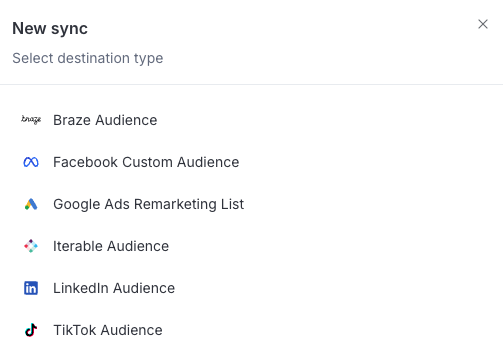
Select destination type
Pick the platform the audience is going to:
| Destination | Platform |
|---|---|
| Braze Audience | Braze |
| Facebook Custom Audience | Meta Ads |
| Google Ads Remarketing List | Google Ads |
| Iterable Audience | Iterable |
| LinkedIn Audience | LinkedIn Ads |
| TikTok Audience | TikTok Ads |
Select account
Choose which of your connected accounts for that platform to send through. Only accounts that suit the destination you picked are offered.
If you see No accounts for this destination, that platform has no connected account in your RudderStack workspace yet. Configure a valid account for that destination in RudderStack and try again.
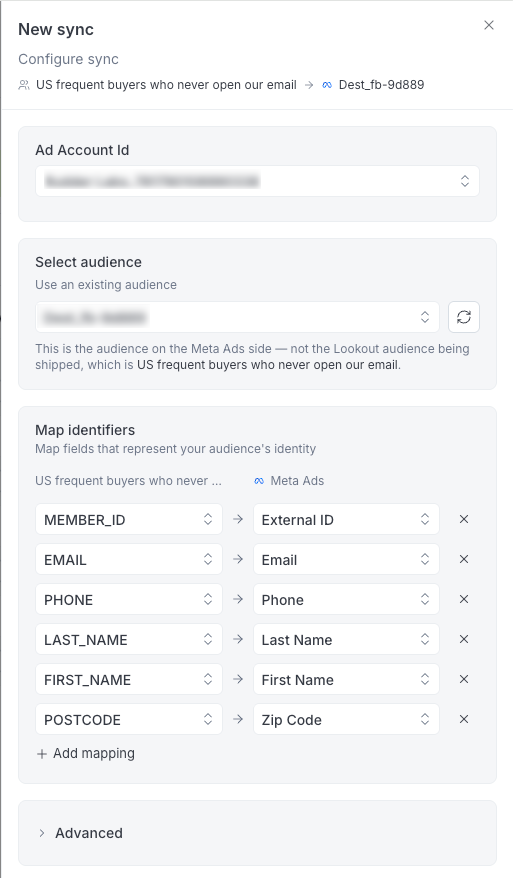
Configure sync
Choose the ad account, then the audience on the destination side. For Braze, give an Audience attribute name instead, and membership is stored on that custom attribute.
Then Map identifiers: say which column in your audience carries the email, phone number, or user ID the destination matches people on. Some platforms ask for one more choice here, such as whether the LinkedIn audience describes people or companies.
Sync schedule
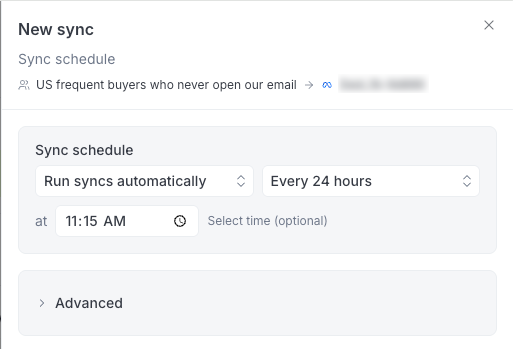
Decide how the audience refreshes:
- Run syncs automatically: Choose how often the audience refreshes
- Run syncs manually: Nothing runs until you start it
Every destination syncs in mirror mode.
Membership is kept in step continuously, so someone who leaves the audience is removed on the destination side at the next run — or, in Braze, has the attribute set to false.
Select Enable sync to finish.
Watch it run
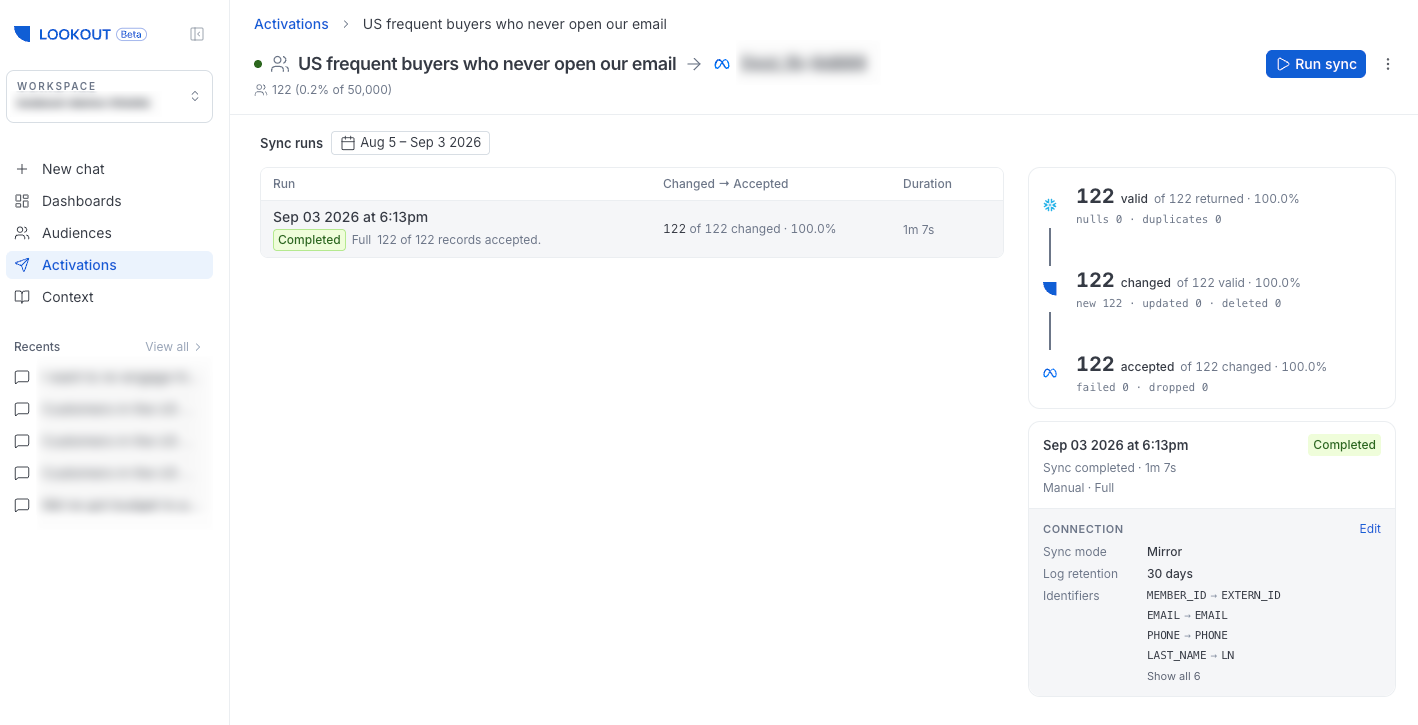
The Activations setting in the left sidebar lists every sync in the workspace, so you can see what is failing without opening each audience. Rows show the activation, its schedule, its last run, and when it was last updated.
Click an audience to see more details on the latest run — how many records were Added, Deleted, and Updated, how many synced successfully, and anything that failed or was dropped. Past runs is the history.
A run reports one of four states:
| Status | Meaning |
|---|---|
| Running… | In progress |
| Completed | Everything synced |
| Completed with failures | Finished, but some records did not make it |
| Failed | The run did not complete |
Run sync starts a run immediately, whatever the schedule says.
Editing an audience definition doesn’t refresh the destination straight away. The new definition is stored, and the destination catches up on the next run.
Change or remove a sync
Editing reopens the last two steps of the audience activation process, so you can change the mapping or the schedule.
To stop shipping an audience, delete its activation. This removes the connection Lookout created, but the audience already present in the destination is not deleted. It stops updating and stays usable there, so remove it in the destination if you no longer want it used.
Important considerations
- The destination type and the accounts are fixed once a sync exists. To move an audience to a different account, delete the sync and create a new one.
- An audience that still has activations can’t be deleted. Remove them first.
