Create New SQL Model Resource using Rudder CLI
Beta- free
- growth
- enterprise
3 minute read
This guide details the process of creating a new SQL model resource from scratch using Rudder CLI.
Prerequisites
- Rudder CLI tool installed and authenticated with a workspace-level Service Access Token or Personal Access Token (for Free and self-hosted plans) — see Before you begin for token requirements
- A Rudder CLI project directory for storing the SQL model YAML resources
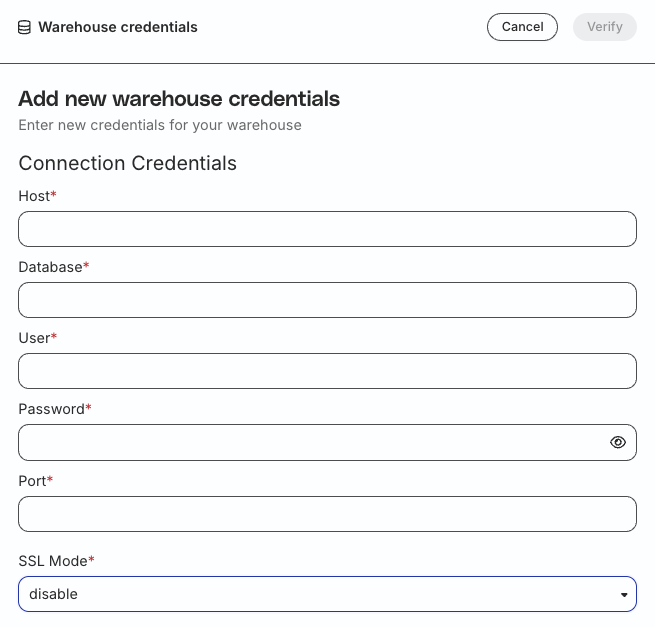
- Important: At least one Reverse ETL source in the RudderStack dashboard using the data warehouse you want to query — RudderStack uses the connection credentials used to set up the warehouse account for this source to fetch the account ID. An example is shown below:
List Reverse ETL accounts
Before creating a SQL model resource, identify the account ID for the warehouse you want to connect to.
Use the following command to list all accounts linked to your workspace:
rudder-cli workspace accounts listThis command displays all available accounts along with their IDs. Make note of the account ID that corresponds to your target warehouse — you will need this for the resource configuration.
Create the resource file
Create a new YAML file in your project folder containing the SQL model configuration. This file should have the following structure:
version: rudder/v1
kind: "retl-source-sql-model"
metadata:
  name: "product-purchases-model"
spec:
  id: "product-purchases-model"
  display_name: "Product Purchases SQL Model"
  primary_key: "user_id"
  description: "SQL model for product purchases"
  source_definition: "postgres"
  enabled: true
  account_id: "2rzPI1ARibivIvNH5DSpAKGTATy"
  sql: |
    SELECT
      user_id,
      event_name,
      event_type,
      timestamp,
      properties,
      product_id
    FROM
      user_events
    WHERE
      timestamp >= CURRENT_DATE() - INTERVAL 180 DAY
    ORDER BY
      timestamp DESC
See the SQL Model YAML reference for more details on the parameters.
SQL query options
RudderStack provides two options for defining your SQL query:
Inline SQL
sql: |
  SELECT
    user_id,
    event_name
  FROM
    user_events
External file reference
file: "./queries/my-query.sql"You must use exactly one ofsqlorfile— they are mutually exclusive.
Supported sources
The source_definition field in the spec parameter supports the below warehouses:
| Warehouse | source_definition value |
|---|---|
| PostgreSQL | postgres |
| MySQL | mysql |
| Snowflake | snowflake |
| Redshift | redshift |
| BigQuery | bigquery |
| Databricks | databricks |
| Trino | trino |
Apply the SQL model
Once you have created the resource file, use the following commands to validate and create the SQL model:
Validate configuration
rudder-cli validate -l path/to/projectDry run
rudder-cli apply -l path/to/project --dry-runThe above command lists the changes that would be applied without actually making them.
Apply changes
rudder-cli apply -l path/to/projectAfter successful application, the SQL model will be created in your workspace and you can manage it through the CLI.
Update the SQL model
You can modify any field in the YAML file of your existing SQL model — including source_definition.
Changing theidfield will delete the existing resource and create a new one.
To apply the updates, repeat the validation and apply commands listed above:
rudder-cli validate -l path/to/project
rudder-cli apply -l path/to/project --dry-run  # Optional: Preview changes
rudder-cli apply -l path/to/project
Best practices
- Use external files: For complex queries, use the
fileoption to keep your SQL in separate.sqlfiles for better syntax highlighting and version control. - Descriptive IDs: Choose clear, descriptive IDs that reflect the model’s purpose.
- Test first: Always run the validation and dry-run commands before applying any changes.
