End-to-End Walkthrough: SQL Models with Rudder CLI
Beta- free
- growth
- enterprise
5 minute read
This tutorial shows you how to use Rudder CLI to:
- Authenticate and prepare a project directory for SQL model YAML
- Resolve the warehouse account ID your models use
- Create a new SQL model from YAML and sync it to your workspace
- Import an existing workspace SQL model into Git (inline SQL or external
.sqlfile) - Validate configuration and preview query results before you apply changes
For feature overview, supported warehouses, and recommended repository layout, see Manage SQL Models using Rudder CLI.
Prerequisites
- Rudder CLI installed locally
- A directory you will use as the CLI project root (this tutorial uses
~/tutorial-sql-models; replace it with your path) - At least one Reverse ETL source in the RudderStack dashboard for the warehouse you query — RudderStack uses that connection to resolve account IDs (see List warehouse accounts)
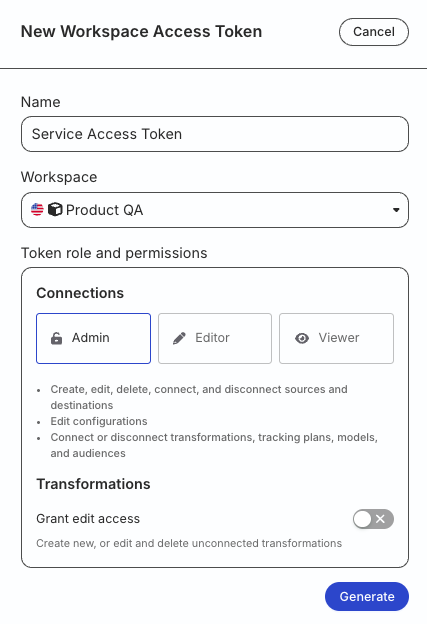
- A workspace-level Service Access Token with the following permissions:
| Resource | Permissions |
|---|---|
| SQL Models | Create & Delete, Edit |
- If you’re on Free or self-hosted plan, or for testing and development only: Generate a Personal Access Token with Read-Write role
Any action authenticated by a Personal Access Token will break if the user generating the token is removed from the organization or there is a breaking change to their permissions.
Token permissions for legacy RBAC system
If you are on the legacy Permissions Management (RBAC) system, your workspace-level Service Access Token should have minimum Admin permissions.
See Generate a workspace-level Service Access Token for steps to create the token.
1. Authenticate the CLI tool
Run the following command and enter your access token when prompted:
rudder-cli auth login2. Create a project directory
Create a folder for YAML and optional SQL files:
mkdir -p ~/tutorial-sql-models/sql-models/sqlIf you already manage Data Catalog or Tracking Plan YAML in another folder, you can add SQL model files there instead — Rudder CLI discovers.yaml/.ymlfiles recursively under the path you pass to-l/--location.
3. List warehouse accounts
Each SQL model references an account_id for the warehouse connection. List accounts linked to your workspace:
rudder-cli workspace accounts listPick the account ID that matches your Reverse ETL warehouse setup. You will use it in the YAML spec in the next sections.
You need a configured Reverse ETL source in the dashboard so warehouse credentials exist for that account.
4. Create a new SQL model
Add a YAML file (for example ~/tutorial-sql-models/sql-models/product-purchases.yaml) with a retl-source-sql-model resource. Replace account_id with the value from List warehouse accounts.
version: rudder/v1
kind: "retl-source-sql-model"
metadata:
  name: "product-purchases-model"
spec:
  id: "product-purchases-model"
  display_name: "Product Purchases SQL Model"
  primary_key: "user_id"
  description: "SQL model for product purchases"
  source_definition: "postgres"
  enabled: true
  account_id: "YOUR_ACCOUNT_ID"
  sql: |
    SELECT
      user_id,
      event_name,
      event_type,
      timestamp,
      properties
    FROM
      user_events
    WHERE
      timestamp >= CURRENT_DATE - INTERVAL '180 days'
    ORDER BY
      timestamp DESC
Query shape
- Inline SQL: use
sql: |as above. - External file: use
file: "./sql/my-query.sql"instead ofsql— use one ofsqlorfile, not both.
source_definition values (examples): postgres, mysql, snowflake, redshift, bigquery, databricks, trino. See the SQL Model YAML reference for the full spec.
Validate and apply (create path)
From your machine (adjust the path):
rudder-cli validate -l ~/tutorial-sql-models
rudder-cli apply -l ~/tutorial-sql-models --dry-run
rudder-cli apply -l ~/tutorial-sql-models
After a successful apply, the model exists in the workspace and you can keep editing YAML and re-running validate / apply.
5. Import an existing SQL model
Use this path when the model already exists in the workspace and you want it under Git.
List models in the workspace
rudder-cli workspace retl-sources listNote the source_id (remote ID) for the model you want.
Run import
Pick a local_id (name for the resource in your project). Replace placeholders with your IDs and paths:
Inline SQL in YAML (default)
rudder-cli import retl-sources --local-id my-imported-model --remote-id YOUR_SOURCE_ID -l ~/tutorial-sql-modelsSQL in an external file
rudder-cli import retl-sources --local-id my-imported-model --remote-id YOUR_SOURCE_ID -l ~/tutorial-sql-models --sql-location ~/tutorial-sql-models/sql-models/sql/my-imported-model.sqlRudder CLI writes YAML under your project (and a .sql file when you use --sql-location). The metadata.import section maps your local_id to the workspace remote_id so later apply calls stay aligned.
Finish linking the import
Validate and apply so the CLI project owns the resource:
rudder-cli validate -l ~/tutorial-sql-models
rudder-cli apply -l ~/tutorial-sql-models --dry-run
rudder-cli apply -l ~/tutorial-sql-models
If you use--sql-location, keep the YAML and the.sqlfile together in Git; both must be present for validate / apply.
For parameter details and troubleshooting, see Import existing SQL model resources.
6. Validate and preview
Project-wide validation
Checks YAML structure, references, and related rules for everything under the project path:
rudder-cli validate -l ~/tutorial-sql-modelsValidate a single SQL model
Targets one model by the spec.id in your YAML:
rudder-cli retl-sources validate YOUR_MODEL_ID -l ~/tutorial-sql-modelsThis checks SQL syntax for the warehouse, connectivity to the account, required fields, and that the query can run (limited execution), as described in Validate SQL model resources.
Preview query results
Runs the query and prints sample rows (use your model’s spec.id):
rudder-cli retl-sources preview YOUR_MODEL_ID -l ~/tutorial-sql-models --limit 10Useful flags: -l / --location for the project root, --limit for row cap (default 100), -j for JSON output, --interactive=false for scripts. See Validate and preview your models for examples and troubleshooting.
Deploy changes
After you are satisfied:
rudder-cli apply -l ~/tutorial-sql-models --dry-run
rudder-cli apply -l ~/tutorial-sql-models
apply syncs SQL models together with any other Rudder CLI resources in the same project directory.
See more
- Manage SQL Models using Rudder CLI
- Create New SQL Model Resources — deeper how-to for new resources
- Import Existing SQL Model Resources — import parameters and edge cases
- Validate and Preview Your Models — preview parameters, CI/CD notes, error tables
- SQL Model Resources YAML Reference
- GitHub Actions for Rudder CLI for automating validate / apply
