End-to-End Walkthrough: Reverse ETL Connections with Rudder CLI
Beta- free
- growth
- enterprise
5 minute read
This tutorial shows you how to use Rudder CLI to:
- Enable experimental Reverse ETL connection support
- Put a SQL model, a destination, and a Reverse ETL connection in one project
- Validate the graph locally, then apply it so Rudder CLI creates resources in dependency order
- Confirm the first sync in the RudderStack dashboard
For replace behavior and current limits, see Manage Reverse ETL Connections using Rudder CLI.
Prerequisites
- Rudder CLI tool (
rudder-cli) installed locally, v0.27.0 or later. - A warehouse account in your workspace for the SQL model to query. Setting up a Reverse ETL source in the RudderStack dashboard creates one. You can also define an account with Rudder CLI.
- An HTTP endpoint you own that can receive the synced records.
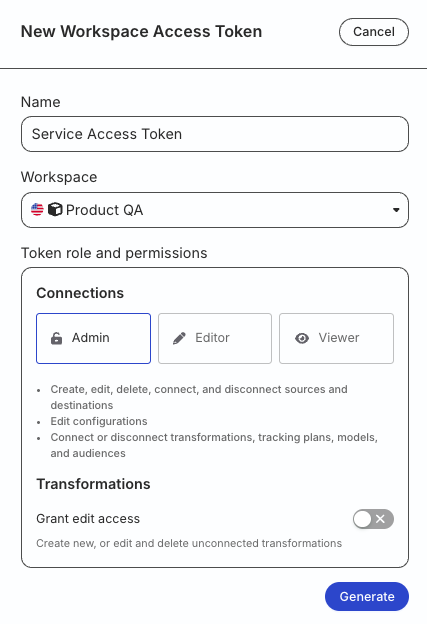
- A workspace-level Service Access Token with the following permissions:
| Resource | Permissions |
|---|---|
| SQL Models | Create & Delete, Edit, Connect |
| Destinations | Create & Delete, Edit, Connect |
- If you’re on Free or self-hosted plan, or for testing and development only: Generate a Personal Access Token with Read-Write role
Any action authenticated by a Personal Access Token will break if the user generating the token is removed from the organization or there is a breaking change to their permissions.
Token permissions for legacy RBAC system
If you are on the legacy Permissions Management (RBAC) system, your workspace-level Service Access Token should have minimum Admin permissions.
See Generate a workspace-level Service Access Token for steps to create the token.
1. Authenticate the CLI tool
Run the following command and enter your access token when prompted:
rudder-cli auth login2. Enable Reverse ETL connection support
export RUDDERSTACK_CLI_EXPERIMENTAL=true
export RUDDERSTACK_X_RETL_CONNECTION_SUPPORT=true
Both variables are required. See Enable Reverse ETL connection support for the config file equivalent.
3. Create a project directory
mkdir ~/tutorial-retl-connectionsapplydeletes every CLI-managed resource in the workspace that the project doesn’t contain. Use this new project only with a workspace that has no CLI-managed resources. If a CLI project already manages your workspace, add the three files from this tutorial to that project instead. See One project per workspace.
4. Define the source and destination
List the warehouse accounts in your workspace and note the account ID of the warehouse you want to query:
rudder-cli workspace accounts listCreate ~/tutorial-retl-connections/users-model.yaml. Replace YOUR_ACCOUNT_ID with the account ID, set source_definition to your warehouse type, and replace the query with one that runs on your warehouse:
version: rudder/v1
kind: retl-source-sql-model
metadata:
  name: users-model
spec:
  id: users-model
  display_name: "Users Model"
  description: "Users to sync to the webhook endpoint"
  primary_key: user_id
  source_definition: postgres
  enabled: true
  account_id: "YOUR_ACCOUNT_ID"
  sql: |
    SELECT
      user_id,
      email
    FROM
      users
Create ~/tutorial-retl-connections/http-destination.yaml. Replace api_url with your endpoint:
version: rudder/v1
kind: destination
metadata:
  name: my-http-destination
spec:
  id: my-http-destination
  display_name: "Users Webhook"
  type: http
  definition_version: 1
  enabled: true
  config:
    api_url: https://api.example.com/v1/users
    auth: noAuth
    method: POST
    format: JSON
    connection_mode:
      warehouse: cloud
The connection_mode entry for warehouse is what lets a Reverse ETL source connect to this destination. Without it, validate rejects the connection.
See SQL Model Resources YAML Reference and HTTP Webhook Destination Config Reference for field details.
5. Define the connection
Create ~/tutorial-retl-connections/retl-connections.yaml:
version: rudder/v1
kind: retl-connections
metadata:
  name: retl-connections
spec:
  connections:
    - id: users-to-webhook
      source: "#retl-source-sql-model:users-model"
      destination: "#destination:my-http-destination"
      enabled: true
      config:
        sync_behaviour: upsert
        schedule:
          type: basic
          every_minutes: 30
        identifiers:
          - from: user_id
            to: user_id
        mappings:
          - from: email
            to: traits.email
        event:
          type: identify
The source and destination values must be valid references to resources in this project. The config block holds the sync configuration:
sync_behaviour: upsertsyncs only the rows that are new or changed since the last sync.scheduleruns a sync every 30 minutes.identifiersmaps theuser_idcolumn to the event’suser_id.mappingssends theemailcolumn as theemailtrait.eventsends each row as anidentifyevent.
The from values and the model’s primary_key must be columns your query returns. Rudder CLI doesn’t check this.
HTTP Webhook doesn’t support object mapping, so this connection runs the JSON mapper flow. See Mapping flows for the difference.
6. Validate and deploy
Validate the project and preview the plan:
rudder-cli validate -l ~/tutorial-retl-connections
rudder-cli apply -l ~/tutorial-retl-connections --dry-run
The plan must list three New resources — the SQL model, the destination, and the connection — and no Removed resources. If it lists any removed resources, don’t apply: Rudder CLI would delete them.
Then, apply:
rudder-cli apply -l ~/tutorial-retl-connectionsApply creates the SQL model and the destination first, then the connection. The connection is enabled, so RudderStack starts syncing on the schedule you set. The first sync is a full sync: it sends every row the model returns, whatever the sync_behaviour.
7. Verify the sync
Rudder CLI doesn’t start syncs or report their status, so check the first run in the RudderStack dashboard:
- Go to the Syncs tab of the connection. To run a sync without waiting for the schedule, click Sync Now.
- When the run finishes, check its status and any failed records.
- Confirm that your HTTP endpoint received a record.
To change the connection, edit the YAML and apply again. Adding or changing a mapping triggers a full sync. Some fields can’t change after creation; see Apply and replace behavior.
