Manage Events using Rudder CLI
Beta- free
- growth
- enterprise
8 minute read
Events are the foundation of your tracking implementation in RudderStack. This guide shows you how to define and manage events in your Data Catalog using YAML configuration files.
Event types
You can define the following event types in your Data Catalog project using Rudder CLI:
| Event type | Description |
|---|---|
| Track | Record user actions and behaviors |
| Identify | Capture user identification and associated traits |
| Page | Track web page views |
| Screen | Monitor mobile app screen views |
| Group | Associate users with organizations |
Define events
Using your preferred text editor, create a YAML file in your Data Catalog project and add the below content:
Basic structure
You can define events in YAML files with the kind: events specification. See Data Catalog YAML Reference for the detailed YAML spec containing event definitions.
version: rudder/v1
kind: events
metadata:
  name: myeventgroup
spec:
  events:
    - id: product_viewed
      name: "Product Viewed"  // Only applicable for track events
      event_type: track
      description: "Triggered when a user views a product"
      category: "#category:browsing_category" # Reference to the Browsing category
Each event definition requires:
- A unique identifier (
id) - The event type (
event_type) - A descriptive name (
name) (applicable only fortrackevents) - Optional description (
description) - Optional event category (
category) — see Manage Event Categories using Rudder CLI for more information.
Do not include thenameparameter foridentify,page, orgroupevents as they will not pass validation and result in an error.
The following snippets highlight the YAML definitions for different event types:
- id: user_identify
  event_type: identify
  description: "Captures user profile information"
category: "#category:signup_category" # Reference to the Signup categoryspec:
events:
- id: checkout_completed
name: "Checkout Completed"
event_type: track
description: "Triggered when a user completes the checkout process"
category: "#category:checkout_category" # Reference to the Checkout category- id: homepage_viewed
event_type: page
description: "Tracks homepage views"
category: "#category:browsing_category" # Reference to the Browsing category
- id: settings_screen
event_type: screen
description: "Tracks settings screen views"
category: "#category:miscellaneous_category" # Reference to the Miscellaneous category- id: org_association
event_type: group
description: "Associates users with their organization"
category: "#category:association_category" # Reference to the Association categoryEvent groups
You can group related events in a single YAML file based on business context (like ecommerce or user management) or other logical categories. Define each group with a unique metadata.name and list related events under spec.events.
When defining event groups, ensure that:
- Events in the same group share similar validation requirements.
- Related events that are often used together in Tracking Plans are grouped together.
- Each event group has a clear, specific purpose (for example,
ecommerce_eventsfor ecommerce-related tracking).
The following examples show how to organize events into meaningful groups, along with their YAML definitions:
version: rudder/v1
kind: events
metadata:
  name: ecommerce_events
spec:
  events:
    - id: product_viewed
      name: "Product Viewed"
      event_type: track
      description: "Triggered when a user views a product"
      category: "#category:browsing_category"

    - id: add_to_cart
      name: "Add to Cart"
      event_type: track
      description: "Triggered when a user adds a product to cart"

    - id: checkout_started
      name: "Checkout Started"
      event_type: track
description: "Triggered when a user starts checkout"version: rudder/v1
kind: events
metadata:
name: user_events
spec:
events:
- id: user_registered
name: "User Registered"
event_type: track
description: "Triggered when a new user registers"
category: "#category:signup_category"
- id: user_login
name: "User Login"
event_type: track
description: "Triggered when a user logs in"
- id: profile_updated
name: "Profile Updated"
event_type: track
description: "Triggered when a user updates their profile"
category: "#category:miscellaneous_category"Best practices
Follow these best practices when defining events and event groups:
Naming conventions
- Use clear, descriptive names
- Follow consistent capitalization
- Avoid special characters
Organization
- Use event groups to group related events together
- Use meaningful names that reflect the group’s purpose
Validation
- Use unique identifiers
- Validate event definitions
- Test before deployment
Avoid resource duplication
- Do not define the same event in multiple event YAML files. Each event should exist in only one file to prevent duplication and potential confusion.
Validate and deploy events
Before deploying your events to the workspace, validate them to ensure they follow the correct structure and meet your requirements.
Validate events
Run the following command to validate your event definitions:
rudder-cli validate -l ~/tutorial-catalogThe command checks your event definitions for:
- Required fields and correct structure
- Valid event types and property references
- Unique identifiers across your catalog
- Proper YAML syntax
If validation succeeds, the command returns no output. If it finds any issues, it displays specific error messages to help you fix them.
Deploy events
After validating your events, deploy them to your RudderStack workspace:
- Review the changes before deploying:
rudder-cli apply -l ~/tutorial-catalog --dry-run- Deploy the validated events:
rudder-cli apply -l ~/tutorial-catalogThe above command:
- Creates new events in your workspace
- Updates existing events if you’ve modified them
- Reports the status of each operation
- Requires confirmation before making changes (unless you use
--confirm=false)
See the End-to-end Walkthrough for steps on validating and deploying events along with other Data Catalog resources.
Next steps
- Define properties for your events
- Create custom types for validation
- Build Tracking Plans using your events and properties
- Automate changes to Tracking Plans by leveraging CLI-based workflows
Event categories
Event categories help you organize and classify events in your RudderStack Data Catalog based on business context, functionality, or any other logical classification system. This section shows you how to define event categories and associate them with events using YAML configuration files.
Overview
In the RudderStack dashboard, you can use the Data Catalog to:
- Define custom categories for your events
- Assign predefined categories to your events
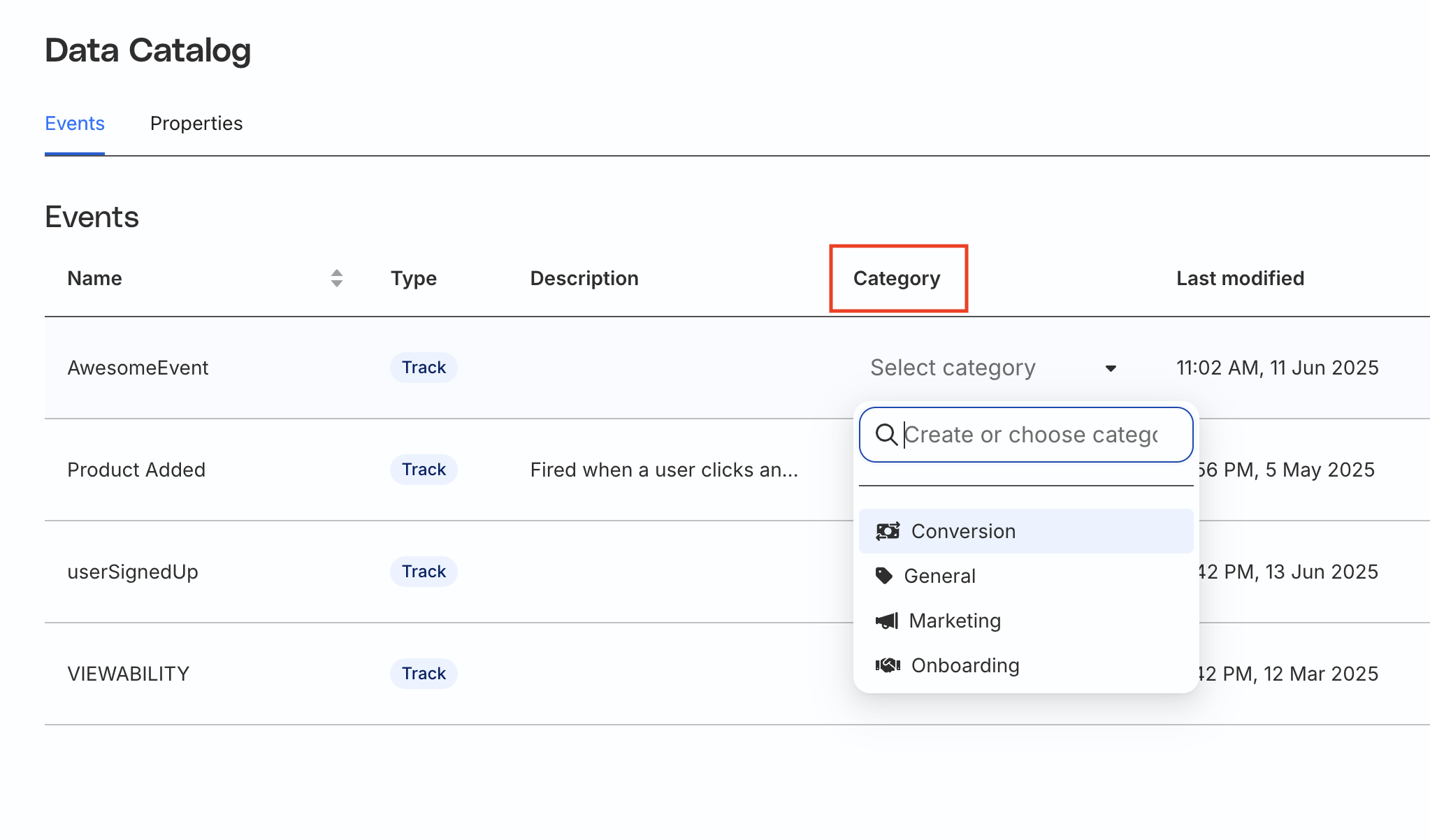
You can also use Rudder CLI to define event categories as YAML configuration files in your Data Catalog project and reference them in your event definitions.
Define event categories
Using your preferred text editor, create a YAML file in your Data Catalog project and add the below content:
Basic structure
You can define event categories in YAML files with the kind: categories specification. See Data Catalog YAML Reference for the detailed YAML spec containing event definitions.
version: rudder/v1
kind: categories
metadata:
  name: event-categories
spec:
  categories:
    - id: signup_category
      name: Signup
    - id: login_category
      name: Login
    - id: browsing_category
      name: Browsing
    - id: miscellaneous_category
      name: Miscellaneous
Each event category definition requires:
- A unique identifier (
id) - A descriptive name (
name)
Best practices
Follow these best practices when defining event categories:
Naming conventions
- Use clear, descriptive category names that reflect their purpose
- Follow consistent capitalization (for example,
Marketinginstead ofmarketing) - Keep names concise but meaningful
Organization
- Create categories that align with your business objectives
- Consider your team’s workflow and how events will be used
- Avoid creating too many categories that could complicate organization
Uniqueness
- Ensure each category has a unique identifier
- Avoid duplicate category names within the same configuration
- Use descriptive IDs that relate to the category name (for example,
marketing_categoryfor “Marketing”)
Reference categories in events
Once you’ve defined your categories, you can associate them with events in your event definitions.
Each event can have only one category assigned to it. See Limitations for the other key points to consider while referencing categories in events.
To reference a category in an event definition, use the category field with a URN reference:
version: rudder/v1
kind: events
metadata:
  name: categorized-events
spec:
  events:
    - id: product_viewed
      event_type: track
      name: "Product Viewed"
      category: "#category:browsing_category"

    - id: signup_completed
      event_type: track
      name: "Signup Completed"
      category: "#category:signup_category"
The reference format follows the below syntax:
"#category:{category-id}"Where category-id is the unique identifier of the specific category.
Validate and deploy event categories
Before deploying your event categories to the workspace, validate them to ensure they follow the correct structure and meet your requirements.
Validate categories
Run the following command to validate your category definitions and event associations:
rudder-cli validate -l ~/tutorial-catalogThe command checks your category definitions for:
- Required fields and correct structure
- Unique category identifiers and names
- Valid category references in event definitions
- Proper YAML syntax and formatting
- No duplicate categories within the same configuration
If validation succeeds, the command returns no output. If it finds any issues, it displays specific error messages to help you fix them.
Deploy categories
After validating your categories and events, deploy them to your RudderStack workspace:
- Review the changes before deploying:
rudder-cli apply -l ~/tutorial-catalog --dry-run- Deploy the validated categories:
rudder-cli apply -l ~/tutorial-catalogThe above command:
- Creates new categories in your workspace
- Updates existing categories if you’ve modified them
- Associates events with their specified categories
- Reports the status of each operation
- Requires confirmation before making changes (unless you use
--confirm=false)
Categories are applied alongside other Data Catalog resources. When you deploy, both your categories and the events that reference them will be updated in your workspace.
See the End-to-end Walkthrough for steps on validating and deploying event categories along with other Data Catalog resources.
Limitations
The current Rudder CLI implementation of event categories has the following limitations:
- Event-only support: Categories can only be assigned to events. Other Data Catalog assets like properties or custom types do not support categories in this version.
- Single category per event: Each event can be assigned to only one category. Multiple categories per event are not supported.
- No duplicate categories: You cannot create duplicate categories with the same name, regardless of whether they are defined within the same configuration file or across different configuration files.
Next steps
- Create events and reference the event categories in them
- Define properties for your categorized events
- Build Tracking Plans using your categorized events
- Explore the Data Catalog YAML Reference for advanced configuration options
- Automate changes to categories and events by leveraging CLI-based workflows
