Set up and configure a webhook destination in RudderStack.
4 minute read
This guide will help you set up a webhook destination in the RudderStack dashboard. It also lists the configuration settings required to correctly send data from the supported sources to your webhook destination.
In your RudderStack dashboard, add a source. Then, from the list of destinations, select Webhook.
Assign a name to uniquely identify your destination in the RudderStack dashboard and click Continue.
Connection settings
Setting
Description
Webhook URL
Specify the endpoint where RudderStack sends the events. RudderStack supports both HTTP and HTTPS URLs.
Note: For successful event delivery in case of an HTTPS URL, you must have a valid TLS certificate.
URL Method
Select the HTTP method of the request sent to the configured endpoint from the dropdown. By default, RudderStack uses the POST method to send the events.
Headers
Add custom headers for your events. RudderStack stringifies (for non-string data types) and adds these headers to the request made to your webhook.
Note: RudderStack adds the below headers for the POST and PUT requests by default:
Configure the below settings to receive your data correctly in your webhook destination.
Setting
Description
Consent management settings
Configure the consent management settings for the specified source by choosing the Consent management provider from the dropdown and entering the relevant consent category IDs. See Consent Management in RudderStack for more information on this feature.
Set non-string data types as headers
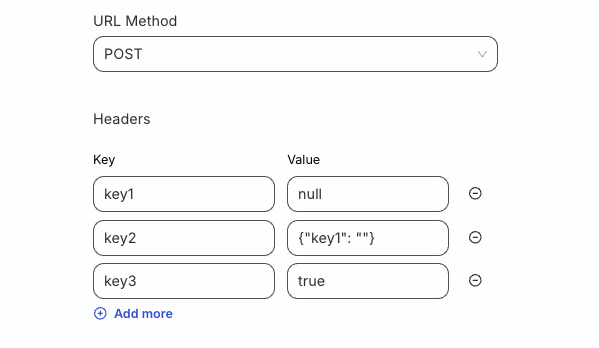
RudderStack supports defining non-string data types (like Boolean, object, array, etc.) as headers while setting up your webhook destination. RudderStack automatically stringifies these data types before setting the header.
For example, if you set the headers as shown:
In this case, RudderStack automatically stringifies and sets the below headers in the transformed payload before sending it to the specified webhook URL:
For example, if the webhook URL configured in the RudderStack dashboard is https://www.example.com/, you can append a string /search?email=${email} to it depending on the email property present in your event:
exportfunctiontransformEvent(event,metadata){constemail=event.context?.traits?.email;// Change property
if(email)event.appendPath=`/search?email=${email}`;// Change property and appendPath
returnevent;}
In this case, the final webhook URL endpoint where RudderStack sends the event becomes https://www.example.com/search?email=${email}.
FAQ
How do I check for delivery failures while sending events to the webhook destination?
Log in to your RudderStack dashboard and go to the Live Events tab of your destination to check for any delivery failures. In case there are any, you can check the Error Response by clicking the event to get more details.
This site uses cookies to improve your experience while you navigate through the website. Out of
these
cookies, the cookies that are categorized as necessary are stored on your browser as they are as
essential
for the working of basic functionalities of the website. We also use third-party cookies that
help
us
analyze and understand how you use this website. These cookies will be stored in your browser
only
with
your
consent. You also have the option to opt-out of these cookies. But opting out of some of these
cookies
may
have an effect on your browsing experience.
Necessary
Always Enabled
Necessary cookies are absolutely essential for the website to function properly. This
category only includes cookies that ensures basic functionalities and security
features of the website. These cookies do not store any personal information.
This site uses cookies to improve your experience. If you want to
learn more about cookies and why we use them, visit our cookie
policy. We'll assume you're ok with this, but you can opt-out if you wish Cookie Settings.