Snowflake Streaming Destination
- growth
- enterprise
7 minute read
The Snowflake Streaming destination is now Generally Available for RudderStack Growth and Enterprise plans.
Contact your Customer Success Manager for any questions.
Snowflake Streaming is a powerful tool for handling real-time data streams. It allows you to stream data rows directly in Snowflake tables with minimal latency.
Find the open source code for this destination in the GitHub repository.
Migrating from Snowflake batch destination?
To migrate from RudderStackʼs Snowflake batch destination to the newer, low-latency Snowflake Streaming destination, see the Migration Guide for detailed instructions.
When to use Snowflake Streaming
Snowflake Streaming is ideal for the following scenarios:
- Continuous data streams: If your data sources produce a steady stream of data in small batches, for example, clickstream data, event logs, etc.
- Low latency requirements: When your application requires immediate/frequent updates to the Snowflake table as new data arrives. Some use cases include real-time dashboards, streaming analytics, etc.
- Cost optimization for streaming data: Snowflake Streaming can potentially reduce costs for real-time pipelines as it allows micro-batch ingestion without needing a traditional Snowflake warehouse running constantly.
Prerequisites
Before setting up the Snowflake Streaming destination in RudderStack:
- You will need to have the
ACCOUNTADMINsystem role or any account withMANAGE GRANTSprivilege. - You will need to set the correct user permissions in Snowflake for RudderStack to send the data correctly.
The following sections walk you through the process of setting up a virtual warehouse, database, role, and user in Snowflake.
1. (Optional) Create a warehouse
Note the following:
- You can skip this step if you wish to use an existing warehouse.
- For this integration, RudderStack uses the warehouse only to run some queries for performing connection validations as well as schema evolution management. It does not use the warehouse for data loading.
In your Snowflake console, create a X-Small warehouse.
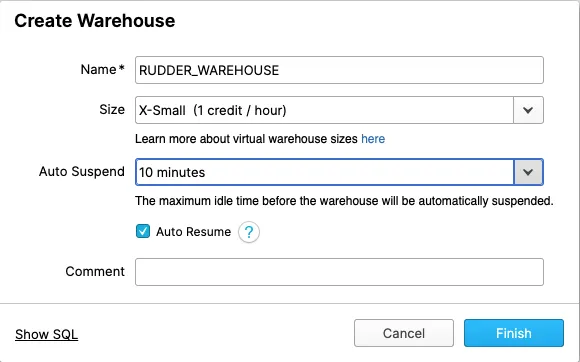
Alternatively, run the following SQL commands to create a new warehouse:
CREATE WAREHOUSE "<WAREHOUSE_NAME>"
  WITH WAREHOUSE_SIZE = 'XSMALL'
    WAREHOUSE_TYPE = 'STANDARD'
    AUTO_SUSPEND = 600
    AUTO_RESUME = TRUE;
Make sure to setAUTO_SUSPENDto ~10 minutes and enableAUTO_RESUMEto avoid any extra costs.
2. Create a database
RudderStack recommends creating a new database to avoid conflicts with your existing data. Note that RudderStack creates its own tables within this database while storing your events.
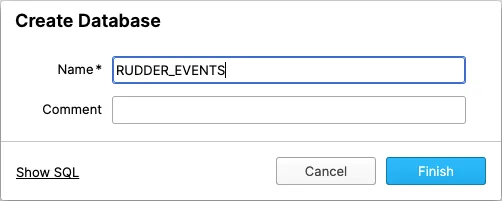
Alternatively, you can create a new database by running the following SQL command:
CREATE DATABASE "<DATABASE_NAME>";3. Create a role for RudderStack
To create a new role with the required permissions to load your data into the above database, run the following SQL commands in the exact order. Make sure to replace the placeholder names with your preferred names.
- Create a new role called
<ROLE>:
CREATE ROLE "<ROLE>";- Grant access to the warehouse
<WAREHOUSE_NAME>:
GRANT USAGE ON WAREHOUSE "<WAREHOUSE_NAME>" TO ROLE "<ROLE>";- Grant access to the database
<DATABASE_NAME>:
GRANT USAGE ON DATABASE "<DATABASE_NAME>" TO ROLE "<ROLE>";
GRANT CREATE SCHEMA ON DATABASE "<DATABASE_NAME>" TO ROLE "<ROLE>";
GRANT ALL ON ALL SCHEMAS IN DATABASE "<DATABASE_NAME>" TO ROLE "<ROLE>";
You can also create a custom role with the necessary permissions and specify it in the dashboard settings while setting up the Snowflake Streaming destination in RudderStack.
4. Create a user
Since Snowflake is in the process of deprecating password-only authentication, the Snowflake Streaming destination only supports key-pair authentication.
Use the following query to create a Snowflake user that connects RudderStack to your warehouse. Make sure to replace the placeholder names with your preferred values.
CREATE USER "<USER_NAME>"
  RSA_PUBLIC_KEY = "<public_key>"
  MUST_CHANGE_PASSWORD = FALSE
  DEFAULT_ROLE = "<ROLE>"
  PASSWORD = NULL
GRANT ROLE "<ROLE>" TO USER "<USER_NAME>";
Setup
If your sources send data to different schemas, create multiple Snowflake Streaming destinations (each with a different namespace) and connect the relevant sources accordingly.
- In your RudderStack dashboard, add a source. Then select Snowflake Streaming from the list of destinations.
- Assign a name to your destination and click Continue.
Connection settings
| Setting | Description |
|---|---|
| Account | Enter the account ID of your Snowflake warehouse. This ID is part of the Snowflake URL. See the Snowflake account ID examples for more information on how this ID varies depending on various cloud providers. |
| Database | Enter the name of the database created in the Create database section. |
| Warehouse | Enter the name of your warehouse. |
| User | Enter the name of the user created in the Create user section. |
| Role | Specify the role to be assigned to the above user. If not specified, RudderStack uses the default role.
|
| Private Key | Generate a private key and specify it in this field. Make sure to include the delimiters. See the following sections in the Snowflake documentation to generate and use the key pair: |
| Private Key Passphrase | Specify the password you set while encrypting the private key. Leave this field blank if your private key is not encrypted.
|
| Namespace | Enter the schema name for the warehouse where RudderStack creates all tables. If not specified, RudderStack sets the namespace to the source name by default.
|
Snowflake account ID examples
| Account ID example | Snowflake URL | Cloud provider |
|---|---|---|
qya56091.us-east-1 | https://qya56091.us-east-1.snowflakecomputing.com | AWS |
qya56091.us-east-2.aws | https://qya56091.us-east-2.aws.snowflakecomputing.com | AWS |
rx18795.east-us-2.azure | https://rx18795.east-us-2.azure.snowflakecomputing.com | Microsoft Azure |
ah76025.us-central1.gcp | https://ah76025.us-central1.gcp.snowflakecomputing.com | Google Cloud Platform |
For AWS,.awsis present in the account locator for some regions and must be included in the Account setting. See the Snowflake documentation for account locator formats by region and cloud provider.
Advanced settings
| Setting | Description |
|---|---|
| Skip Tracks Table | Toggle on this setting to skip sending events to the tracks table. |
| Skip Users Table | This destination does not support the users table. |
| Merge Mode | This destination does not support merge mode. |
| JSON Columns | This setting lets you ingest semi-structured event data not defined by a fixed schema. Specify the required JSON column paths in the dot notation, separated by commas. See the JSON Column Support guide for more information.
|
Consent settings
| Setting | Description |
|---|---|
| Consent management provider | Configure the consent management settings for the specified source by choosing the Consent management provider from the dropdown and entering the relevant consent category IDs. See Consent Management in RudderStack for more information on this feature. |
IPs to be allowlisted
To enable network access to RudderStack, allowlist the following RudderStack IPs depending on your region and RudderStack plan:
| Plan | |||
|---|---|---|---|
| Free and Growth |
|
| |
| Enterprise |
|
|
|
All the outbound traffic is routed through these RudderStack IPs.
Lookout connects to your warehouse from three of the US addresses:
3.216.35.97,34.198.90.241, and54.147.40.62. Lookout uses these addresses for workspaces in every region. If you use Lookout with an EU or IN workspace, allow them too. See Allow Lookout to reach your warehouse.
Migrate from Snowflake destination
See the Snowflake Streaming Migration Guide for more information on how to migrate from the Snowflake batch destination to the Snowflake Streaming destination.
FAQ
What is the difference between Snowflake Streaming and a traditional Snowflake warehouse?
The following table highlights the key differences between Snowflake Streaming and the traditional Snowflake warehouse:
| Feature | Snowflake Streaming | Traditional Snowflake warehouse |
|---|---|---|
| Use case | Real-time data use | Analytical and batch processing |
| Latency | Real-time or near real-time | Higher latency (batch-oriented) |
| Data volume | Small, continuous data streams | Large, periodic batches |
| Cost efficiency | Optimized for streaming and real-time ingestion | Optimized for batch processing |
Why am I not seeing the users table in the schema for identify events?
This integration sends the identify events exclusively to the identifies table and skips the users table entirely.
How does Snowflake Streaming deliver data to Snowflake?
RudderStack sends event data directly to Snowflake using the Snowpipe Streaming API.
Unlike traditional warehouse destinations, Snowflake Streaming does not create staging files or load files in object storage. Data rows are streamed directly into Snowflake tables.
What happens if Snowflake is unavailable?
If Snowflake is down or unreachable, RudderStack retries delivery using an exponential backoff strategy.
Since Snowflake Streaming does not use staging files, the retry and recovery behavior differs from the retry strategy described for the traditional warehouse destinations in the Warehouse Destinations FAQ.
Can I replay events sent through Snowflake Streaming?
Event replay for Snowflake Streaming is only possible at the gateway level — the RudderStack component that first receives events from your sources.
You cannot trigger event replay yourself— to replay events, contact the RudderStack team.
