
Setup Guide

Set up and configure Harness FME as a destination in RudderStack.

This guide will help you set up Harness FME (formerly Split.io) as a destination in the RudderStack dashboard. It also lists the configuration settings required to correctly send data from the supported sources to Harness FME.

Connection compatibility

Destination Information
  • Status: Generally Available
  • Supported sources: Android (Java) , Android (Kotlin) , iOS (Obj-C) , iOS (Swift) , Web, Unity, AMP , Cloud, React Native , Flutter, Cordova, Warehouse, Shopify
  • Refer to it as Split.io in the Integrations object.
Connection Modes
SourceCloud modeDevice modeHybrid mode
AMPsupportednot supportednot supported
Android (Java)supportednot supportednot supported
Android (Kotlin)supportednot supportednot supported
Cloudsupportednot supportednot supported
Cordovasupportednot supportednot supported
Fluttersupportednot supportednot supported
iOS (Obj-C)supportednot supportednot supported
iOS (Swift)supportednot supportednot supported
React Nativesupportednot supportednot supported
Shopifysupportednot supportednot supported
Unitysupportednot supportednot supported
Warehousesupportednot supportednot supported
Websupportednot supportednot supported
Supported Message Types
SourceIdentifyPageTrackScreenGroupAliasRecordAudienceList
Cloud mode
Supported sourcessupportedsupportedsupportedsupportedsupportednot supportednot supportednot supported

Setup

  1. In your RudderStack dashboard, add a source. Then, from the list of destinations, select Split.io.
  2. Assign a name to uniquely identify the destination and click Continue.

Connection settings

SettingDescription
API KeyEnter the API key for your Harness FME workspace.
EnvironmentEnter the Harness FME workspace environment.
Traffic TypeEnter the traffic type for your Harness FME account.
Consent management settingsConfigure the consent management settings for the specified source by choosing the Consent management provider from the dropdown and entering the relevant consent category IDs. See Consent Management in RudderStack for more information on this feature.

Next steps

FAQ

Where can I find the Harness FME API key, environment, and traffic type?

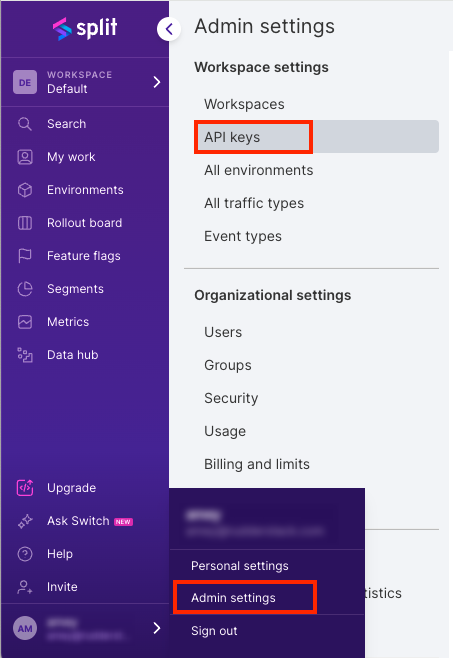
To get your Harness FME API key, log in to your Harness FME dashboard. Go to Admin Settings in the bottom left corner and click API Keys, as shown:

Harness FME API key
info
Click the Actions button in the top right corner to create a new Admin/SDK API key.

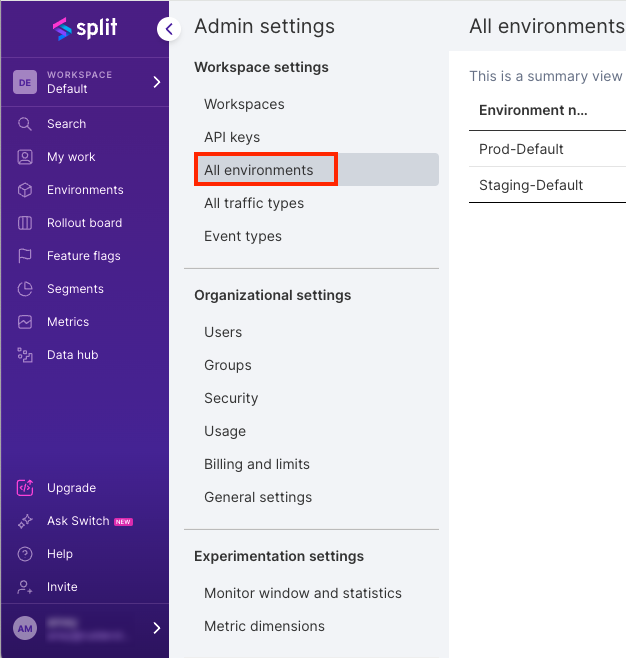
To obtain your Harness FME environment, click All environments:

Harness FME environment

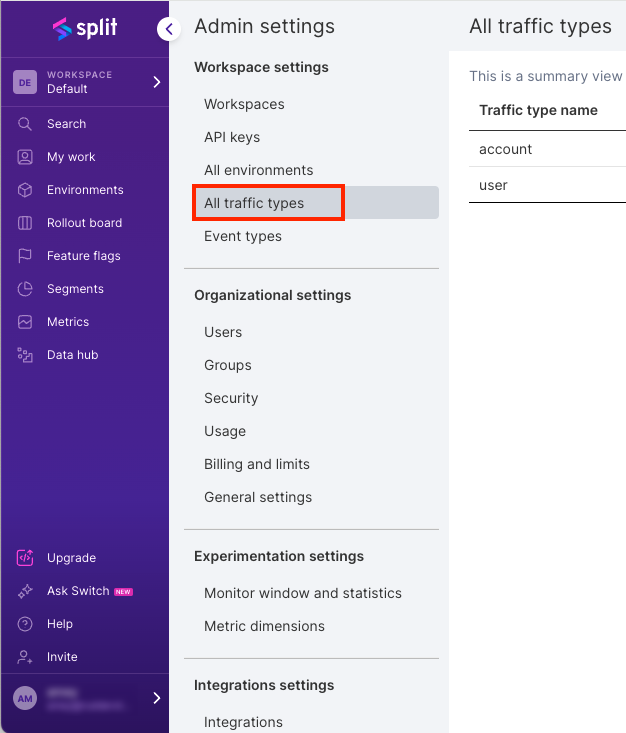
Click All traffic types to get your traffic name:

Harness FME traffic type name

Questions? We're here to help.

Join the RudderStack Slack community or email us for support