Setup Guide
5 minute read
This guide will help you set up Salesforce Marketing Cloud (SFMC) as a destination in the RudderStack dashboard. It also lists the configuration settings required to correctly send data from the supported sources to SFMC.
Connection compatibility
| Destination Information | |||
|---|---|---|---|
| |||


Prerequisites
Before configuring SFMC as a destination in RudderStack, make sure to:
- Create data extensions
- Generate the required credentials for RudderStack to send data to SFMC successfully.
Create data extensions
RudderStack recommends creating a data extension in SFMC to store the incoming identify and track events. You must also create the required attributes in your data extension for each trait (for identify events) or properties (for track events) before sending the data to SFMC.
SFMC ignores any traits/properties that are not mapped to the data extension attributes.
For example, if you send an event property like
"phone": "+1-202-555-0146"but there is no matching phone column in your SFMC data extension, then SFMC ignores that property.
While creating data extensions, make sure to:
- Create all the attributes in the data extension in title case regardless of the casing used for the trait/property names in your RudderStack
identify/trackevents. RudderStack automatically formats the field names into title case before sending the events to SFMC. - Check the Is Sendable option if you want to send emails or push notifications based on your events.
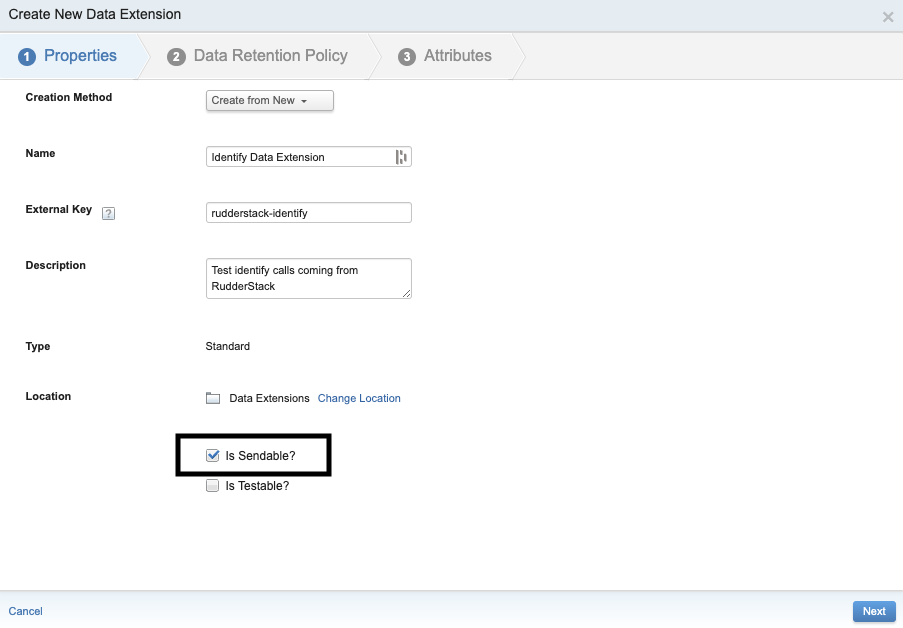
The primary key for the Identify data extension is called as the contact key or subscriber key. You must add a primary key called Contact Key for your data extension before sending data to SFMC. RudderStack populates this field with the userId or email (if userId is absent) traits in the identify event.
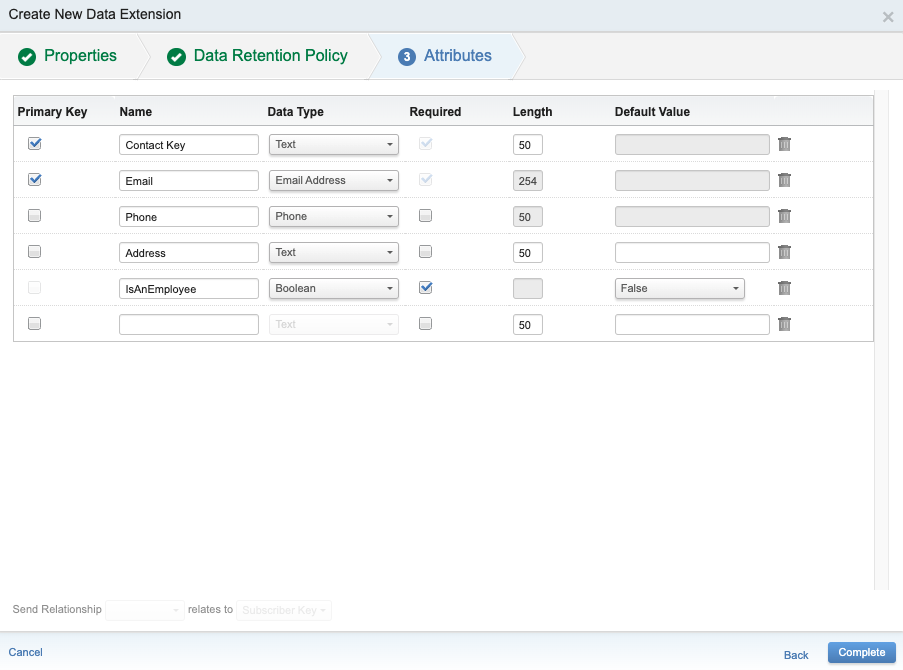
For track calls, you can set up different primary keys for various events. If you do not set any primary key, RudderStack sets the default primary key to Contact Key. You can specify multiple comma-separated primary keys if you have defined multiple primary keys in your data extension.
See the following sections for more information:
Generate credentials to send data
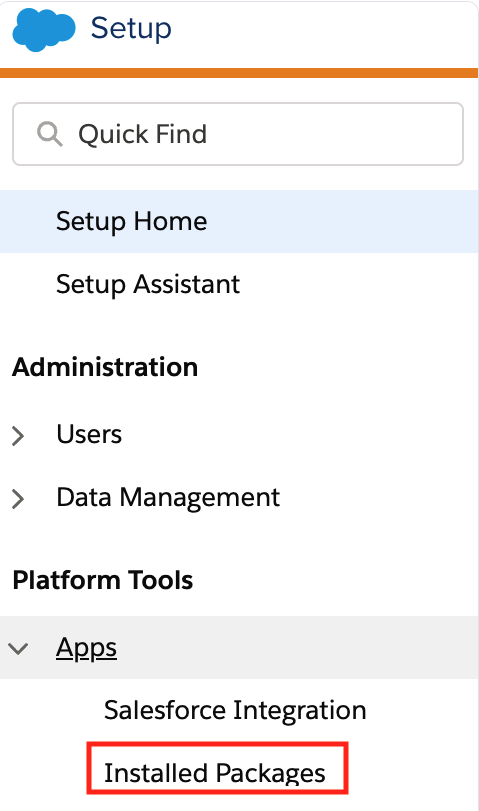
- In your SFMC dashboard, go to Apps > Installed Packages.
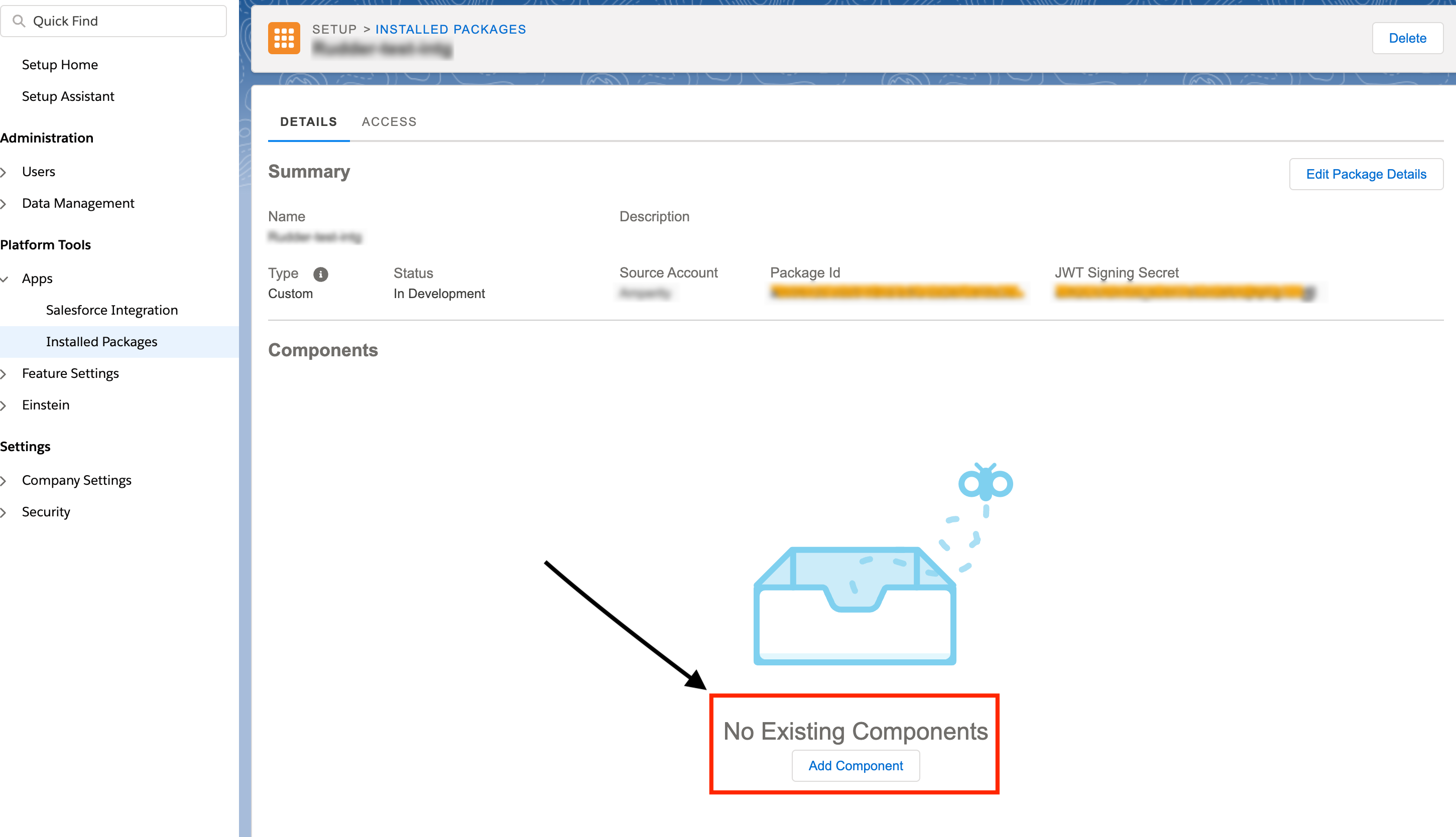
- Create a new package. Then, go to the package and click Add Component.
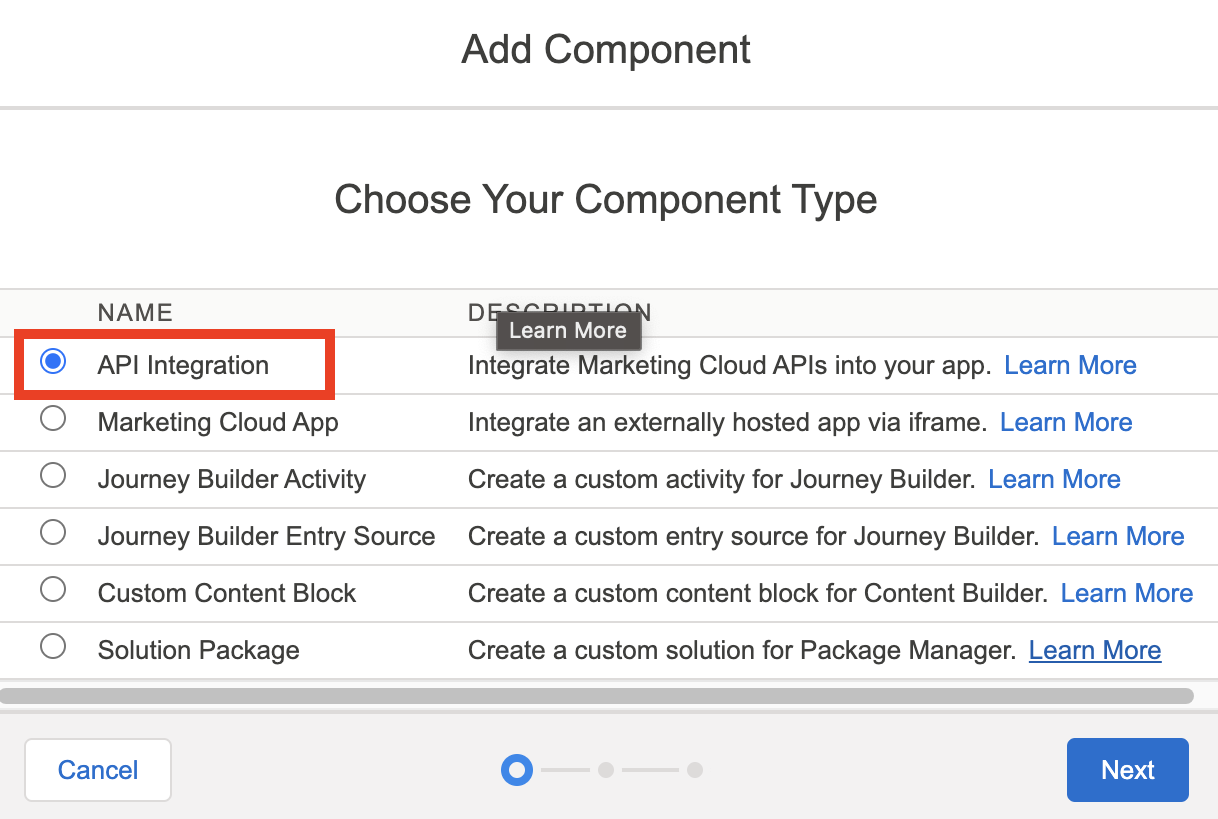
- Choose API Integration as the component type and click Next.
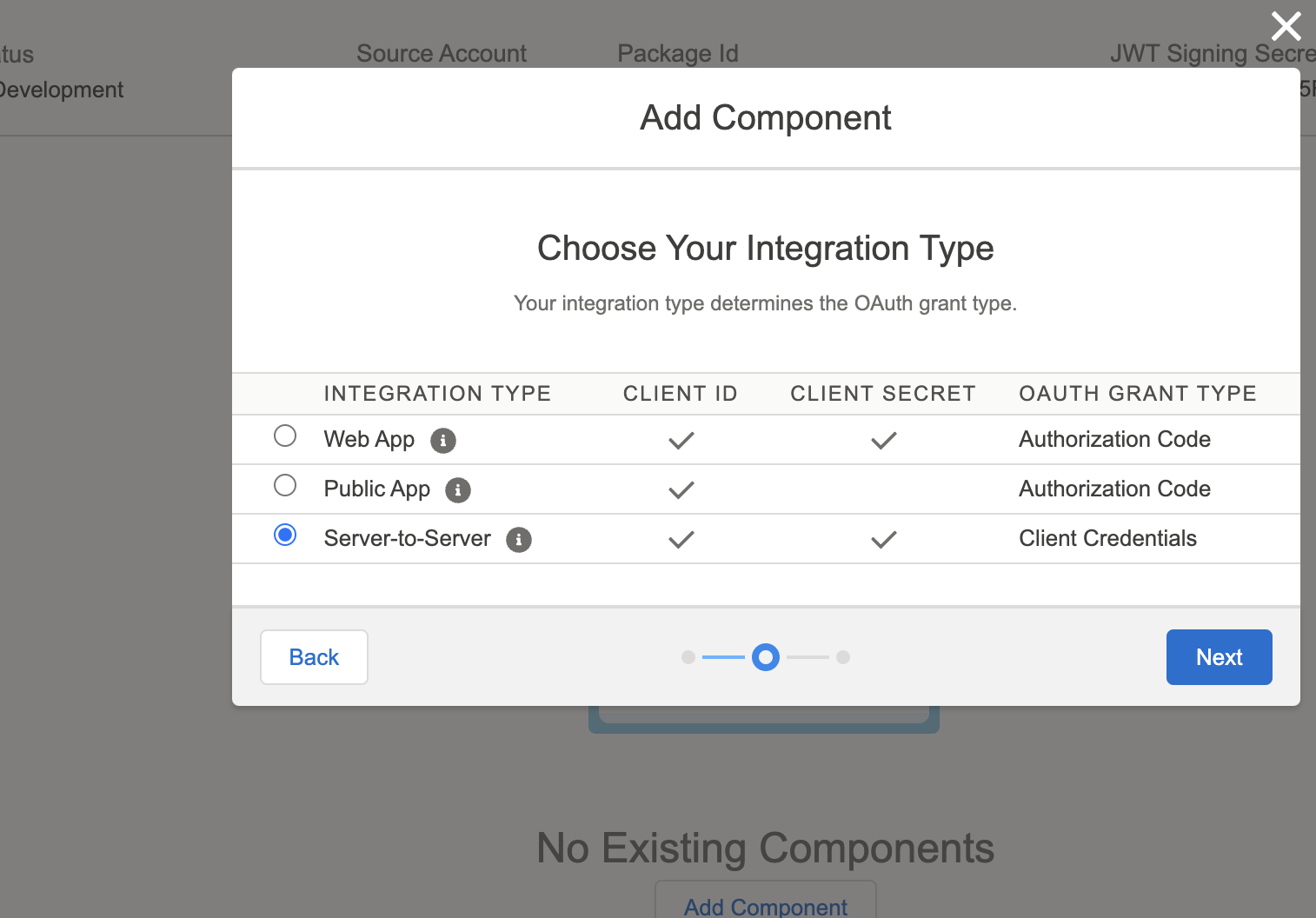
- Select the integration type as Server-to-Server and click Next.
- Note the client ID and secret for this package (listed under API Integration). Specify these credentials in the connection settings while setting up the SFMC destination in RudderStack.
Setup
- In your RudderStack dashboard, add a source. Then, from the list of destinations, select Salesforce Marketing Cloud.
- Assign a name to uniquely identify the destination in RudderStack. Then, click Continue.
Connection settings
| Setting | Description |
|---|---|
| Client ID | Enter the client ID associated with your SFMC package. |
| Client Secret | Enter the client secret for the package. Note: See Generate credentials to send data to obtain the client ID and secret. |
| Subdomain | Enter the subdomain associated with your SFMC account. It is a 28-character string starting with the letters mc.For example, if your Authentication Base URI is https://mcxt4zx444ppr71jd9rp300hdc8y.auth.marketingcloudapis.com/, then the subdomain is mcxt4zx444ppr71jd9rp300hdc8y. |
Identify call settings
| Setting | Description |
|---|---|
| Do not create or update contacts | Turn on this toggle to prevent RudderStack from creating or updating contacts in SFMC via an identify event. |
| Identify data external key | Enter the external key of the SFMC data extension to which to you want to send data from your identify events.You can find the external key for your data extension in the SFMC dashboard by going to Contact Builder > Data Extensions. |
Track call settings
| Setting | Description |
|---|---|
| Map events to external key | Use this setting to map your track events to an SFMC data extension.For more information on this setting, see Map events to external key. Note: You will get the “Event not mapped for this track call” error if you do not map an event to an external key and send the event to SFMC. |
| Map events to primary key | Use this setting to map your own primary key for a track event.For more information on this setting, see Map events to primary key. |
| Map events to event definition key | Use this setting to map your RudderStack event to a specific SFMC event definition key. For more information on this setting, see Map events to event definition key. |
| Event Name to UUID | Use this setting to assign a UUID as the primary key for a specified event. For more information on this setting, see Set UUID as primary key. |
Consent settings
| Setting | Description |
|---|---|
| Consent management settings | Configure the consent management settings for the specified source by choosing the Consent management provider from the dropdown and entering the relevant consent category IDs. See Consent Management in RudderStack for more information on this feature. |
Next steps
- For Event Stream connection: Send events in cloud mode
- For Reverse ETL connection: Set up data mappings
