SFMC Cloud Mode Integration
4 minute read
After you have successfully instrumented Salesforce Marketing Cloud (SFMC) as a destination in RudderStack, follow this guide to correctly send your events in cloud mode.
Find the open source transformer code for this destination in the GitHub repository.
Identify
You can use the identify event to create or update contacts in SFMC.
RudderStack does not create or update contacts in SFMC if you turn on the Do not create or update contacts dashboard setting.
The following snippet demonstrates a sample identify call in RudderStack:
rudderanalytics.identify("1hKOmRA4GRlm", {
  name: "Alex Keener",
  title: "CEO",
  email: "alex@example.com",
  company: "Alex's Company",
  phone: "+1-202-555-0146",
  state: "Texas",
  city: "Houston",
  postalCode: "12345",
  country: "USA",
  street: "6649 N Blue Gum Street",
  state: "TX",
  createdAt: new Date().toJSON().slice(0, 10).replace(/-/g, "/")
})
Note the following:
- You must include the
userIdoremailtrait in everyidentifycall. Otherwise, the event will fail. - SFMC does not permit colons (
:) in its Contact Key field. Hence, you must remove any colons in youruserIdbefore sending the events. - Make sure to exclude nested objects in your events as SFMC cannot handle them.
- SFMC accepts dates only in the ISO 8601 format and rejects any other format.
Track
You can use the track call to capture user events along with the properties associated with them.
A sample track call is shown below:
rudderanalytics.track("Product Purchased", {
  product_id: "ASIN3556",
  currency: "USD",
  revenue: 77
})
Map events to external key
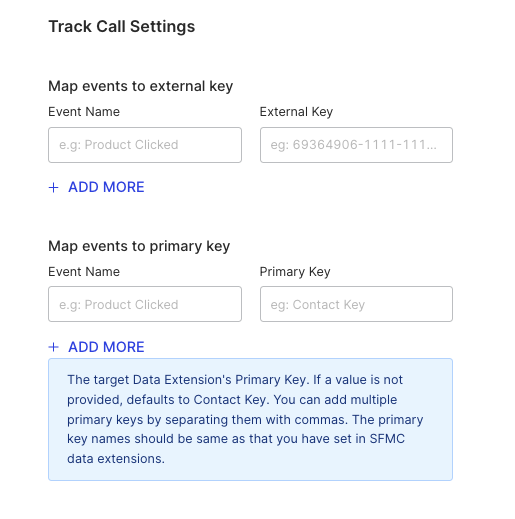
You can send specific track events to your SFMC data extension to send events or push notifications using the Map events to external key dashboard setting.
Enter the track event name and the external key for the corresponding SFMC data extension where you want to send the data. You can add mappings for multiple track events by clicking the Add More button.
You can find the external key for your data extension in the SFMC dashboard by going to Contact Builder > Data Extensions.
Map events to primary key
A primary key is required for all track events going to an SFMC data extension. Use the Map events to primary key dashboard setting to map a track event to your own primary key. You can add multiple primary keys by comma-separating them.
Note that:
- The primary key specified in the dashboard setting must match the primary key set in your SFMC data extension.
- If you do not specify a primary key for a
trackevent, RudderStack creates a primary key calledContact Keyby default and maps it to the event’suserId. IfuserIdis absent, RudderStack maps it toemailinstead. - The key specified in the dashboard settings should be present in your event properties.
- Make sure to exclude colons (
:) or single quotes (') in the primary key field values. Otherwise, you will get a “Parameter {keys} is invalid” error.
Map events to event definition key
Use the Map events to event definition key dashboard setting to map a track event to a specific event defintion key. RudderStack uses this setting to send the interaction events to SFMC by leveraging their /events endpoint.
You can find the event definition key in Event Administration section after you create and save the event in your SFMC dashboard.
Make sure to includeidandtrackproperties as these are mandatory Salesforce fields for the feature to work correctly.
Set UUID as primary key
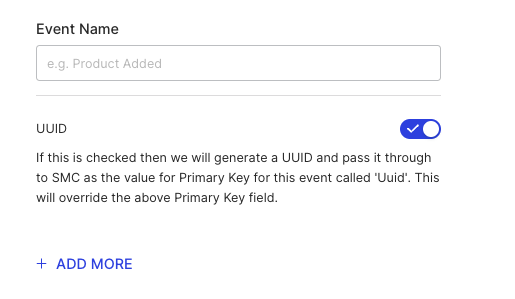
RudderStack lets you set an automatically-generated UUID as the primary key value for a track event.
To do so, enter the event in the Event Name field under Track Call Settings and turn on the UUID setting.
To add multiple events, click the Add more button and toggle on the corresponding UUID toggle.
RudderStack automatically generates a UUID and passes it to SFMC as the value for a primary key called Uuid for those events.
Note that:
- You must set
Uuidas a primary key in your data extension before using this feature. - The UUID will override the primary key defined for the event in the Map events to primary key setting.
Contextual field mappings
RudderStack automatically collects the contextual properties in your identify and track events and passes them to SFMC as data extension attributes. To use these fields, you must set the attributes in your SFMC data extension with the exact naming conventions as listed in the below table:
RudderStack automatically formats the attributes/properties in camel case or snake case to title case.
| RudderStack contextual field | SFMC attribute |
|---|---|
app.name | App Name |
app.version | App Version |
app.build | App Build |
campaign.name | UTM Campaign |
campaign.source | UTM Source |
campaign.medium | UTM Medium |
campaign.term | UTM Term |
campaign.content | UTM Content |
locale | Locale |
userAgent | User Agent |
ip | IP Address |
device.adTrackingEnabled | Ad Tracking Enabled |
device.manufacturer | Device Manufacturer |
device.model | Device-model |
device.name | Device Name |
device.type | Device Type |
network.bluetooth | Bluetooth Enabled |
network.carrier | Network Carrier |
network.cellular | Cellular Enabled |
network.wifi | Wifi Enabled |
screen.density | Screen Density |
screen.height | Screen Height |
screen.width | Screen Width |
FAQ
Why am I getting a “Parameter {keys} is invalid” error?
The “Parameter {keys} is invalid” error indicates the presence of : (colon) or ' (single quote) in the primary key. Exclude these characters to resolve the issue.
