Salesforce v2 Destination Setup Guide
5 minute read
This guide will help you set up Salesforce as a destination in the RudderStack dashboard. It also lists the configuration settings required to correctly send data from the supported sources to Salesforce.
This integration does not support dev instances of Salesforce. See FAQ for more information.
Important: Prerequisites
Before you get started, install the RudderStack External Client App (ECA) package in your Salesforce org before connecting the destination. Use the appropriate link for your organization type:
- Production orgs: Link to install package
- Sandbox orgs: Link to install package
When prompted, select Install for All Users.
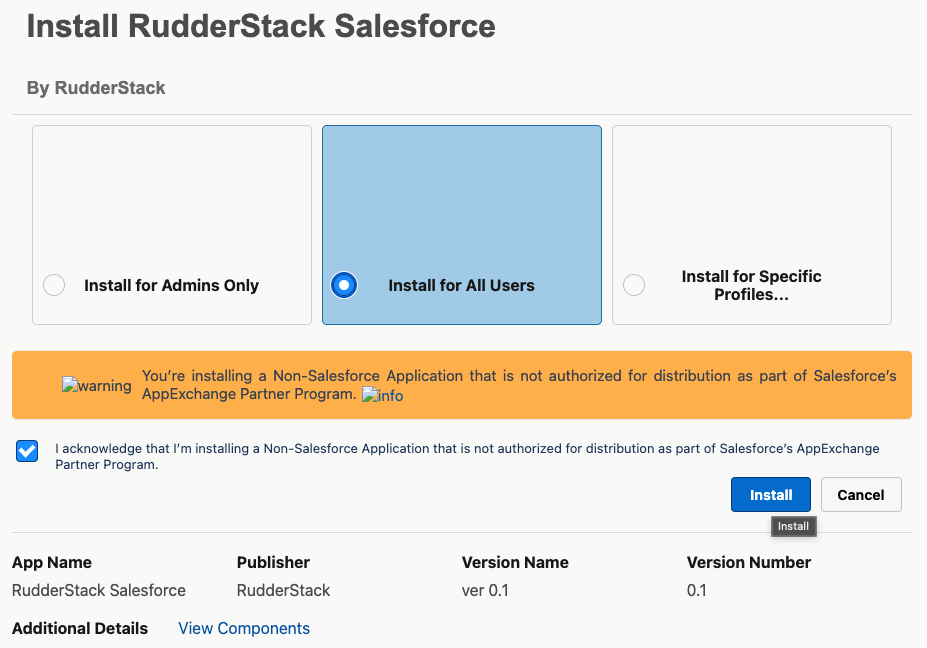
Optional but recommended: Create a new Salesforce account to use with RudderStack to protect any confidential information in your existing Salesforce account.
- To give RudderStack the required API permissions, add a new user account in your Salesforce dashboard by going to Setup > Administration Setup > Users > New User and select System Administrator as the profile type.
Make sure to turn off two-factor authentication for your Salesforce account so that RudderStack can authenticate successfully.
Make sure the Salesforce objects are searchable and fields are creatable before sending events. Otherwise, it can result in errors during event transformation or delivery.
Connection compatibility
| Destination Information | |||
|---|---|---|---|
| |||


Setup
In your RudderStack dashboard, add a source. Then, from the list of destinations, select Salesforce v2.
Connection settings
| Setting | Description |
|---|---|
| Name | Assign a name to uniquely identify the destination in RudderStack. |
| Event delivery account |
|
The previous Salesforce OAuth account type is now deprecated.
- Your existing Salesforce connections continue to work as long as no changes are needed — events will keep flowing normally.
- You cannot create new accounts, edit, or re-authorize with the deprecated account type. - Any time you need to update or re-authorize your Salesforce connection, you need to use the new ECA-based account type.
RudderStack recommends migrating proactively so the switch happens on your schedule, not in response to an urgent change.
Configuration settings
| Setting | Description |
|---|---|
| Map RudderStack properties to Salesforce properties | This setting is toggled on by default and lets you map the RudderStack event properties to the corresponding Salesforce fields. |
| Use contact ID for converted leads | Toggle on this setting if both the lead and contact fields are the same. |
| Consent management settings | Specify the Consent management provider from the dropdown and enter the corresponding consent category IDs. See the Consent Management guide for more information on configuring the consent settings. |
Next steps
FAQ
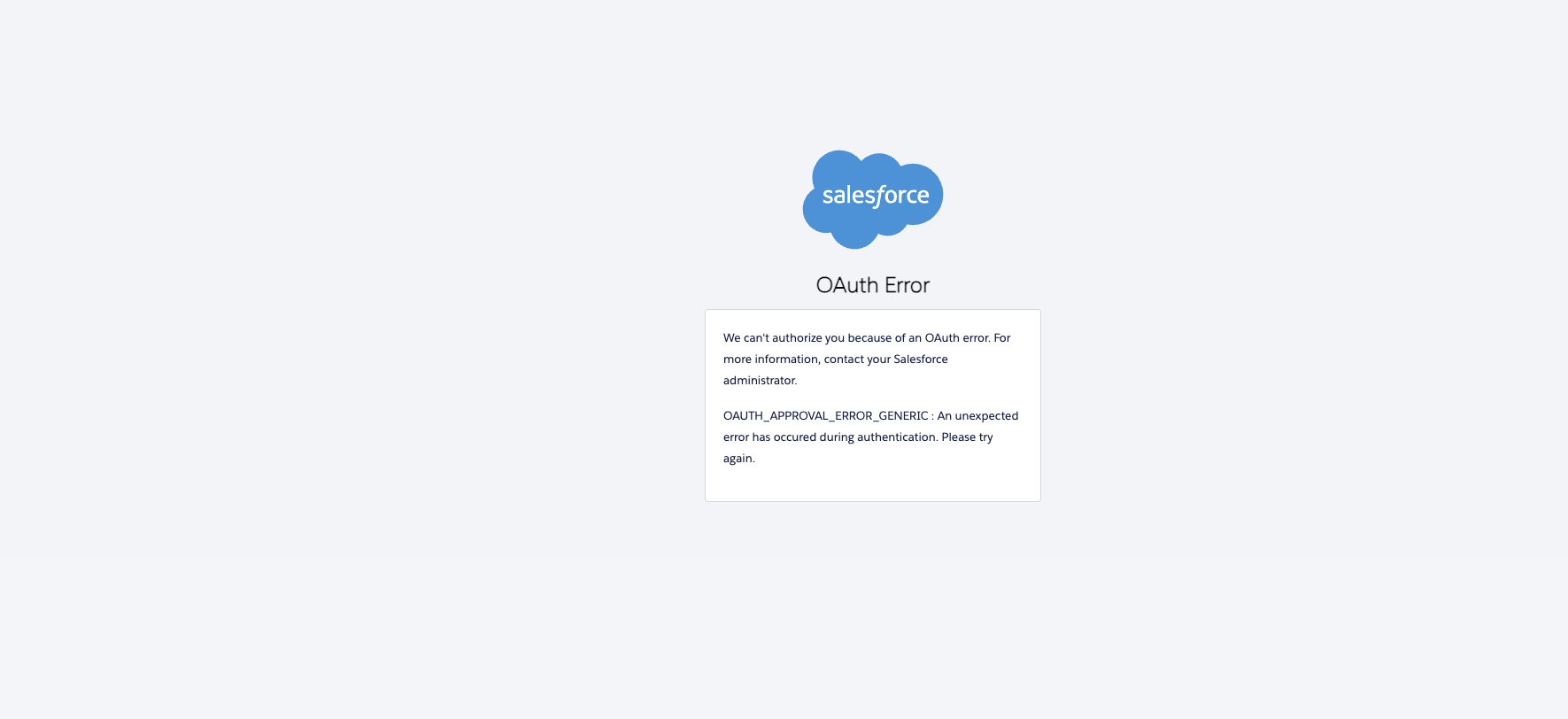
Why am I getting an OAuth error during setup?
If you encounter an OAuth error while connecting to Salesforce:
- Make sure you have installed the RudderStack ECA package in your Salesforce org.
- If the error persists, verify that the user account has the Approve Uninstalled Connected Apps permission.
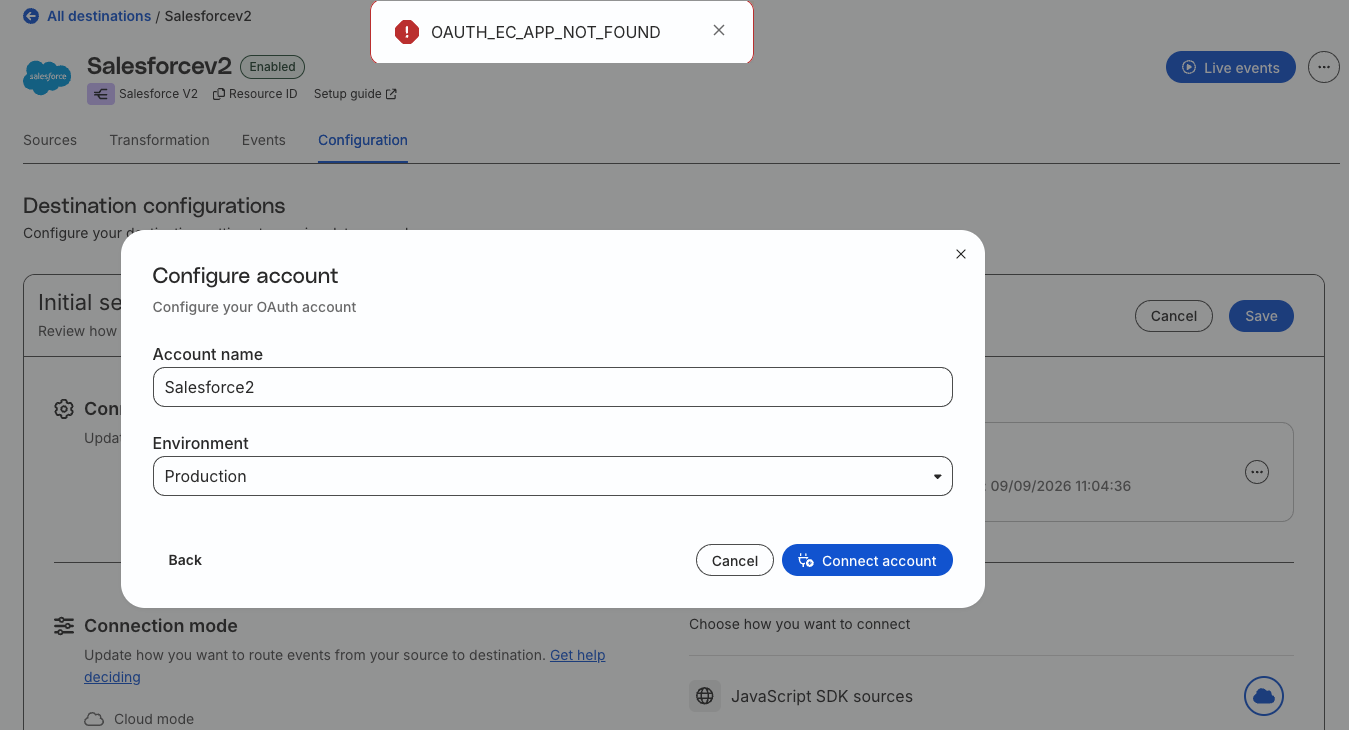
Why am I getting an OAUTH_EC_APP_NOT_FOUND error while setting up the destination?
This error means the RudderStack External Client App (ECA) package is not installed in your Salesforce org. Install the package, then retry the OAuth connection.
What is the impact of deprecating the previous Salesforce OAuth account type on existing connections?
| State | Behavior |
|---|---|
| Existing Salesforce accounts (deprecated type) | Continue to work as long as no changes are needed — events flow as before |
| Creating a new Salesforce account | Must use the new ECA-based account type |
| Editing a deprecated account | Not allowed |
| Re-authorizing a deprecated account | Not allowed — create a new account instead |
| Reusing a deprecated account on a new destination | Not allowed |
Which Salesforce Edition should I use to access the API?
Before connecting to the Salesforce API with RudderStack, make sure you are using the right Salesforce edition. You must have either the Enterprise, Unlimited, Developer, or Performance editions to access the API.
See this Salesforce help article for more information.
How do I check the number of Salesforce API calls left for the day?
To check the number of Salesforce API calls, go to Setup > Administration Setup > Company Profile > Company Information. You should then be able to see a field called API Requests, Last 24 Hours, which contains the number of API calls left for the day.
Does RudderStack support dev instances of Salesforce?
No, RudderStack does not support Salesforce dev instances (for example, https://companyabc-dev-ed-develop.lightning.force.com/) currently.
How to fix “No such column ‘X’ on object of type Y” errors?
If event delivery to Salesforce fails due to the non-existence of a provided field - even though the field does exist - check the field-level security settings for that field in Salesforce.
When the field is not marked as visible to the role your RudderStack Salesforce user is using, you will get this error. To fix it, make the field visible to the appropriate role.
